
Storefront Filtering: Attribute Mapping for OS 2.0
If your Shopify filters are missing, split, or messy, the problem is usually the source field, the data format, or the theme. I’d fix those three areas first.
Here’s the short version:
- I’d use Shopify’s built-in filter sources first, then use product metafields when I need product-level details.
- I’d avoid messy inputs like mixed casing, free-text values, and mixed units like inches and centimeters.
- I’d choose only supported metafield types for filters, such as text, number, boolean, and metaobject reference.
- I’d check that the theme template used on live collection pages actually shows the filter block.
- I’d review filter data on a set schedule - monthly for fast-changing catalogs and quarterly for steadier ones.
A few numbers make the issue plain. If just 10% to 20% of products are missing a filter value, that filter can feel broken to shoppers. And if one color appears as “Blue,” “blue,” and “Navy Blue,” Shopify treats them as separate values.
Quick Comparison
| Filter source | Best for | Main risk |
|---|---|---|
| Standard fields | Price, availability, vendor, product type, category | Limited to Shopify’s preset fields |
| Product metafields | Material, dimensions, weight, fit | Bad data entry splits values |
| Category metafields | Taxonomy-based category data | Poor fit for product-by-product differences |
If I wanted clean OS 2.0 filters, I’d keep one source of truth for each attribute, format values the same way across the catalog, and make sure the theme is not hiding the result.
Collection Filters in Shopify 2.0 - Full Tutorial & Concepts
sbb-itb-e8e54fb
Product attributes that can power OS 2.0 filters
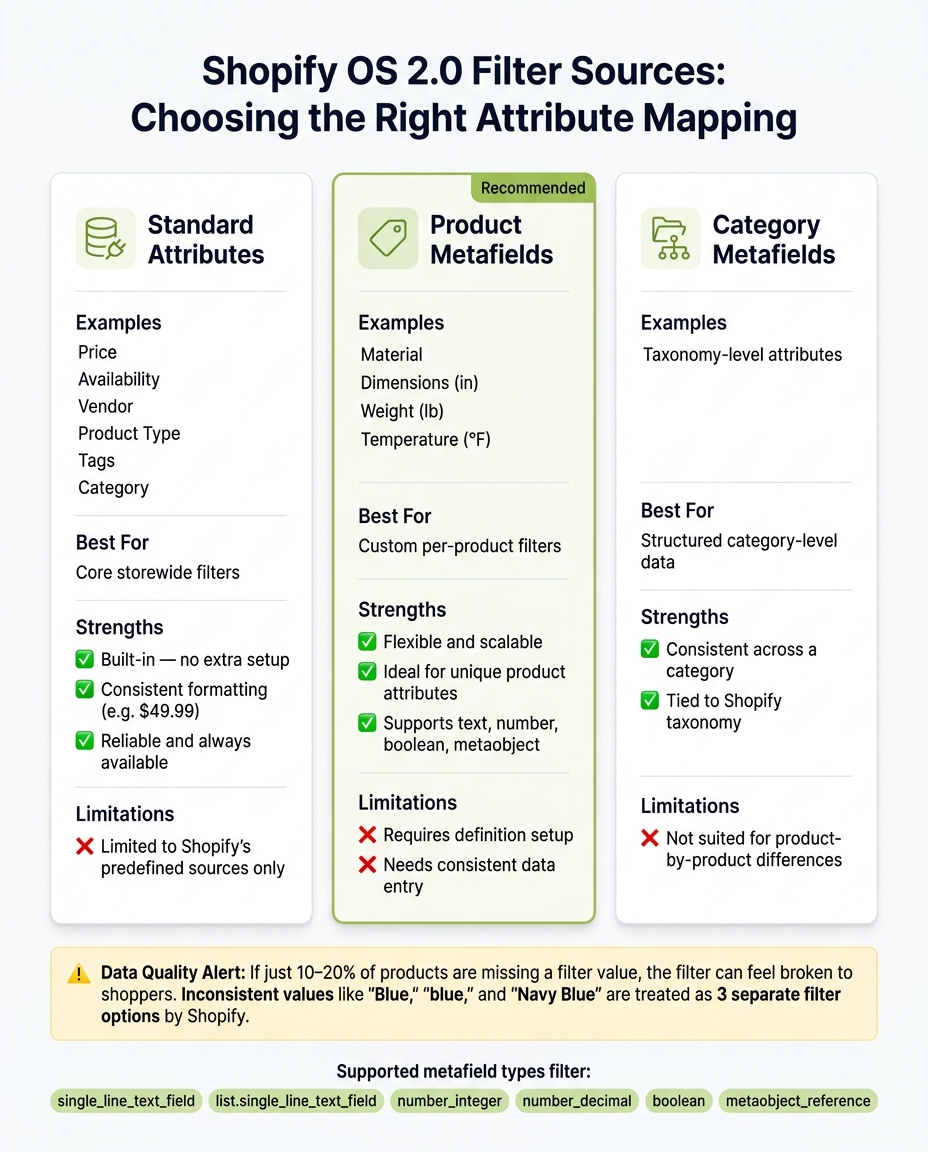
Shopify OS 2.0 Filter Sources: Which Attribute Mapping Is Right for You?
Start with the right source field. Filter quality comes from what you map first, not just how it looks on the storefront. In most cases, that means using Shopify's built-in filter sources before you reach for metafields. If the standard fields don't cover the attribute you need, then add metafields.
Standard filter sources in Shopify
Shopify includes several built-in filter sources: Availability, Price, Product type, Vendor, Tags, Category, and Variant options. These all pull from product data you already have.
The Price filter shows localized currency formatting, such as $0–$49.99. Product type and Vendor show the exact values entered on each product record.
Tags need extra care. If you mix internal labels with shopper-facing terms, your filters can get messy fast.
Pick the source that fits the way the attribute is structured and the way people search. If a built-in source feels too rigid, that's the point where metafields make sense.
Product metafields vs. category metafields
Use product metafields for attributes that change from product to product, like material, weight, or temperature rating. Use category metafields for standardized attributes connected to Shopify's taxonomy.
For storefront filtering, product metafields are usually the right choice because filters need detailed, per-product values.
| Attribute type | Best use case | Strengths | Limitations |
|---|---|---|---|
| Standard attributes (Price, Availability, Vendor, Product type, Tags, Category) | Core storewide filters | Built in, no extra setup, consistent formatting such as $49.99 | Limited to Shopify's predefined sources |
| Product metafields | Material, dimensions (in), weight (lb), temperature (°F) | Flexible, scalable, ideal for custom filters | Requires definition setup and consistent data entry |
| Category metafields | Taxonomy-level attributes | Structured and consistent for category-level data | Not suited for attributes that vary product by product |
Even with the right source, sloppy data will weaken the filter.
How data quality affects filter output
Filters only appear when values are complete and consistent across products. If material is stored as "Cotton", "cotton," and "100% cotton," Shopify treats those as three separate filter options. That splits the filter and makes it harder for shoppers to use.
Units can also cause problems. Mixed units lead to bad ranges. For U.S. stores, stick to inches, pounds, °F across every product. Use a period as the decimal separator, like 10.5, and leave unit suffixes out of numeric metafields.
How to map attributes to filters in Search & Discovery
In Shopify Search & Discovery, go to Filters, click Add filter, and choose the source field. That one choice decides which values can show up in the storefront filter. If you pick the wrong source, the filter won’t line up with the cleaned data from the last step.
Select the right source field when adding a filter
The Source dropdown includes standard sources like price, availability, vendor, product type, tags, category, and variant options. It also includes product metafields, variant metafields, and category metafields.
Use product metafields when you need product-level details like body fit or thread count. Use category metafields when the filter should change based on the product category.
Pick the right metafield type for clean filter values
Shopify only supports a limited set of metafield types for storefront filtering:
single_line_text_fieldlist.single_line_text_fieldnumber_integernumber_decimalbooleanmetaobject_reference
Use single_line_text_field for controlled text values like Material, such as Cotton or Linen. Use number_integer or number_decimal for numeric attributes like Thread Count or Weight.
Use list.single_line_text_field when a product needs more than one text value, like several sizes. Each value is treated as its own filter entry. That means one product can match more than one filter value.
Next, group duplicate values before shoppers see them.
Group values and set up swatches
Once the source is mapped, clean up how the values appear. Click Manage values to review the raw values coming in from the source field. Use Automatic grouping as a first pass, then move to Manual grouping for brand-specific merges.
For color filters, turn on Include swatch in Manage values to show color chips instead of text labels. Turn on Use images when available only if every color value already has a matching image source. If hex codes or image references aren’t consistent, swatches can show up wrong - or not show up at all.
Check theme support and fix missing filters
Once the attribute is mapped, make sure the theme can actually show it. After Search & Discovery mapping, the next step is simple: check whether your theme renders storefront filters.
Confirm the theme renders storefront filters
Start in Shopify admin. Go to Content → Menus → Collection and search filters. Shopify will flag themes that don't support filters here.
If the theme does support filters, head to Online Store → Themes → Customize. Open the live collection and search templates, then check that a filter sidebar or drawer is turned on. If that block is off or tucked away, filters won't show on the storefront even when Search & Discovery is set up the right way.
One more thing: make sure you're editing the same template the live page uses. Custom collection templates can override the default layout. So if you add a filter block to one template, it still won't appear on a collection tied to another template.
Common mapping mistakes and how to fix them
When filters show up in the app but not on the storefront, this is usually where things go sideways. The table below shows the symptom, the cause, and what to do next.
| Mistake | Storefront symptom | Root cause | Fix |
|---|---|---|---|
| Empty metafields | Filter appears but shows no values | The source field isn't populated across products | Fill in the attribute for all relevant products before mapping |
| Inconsistent naming | The same attribute splits into multiple filter values, such as "Blue", "blue", and "Navy Blue" | No naming convention is enforced at data entry | Normalize values to a controlled list before mapping |
| Wrong source field | Filter shows unrelated or unexpected values | The filter points to the wrong metafield or variant field | Recheck the source field in Search & Discovery and align it with the correct attribute |
| Mixed units | Filter buckets fragment for the same dimension | Some products use inches and others use centimeters | Standardize to one unit - for a U.S. store, use imperial units such as inches or pounds across the catalog |
| Options vs. metafields conflict | Duplicate or inconsistent values appear in the filter | Both a product option and a metafield store the same attribute differently | Pick one canonical source and make it authoritative |
| Too many unique values | The filter feels cluttered and hard to use | Free-text or SKU-level data is being used as a filter source | Replace it with a controlled value set and avoid free-form fields for storefront filters |
A good way to debug this is to move step by step:
- Confirm the filter exists in Search & Discovery
- Check that the source field is populated and cleaned up
- Review the theme templates
- Test the result on desktop and mobile
Here’s the plain-English version. If the filter exists in Search & Discovery but not on the page, the theme is probably hiding it. If it shows up with split or odd values, the issue is usually the source field or the data inside it.
If the theme looks fine, audit the source data next.
Keep filters reliable with regular attribute audits
Once filters are mapped and live, audits help keep them in shape as the catalog changes.
Filters tend to drift over time. Products get added, fields change, and clean data can slowly turn messy. That’s why recurring audits matter - monthly for fast-moving catalogs and quarterly for more stable ones.
What to check in a recurring filter audit
The goal is simple: catch issues before shoppers run into them.
Start with attribute coverage. Every active filter should be filled in for nearly all products inside each key collection. If a filter exists but only works for part of the catalog, it creates friction fast.
Then look for too many unique values. Say your "Color" attribute has hundreds of entries, but your catalog only needs a small controlled set. That usually means the field is being used like free text, and the values need normalization.
Last, verify U.S. formatting. Use dollars, commas for thousands, periods for decimals, and imperial units where they apply.
Use FacetGuard to find filter blockers faster
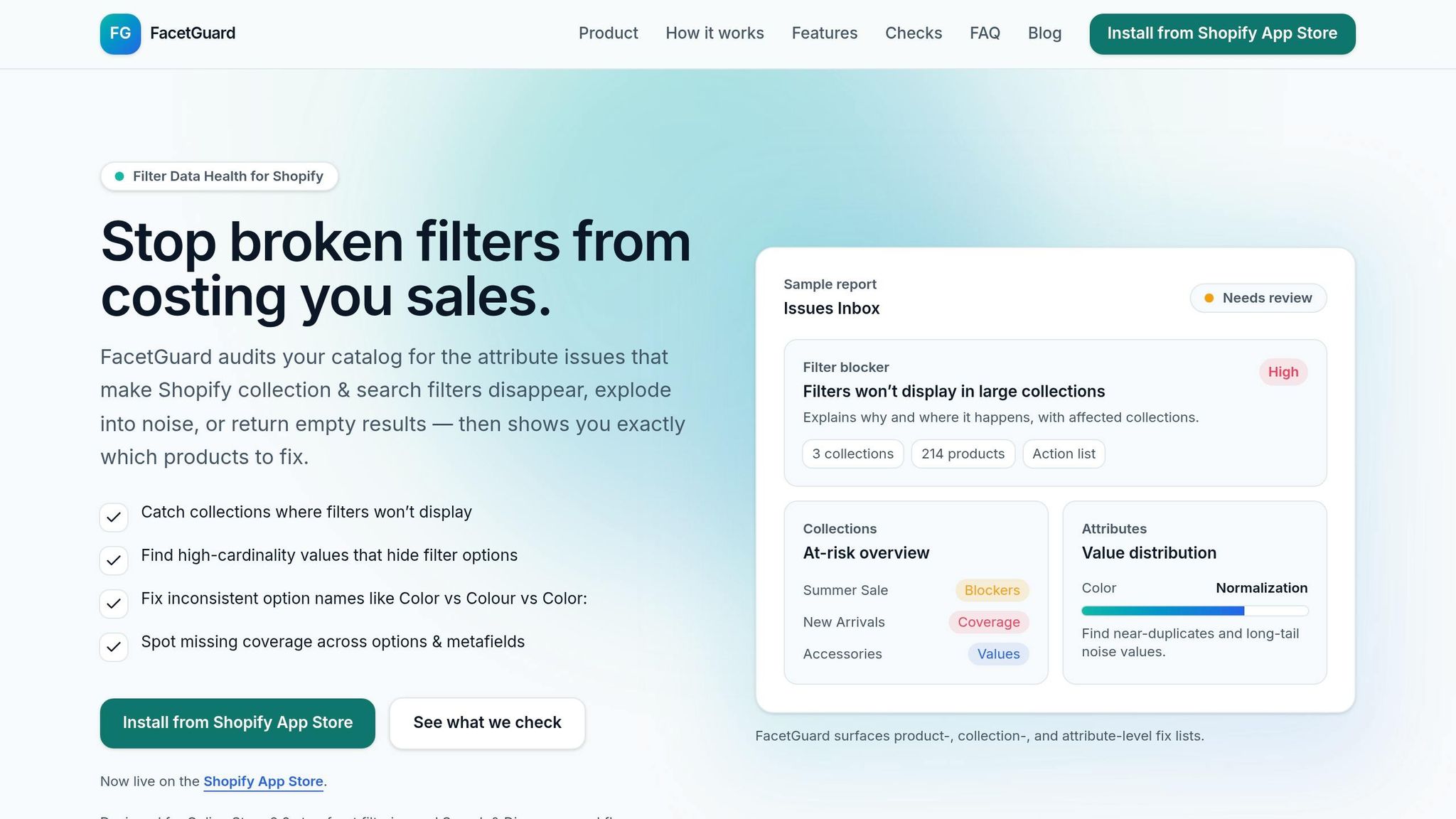
Manual checks can do the job, but a structured audit tool makes triage much easier.
FacetGuard flags empty attributes, inconsistent values, and configuration mismatches. It also shows which collections are blocking filters and exports fix lists for your team.
With blockers flagged, the next job is keeping the mapping rules consistent.
Key takeaways for OS 2.0 attribute mapping
OS 2.0 filtering comes down to four things: the right source field, clean metafield types, theme support, and regular audits.
FAQs
Why are my Shopify filters missing on live collection pages?
Missing filters usually come down to setup or data problems.
First, check the collection size. If the collection has more than 5,000 products, Shopify turns filters off for that collection.
Then look at your theme settings. Filtering needs to be turned on in the theme editor for that collection template.
It also helps to double-check your metafields:
- Use a supported metafield type
- Add the metafield in Search and Discovery
- Turn on storefront access
- Make sure the metafield values match the product values exactly
If everything looks right but the filters still don’t show up, it may just be an indexing delay. Updates can take 24 to 48 hours.
Should I use product metafields or standard Shopify fields for filters?
Prioritize product metafields over tags for storefront filters in OS 2.0 themes.
Here’s why: tags are loose and easy to pile up, which often leads to messy, overlapping filter choices on the storefront. Product metafields are much cleaner. They support strict type validation, so your filters stay consistent instead of turning into a grab bag of similar terms.
Standard Shopify fields like price, vendor, and availability are a good fit for basic filters. They work well out of the box and cover the most common needs.
For more specific product details, use product metafields instead of variant metafields. In practice, product metafields tend to work more reliably for filtering, while variant metafields can be less dependable.
How do I stop filter values from splitting into duplicates?
Standardize your product data so each attribute follows one consistent format. In Shopify, small differences like "Blue" vs. "blue" or "M", "Med," and "Medium" are treated as separate values. That can lead to duplicate filters and a messy storefront.
A few Shopify tools can help clean this up:
- Shopify Bulk Editor lets you line up attribute names across many products at once.
- Group Values in Search & Discovery lets you merge value variations into one filter option.
- Predefined List of values for metafields cuts down on manual entry mistakes.
If you want to spot the biggest issues first, FacetGuard can audit these inconsistencies and help you decide what to fix first.