How Product Attributes Impact Shopify Filters
If your product data is messy, your Shopify filters will be messy too. I’d sum it up like this: Shopify can only build filters from fields it can read, and those fields need clean, matching values.
Here’s the short version:
- Price and availability work on their own
- Product type, vendor, tags, category, options, and metafields need the right setup
- Variant options like Color and Size work best when they change the SKU
- Metafields work best for structured details like Material, Width, or Fit
- Missing values can make filters weak or make them disappear
- Inconsistent naming like “Blue” vs. “blue” splits results
- Overloaded values like
red-cotton-shirt-mediumbreak clean filtering - Shopify supports up to 1,000 filter values for options and attributes, but filters often get messy long before that
- Filter groups use AND, while values inside one filter use OR
I’d also keep one rule in mind: <u>one attribute should describe one thing</u>. If one field tries to hold color, size, and material all at once, shoppers get poor results.
At a practical level, the fix is simple:
- use the right field type
- standardize names
- fill empty values
- audit in bulk
- test filters before rolling them out
For larger catalogs, I’d also use a tool like FacetGuard to spot missing values, duplicate labels, and collections where filters fail.
In short, better attributes lead to better filters, better browsing, and fewer lost products in search results.
How To Add Product Filters In Shopify (Filtering)

sbb-itb-e8e54fb
How Shopify Product Attributes Map to Filter Sources
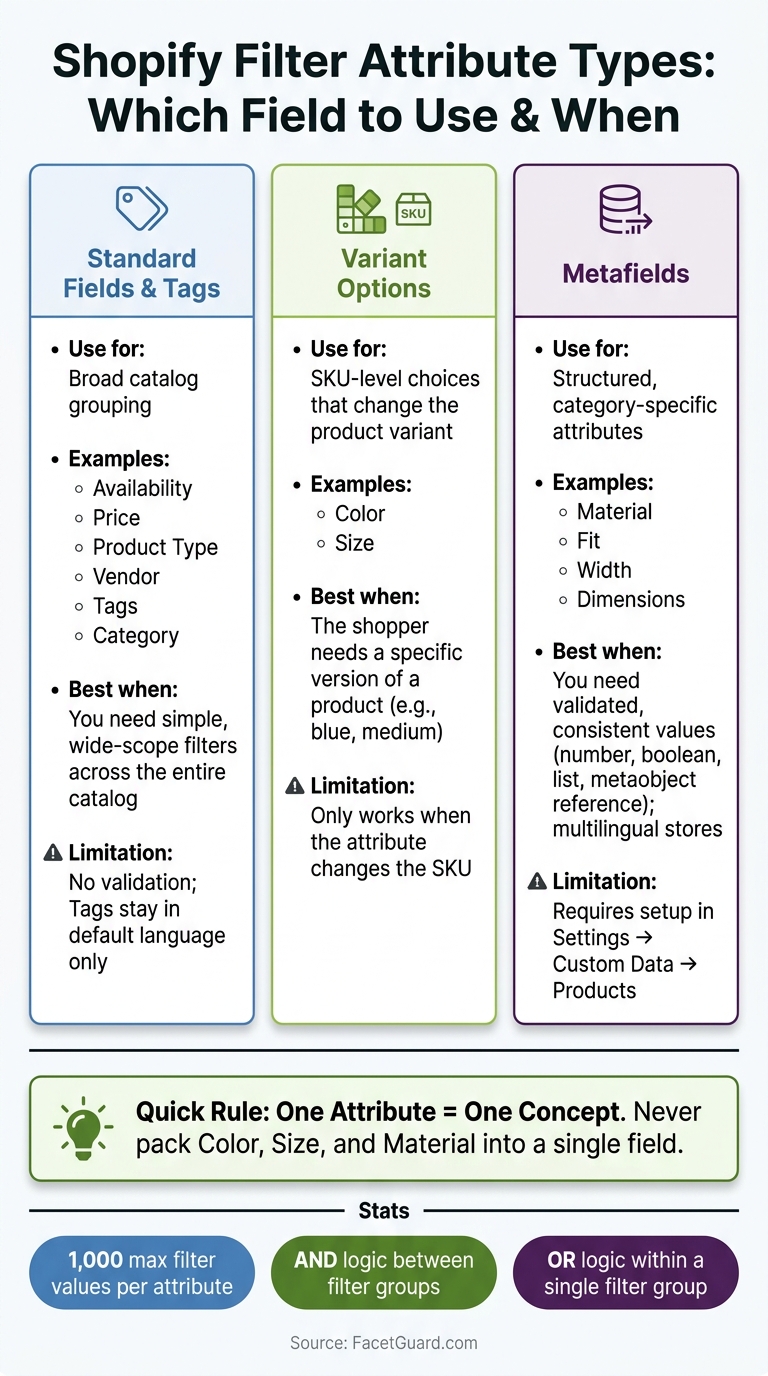
Shopify Filter Attribute Types: Which Field to Use & When
Shopify filters pull from different attribute types, and each one has its own job. If you use the right field for the right filter, your filter set stays clean and your results make sense. The goal is simple: match each filter to the Shopify field type that was built for it.
Standard Attributes, Options, Tags, and Metafields
Shopify's built-in filter sources include Availability, Price, Product type, Vendor, Tags, and Category. Vendor and Product type work well for broad catalog grouping, like brand and category.
Variant options such as Color and Size filter at the SKU level and can take shoppers straight to the matching variant. That matters when the shopper doesn't just want a product - they want the blue, medium version of that product.
Product metafields are where you put structured attributes that don't belong in product options or standard fields, like Material, Fit, or Width. Shopify supports text, list, number, boolean, and metaobject metafields for filtering.
A simple way to think about it:
- Use product fields for broad labels
- Use variant options for SKU-level choices
- Use metafields for structured attributes
When to Use Metafields Instead of Tags or Options
The choice between tags, options, and metafields comes down to structure. Variant options make sense when the attribute changes the SKU. Tags are fast to add and fine for simple filter labels, but they don't give you validation or tight control.
Metafields do. Because they support set data types, you can make sure a Width value is always a number and that Material always comes from a fixed list through metaobject_reference, which helps keep filter values consistent. That's a big deal once your catalog starts to grow. Without that structure, things can get messy fast - "Cotton", "cotton", and "Cotton Blend" can turn into three separate filter values before anyone notices.
For multilingual stores, metafields also have a clear edge. Tags and Vendor stay in the store's default language, while metafields support translations.
Wrong field types lead to gaps, duplicate values, and messy filter results.
Attribute Problems That Cause Missing, Broken, or Misleading Filters
Even if your field types are set up the right way, filters can still fall apart when the data inside those fields is messy. In plain English: good filter performance depends on clean attribute data, not just the field setup.
Missing Values and Inconsistent Naming
Missing values can make filters thin, confusing, or invisible. If the source behind a filter is empty across most products in a collection, the filter may barely show up - or not show up at all. Shopify hides filter values that have no matching products, and if every value is empty, the filter disappears from view entirely.
Inconsistent naming makes this worse. "Blue" and "blue" are treated as two separate filter values. That splits product counts and can keep matching items out of the results shoppers expect to see. The same goes for attribute names themselves. Pick one exact option name, such as Color, and use it the same way across the catalog.
The fix is simple, but it takes discipline: use one standard value for each concept and apply it the same way everywhere.
Then there’s the flip side of missing data: too many separate values, or values that try to do too much at once.
High-Cardinality Attributes and Overloaded Values
High-cardinality attributes - attributes with too many distinct values - can turn into clunky filters. Shopify supports up to 1,000 unique values for product options and attributes in its filter system. But long before you hit that cap, things can start to get messy. Near-duplicate values, or internal size codes, may make sense behind the scenes, but they usually don’t belong in customer-facing filters.
Overloaded values cause a different kind of mess. A tag like "red-cotton-shirt-medium" crams color, material, product type, and size into one field. Shopify can’t break that apart into clean, separate filters. So instead of a smooth browsing experience, shoppers get something noisy and harder to trust.
Filters should match how shoppers search, not how your catalog is coded.
A simple rule helps here: one attribute per concept. When values are overloaded or packed with too many one-off entries, filters get harder to use and harder to maintain.
These issues are much easier to spot during a bulk audit, which is usually where cleanup begins.
How to Fix and Maintain Attributes So Shopify Filters Stay Reliable
Knowing what breaks filters is only half the job. The other half is having a simple process to fix issues and stop them from popping up again as your catalog grows. The goal is to turn those attribute rules into a repeatable cleanup workflow.
Set Up Filter-Ready Attributes in Shopify
Once each attribute has a single purpose, set it up in Shopify the right way. In Settings → Custom data → Products, create metafield definitions for custom filterable attributes. Use text fields for labels and numeric fields for measurements. Stick with Shopify-supported metafield types so the filters work as expected.
Then open the Shopify Search & Discovery app, go to Filters, and add each filter. Use U.S. labels and units, such as Color, Weight (lb), Dimensions (in), and Price.
Audit Products in Bulk for Coverage and Consistency
Before you push any filter changes live, check what’s actually in your catalog. In Products → All products, customize the column view so you can see Color, Size, Material, and any related metafields. Then apply filters like Color is empty or Material is empty to spot products with missing values.
Use the bulk editor to fill those gaps and clean up naming. For example, if your catalog has entries like blk, charcoal, and dark gray, standardize them to one approved term like Black or Gray. That one step can clean up a messy filter fast.
It also helps to sort by each attribute to catch leftovers. Exporting to a CSV is another smart move. A quick value count in a spreadsheet shows the full spread before you lock in changes. That’s handy for spotting high-cardinality cases and overloaded values that should be split into separate fields. After that, test the updated filters on one collection first before rolling them out more broadly.
Use FacetGuard to Find Filter Blockers and Prioritize Fixes
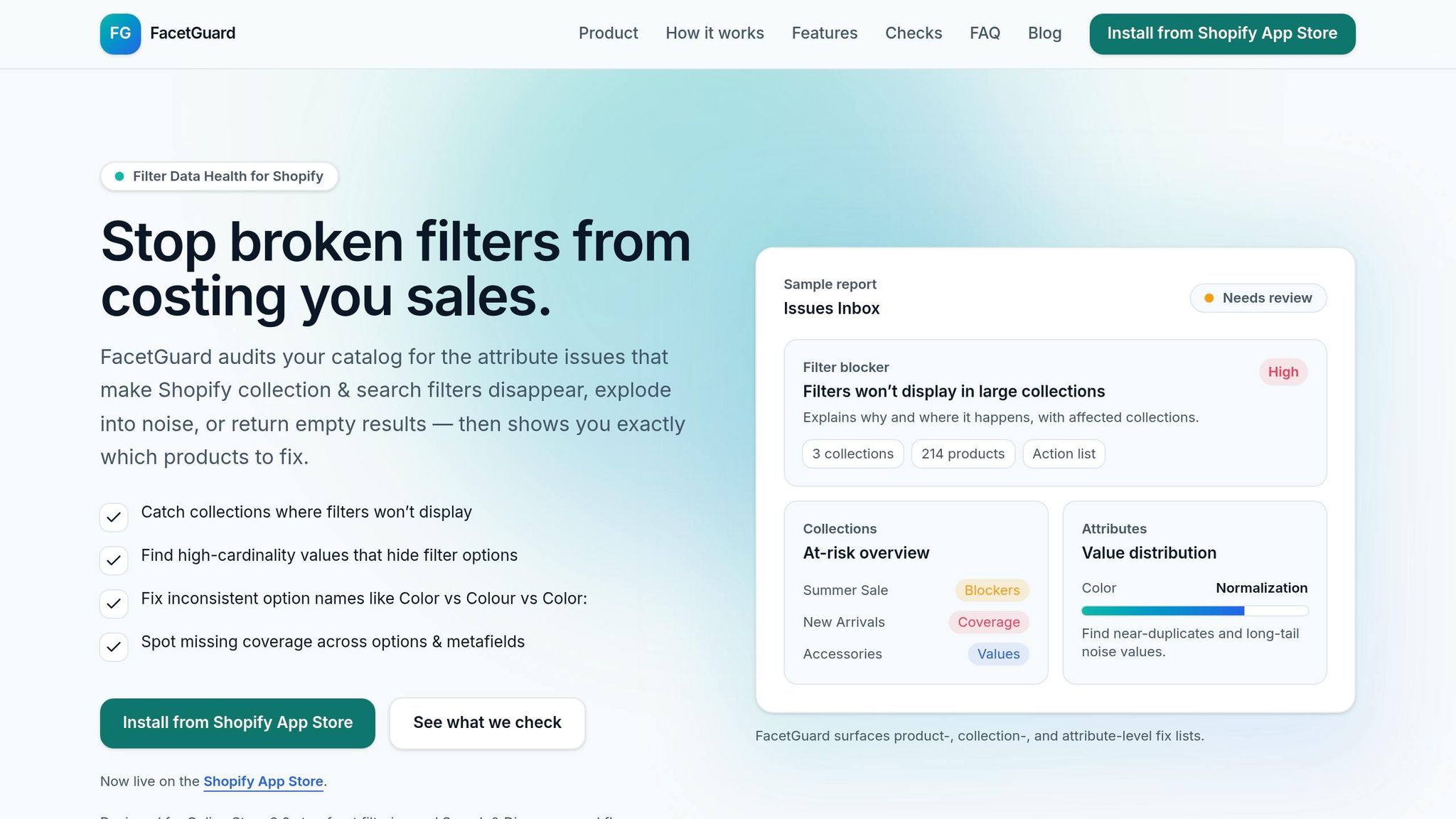
At some point, manual cleanup starts to drag. That’s where FacetGuard comes in. It finds filter blockers across your catalog and turns them into a prioritized fix list, so you know what to tackle next instead of guessing.
Here are the issues that show up most often, what they do to Shopify filters, and how to fix them:
| Issue Type | Impact on Shopify Filters | Recommended Fix |
|---|---|---|
| Missing attribute values (Color, Size, Material) | Filters don't appear or show incomplete results; products are invisible when shoppers filter | Bulk fill required attributes using FacetGuard's missing-value reports and Shopify's bulk editor |
| Inconsistent option/metafield names | Filters show duplicated or confusing options, fragmenting results | Define a canonical value list; use FacetGuard's normalization suggestions to remap to approved names |
| High-cardinality attributes | Filters become long, noisy menus with too many low-frequency values | Collapse similar values into broader, shopper-friendly categories; re-sync filters in Search & Discovery |
| Overloaded values (multiple concepts in one field) | Filters can't cleanly separate distinct attributes, causing ambiguous results | Split into separate fields using dedicated metafields for each concept |
| Collections where filters don't appear | Shoppers can't use expected filters | Use FacetGuard to identify affected collections; verify Search & Discovery settings and fill data gaps |
Start with the items that hurt filter performance the most, then rerun the audit.
Conclusion: Better Attributes Lead to Better Shopify Filters
The core lesson is simple: Shopify filters only work when your product attributes are clean, complete, and consistent.
Use standard attributes and variant options for broad filters. Use metafields for structured, category-specific filters. When values are missing, names don’t match, or one field is doing too many jobs, filters start to fail. Products get split across near-duplicate values or disappear from results altogether.
As catalogs get bigger, attribute drift is common. That means audits can’t be a one-time cleanup. They need to happen on a regular basis.
FacetGuard helps surface missing values, naming issues, and overloaded fields in priority order.
FAQs
Why are my Shopify filters missing?
Shopify filters usually disappear for a few simple reasons: messy product data, setup mistakes, or Shopify limits.
Here’s what that looks like in practice. Filters can go missing when product names or attribute labels aren’t consistent, when attribute values are blank, when a metafield type isn’t supported, when theme filters are turned off, or when the Search & Discovery app isn’t mapped the right way.
Shopify also has hard limits that can affect filters. Problems can show up when a collection has more than 5,000 products or when search results go past 100,000 items.
FacetGuard can audit these attribute issues and point out what needs fixing.
Should I use tags, options, or metafields?
Prioritize metafields over tags or options if you want a cleaner filtering setup that can scale without turning into a mess.
Here’s the simple version: metafields give you structured, validated data. Tags don’t. And that matters.
Tags often start out fine, then drift. One person adds “Waterproof,” another adds “water-proof,” and someone else uses “rain safe.” Before long, your filters overlap, miss products, or confuse shoppers. It’s the kind of small problem that snowballs.
Use options for core product variations like size and color. Use metafields for custom attributes that don’t belong as variants.
To keep filters in good shape over time:
- audit attribute gaps
- standardize naming
- use FacetGuard to spot the issues behind broken or misleading filters
That way, your filtering system stays clean, easier to manage, and far less likely to send shoppers down the wrong path.
How often should I audit product attributes?
Audit product attributes on a regular basis so your filters keep working and shoppers can move through your store without friction. Tools like FacetGuard can watch your catalog in real time, which helps catch issues early, but it’s still smart to do a manual review once a month.
If your zero-result search rate climbs past 2% to 3%, move that audit up. Start with your top-selling products and highest-traffic collections, since that’s where filter issues tend to hit hardest.