How Catalog Health Impacts Shopify Filters
Bad product data breaks Shopify filters. If your catalog has missing fields, split naming like "XL" vs. "Extra Large," or stale stock data, shoppers get wrong results, hit dead ends, and leave.
I’d sum it up like this: Shopify filters depend on clean product, variant, and metafield data. When that data is complete, consistent, and set up in supported field types, filters show the right options and the right product counts. When it isn’t, products get hidden, filter menus get messy, and collection page performance can drop.
A few points stood out to me:
- 44% of shoppers have left a purchase because product information was not enough.
- 75% form a negative view of a brand when product info is incomplete or wrong.
- Shopify filters rely on data like availability, price, variant options, tags, product type, vendor, category, and metafields.
- Common filter problems come from four catalog issues: missing data, inconsistent values, bad field setup, and weak catalog coverage.
- The main signs show up in metrics like filter usage, exit rate, zero-result rate, PDP bounce-back, and category conversion rate.
- One cleanup is not enough. New imports and product launches can bring the same problems back.
In plain English: if you want filters to help shoppers find products fast, I’d make catalog checks part of normal store upkeep. Clean attributes lead to cleaner filters, fewer false results, and fewer missed product views.
Collection Filters in Shopify 2.0 - Full Tutorial & Concepts
sbb-itb-e8e54fb
How Shopify Filters Depend on Structured Catalog Data
Shopify filters rely on structured product fields. When those fields are incomplete or inconsistent, filters can vanish, show the wrong product counts, or return poor results. This is the structural side of catalog health, and it shapes whether shoppers can narrow down products at all.
Which data sources power Shopify filters
Shopify storefront filters are powered by eight primary sources across product and variant levels:
| Filter Source | Level | What Shoppers Can Filter By |
|---|---|---|
| Availability | Variant | In stock vs. out of stock |
| Price | Variant | Budget ranges using minimum and maximum values |
| Variant Options | Variant | SKU-level attributes like Size, Color, or Material |
| Product Tags | Product | Custom labels assigned to products |
| Product Type | Product | Merchant-defined categories (e.g., "Boots", "Belts") |
| Vendor | Product | Brand or manufacturer name |
| Category | Product | Shopify's standard taxonomy IDs |
| Metafields | Product and variant | Custom attributes like "Sustainability Rating" or "Fit" |
Filters use AND logic across different filter types and OR logic within the same filter type. That means a shopper who selects Color = Blue and Size = Medium will only see products that match both. But if they choose Red or Blue within Color, Shopify returns products that match either value.
This setup sounds simple, but it depends on clean catalog data. If your Color field says "Blue" on one product, "Navy" on another, and "blu" on a third, the filter starts to fall apart.
Shopify allows up to 25 filters, so it makes sense to focus on the attributes that matter most to shoppers. When these inputs are incomplete or inconsistent, filters turn missing, noisy, or misleading.
What makes an attribute filter-ready
An attribute is filter-ready only if Shopify supports its field type and its values stay consistent across products.
For metafields, Shopify supports only these types for filtering: single_line_text_field, list.single_line_text_field, metaobject_reference, list.metaobject_reference, number_integer, number_decimal, and boolean. If a metafield uses an unsupported type, Shopify won't make it available as a filter.
| Attribute State | Characteristics | Impact |
|---|---|---|
| Filter-ready | Supported metafield types such as boolean and list.single_line_text_field; normalized, consistent values |
Accurate product counts and reliable shopper refinement |
| Not filter-ready | Unsupported metafield types; inconsistent naming such as "XL" vs. "Extra Large"; few one-off values | Broken or missing filters; "No results found" errors |
In plain English, a filter-ready attribute is one Shopify can read cleanly and apply across the catalog without confusion. A messy attribute does the opposite. It creates gaps, splits similar values into separate buckets, and makes the filter panel less useful.
Standardized values are what make filters dependable. And when things go wrong, the storefront filter panel is usually the first place you’ll notice it.
Common Filter Failures Caused by Poor Catalog Data
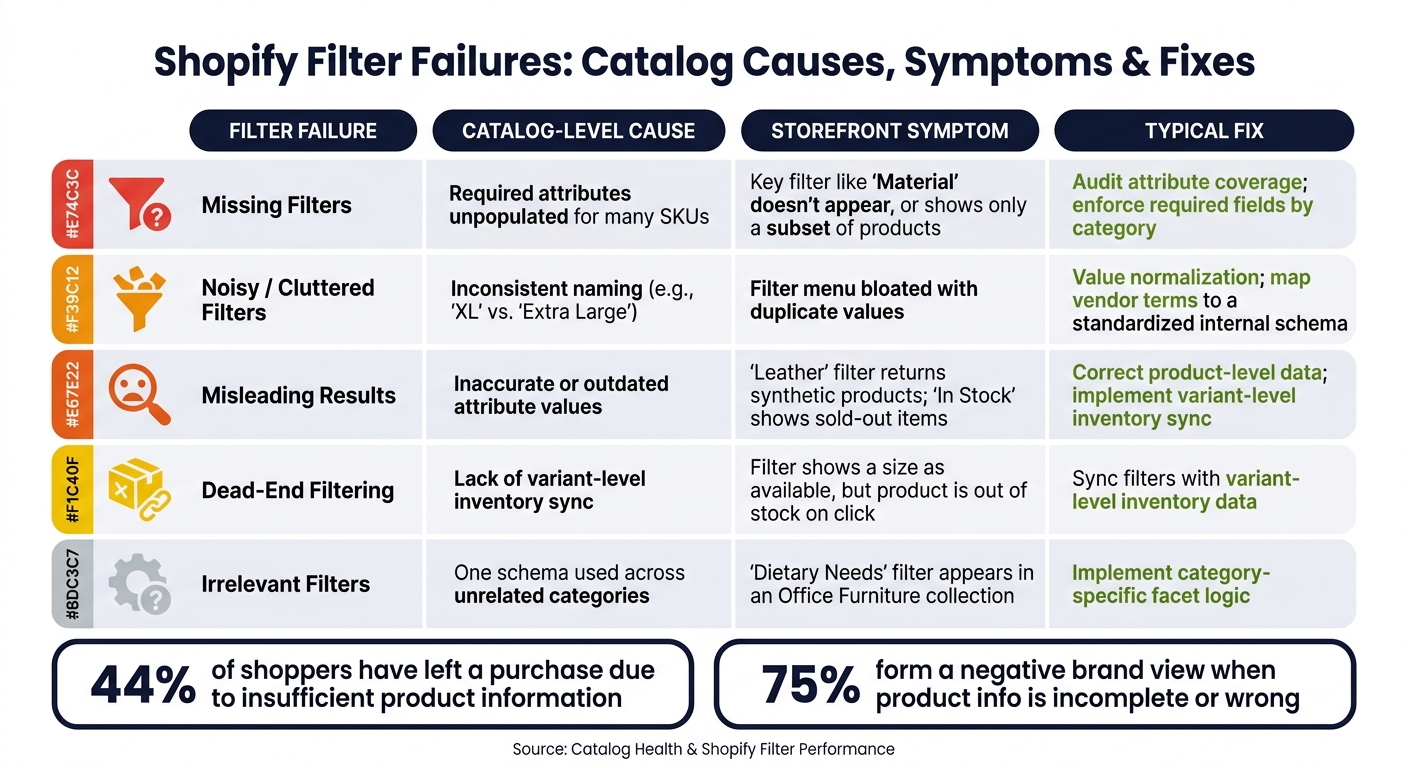
Shopify Filter Failures: Catalog Causes, Symptoms & Fixes
Merchants usually notice the symptom first: shoppers leave the collection page or fall back to search. Once attributes are set up for filtering, bad catalog values stop being a back-office issue and become a shopper-facing problem.
Missing, broken, and misleading filters
A filter is only useful when the attribute behind it is filled in for enough products to matter. If a field like Material is missing across a big chunk of items in a category, that filter becomes incomplete. A shopper who filters for Cotton won’t see products missing that attribute, even when those products would fit. In plain terms, missing attributes hide matching products from filtered results.
Wrong filters are even worse than missing ones because they give shoppers false confidence. The same goes for mislabeled products. If a synthetic item is tagged as Leather, the filter still runs as expected on the surface, but it points the shopper in the wrong direction.
Noisy filters and poor shopper decisions
Even when attributes are filled in and factually correct, inconsistent naming creates another mess: filter clutter. Vendor data often uses color names like Midnight or Navy instead of a standard value like Blue. Shopify treats each term as a separate filter option, so a shopper hunting for blue products may need to click several boxes just to see the full set.
Sizing breaks the same way. If a catalog mixes XL, X-Large, and Extra Large, Shopify reads them as different values. The result is a bloated size filter that makes shoppers guess which version to choose.
"A category with weak filters is often a category with hidden demand that the retailer has failed to unlock." - Umbrex Retail Practice
Root causes, symptoms, and fixes at a glance
The table below links the most common filter failure types to their catalog-level causes, how they show up on the storefront, and the usual fix.
| Filter Failure | Catalog-Level Cause | Storefront Symptom | Typical Fix |
|---|---|---|---|
| Missing filters | Required attributes unpopulated for many SKUs | A key filter like "Material" doesn't appear, or shows only a subset of products | Audit attribute coverage; enforce required fields by category |
| Noisy/cluttered filters | Inconsistent naming (e.g., "XL" vs. "Extra Large") | Filter menu is bloated with duplicate values | Value normalization; map vendor terms to a standardized internal schema |
| Misleading results | Inaccurate or outdated attribute values | "Leather" filter returns synthetic products; "In Stock" shows sold-out items | Correct product-level data; implement variant-level inventory sync |
| Dead-end filtering | Lack of variant-level inventory sync | Filter shows a size as available, but the product is out of stock on click | Sync filters with variant-level inventory data |
| Irrelevant filters | One schema used across unrelated categories | "Dietary Needs" filter appears in an Office Furniture collection | Implement category-specific facet logic |
These failures tend to show up in discovery metrics, which the next section covers.
What Research Shows About Catalog Health and Product Discovery
How clean data affects the customer experience
Those filter failures show up fast on collection pages. When product data is clean, shoppers face less choice overload, filters feel reliable, and people get to relevant products with less friction.
That trust matters. If a shopper picks a filter and the results match what they asked for, confidence in the store goes up. If the results feel off, trust drops just as fast.
Clean, structured attributes also help surface products that might otherwise stay buried. A product that doesn't appear near the top by default can become highly relevant the moment a shopper applies a specific filter.
KPIs to track after a catalog cleanup
After a catalog cleanup, watch the metrics most likely to shift first when filters become more accurate and complete:
- Filter usage rate - the share of collection page visitors who use at least one filter
- Collection page exit rate - how often shoppers leave a collection page without clicking a product
- Category conversion rate - the percentage of collection page visitors who go on to buy
- Time to product view - how fast a shopper clicks a product after landing on a collection page
- Average order value (AOV) - whether better product discovery leads to higher-value carts
- PDP bounce-back rate - how often shoppers return to a collection page after clicking a product
- Zero-result rate - how often a filter combination returns no products
One thing to watch: low filter usage doesn't automatically mean a filter shouldn't exist. Sometimes the filter is hard to spot. Sometimes the label is vague. And sometimes shoppers just don't trust it because past results were wrong.
Catalog fixes and expected KPI changes
The table below links common catalog fixes to the KPI shifts you should expect to see. These are directional signals, not promises. Results vary based on store size, product category, and traffic volume.
| Catalog Fix | Expected Directional KPI Change |
|---|---|
| Filling missing material or technical metafields | ↑ Collection page conversion rate; ↓ Zero-result rate |
| Consolidating size labels (e.g., "M" vs. "Medium" → "M") | ↓ Collection page exit rate; ↑ Add-to-cart rate |
| Standardizing color values (e.g., "Midnight" → "Blue") | ↑ Filter usage rate; ↓ Collection page exit rate |
| Correcting inaccurate attribute values (e.g., mislabeled materials) | ↓ Return rate; ↓ Customer service contacts related to product confusion |
| Implementing live variant inventory | ↓ PDP bounce-back rate; ↑ Filter usage rate |
| Adding use-case or compatibility attributes (e.g., "for sensitive skin") | ↑ Add-to-cart rate; ↑ Revenue per visit |
These fixes cut friction on collection pages and tend to improve metrics tied to revenue. But catalog quality drifts over time. So if you want those gains to stick, recurring audits need to be part of the process.
Building a Repeatable Audit Process for Shopify Filters
Why recurring audits beat one-time fixes
When those metrics slip, the next move is to set up a repeatable audit process. A one-time cleanup solves today's mess. It doesn't protect tomorrow's catalog.
New launches, bulk imports, and assortment changes keep bringing filter issues back.
Bulk imports and new launches are the main sources of drift. Imports often create split size labels like "Small", "S", and "Sm." Launches, on the other hand, often miss the metafields needed for filters that already exist.
That kind of problem should be caught on a set schedule, not after revenue starts to slide. Run an audit right away when bounce rate goes up, search activity jumps, or only top sellers keep converting.
How FacetGuard supports filter-focused catalog audits
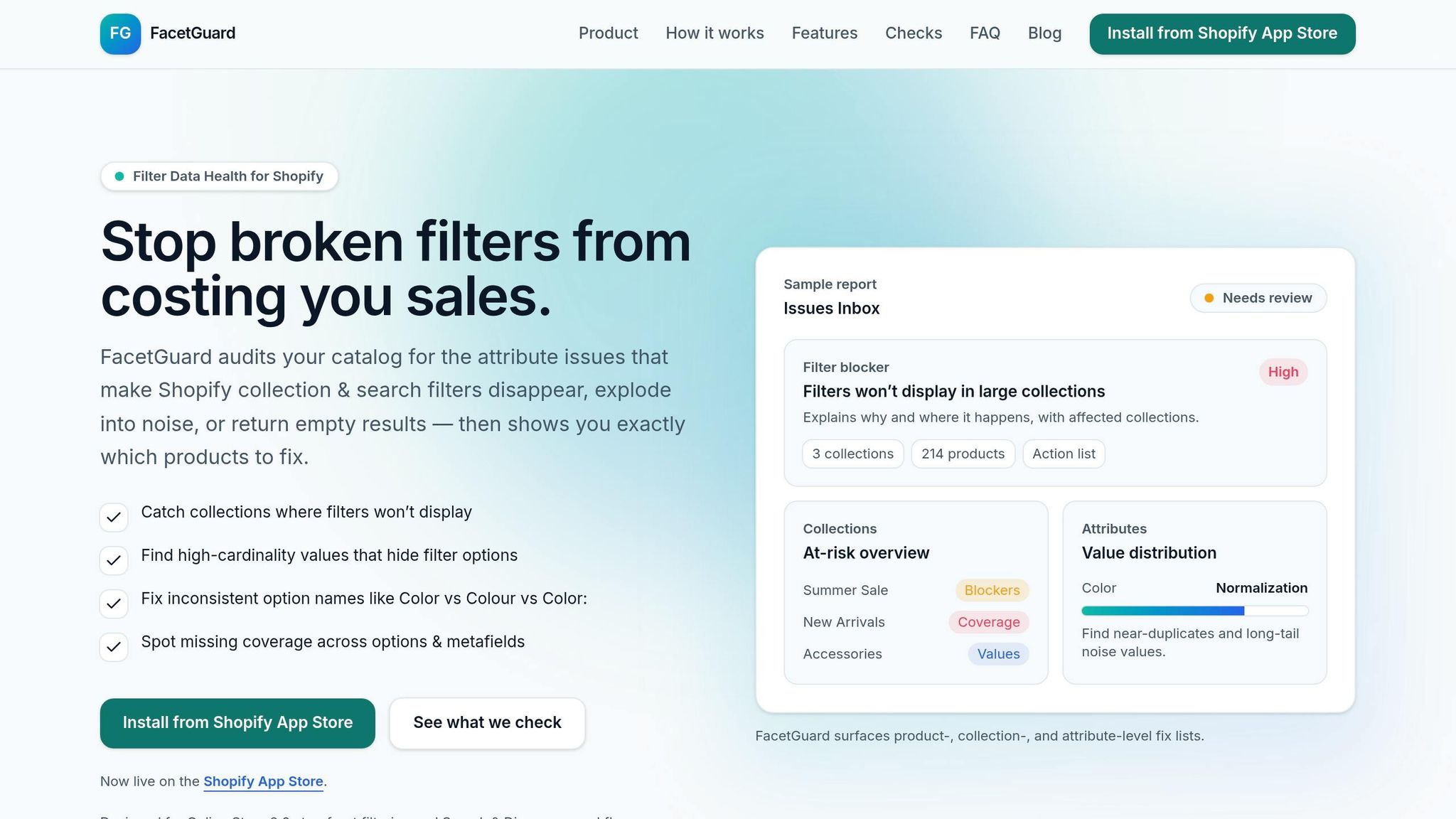
Teams that want to move faster can use dedicated tools to spot the highest-priority fixes first. FacetGuard is a free Shopify app that audits catalog attributes to find issues that break or weaken filters in Shopify collections and search.
It gives ranked fix lists for problems such as:
- Missing attribute coverage
- Inconsistent option names
- Excessive cardinality
- Collections where filters fail to display
It also checks custom storefront setups, which helps teams catch metafield and schema constraints before shoppers run into them. And for larger catalogs, CSV exports make bulk fixes much faster than updating products one by one.
The goal is simple: catch drift before shoppers feel it.
Conclusion: Clean attributes produce cleaner filters
Recurring audits keep Shopify filters accurate as catalogs change.
FAQs
How do I know if my filters are using bad catalog data?
Look for filter problems like disappearing options, empty search results, or duplicate values such as Small, S, and SM. Small naming differences, capitalization changes, or spelling mismatches, like Color vs. Colour, can cause Shopify to treat those values as separate attributes.
It also helps to check for missing metafield values across products. If that applies here, FacetGuard can audit missing attributes, naming mismatches, and collection-level filter blockers, then sort fixes by priority.
Which Shopify fields should be standardized first?
Start with core product data: titles, handles, product types, vendors, tags, and custom metafields. Check these fields for uneven capitalization, extra spaces, and spelling errors. Small issues here can split filter options and make your catalog messy fast.
Then focus on the attributes that matter most: size, color, brand, and material. Those fields tend to shape how people browse, compare, and narrow down products. FacetGuard can help with coverage scans, so you can zero in on products that are missing those key attributes.
How often should I audit my catalog for filter issues?
Audit your catalog on a regular basis. Inconsistencies tend to creep in after manual edits, product imports, and team changes. There’s no fixed schedule you have to follow, but staying ahead of the problem can help you avoid lost sales and frustrated customers.
You should run an audit right away if your site’s zero-result search rate climbs above 2% to 3%. Scheduled scans with FacetGuard can also spot new inconsistencies after imports.