
7 Common Product Attribute Errors That Break Filters
<article>
7 Common Product Attribute Errors That Break Shopify Filters
Collection Filters in Shopify 2.0 - Full Tutorial & Concepts
sbb-itb-e8e54fb
Filters Are Revenue Drivers - But They Fail Without Clean Data
Shopify filters are critical for helping customers find products quickly. But when product attributes are inconsistent, incomplete, or incorrect, filters break. This leads to missing products, confusing options, or dreaded "zero results" pages. The result? Frustrated shoppers and lost sales.
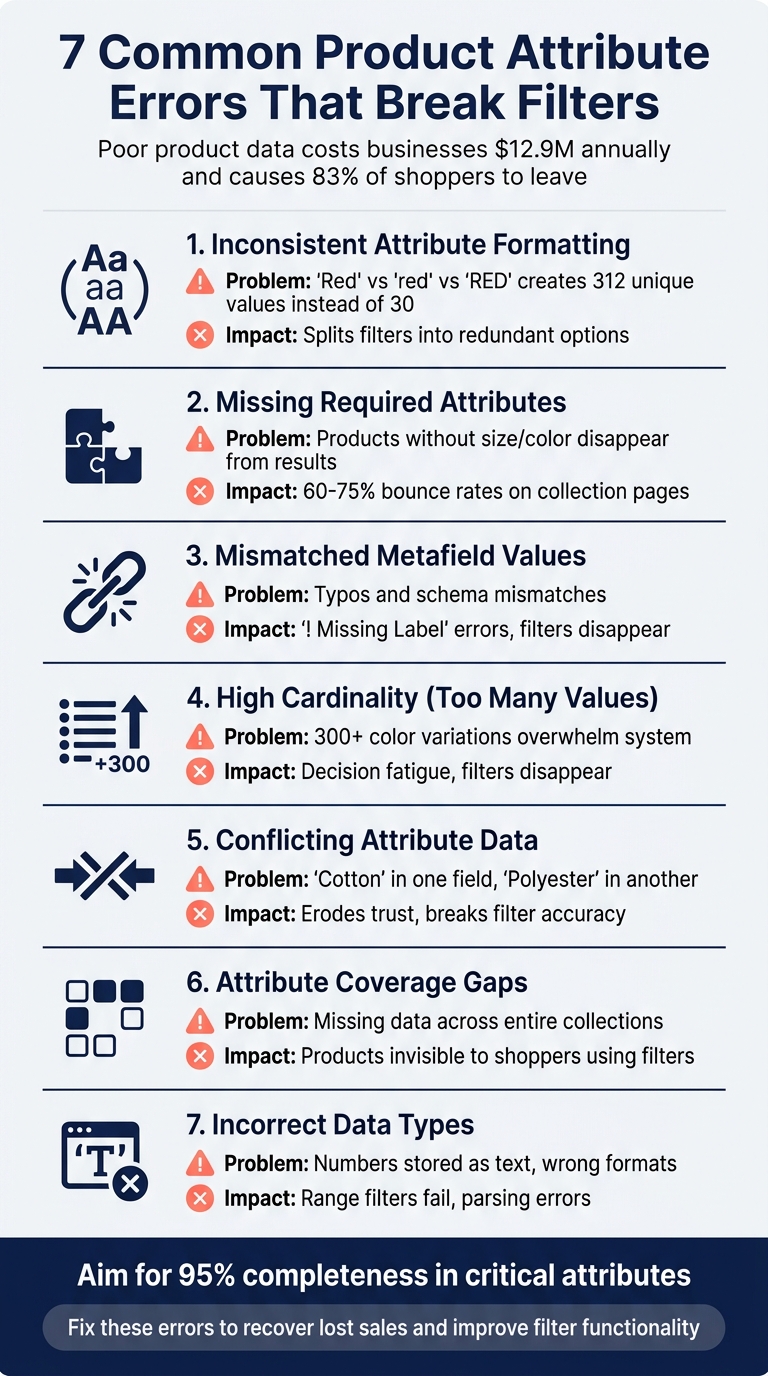
Here’s why it matters: Poor product data costs businesses an average of $12.9 million annually, and 83% of online shoppers leave a site if they can’t find enough product information. Filters are not just a feature - they’re a tool for driving revenue.
The main culprit? Bad product data. From inconsistent formatting to missing attributes, these issues silently harm your store’s performance. Fixing them is key to ensuring filters work as intended. Below are the seven most common attribute errors and how to address them:
The 7 Errors That Break Filters:
- Inconsistent Attribute Formatting: Variations like "Red" vs. "red" split filters into redundant options.
- Missing Required Attributes: Products without key details like size or color disappear from filter results.
- Mismatched Metafield Values: Typos or schema mismatches lead to filter errors and missing products.
- High Cardinality (Too Many Unique Values): Excessive options like 300+ colors overwhelm filters and confuse shoppers.
- Conflicting Attribute Data: Contradictory values (e.g., "Cotton" vs. "Polyester") erode trust and break filters.
- Attribute Coverage Gaps: Missing data across collections hides products and disrupts navigation.
- Incorrect Data Types: Filters fail when data is stored in the wrong format, like numbers saved as text.
Quick Fixes:
- Standardize Values: Use controlled vocabularies to ensure uniformity (e.g., "Dark Blue" instead of multiple variations).
- Audit for Missing Data: Aim for 95% completeness in critical attributes like size, color, or material.
- Validate Metafields: Use Shopify’s tools to correct mismatches and enforce consistent naming.
- Consolidate Options: Reduce excessive unique values by grouping similar ones (e.g., 24 standard colors).
- Resolve Conflicts: Designate a single source of truth for each attribute to avoid contradictions.
- Fill Coverage Gaps: Ensure all products in a collection have the required attributes for filters to work.
- Correct Data Types: Store data in proper formats (e.g., numbers as integers, not text).
By addressing these errors, you can improve filter functionality, reduce bounce rates, and recover lost sales. Filters aren’t just navigation tools - they’re a direct path to purchase. </article>
Error 1: Inconsistent Attribute Value Formatting
One of the most frequent issues in Shopify catalogs is inconsistent formatting of attribute values. This happens when the same value is written in multiple ways, such as "Red" vs. "red" vs. "RED", or "Color" vs. "Colour" vs. "Color:". Shopify treats each variation as a separate value, which causes serious problems for your filters. This inconsistency can make filters unreliable and prevent shoppers from finding the right products.
Small differences like punctuation, extra spaces, or abbreviations can make the issue worse. For example, a retailer with 18,000 products discovered that variations in their "Color" attribute - like "Midnight", "Navy Blue", "navy blue", and "Navy" - resulted in 312 unique values instead of the intended 30.
How This Breaks Filters
When attribute values aren't uniform, filters break into redundant options. This means filters will only display exact matches, leaving out items with slight formatting differences.
"Inconsistent naming like Color vs Colour vs Color: (or trailing spaces) splits coverage and breaks expectations." – FacetGuard
As your product catalog grows, too many unique variations - also known as high cardinality - can overwhelm Shopify's filtering system. This might cause filter options to disappear completely or create a cluttered filter list, making it harder for customers to find what they need.
How to Fix It: Standardize Your Values
To avoid incomplete search results and hidden products, it's essential to fix these inconsistencies. Start by auditing your catalog to identify all attribute variations and assess their frequency of use. This will help you prioritize which inconsistencies to address first.
Next, establish a controlled vocabulary - a definitive list of approved values for each attribute. For example, create a standardized list of colors (e.g., 24–30 common options) and sizes (e.g., S, M, L, XL, XXL). Stick to clear naming conventions, such as using Title Case ("Dark Blue" instead of "dark blue"), consistent abbreviations ("in" instead of "inches"), and proper spacing ("500 ml" instead of "500ml").
To maintain consistency:
- Replace free-text fields with dropdown menus that enforce approved values.
- Use Shopify's bulk editor or CSV imports to merge fragmented values into standardized terms.
- If you work with multiple suppliers, create mapping tables to translate their terminology into your internal standards (e.g., map "Midnight" to "Navy Blue").
- Implement validation rules to reject non-standard values or flag them for review before they appear on your storefront.
Error 2: Missing Required Product Attributes
When essential product attributes are missing, those items can disappear from filter results. For instance, if a shopper filters for "Linen" material, any linen product missing that attribute won't show up. This creates noticeable gaps in your catalog, reducing its visibility.
The severity of this issue depends on the product category. In apparel, missing details like size, color, material, fit, or gender mean products won’t appear in specific searches. Similarly, health and beauty products without information on dietary preferences (like vegan or gluten-free), skin type, or format will be invisible to customers with particular needs. For home and furniture items, lacking details like dimensions, room usage, or material finish makes it harder for shoppers to find them when applying filters. These missing attributes directly impact the accuracy of filtering systems in specific collections.
How This Affects Collections
Missing attributes lead to a frustrating phenomenon called "empty browsing." Shoppers apply filters but see incomplete or irrelevant results, which can result in bounce rates of 60–75% on collection pages. Filtering systems treat missing attributes as non-matches, excluding those products from results entirely.
In some situations, Shopify’s filtering system will even hide entire filter groups if no products in the collection include the required attributes. This removes important navigation tools without any error messages, leaving shoppers unable to refine their search.
How to Fix It: Audit Your Attributes
To improve filter functionality and safeguard your revenue, begin by assessing the percentage of products with complete key attributes. Successful stores aim for at least 95% completeness for critical fields. Start by reviewing your top 20 best-selling products to identify where missing data might be costing you sales.
Tools like FacetGuard or Google Merchant Center’s "Needs attention" tab can help you spot data gaps. For apparel and footwear, Google requires attributes such as gender, age group, color, and size - missing these not only disrupts filters but also affects performance in search results and Shopping ads.
Once you’ve identified the gaps, use Shopify’s bulk editor or CSV imports to update your catalog efficiently. Set clear completion goals, such as ensuring 100% of SKUs are unique and achieving 90% or higher for core attributes before publishing products. Missing or incomplete product data can lead to conversion drops of up to 14% and revenue losses of 15–25%.
Error 3: Mismatched or Incorrect Metafield Values
Metafield errors can seriously disrupt filter functionality in Shopify, leading to a frustrating user experience and potentially impacting sales. While metafields are designed to expand Shopify’s product data capabilities, they can become problematic when plagued by typos, schema mismatches, or inconsistent naming. For example, different team members might create similar metafields for the same attribute, such as specs_material versus material_type. This duplication creates confusion, multiple sources of truth, and filter logic issues.
One major problem is data type mismatches. If you change a metafield’s type - for instance, from date_time to money - all existing values for that metafield become invalid. Shopify won’t let you use the metafield until every error is corrected. Validation issues, like exceeding character limits, numeric ranges, or failing regex patterns, can also cause metafields to fail.
Even case sensitivity can create subtle but impactful issues. For instance, a filter looking for "cotton" won’t match "Cotton" or "COTTON" unless you include multiple OR conditions in your query. Additionally, storing the same attribute across different locations, like product metafields, variant metafields, and tags, can lead to operational risks. If one instance is updated but others aren’t, your filters might display conflicting information. Fixing these metafield issues is crucial to restoring proper filter functionality.
How This Breaks Filter Logic
When metafields are configured incorrectly, you might encounter "! Missing Label" errors in Shopify's filter dialog, which prevents filters from working. If metafield values are invalid or missing across a collection, filters may disappear entirely from the storefront, leaving customers with only basic sorting options.
Inconsistent naming also fragments filter options and reduces catalog coverage. Performantcode.io emphasizes this point: "Consistency is not cosmetic. It's structural. Without consistent naming, your Shopify product data structure becomes unpredictable."
How to Fix It: Validate and Correct Metafields
To resolve these issues, start by validating your metafields and enforcing consistent naming conventions. Shopify’s "Invalid metafield values" page can help you identify schema mismatches after creating or migrating definitions. Use the platform’s bulk editor to correct multiple errors at once.
Set validation rules at the definition level to prevent invalid data. These rules might include character limits, numeric ranges, or regular expressions to ensure only acceptable inputs are allowed. Establish a clear and predictable namespace.key structure - like specifications.material - to keep metafields self-explanatory and consistent.
If structural problems exist, create new, standardized metafields while keeping the old ones temporarily. Update your theme and filter dependencies to rely on the new fields, and only delete the outdated ones once everything is working smoothly. Tools like FacetGuard can help identify near-duplicate values or trailing spaces that fragment filter coverage, enabling you to clean up and normalize data before it affects the customer experience.
| Common Metafield Error | Impact on Filters | Recommended Fix |
|---|---|---|
| Type Mismatch | Filters fail to parse data; values are ignored. | Clear invalid values or update the definition to a compatible type. |
| Inconsistent Naming | Duplicates filter options, fragmenting results. | Use a single namespace and key, like custom.color. |
| Validation Breach | Metafield becomes unusable in admin or storefront. | Align values with defined rules using bulk editing. |
| Missing Coverage | Products disappear from filtered results. | Audit collections to ensure all products have the required metafield. |
Error 4: Too Many Unique Attribute Values (High Cardinality)
High cardinality, or having an attribute with an overwhelming number of unique values, can wreak havoc on your catalog. Imagine a "Color" filter with 300+ variations - this cardinality explosion dilutes your filter list, creating isolated values that apply to just one product. Instead of helping customers refine their choices, these excessive options lead to decision fatigue and make shopping unnecessarily complex.
There's also a technical downside. Shopify's filtering system struggles with excessive unique values, which can exceed visibility thresholds and cause filters to disappear from your storefront entirely.
How This Hurts Usability
Too many filter options can overwhelm shoppers, leading to decision fatigue and fewer purchases. For instance, a "Size" filter with 50 individual measurements instead of grouped ranges, or a "Price" filter listing every single price point rather than logical brackets, makes it harder for customers to find what they need. This is even worse on mobile devices, where limited screen space amplifies the problem.
The consequences? Shoppers engage less with filters, bounce more often, and your sales take a hit. If your filter zero-result rate is above 2%-3%, it’s a red flag that needs immediate attention.
How to Fix It: Consolidate Values
The solution lies in consolidating and standardizing attribute values. By defining controlled vocabularies, you can simplify your filters and improve both usability and system performance. For example, instead of allowing endless color variations, create a list of 24 standard colors to cover your catalog. This eliminates issues like synonyms, misspellings, and abbreviations before they even enter your system. Standardizing attributes can boost filter accuracy from 77% to 99.4% and increase conversion rates by 16%.
Here’s how you can tackle high cardinality:
- Use dropdowns or multi-selects in your product information management system to prevent inconsistent data entry.
- Implement bucketing for numerical data. For instance, group sizes into ranges like "30-32 inches" instead of listing "30.5 inches", "31 inches", and "31.5 inches" individually.
- Automate mapping tables to translate supplier-specific terms into your standardized internal values during data imports.
- Regularly audit your catalog to remove attributes with minimal usage and merge duplicate fields. This can reduce your total attribute count by up to 65%.
| Strategy | Action | Benefit |
|---|---|---|
| Controlled Vocabularies | Create approved lists (e.g., 24 standard colors). | Removes synonyms and misspellings. |
| Data Type Selection | Use dropdowns or multi-selects. | Prevents inconsistent data entry. |
| Bucketing | Group numbers into logical ranges. | Simplifies choices and reduces clutter. |
| Normalization | Bulk find-and-replace for historical data. | Resolves existing cardinality issues. |
| Validation Rules | Use regex or set limits (e.g., weight > 0). | Ensures data accuracy for new products. |
Tools like FacetGuard can help you identify attributes with excessive unique values, highlighting the "long-tail noise" that clutters your filters. This makes it easier to spot and fix issues before they affect the customer experience.
Up next, we’ll explore how conflicting attribute data can further disrupt filter accuracy.
Error 5: Conflicting or Contradictory Attribute Data
When product data doesn't align across sources, filters can become unreliable. For example, imagine a product metafield lists "Cotton" while a tag states "Polyester", or a product is labeled as both "Small" and "Large." These contradictions create confusion in filter results and shake customer confidence.
One major culprit behind this issue is redundant data sources. If attributes like size or material are stored in multiple places - such as product metafields, variant metafields, and tags - conflicts can arise. For instance, your theme might pull data from one source while your filters rely on another. This mismatch can result in customers seeing one value on the product page and a completely different one in the filter results, disrupting navigation and trust.
"Used correctly, Shopify metafields are one of the most powerful tools available. Used carelessly, they quietly introduce performance risks, operational friction, and long-term scalability limits." - Performantcode.io
Variant-level conflicts further complicate things. A single product with multiple variants can meet conflicting filter criteria. For instance, a shirt available in both Red and Blue might appear in results for either color. While technically correct, this can confuse shoppers when filters return the entire product, even if some variants don't match.
How This Breaks Filter Accuracy
Contradictory data doesn't just confuse filters - it erodes customer trust. If someone filters for "Leather" jackets and sees products labeled as "Synthetic", they may lose faith in your site’s functionality. This often leads to customers either ignoring filters altogether or leaving the site in frustration.
From a technical standpoint, invalid or conflicting metafield values can render those fields unusable until fixed. When filters and product pages pull from different sources, your catalog appears inconsistent, slowing down merchandising workflows and making bulk edits risky. Without clarity on which source is accurate, operational efficiency takes a hit.
How to Fix It: Use Cross-Field Validation
Start by designating a single source of truth for each attribute. Whether it’s a metafield, tag, or variant option, choose one location to store each piece of data and stick to it. This eliminates conflicts caused by duplicate or redundant data storage.
Use Shopify’s metafield definitions to enforce validation rules. With custom definitions, you can specify acceptable values, formats, and data types. If issues arise, head to the "Invalid metafield values" page in your Shopify admin and use the bulk editor to resolve errors across multiple products at once.
For added consistency, implement cross-field validation rules. For example, if a product is tagged as "Waterproof", ensure the material field doesn’t list incompatible values like "Cotton" or "Linen." Tools like FacetGuard can help by scanning your collections for products that meet conflicting filter criteria, allowing you to address potential issues before customers encounter them.
Finally, assign clear data ownership to avoid metafield sprawl. When different teams create similar fields - like specs_material versus material_type - it increases the risk of conflicts. By defining clear ownership and guidelines, you can maintain long-term catalog integrity and prevent future attribute inconsistencies.
Error 6: Attribute Coverage Gaps Across Collections
Coverage gaps in product attributes can create significant issues, especially when they span entire collections. Unlike isolated missing data, these gaps can compound filtering problems. When products in a collection lack critical attributes - like "Color", "Size", or custom metafields - they disappear from filtered results. For instance, if 30 out of 100 products in a "Dresses" collection are missing a "Size" attribute, those items won't appear when shoppers filter by size. This incomplete display of products leads to missed sales opportunities and a disrupted shopping experience.
"Missing options or metafield values mean shoppers can't narrow down - or they filter and see incomplete results." - FacetGuard
Inconsistent attribute application can frustrate shoppers and damage trust. Imagine a customer searching for "Leather" wallets but only seeing half of the leather inventory because some items weren’t tagged correctly. They might assume you don’t carry what they’re looking for. In fact, 73% of online shoppers abandon their search if they can’t quickly find what they need. This not only increases bounce rates but also reduces overall sales potential.
How This Affects Collection Filters
Attribute gaps don't just hide products - they can disrupt the functionality of filters altogether. If data is too fragmented, Shopify’s theme logic might fail to display certain filter options, especially in large collections with high cardinality. Missing attributes can cause filters to break silently or return null results, leaving shoppers with incomplete or inaccurate options.
Variant-level gaps complicate things further. For example, if one variant of a product has a "Material" attribute while another doesn't, the entire product might disappear from filtered results when shoppers use that filter. Shopify’s filtering logic assumes complete and consistent data, so missing attributes can cause filters to malfunction.
"Missing data, such as not having a value set for 'Size' on some items, would make finding those items using filters impossible." - James Stanley, Nimstrata
The impact on your business is clear. Filters are powerful tools for guiding shoppers to the right products - customers who use them are 2.3 times more likely to make a purchase compared to those who browse randomly. When filters fail because of attribute gaps, you’re not just losing visibility - you’re losing conversions.
How to Fix It: Standardize Attribute Assignment
To fix these gaps and restore filter reliability, focus on standardizing attribute assignment across your collections. Begin by auditing your attribute coverage. Identify what percentage of products have the necessary attributes for filters. For example, if your "Electronics" collection features a "Voltage" filter but only 60% of products have this metafield populated, you’ll need to address those gaps. Tools like FacetGuard can help by scanning collections and generating lists of products missing required values.
Here’s how to streamline attribute management:
- Define standard attributes for each collection type. For example, all items in "Apparel" should include "Size", "Color", and "Material", while "Electronics" might require "Wattage", "Voltage", and "Connector Type."
- Standardize naming conventions. Avoid variations like "Color" versus "Colour" or "M" versus "Medium" unless they’re intentionally mapped to the same filter group. Consistency is key.
- Use a single source of truth for attributes. Don’t store the same attribute in multiple places (e.g., as both a tag and a metafield). This minimizes confusion and reduces the risk of missing data.
- Leverage automated collections. Set collection rules to include only products with complete data. For example, require specific metafields for products to appear in high-visibility filtered views. This ensures shoppers see only fully detailed items, preserving the integrity of their browsing experience.
Error 7: Incorrect Data Types or Format Violations
Incorrect data types can wreak havoc on filter functionality, much like formatting errors or missing values. These errors occur when product data is stored in the wrong format - like saving numbers as text or dates as unformatted strings. While it might seem like a small issue, it can completely break your filters. Shopify metafields rely on specific data types, such as number_integer, boolean, and date, to store and validate information properly. If the stored data doesn't match the defined type, filters can't interpret the values, leading to empty results or disappearing filters.
Switching metafields to incompatible types only makes things worse. For example, changing a metafield from date_time to money invalidates all existing values instantly. This can cause filters that previously worked to stop functioning altogether, especially in headless or API-driven storefronts, where strict adherence to data types is critical.
Format issues can cause similar problems. For instance, if you store a weight as "25 lbs" in a text field instead of using Shopify's dimension type with structured data (e.g., {"value": 25.0, "unit": "lb"}), range sliders won’t work. Similarly, a money metafield requires structured data like {"amount": "5.99", "currency_code": "USD"} rather than plain text "$5.99." Incorrect formats can trigger errors - like "Market Localizable content is invalid" - which disrupt product updates and break your catalog’s filters.
How This Breaks Filter Parsing
When Shopify encounters data in the wrong format, its filter logic fails. For example, a number_integer field expects whole numbers like 10. If you store "10.5" or even "ten", the filter won’t work. Similarly, boolean filters require true boolean values (true or false), not text like "yes" or "no."
Range filters are particularly sensitive. If numerical data, such as voltage, is saved as text (e.g., "120V" or "220 volts"), Shopify can’t determine the numeric range, preventing functional sliders from appearing. This leaves shoppers without a way to narrow down options by technical specifications.
How to Fix It: Validate Data Types
Start by auditing your metafield configurations to find mismatches. Tools like FacetGuard can scan your collections for formatting issues and highlight where data types don’t align with filter requirements. Once identified, take these steps:
- Use the correct numeric types (
number_integerornumber_decimal) for attributes tied to range filters, such as weight, dimensions, or voltage. - For binary options like "Organic" or "Waterproof", stick to the
booleantype. - For structured data, such as ratings, use Shopify's
ratingtype, which expects a structure like{"value": "3.5", "scale_min": "1.0", "scale_max": "5.0"}.
This ensures the right UI components and proper filter functionality.
Shopify’s admin includes an "Invalid metafield values" page to help you pinpoint mismatches. Alternatively, you can use the API to update definitions to compatible types. Enforce validation rules during data entry - Shopify's metafield definitions support built-in validations like minimum/maximum limits and regex patterns. For example, apply regex validation to enforce a specific SKU format or use a controlled "List of values" for attributes like "Material" to prevent freeform text entry.
"Filters are not a feature. They are a revenue lever. Every click a shopper saves getting to the right product is friction removed from the path to purchase." - Andrew Simpson, Founder & Director, Pea Soup Digital
Schedule automated scans regularly, especially after bulk imports or third-party app updates, to catch new data type or format violations. Proactively monitoring your catalog ensures any issues are resolved before they disrupt the customer experience. As your catalog grows, aligning data types is just as crucial as resolving earlier attribute errors to maintain smooth filter performance.
How to Monitor and Prevent Filter Issues
Keeping a close eye on your data and validating it regularly is key to avoiding the attribute errors we touched on earlier. Without consistent monitoring, your catalog can deteriorate at an alarming rate - about 2% each month, which adds up to 25% annually. Ignoring these problems doesn’t just harm your catalog; it can also slash potential revenue by up to 25%. And here’s a staggering fact: 64.2% of customers have returned products because they didn’t match the descriptions on the website. A strong monitoring system can catch these issues before they wreak havoc on your storefront.
Manual Audits vs. Automated Validation
When it comes to protecting your data quality, you have two main approaches: manual audits and automated validation. Let’s break down how they compare:
| Feature | Manual Audits | Automated Validation |
|---|---|---|
| Efficiency | Slow and labor-intensive; doesn’t scale | Fast; processes thousands of SKUs in seconds |
| Best For | Tasks requiring human judgment (e.g., categorization, image quality) | Objective checks like missing fields or data formatting |
| Reliability | Vulnerable to human error and inconsistencies | Consistent and rule-based, using logic and regex |
| Coverage | Limited to spot-checks or top-selling items | Comprehensive, covering the entire catalog |
Take this real-world example: In March 2026, a fashion retailer managing 18,000 products from 120 suppliers used automated tools to standardize 312 unique color values into just 30 standard options. This boosted their filter accuracy from 77% to an impressive 99.4% and cut customer support tickets related to search by 67%. Similarly, a home and garden retailer with 12,000 SKUs streamlined 400 attributes into 140 using validation rules and a 90% completeness threshold. They reduced Google Shopping feed rejections from 23% to just 3% and slashed onboarding time per product from 25 minutes to 8 minutes.
Tools like FacetGuard’s Issues Inbox can flag filter blockers, such as collections exceeding Shopify’s size limits or filters diluted by too many unique values. To stay ahead, run automated scans after major product imports to catch errors early. At the entry point, validation rules - like regex patterns for SKU formats or numeric ranges for weights - can stop bad data from entering your system.
"Product data must pass validation and duplicate checks before it is treated as reliable for downstream use. This prevents bad data from entering the system in the first place." - AtroPIM
These strategies lay the groundwork for managing attributes effectively as your catalog grows.
Managing Attributes as Your Catalog Grows
As your product range expands, keeping attributes organized becomes even more important. Focus on six key dimensions of data quality: Accuracy (matches reality), Completeness (all fields filled), Consistency (standardized formats), Validity (meets rules), Uniqueness (no duplicates), and Timeliness (up-to-date). Start by auditing the 20% of SKUs that drive 80% of your revenue.
Adopt a tiered approach for prioritizing attributes. First, tackle "Decision-critical" attributes like size, color, and fit. Next, address "Risk-reduction" attributes such as dimensions and warranty details. Finally, review "Preference" filters like brand or style. Use controlled vocabularies to avoid variations like "Red", "red", and "RED" showing up as separate options. Assign data stewards to specific categories or metafields to maintain accountability.
"Consistency is not cosmetic. It's structural. Without consistent naming, your Shopify product data structure becomes unpredictable." - Performantcode
Plan quarterly reviews to remove unused attributes and update mappings for new channel requirements. When cleaning up data, work in manageable batches of 5,000 to 10,000 SKUs so you can spot trends and create automated rules. Keep an eye on your zero-result rate - the percentage of filters returning no products. If it climbs above 2–3%, investigate immediately. It’s worth noting that only 3% of companies’ data meets basic quality standards when audited using structured methodologies.
Wrapping It Up
The seven attribute errors - like inconsistent formatting or incorrect data types - can create a disconnect between your products and your customers, ultimately leading to lost sales. When filters don’t function properly, shoppers struggle to find what they need. Consider this: 31% of the $890 billion in U.S. product returns in 2024 were due to misdescribed items. On top of that, 87% of shoppers won’t return to a retailer if they encounter inconsistent product information.
Fixing these issues isn’t just about improving filters - it’s about laying the groundwork for scalable growth. Clean, structured attribute data can eliminate the 20% to 27% of employee time often wasted on correcting data errors. Functional filters don’t just improve usability; they directly impact revenue by making it easier for shoppers to find the right products, faster.
The good news? These challenges are solvable with a focused approach. You don’t need to tackle everything at once. Start by prioritizing the areas with the biggest impact, automate validations to catch errors early, and schedule regular reviews to keep your data accurate - especially since data tends to decay at a rate of about 3% per month. Whether you’re managing a catalog of 500 or 50,000 products, the strategy remains the same: standardize, validate, and monitor.
Ultimately, your filters are only as effective as the data driving them. By addressing these common errors and implementing proper monitoring systems, you can transform a chaotic storefront into a seamless shopping experience. This approach doesn’t just help your customers - it ensures your products stay discoverable and your revenue potential remains strong.
FAQs
How can I tell if my Shopify filters are failing because of bad product data?
Filter problems often show up as disappearing filters, empty search results, or inconsistent filter options. These issues usually stem from problems like missing attribute values, inconsistent metafield data, or overly complex values with too many variations.
To address this, take a close look at your product catalog. Check for incomplete or inconsistent data, such as variations in naming conventions (e.g., "Color" vs. "Colour"). Ensure all your data is accurate, standardized, and aligned across the board.
Which attributes should I standardize first to improve filter results fastest?
To improve filter results efficiently, focus on standardizing attributes such as color, size, and product options. For example, using inconsistent terms like "Red" and "Crimson" or "L" and "Large" can lead to confusion and reduce filter accuracy. Additionally, pay attention to metafields and custom attributes involved in filtering. Mismanaged metafields can cause filters to malfunction or fail silently, preventing products from being grouped and displayed correctly. By addressing these issues, you can enhance both performance and the user experience.
What’s the simplest way to prevent new metafield and data-type errors going forward?
To steer clear of metafield and data-type errors, it's essential to adopt structured management techniques. Start by setting default values in bulk and ensuring all data types remain consistent across your store. Regular validation of data against Shopify's supported metafield types is key, along with routine audits to spot any inconsistencies early on. Leveraging tools that allow for bulk updates and data validation can make it easier to maintain accuracy and keep your filters working smoothly.