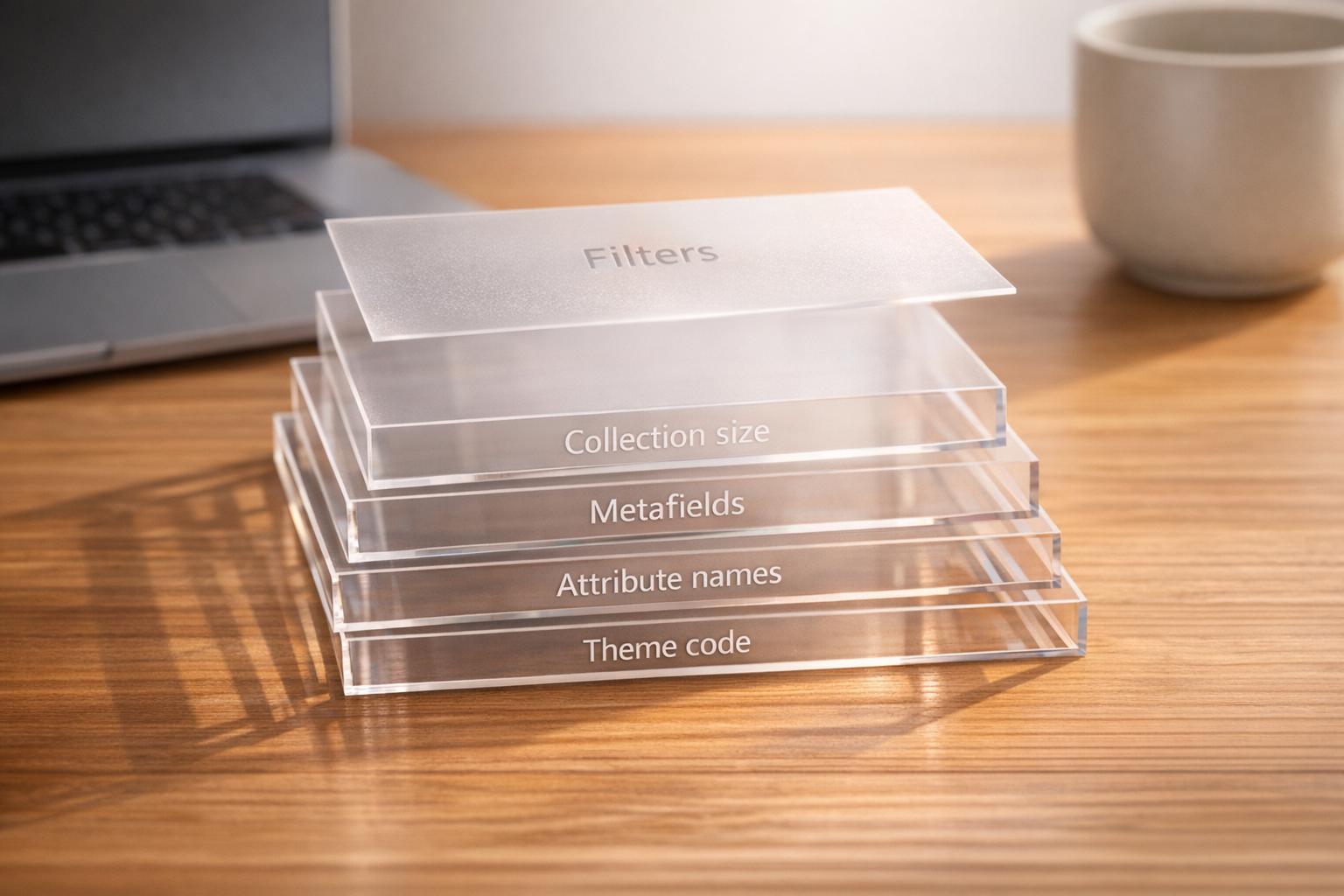
Why Filters Fail in Dawn and Sense Themes
When using Shopify's Dawn and Sense themes, filters often fail due to specific limitations and technical issues. Here's what you need to know:
- Collection Size Limits: Filters disappear when collections exceed 5,000 products or search results exceed 1,000 items.
- High-Cardinality Attributes: Attributes with too many unique values (e.g., hundreds of brands or colors) can cause filters to vanish.
- Tag-Based Filtering: These themes don't support tag-based filters, requiring merchants to use structured data like metafields instead.
- Theme Settings and Errors: Misconfigured settings, JavaScript errors, or leftover code from customizations can break filters.
Quick Fixes:
- Split Large Collections: Keep collections under 5,000 products.
- Use Metafields: Replace tags with metafields for attributes like materials or sustainability.
- Test for Errors: Use a clean theme installation to identify JavaScript conflicts or theme code issues.
- Normalize Attributes: Ensure consistent naming for attributes like "Color" vs. "Colour."
These steps can help restore filter functionality and improve the shopping experience. Dive into the article for a detailed breakdown of problems, diagnostics, and solutions.
Common Filter Problems in Dawn and Sense Themes
Product Tags Don't Work as Filters
Dawn and Sense themes rely on structured data - such as price, availability, type, vendor, and metafields - for filtering, rather than product tags. A Shopify employee explained the reasoning behind this approach:
"Tag filtering is considered more of a hack and not a scalable/dynamic design choice like the new filtering system is, therefore not seeing the filters on a collection page where a tag has been used as a filter is an expected behaviour." – salvodees, Shopify Employee
This becomes a noticeable issue when merchants include tagged collections in their navigation menus. On these pages, native filters may either disappear or stop functioning entirely. One merchant shared their frustration:
"The Shopify Filters don't work in conjunction with tag filtering... The page loads products based on the tag or price and product filter adjustments no longer work." – Patchcollection, Merchant
In some cases, attempting to use filter checkboxes results in either an endless loading spinner or no response at all. The next challenge arises when collections grow too large for the filtering system to handle effectively.
Filters Break in Collections Over 1,000 Products
Initially, Shopify restricted filters for collections with more than 1,000 products. Although the limit was later increased to 5,000, collections exceeding this size still face issues. Once the threshold is crossed, the filter sidebar disappears entirely, leaving shoppers with only a "Sort by" dropdown and the burden of endless scrolling. A Shopify Plus merchant confirmed this limitation:
"I can confirm that I see the limit at 5,000 products for anyone else searching." – hondaspeder, Shopify Plus Merchant
This restriction is enforced at the API level, making it a platform-wide limitation.
Filters Don't Show on Collection Pages
Even when filters are enabled in the theme settings, they can fail to appear for several reasons. Incorrect theme configurations or the use of tag-filtered URLs often cause this issue. Additionally, if a collection exceeds the 5,000-product limit, filters won't load at all. It's also worth noting that Shopify's faceted filtering system and tag filtering cannot function simultaneously - only one method can be active at a time.
Too Many Attribute Values and Inconsistent Names
Filters can also break down when attributes have an overwhelming number of unique values. For example, a "Brand" filter with hundreds of entries may be hidden by Shopify to avoid cluttering the shopping experience. Similarly, inconsistent naming of attributes, such as "Color" vs. "Colour" or "Navy" vs. "Navy Blue", can fragment filters and make them harder to navigate. Fixing these issues requires a careful review of attribute names and values to ensure consistency and usability.
sbb-itb-e8e54fb
Shopify tutorial: How to improve Shopify collection pages with Visual Filters in the Dawn Theme

How to Diagnose Filter Issues in Dawn and Sense Themes
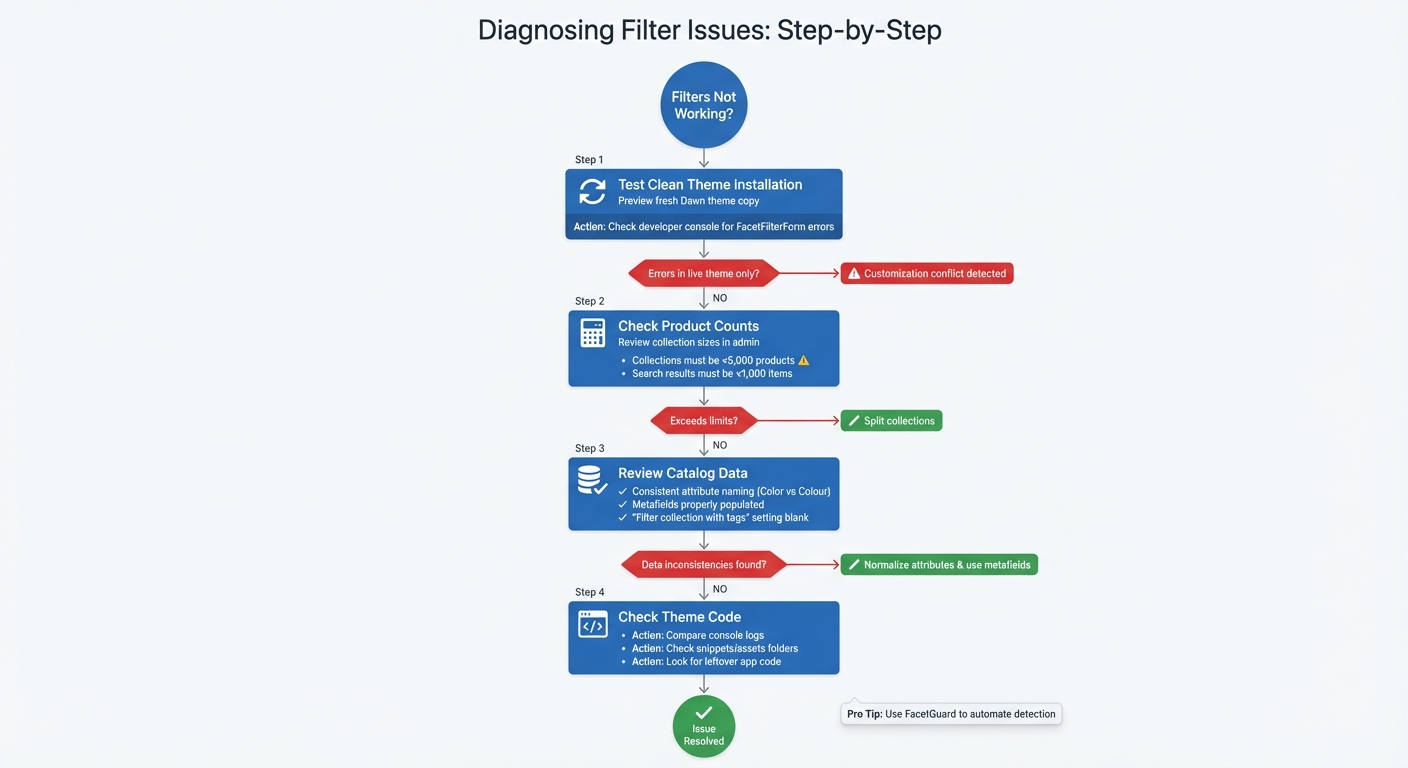
Dawn and Sense Theme Filter Troubleshooting Flowchart
After recognizing common filter problems, follow these steps to identify the root causes.
Test a Clean Theme Installation
Start by testing a fresh installation of the Dawn theme to rule out issues caused by customizations or backend settings. Head to the Shopify Theme Store, add a new copy of the Dawn theme to your library, and select "Actions" > "Preview". This approach helps you isolate conflicts from third-party apps, custom CSS, or leftover code snippets.
To dig deeper, use developer tools to compare console logs between your live theme and the clean theme. If the clean theme runs without errors, but the live theme shows red error messages related to FacetFilterForm, you’ve likely found the issue. Shopify Partner made4Uo explains:
"Since the filter uses javascript, I went and take a look [at] your console... See the bottom part with FacetFilterForm? That is the reason your filter does not work".
Be aware that some problems - like filters becoming unclickable when "Collapse on Desktop" is enabled - are tied to specific Dawn theme versions and might still appear in a clean install. If the fresh theme works as expected, the next step is to examine your collection sizes.
Check Product Counts in Collections
When filters disappear on certain collection pages, it might be due to the collection exceeding Shopify's technical limits. Open your admin panel and check the product count for affected collections. If reducing the product count resolves the issue, it’s likely related to the size of the collection.
Review Catalog Attributes and Metafields
Filter malfunctions often stem from inconsistencies in product data rather than theme errors. As mentioned earlier, ensure product options, metafields, and tags are named consistently to prevent split filters. Verify that the metafields you plan to use as filters are properly populated for products in the affected collections and that these filters are enabled in the Search & Discovery app settings.
If a collection shows "No products found", check the "Filter collection with tags" setting under Online Store > Navigation. Shopify's Summer advises:
"The issue you're encountering is likely happening because of filters added to the menu item this collection is linked to... If you want to display all the products within the collection, without filtering them, make sure the 'Filter collection with tags' box is blank".
Once you’ve completed these diagnostics, you’ll be ready to implement targeted solutions in the next steps.
How to Fix Filter Failures in Dawn and Sense Themes
Once you've pinpointed the root cause of your filter issues using the diagnostic steps, these targeted fixes can help restore proper functionality. Let’s dive into the solutions.
Split Large Collections to Stay Under 5,000 Products
Shopify automatically disables filters for collections with more than 5,000 products - an increase from the previous 1,000-product limit in late 2022. As outlined in the Shopify Help Center: "Collections that contain more than 5,000 products don't display filters. Consider dividing large collections into smaller collections that can display filters."
To fix this, break down oversized collections. For example, if your "Women's Fashion" collection has 8,000 products, split it into smaller categories like "Tops", "Jeans", and "Boots." Use automated (smart) collections with tags or metafields to sort products efficiently. After making these changes, allow 24–48 hours for Shopify to re-index your collections, or trigger a re-index manually by performing a bulk edit.
Create Custom Metafields to Replace Tags
Tags are primarily for internal organization and may not perform well for customer-facing filters. Instead, use metafields, which are more structured and remain functional even if you change themes. Here’s how to set up metafields for filters:
- Go to Settings > Custom Data > Products and click Add definition.
- Use a clear namespace like
filters.materialand set the content type to Single line text. - If a product needs multiple values, enable the Accept list of values option.
Manually populate these metafields or use a bulk import for larger product catalogs. Then, open the Search & Discovery app, go to Filters, and add your new metafield. Finally, in the Theme Editor under Customize, ensure filtering is enabled on the Collection template. Test the new filters to confirm they work correctly across your collections.
Use FacetGuard to Identify and Resolve Filter Issues
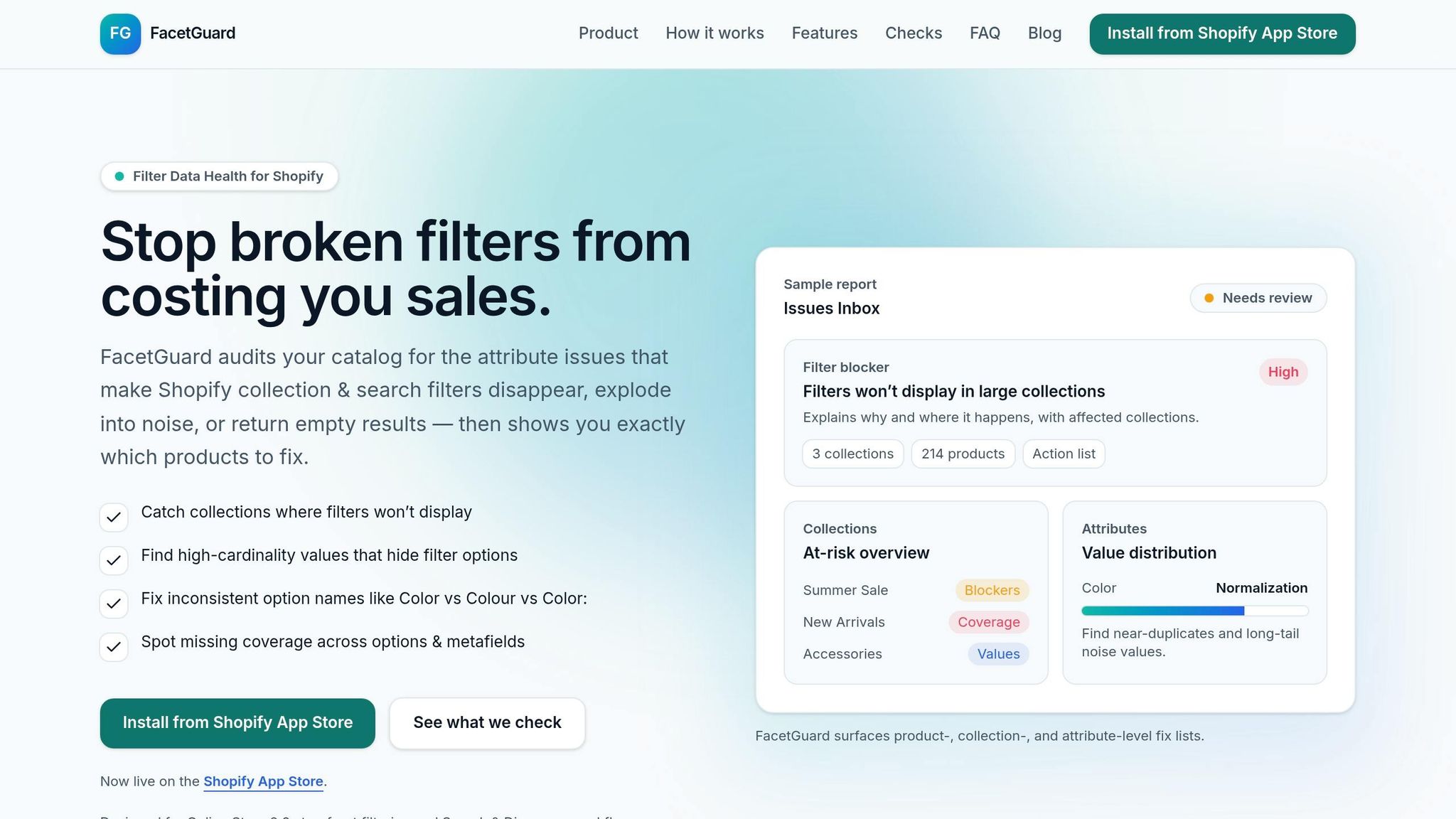
FacetGuard is a helpful tool that audits your catalog and highlights problems causing filter breakdowns in Dawn and Sense themes. Its features include:
- Filter Blockers Scanner: Identifies collections nearing or exceeding Shopify’s 5,000-product limit.
- Issues Inbox: Lists problems like inconsistent attribute naming or excessive unique values.
- Attribute View: Flags near-duplicate values or unnecessary noise in your filters.
FacetGuard also allows you to export a CSV file of affected products for bulk updates. It can even detect variant-level issues, such as when a single product appears under multiple filter values due to different variants. This ensures filters provide a smooth shopping experience.
Fix Theme Code Conflicts from Customizations
If your filters are still malfunctioning after resolving data issues, the problem might lie in theme code conflicts. Customizations or leftover code from removed apps can interfere with Shopify’s FacetFilterForm JavaScript component. Here’s how to troubleshoot:
- Open your browser console and compare your live theme’s logs with a clean Dawn installation. Look for red error messages referencing
FacetFilterForm. - Check the
snippetsandassetsfolders in your theme’s code editor for leftover code from old filtering apps or custom CSS targeting filters. - Remove any conflicting files. If you’re unsure, restore a backup of your theme or consult a Shopify developer for assistance.
Test and Verify Your Filter Fixes
After making adjustments to your filters, it's crucial to thoroughly test them to ensure they work properly in both preview and live modes. Sometimes, filters may behave as expected in preview mode but fail on the live storefront due to caching issues. Start by opening your browser's developer console and checking for any red JavaScript errors, as these often signal broken scripts. Be sure to clear your browser cache and test in incognito mode to avoid conflicts with outdated code. Test the filters on both desktop and mobile devices to confirm they function as intended. If you're testing on desktop, ensure that the "Collapse on Desktop" option is disabled if the filters seem unresponsive. Merchant pinkosce shared this insight:
"Filters on desktop view don't work if you check 'Collapse on Desktop'... I unchecked 'Collapse on Desktop' and the filters work again both on Desktop and Mobile".
Once you've completed local testing, it's time to verify the filters on your live storefront.
Clear Cache and Test on Live Storefronts
After testing locally, move on to your live storefront to ensure everything works in a real-world environment. Test all three filter layouts available in the Dawn and Sense themes - Vertical, Horizontal, and Drawer. Click through each filter option and confirm that the URL updates correctly with parameters like ?filter.v.option.color=red. Pay close attention to the price range slider, ensuring it responds accurately, and verify that the "Apply" button functions properly on mobile devices.
If you encounter an infinite loading spinner and no updated results, this could point to a conflict with third-party apps, such as chat widgets or optimization tools, interfering with Dawn's JavaScript. Additionally, make sure your collections contain fewer than 5,000 products and that search results remain under 1,000 products. Exceeding these limits can cause filters to disappear altogether.
Test Filters Across Multiple Collections
To ensure consistent behavior, test your filters on various collection pages with different product counts. Verify that applying a filter doesn’t reset the "Sort by" selection, and check that individual filter "pills" can be removed without issue. Test the "Clear all" button to confirm it works as expected, and ensure URL parameters update correctly when filters are applied or removed.
For multilingual stores, double-check that filters display and function properly across all translated versions. This step ensures a seamless experience for customers in different markets. Lastly, open the Search & Discovery app and confirm that the filters you want to use - such as Availability, Price, and Product Type - are enabled in your settings.
Conclusion
Restoring effective filter functionality in the Dawn and Sense themes requires a clear understanding of the common pitfalls and proactive steps to address them.
Filter failures often fly under the radar. Instead of throwing up error messages, they show up as subtle problems - filters disappearing from collection pages, returning empty results, or displaying inconsistent attribute names. As FacetGuard aptly puts it, "Filter issues often don't look like errors - they look like 'the storefront is weird today.'" These seemingly minor glitches can have a direct impact on your conversion rate by making it harder for shoppers to find what they need.
The main culprits behind these issues include JavaScript conflicts, collection size limits, data inconsistencies, and theme setting bugs like the "Collapse on Desktop" problem. To tackle these, start by keeping your collection product counts under 5,000, and check your catalog for inconsistent naming or missing metafield coverage.
For smaller catalogs, manual diagnosis may work, but as your store grows, automated tools become indispensable. FacetGuard, for example, scans your catalog for attribute problems, flags collections nearing size limits, and provides a prioritized list of fixes. This systematic approach supports the earlier steps and ensures your filters remain functional as your catalog expands. Regular maintenance - whether splitting oversized collections, normalizing metafields, or fixing theme code conflicts - ensures a seamless shopper experience and protects your store's performance.
Lastly, always test your fixes thoroughly. A well-functioning filter system should run without console errors, update URL parameters correctly, and work smoothly in both preview and live modes. These steps are essential to keeping your storefront ready for every shopper's journey.
FAQs
How can I keep filters on collections with more than 5,000 products?
When dealing with collections that exceed 5,000 products, Shopify’s dynamic filtering options can help keep things running smoothly. Features like dynamic facet lists are particularly useful for managing and displaying filters effectively in these larger collections.
If you need more control, you can customize filters using metafields or tags. This approach allows you to work around Shopify’s standard 1,000-product limit for filters, offering a more tailored solution for your store.
Another important step is auditing your catalog attributes regularly. This ensures that your filters remain accurate and functional, reducing the chances of issues like missing or broken filters in large collections. Keeping your catalog well-organized is key to maintaining a seamless shopping experience.
What should I use instead of product tags for filters in Dawn and Sense?
Shopify's OS 2.0 filtering system no longer supports using product tags for grouped filters. Instead, it's better to rely on product options or metafields. This approach ensures your storefront filters function properly and deliver precise results. By adapting to this system, you can provide a smoother and more accurate shopping experience for your customers.
How do I quickly find what’s breaking my filters (data vs. theme code)?
When filters in Dawn or Sense themes aren't working as expected, the root cause often lies in catalog attribute issues. These can include:
- Missing coverage: Certain products might not have the necessary attributes assigned, making them unfilterable.
- Inconsistent option names: Variations in naming conventions (e.g., "Red" vs. "red") can confuse the system.
- High-cardinality values: Having too many unique attribute values can overwhelm the filter functionality.
Using tools like FacetGuard can simplify the process of auditing your catalog and prioritizing fixes for these problems.
It's also important to examine recent changes to your theme code. Common issues include vertical filter bugs or errors affecting responsiveness. By pairing catalog audits with thorough code reviews, you'll be able to determine whether the problem stems from your data setup or the theme code itself.