
Shopify Filter Audit Checklist for Catalog Managers
Your Shopify filters might be silently hurting your sales. Missing or inconsistent product data can reduce clicks by up to 23%, conversions by 14%, and revenue by as much as 25%. Problems like broken filters, inconsistent naming (e.g., "Color" vs. "Colour"), or missing metafields make it harder for shoppers to find products, leading to frustration and lost revenue. Regular audits are the solution, and tools like FacetGuard simplify this process by identifying and prioritizing issues.
Key Steps to Fix Filter Problems:
- Check Metafield Definitions: Ensure filter types match metafield data (e.g., numbers for sliders, text for swatches).
- Standardize Naming: Avoid variations like "Red" vs. "red" to prevent fragmented filter options.
- Audit Missing Data: Aim for 90%+ completion of key attributes to avoid filters disappearing.
- Limit Unique Values: Keep attributes under Shopify's 250 unique values limit to prevent filter overload.
- Test Filter Performance: Ensure filters work correctly, especially for large collections with 5,000+ products.
By addressing issues with tools like FacetGuard and prioritizing fixes for top-selling products, you can improve filter functionality and boost your store’s performance. Plan audits at least twice a year to maintain data quality and keep filters running smoothly.
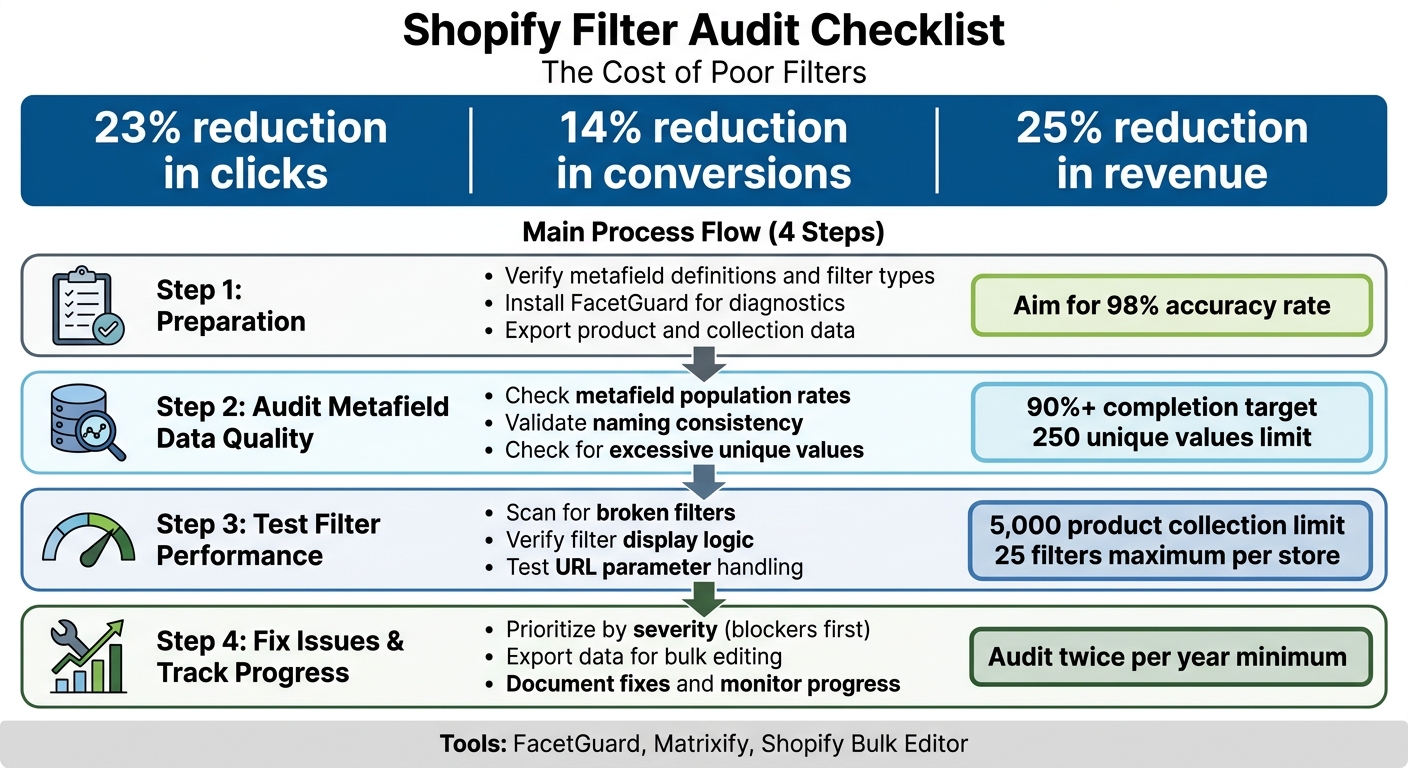
Shopify Filter Audit Process: 4-Step Checklist for Catalog Managers
Preparation Steps Before Starting Your Audit
Before diving into filter issues, it's essential to evaluate your storefront data. Once your data parameters are confirmed, you can move on to running diagnostic scans and exporting data.
Verify Metafield Definitions and Filter Types
Start by ensuring that each metafield type aligns with the filter function it’s meant to support. For instance, a metafield set as "single-line text" won’t work for a range slider, and a "number" field can’t be used for color swatches. To get a complete list of namespaces, keys, and types, use the metafieldDefinitions query in Shopify's Admin API.
Pay close attention to product variant data. Consistent variant naming is key to avoiding fragmented filter options. Create a variant dictionary to standardize naming conventions across your catalog.
As David Vance from Nventory explains, "The moment you have product data living on two platforms, you have a catalog governance problem."
Check for gaps in metafield coverage as well. For example, if only 40% of your products have a "Material" metafield, the filter won’t perform effectively. Aim for an accuracy rate of 98% or higher across your catalog.
Install FacetGuard for Initial Diagnostics
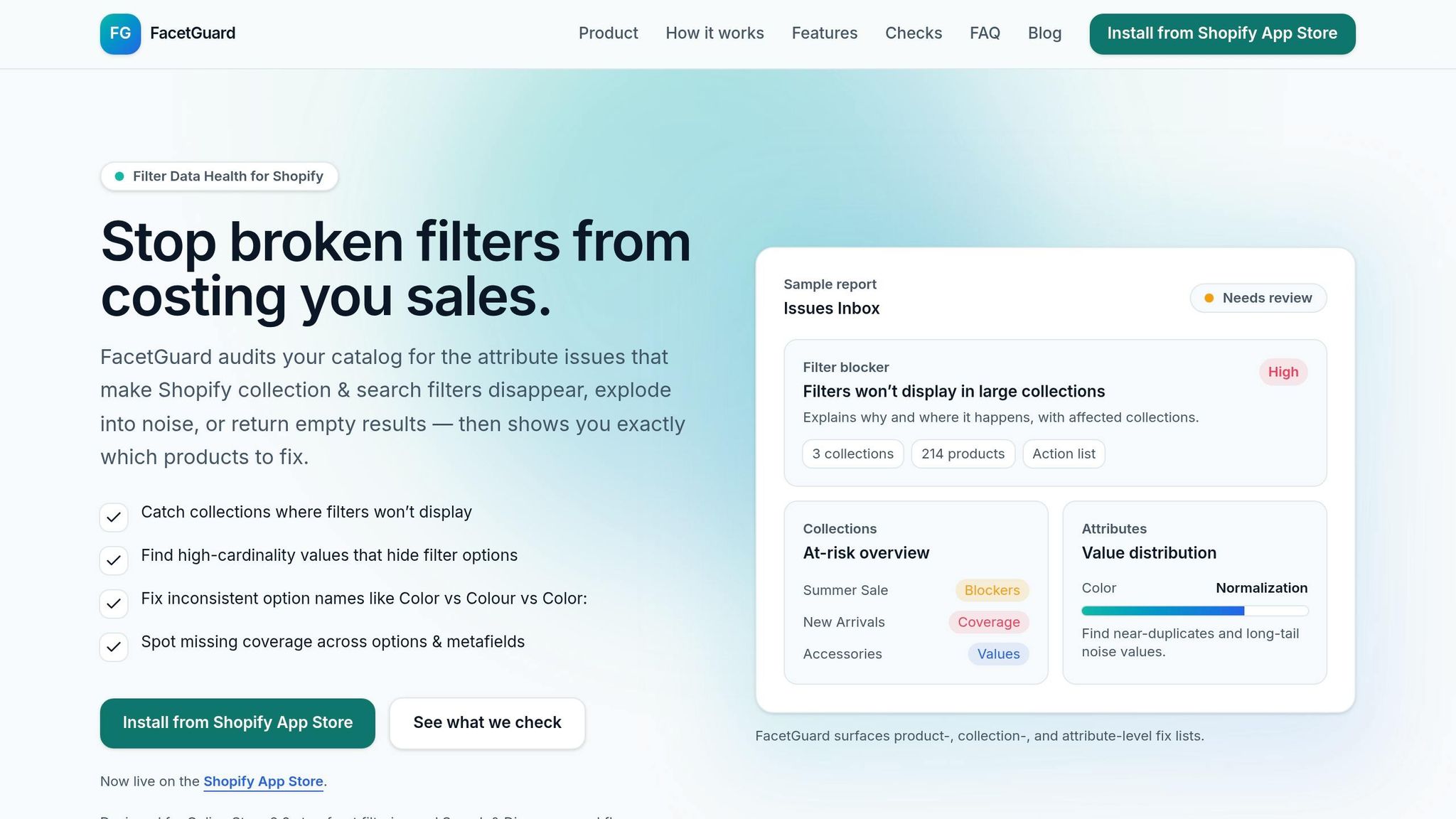
FacetGuard is a great tool to run a non-destructive, read-only diagnostic scan. Its Issues Inbox highlights filter-related problems in order of priority, while the Filter Blockers Scanner identifies collections where filters fail to display - often due to size limits or high-risk search scenarios.
FacetGuard also conducts a cardinality audit, flagging attributes with too many unique values. It can detect near-duplicate option names caused by inconsistent casing or punctuation and identify products missing required filter data. Once you’ve reviewed these diagnostics, you’ll be ready to export your product data.
Export Product and Collection Data
Exporting your current product and collection data from Shopify Admin helps establish a baseline. Focus on core attributes like titles, handles, product types, vendors, tags, and custom metafields that serve as filterable data sources. This is also a chance to check for naming inconsistencies. Don’t forget to export product variants (SKUs, options, prices) to identify near-duplicates that could weaken filter coverage.
For larger catalogs, tools like Matrixify can provide a more reliable metafield export than Shopify’s native CSV option.
Andrew Simpson, Founder of Pea Soup Digital, emphasizes, "Data cleanup is tedious, but it is non-negotiable."
Lastly, export collection titles and product counts to identify collections that could be at risk of filters not displaying due to size constraints.
sbb-itb-e8e54fb
Auditing Metafield Data Quality
Take a closer look at your metafield data. Incomplete or inconsistent entries can cause filters to malfunction, leading to a potential drop in clicks by 23% and conversions by 14%.
"Complex Shopify catalogs rarely fail because Shopify lacks features. They fail because the data model underneath them becomes unmanageable." - Performantcode.io
To maintain a healthy catalog, aim for 90% or more completion of core attributes. If your population rates dip below 80%, you risk "silent failures" - filters may vanish, or products might not show up in search results. Start by reviewing population rates to identify gaps, then focus on standardizing naming conventions and managing excessive unique values.
Check Metafield Population Rates
Begin by scanning your collections to find products missing required metafield data. Tools like FacetGuard's automated coverage scans can identify exactly which products lack specific metafields. This lets you prioritize your top 20 bestsellers to address missing data that could have the biggest impact.
Assessing collection-level data health is critical. For instance, if only 40% of products in your "Outdoor Furniture" collection have the "Material" metafield filled in, that filter won't work effectively. Set a minimum population rate of 80-90% for metafields before publishing products to your storefront.
Once you've ensured adequate coverage, focus on keeping naming consistent across your entire catalog.
Validate Naming Consistency
Inconsistent naming can fragment filters and confuse shoppers. Variations like "Red" vs. "red" or "Color:" vs. "Color" can create unnecessary filter options.
FacetGuard's Option Name Consistency tool can automatically detect these near-duplicates across your catalog. For larger catalogs, Shopify's bulk editor or CSV export/import feature makes it easier to standardize values in one go. This step is especially critical for variant options - differences like "Small" vs. "S" or "Color" vs. "Colour" can unnecessarily multiply filter values.
Check for Excessive Unique Values
Shopify filters have a limit of 250 unique values per attribute. If you exceed this limit, filters might break or become cluttered with one-off values that don’t add much value.
"Too many unique values (cardinality explosion) can hide options or dilute the filter list with one-off noise." - FacetGuard
FacetGuard's Value Limit Audit can flag attributes that exceed this threshold. Export the affected products into a CSV file to handle bulk updates outside Shopify’s admin panel. Before making widespread changes, test updates on 10% of the affected products to ensure accuracy.
Testing Filter Performance on Collections
Once you've ensured your data is in good shape, the next step is to test how well filters perform on your storefront. Even with flawless data, filters can sometimes fail to work as intended due to issues like collection size limits, URL parameter handling, or display logic errors.
Scan for Broken Filters
Start by checking if any of your collections exceed Shopify's size limits - 5,000 products for collections and 1,000 for search results. Exceeding these thresholds can cause filters to fail silently. Problems like high cardinality, inconsistent naming, or missing metafields can also interfere with filter functionality. Tools like FacetGuard's Filter Blockers Scanner can help identify collections that have crossed these limits and explain why filters might not appear. If a collection exceeds the 5,000-product cap, consider breaking it into smaller sub-collections based on categories, brands, or product types.
Another common issue is silent failures, where filters either disappear or return no results. After addressing these issues, ensure the filter logic works as expected across your collections.
Verify Filter Display Logic
Once you've scanned for broken filters, make sure the filters display and function correctly. Test various filter combinations to confirm that Shopify's logic works as intended - AND logic applies across different filter types, while OR logic governs options within the same type. Also, check that variant-specific filters properly update the product's featured media and URL.
Shopify allows a maximum of 25 filters per store. If you're nearing this limit, prioritize the filters that provide the most value to your customers and consider merging similar attributes to save space.
Test URL Parameter Handling
Manually test filter parameters in collection URLs to ensure your theme processes them correctly. For example, append variant-level parameters like filter.v.option.color=red or product-level parameters like filter.p.tag=new to your collection URLs. Verify that your theme applies these filters properly, maintains the navigation state, and includes a canonical tag pointing back to the base collection URL. For filter combinations that return zero results, ensure your store displays a clear "no results" message along with a "Clear All" option.
"Filtered states should always canonicalize to the root collection." - Net Profit Marketing
Fixing Issues and Tracking Progress
Once your audit is complete, the next step is to systematically address the identified problems and keep an eye on how filters are performing over time.
Prioritize Issues by Severity
Begin by tackling filter blockers - these are the issues preventing filters from appearing altogether. Since they directly impact revenue by making it impossible for shoppers to narrow down products, they should be your top priority. Tools like FacetGuard's Issues Inbox can help by sorting problems by severity (High, Medium, Low) and showing how many collections or products are affected by each issue. Focus first on the blockers that target your highest revenue-generating products or collections to protect both revenue and customer satisfaction.
Next, deal with high-cardinality problems, which occur when attributes have too many unique values, making filters less effective. Afterward, address coverage gaps, where missing metafield values cause users to encounter "empty browsing" experiences. Finally, resolve naming inconsistencies, such as differing spellings like "Color" versus "Colour", which can unnecessarily split filter options.
Export Data for Bulk Editing
For efficient updates, export CSV files that include only the affected products and variants flagged during your audit. If you're using tools like Metafields Guru, choose the export format that suits your workflow: the "Columns" format (one row per product) simplifies spreadsheet edits, while the "Rows" format (one row per metafield) is ideal for automated updates. Always include Shopify attributes like "Handle" or "SKU" in your export to ensure proper matching during re-import.
For smaller-scale edits, Shopify's native bulk editor can be handy for updating specific metafield columns. However, avoid using Microsoft Edge for this task, as its limited URL length may cause errors when editing multiple metafields at once. Stick to browsers like Chrome, Firefox, or Safari for smoother performance. After making updates, document and review all changes to ensure data accuracy and consistency.
Document Fixes and Monitor Progress
As you resolve issues flagged in your audit, keep detailed records of every correction. Document changes to metafields, collections, and filter settings to maintain a clear history of updates. Tools like FacetGuard can streamline this process by allowing you to mark issues as "ignored" or "resolved", which helps create a clean audit trail and eliminates unnecessary diagnostic noise. Share regular progress updates with your operations, merchandising, and development teams to ensure everyone stays aligned.
Additionally, monitor filter performance over time. Track which filter combinations lead to purchases and identify those that result in zero results - these can indicate data gaps or unmet customer needs. To keep your filters running smoothly, plan to conduct a full audit at least twice a year. This ensures your filters adapt to changes in your catalog and continue delivering the best possible experience.
Conclusion
Shopify filters play a key role in boosting revenue by making it easier for customers to find what they’re looking for. Every click saved speeds up their path to purchase, which can directly impact sales. However, filters are only as effective as the data behind them. If your product data isn’t clean, consistent, and complete, filters can backfire - hurting both user experience and your revenue.
Regular audits are essential to catch hidden issues that can sabotage conversions. Problems like disappearing filters in large collections, inconsistent naming that splits options, or missing metafield values that cause products to vanish from results can all quietly harm your store’s performance. Tools like FacetGuard’s diagnostic suite can help you stay ahead of these problems by flagging them early. Their Issues Inbox even prioritizes problems by severity, so you know where to focus first.
To turn audit insights into real improvements, start by addressing issues with your top-selling products. Scheduling quarterly audits will help you maintain data quality as your catalog grows. In the meantime, keep an eye on filter performance - look for combinations that lead to purchases and those that return zero results. These patterns can reveal data gaps or unmet customer needs, giving you the chance to fine-tune your filters and better serve your audience.
FAQs
Which metafields should I audit first for filters?
Begin by reviewing the metafields associated with essential product attributes, such as color or size. It's important to maintain consistent naming conventions and ensure these metafields are applied across all relevant products. Incomplete or inconsistent data can lead to confusion for shoppers.
Pay special attention to metafields with a large number of unique values or those that include highly specific, long-tail entries. These can clutter filters, making them harder to use and potentially misleading for customers. By prioritizing comprehensive attribute coverage, uniform naming, and standardized values, you’ll ensure that filters work effectively and create a smoother, more enjoyable shopping experience.
How do I find and fix filters that disappear without errors?
If filters are vanishing from your Shopify store, the issue often lies in your catalog's attributes. Here's how you can tackle it:
- Audit Your Catalog: Check for problems like missing metafields or inconsistent data in your product attributes. These small errors can disrupt how filters appear.
- Use a Filter Health Tool: Tools like this can help you quickly spot issues. They scan your catalog and flag any problems affecting your filters.
- Review and Correct: Dive into the tool's findings to identify the filters impacted. Fix any inconsistencies in attributes or option names that are causing trouble.
- Test Regularly: Make testing a habit. Schedule regular audits to ensure your filters work seamlessly across all collections.
By staying proactive, you can keep your filters running smoothly and deliver a hassle-free shopping experience for your customers.
What’s the best way to reduce unique values before hitting the 250 limit?
To stay within Shopify's 250 unique value limit, it's crucial to address high-cardinality issues in your catalog. Start by tackling inconsistencies in option names and eliminating unnecessary long-tail noise. Regular audits of your catalog can help you identify and clean up duplicate or near-duplicate values.
Another key step is to standardize attribute names to maintain uniformity across your data. Fixing inconsistencies and normalizing these attributes can go a long way in reducing unique values. Additionally, optimizing your metafields and structuring your data thoughtfully can prevent unnecessary unique value growth, especially in more complex catalogs.