
How to Detect Missing Product Attributes in Shopify
Detecting missing product attributes in Shopify is crucial for maintaining a functional and user-friendly storefront. Missing or inconsistent data can break filters, confuse customers, and lead to lost sales. This guide covers three practical methods to identify missing attributes:
- Manual Checks in Shopify Admin: Spot gaps in fields like product type, tags, and metafields directly in the admin interface. Use the bulk editor to scan multiple products efficiently.
- CSV Exports for Large Catalogs: Export your product data to a spreadsheet, filter for blank cells, and identify missing values across key attributes like categories, tags, or metafields.
- Automated Detection with FacetGuard: Use tools like FacetGuard to scan your catalog, flag issues, and prioritize fixes. It monitors for gaps, inconsistent formatting, and missing data in real-time.
Prioritize fixing attributes in high-traffic collections and focus on consistent naming conventions to avoid filter splits. Regular audits and tools like FacetGuard can save time and ensure your storefront remains functional as your catalog grows. Let’s dive into the details.
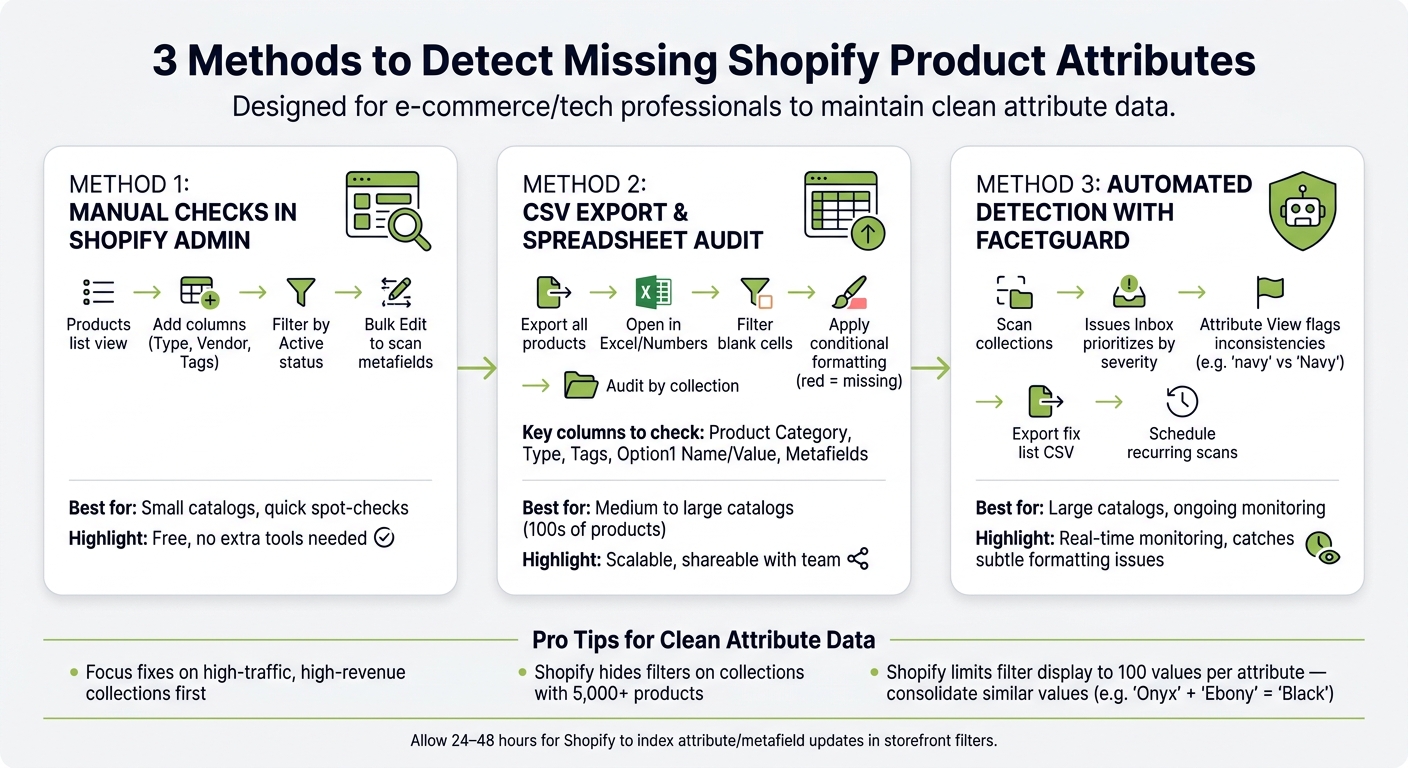
3 Methods to Detect Missing Shopify Product Attributes
Find Missing Shopify Product Data with AI | AI Metafield Autopilot

sbb-itb-e8e54fb
Identifying the Attributes Your Store Needs
Understanding the key attributes that shape your store's filters and navigation is essential for creating a seamless shopping experience.
Core Product Attributes to Know
Shopify structures product data into several layers, each serving a specific purpose in powering your storefront's filters and navigation.
| Attribute Type | Examples | Purpose |
|---|---|---|
| Standard Taxonomy | Product Category (e.g., Apparel > Clothing) | Enables category-specific metafields and tax rates |
| Category Metafields | Color, Size, Fabric, Age Group, Target Gender | Drives storefront filters and visual elements like color swatches |
| Organizational | Product Type, Vendor, Tags | Supports internal management and basic collection filtering |
| Custom Data | Custom Metafields | Handles unique filtering needs beyond the standard fields |
One important note: Shopify's Product Category (based on its Standard Product Taxonomy) automatically activates specific metafields, unlike the more flexible Product Type field.
For instance, assigning a product to the "Shirts" category will automatically make attributes like neckline, sleeve length type, and fabric available for use. Similarly, choosing a specific category - like "Alarm Clocks" instead of the broader "Clocks" - unlocks attributes that are more tailored to that product type.
With these attributes in mind, it’s essential to review your store's data to ensure they are correctly implemented.
How to Review Attribute Data in Shopify Admin
To check your product attributes in Shopify Admin, go to the Products section and open any product. Here’s what to look for:
- Standard Fields: These include the product's Title, Vendor, Product Type, and Tags.
- Product Organization Section: This is where you’ll find the assigned category and any related metafield details.
- Metafields Section: Once a category is assigned, this section appears below, displaying the category-specific attributes. Custom metafields, if used, will appear in a separate section labeled with your store's namespace.
By reviewing these areas, you can ensure that all relevant attributes are visible and properly configured.
Building an Attribute Checklist
A detailed checklist is a great way to track and manage the attributes across your catalog. For each product type, define a list of required attributes, including standard, category-specific, and custom metafields.
Here’s what to consider when building your checklist:
- Consistent Naming: Ensure uniformity in naming conventions (e.g., always "Color" instead of "Colour").
- Cardinality Risks: Watch out for attributes with too many unique values, as Shopify may hide those filter options entirely.
- Coverage: Measure how many products in a collection have a specific attribute filled in. For example, if only 30% of your "Jackets" collection includes a
materialvalue, that filter will lead to incomplete results - something shoppers will quickly notice.
Your checklist should flag attributes with low coverage, especially when high coverage is expected. This will help you identify and address gaps that could impact the shopping experience.
Manual Methods for Finding Missing Attributes
Manual audits are a great way to identify gaps in your product attributes, complementing automated tools. With a clear attribute checklist in hand, Shopify's admin tools provide built-in ways to spot these gaps - no extra software required.
Using the Shopify Products List View
The Products list view is an excellent starting point for a quick scan of your catalog. By clicking the Columns icon, you can add fields like "Type", "Vendor", and "Tags" to your display. This setup helps you quickly identify empty fields. To narrow your focus, use the Search and filter function with "Product status: Active" to concentrate on live products. Look out for blank cells in the "Type" or "Vendor" columns, or products labeled "No tags" - these should be your first focus.
For an even quicker audit across multiple products, select a group and click Bulk edit. From there, you can add metafield columns to easily identify missing custom attributes.
Don’t forget to check individual product variants, as they often hide more subtle gaps.
Checking for Variant Option Gaps
Variant gaps can be harder to spot since they’re tucked away inside individual product pages. To check, open a product, scroll to the Variants section, and confirm that every variant has values for all assigned options. For example, a shirt might have size variants but no "Color" option, which can disrupt filter functionality.
Keep in mind that inconsistent naming - like differences in spelling or formatting across products - can cause Shopify to treat these as separate attributes, leading to unexpected filter splits. Sorting products by option value can make it easier to catch these inconsistencies.
Lastly, don’t overlook metafields, as they often house essential data.
Reviewing Metafields for Missing Data
Metafields appear at the bottom of each product page in Shopify Admin. Click "Show all" to view all metafields, including those that may lack critical attribute data.
For a broader overview, navigate to Settings > Custom data > Metafields > Products. Here, you can review all active metafield definitions and spot any "Metafields without a definition." These undefined metafields often stem from uninstalled apps and can complicate audits. Using the Bulk Editor, you can add metafield columns across multiple products to quickly identify empty cells - these missing values can directly affect storefront filters.
Tip: Pin your most important metafields in Settings so they always appear by default on the product page. This small step can save you time during routine checks.
Using CSV Exports to Find Missing Attributes at Scale
Manual checks might work for small product catalogs, but when you're managing hundreds - or even thousands - of items, exporting a CSV file becomes the go-to solution for identifying missing attributes efficiently.
Exporting and Reviewing Product Data
To get started, navigate to Products in Shopify Admin, click Export, and select "All products" with the option "CSV for Excel, Numbers, or other spreadsheet program." If your export contains over 100 variants, Shopify will email the file to you.
Once you open the CSV file in your spreadsheet program, use filters on the header row to pinpoint blank cells. Focus on columns like Type, Tags, Product Category, Vendor, and any metafield columns. This approach quickly highlights products missing specific data. Additionally, be on the lookout for placeholder values like Price 0.00 or Weight 0, as these might indicate incomplete information even if the product seems fine at first glance.
"If a non-required column in the import CSV file is blank, then the matching value in the product list is overwritten as blank." - Shopify Help Center
Cleaning and filtering the data in this way lays the groundwork for a thorough attribute audit.
Building an Attribute Audit Sheet
Use your earlier attribute checklist to create a dedicated audit sheet. From your CSV export, apply conditional formatting to highlight empty cells in red across key attribute columns. This gives you an instant visual overview of where data gaps exist.
Here are the key columns to prioritize:
| Column | What to Check |
|---|---|
| Product Category | Ensure no blanks exist and that entries align with Shopify's product taxonomy. |
| Type | Look for missing or inconsistent labels across similar products. |
| Tags | Identify any missing tags that are critical for automated collections or storefront filters. |
| Option1 Name/Value | Verify that variant data is complete to support proper filtering functionality. |
| Metafields | Check for empty cells in key metafield columns like Material or Care Instructions. |
Metafield columns in the export follow the format Name (product.metafields.namespace.key). If these columns are missing, it likely means you haven't set up metafield definitions under Settings > Custom data. This method provides a clear, scalable way to identify attribute gaps across your catalog.
Checking Collection Coverage
After auditing individual products and their attributes, shift your focus to collection coverage. This step helps ensure that attributes are complete for products within key collections.
However, keep in mind that the Collection column isn't included in Shopify's standard CSV exports. To address this, filter your product list by collection in Shopify Admin and export the filtered list by selecting "Products that match your search and filters".
This allows you to verify that every product in important collections - like "Men's Outerwear" or "Best Sellers" - has the required attributes for accurate filtering and display. By auditing collections one at a time, you can prioritize fixing the areas that will most improve the shopping experience for your customers.
Automating Attribute Detection with FacetGuard
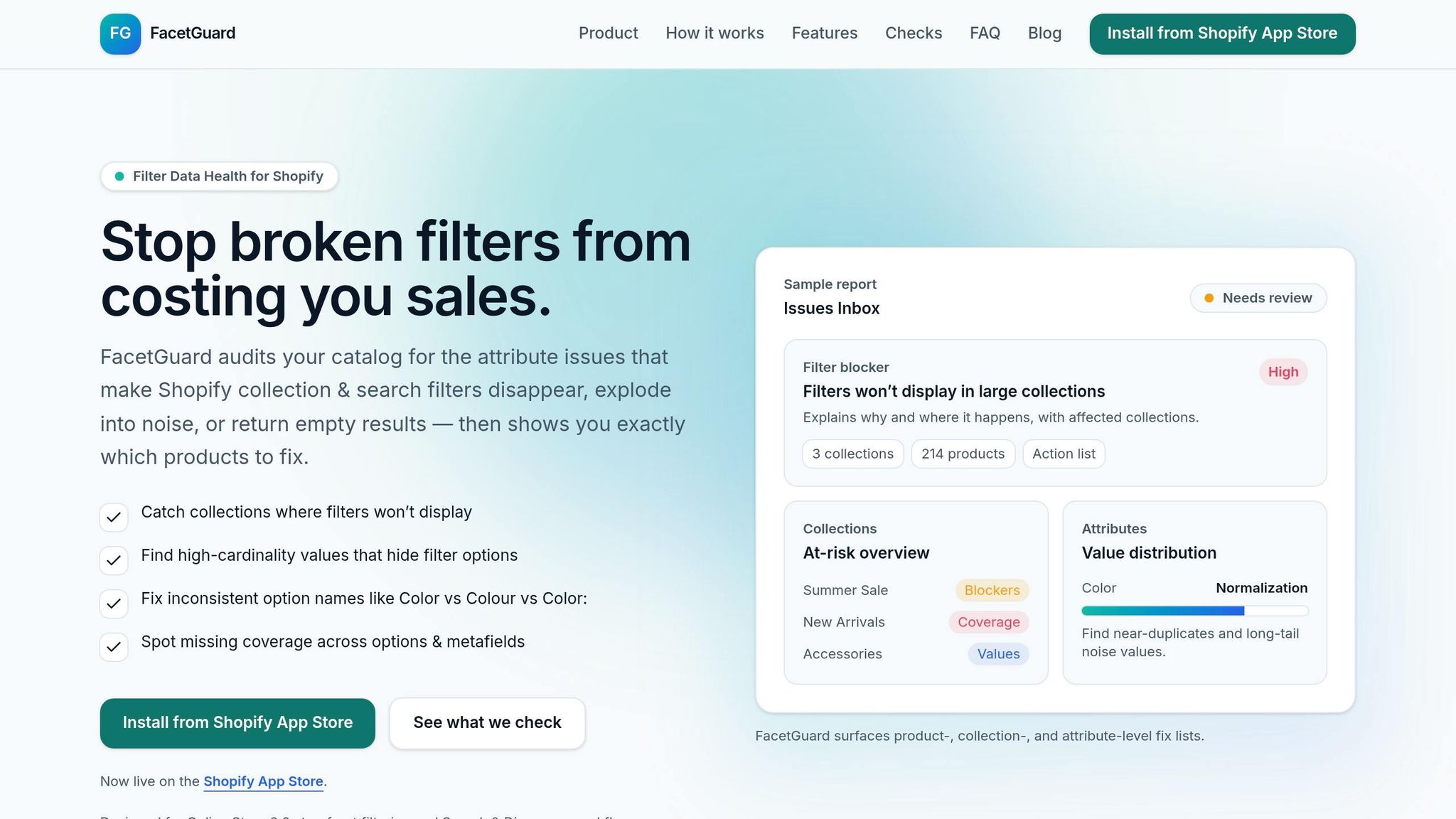
Manually auditing CSV files can be effective, but let’s face it - it’s time-consuming and tedious. That’s where FacetGuard steps in. It automates the entire process by scanning your Shopify collections for issues like missing values, inconsistent formatting, and gaps that could mess up your filters. No more manual spreadsheet checks! Even better, FacetGuard continuously monitors your catalog, so potential problems are flagged as they arise. Let’s dive into how its features simplify catalog management and keep everything running smoothly.
FacetGuard's Key Detection Features
FacetGuard’s audit process revolves around its Issues Inbox, which prioritizes problems based on their severity and impact. Instead of sifting through endless rows of data, you can focus on the issues that matter most - those affecting the largest number of products or collections.
Here are three standout features that make attribute detection a breeze:
| Feature | What It Does |
|---|---|
| Filter Blockers Scanner | Pinpoints collections where Shopify filters won’t display and explains exactly why. |
| Attribute View | Analyzes value distribution for attributes (like Color or Size) and flags inconsistencies, such as "navy" vs. "Navy" being treated as separate filter options. |
| Coverage Gaps | Identifies products within a collection that are missing required options or metafield values. |
The Attribute View is especially handy for spotting subtle inconsistencies - like unwanted spaces or punctuation differences - that can create duplicate filter entries. These minor details are nearly impossible to catch manually, especially at scale.
How to Use FacetGuard to Fix Filter Issues
Start by auditing your most critical collections - those that drive the bulk of your traffic or revenue. FacetGuard will scan each collection and flag products that aren’t “filter-ready.” This means it identifies items missing key variant options, tags, or metafields that your storefront filters rely on.
Once flagged, you can drill down into the details to see which specific products or variants need attention. This targeted approach saves hours of manual work and ensures nothing gets overlooked.
Exporting Fix Lists from FacetGuard
After identifying the issues, FacetGuard makes it easy to act. You can export a CSV file listing all affected products and variants, ready to share with your merchandising team or use for a bulk update in Shopify. Plus, within the app, you can mark issues as resolved or ignored, keeping your workspace tidy and preventing the same problems from showing up in future audits.
To maintain catalog health, FacetGuard also supports scheduled scans. These scans automatically check for attribute gaps after product imports, ensuring issues are caught before they impact your live storefront filters. This ongoing monitoring integrates seamlessly into your workflow, keeping your filters accurate and your storefront polished.
Keeping Attribute Data Clean Over Time
Spotting missing attributes is just the start. The bigger challenge? Maintaining a clean, organized catalog as it grows. New products, inconsistent vendor data - these can quickly create chaos. But with a few smart practices, you can keep your catalog filter-friendly and functional as it evolves.
How to Prioritize Attribute Fixes
Not all missing attributes are equally urgent. Start where it matters most: focus on collections that drive the most traffic and revenue. These are the areas where filtering issues cause the biggest headaches. For example, Shopify automatically hides filters on collections with more than 5,000 products. So, prioritize smaller, high-traffic collections where filters are active. Fixing these ensures a seamless shopping experience for your customers.
When deciding which attributes to address, think about relevance. Concentrate on the attributes that are most important to your audience and your top-performing collections. Trying to fix everything at once can spread your efforts too thin.
Another tip? Keep attribute values organized and manageable. Shopify limits filter displays to 100 values per attribute on storefronts. If your "Color" filter has over 120 options, some won't show up. Grouping similar values - like combining "Onyx" and "Ebony" into "Black" - helps you stay within this limit and keeps filters user-friendly.
Setting Up Regular Attribute Audits
A one-time cleanup won't cut it. Product catalogs are constantly changing with new imports, seasonal updates, and vendor uploads. Each change introduces the risk of messy data. Regular audits are the best way to catch problems before they impact your storefront.
Set a routine. For example, run a FacetGuard scheduled scan after every major product import to identify issues before they go live. Pair this with monthly reviews of your Issues Inbox to resolve old problems and spot new trends.
Keep in mind that Shopify’s indexing process can take 24–48 hours to reflect attribute or metafield updates in storefront filters. If changes don’t appear immediately, it’s likely due to this delay - not a technical glitch.
Improving the Attribute Entry Process
The best way to avoid missing or inconsistent attributes? Stop errors at their source. Free-text fields are a common culprit - they’re prone to typos, inconsistent formatting, and other mistakes that disrupt filters. Switching to dropdowns or swatches for data entry can eliminate many of these problems.
It’s also crucial to define a clear schema for your metafields. Outline the purpose, format, and owner for each field. Without this, you risk conflicts - like having both specs_material and material_type in use without clear guidelines. As Performantcode.io puts it:
"Consistency is not cosmetic. It's structural."
Assign a team member to oversee attribute standards and prevent issues like metafield sprawl. Standardizing data entry strengthens the foundation of your catalog. Shopify’s Standard Product Taxonomy can also help by auto-populating structured metafields, ensuring your data stays consistent.
Conclusion: Building a Filter-Friendly Shopify Catalog
This guide has walked you through crafting a Shopify catalog that's ready for effective filtering - starting with identifying key attributes and using both manual checks and automated tools to keep everything on track.
A filter-friendly catalog comes down to three main steps: pinpointing essential product attributes, spotting and fixing data gaps early, and using tools to scale your efforts. By following this process - manual checks, CSV exports, and automated scans - you can ensure that no important detail slips through the cracks.
"Keep your Shopify filters clean, complete, and conversion-ready. Find the products with attribute problems that break collections and search filters - before customers do." – FacetGuard
FAQs
Which product attributes matter most for Shopify filters?
When setting up filters for your Shopify store, it's crucial to focus on attributes that are consistent, complete, and fully supported by Shopify's filtering system. The most important ones include:
- Color
- Size
- Material
- Custom metafields tailored to your catalog
To ensure smooth functionality, stick to standardized naming conventions. For instance, avoid using variations like "Red" and "Colour" for the same attribute - consistency is key. Also, remember Shopify's limits: each filter should have fewer than 100 unique values.
Lastly, only specific metafield types - such as text, decimal, or boolean - are compatible with Shopify filters. Make sure your custom metafields align with these supported formats for optimal performance.
What’s the fastest way to find missing metafields in bulk?
The fastest way to spot missing metafields in bulk is by using FacetGuard. This tool scans your catalog and flags products that lack specific attributes. It even offers a prioritized list to help you update those fields more efficiently.
Another option is to use Shopify's query syntax. For example, you can run -metafields.{namespace}.{key}:* (like -metafields.custom.material:*) to identify products missing a particular metafield. This method saves you from the hassle of manual checks.
Why do Shopify filters split into duplicates (like “navy” vs “Navy”)?
Shopify filters can end up creating duplicate options because the platform sees even slight differences in data as entirely separate values. For instance, variations like capitalization (“navy” vs. “Navy”), extra spaces, punctuation, abbreviations (“S” vs. “Small”), or plural forms (“Color” vs. “Colors”) can lead to fragmented filter choices. FacetGuard steps in to solve this by spotting and flagging these inconsistencies, helping you standardize your catalog data and ensure smoother, more accurate filtering.