What Is Filter Value Cardinality in Shopify?
Filter value cardinality in Shopify refers to the number of unique options available within a specific filter, like "Color" or "Size." For example, if your "Color" filter lists Red, Blue, and Green, its cardinality is 3. Shopify limits how many filter values and products can appear to maintain performance:
- 100 unique values per filter are visible to shoppers. Extra values are hidden.
- 5,000+ products in a collection disable filtering entirely.
- 100,000+ search results also remove filters.
- Shopify stores can have up to 25 active filters and 200 unique values per filter group.
High cardinality can cause hidden options, slower performance, and customer frustration. Issues like inconsistent naming (e.g., "XL", "X-Large", and "Extra Large") can inflate filter counts unnecessarily. Regular audits and tools like FacetGuard can help manage and reduce these problems by identifying redundant or excessive values.
To ensure your store runs smoothly:
- Consolidate redundant filter values (e.g., unify "Red" and "Crimson").
- Standardize naming conventions for filters.
- Use Shopify's Bulk Editor or tools like FacetGuard to streamline updates.
Efficient filter management improves navigation and the overall shopping experience.
How Filter Value Cardinality Affects Shopify Storefronts

Shopify Filter Value Cardinality Limits and Thresholds
Shopify's Filter Limits and Thresholds
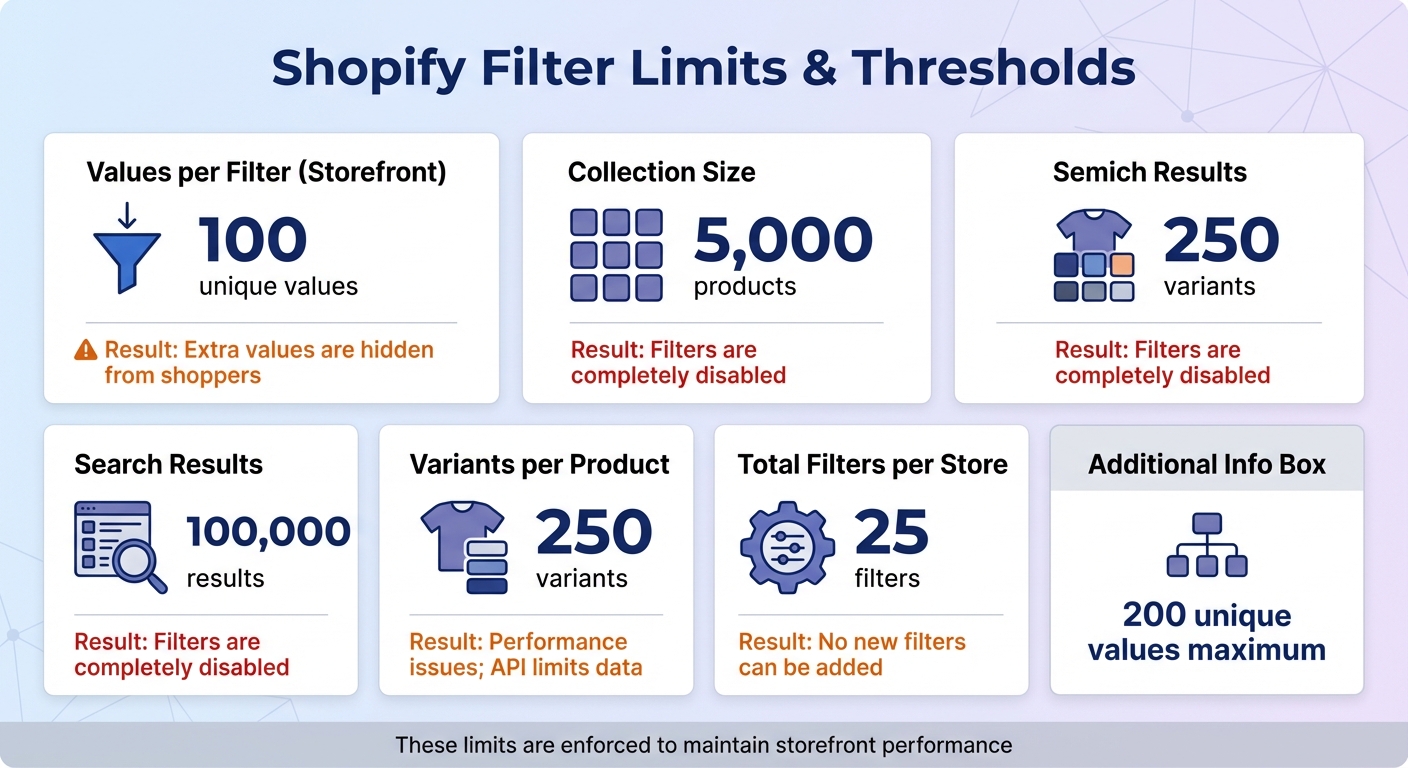
Shopify enforces specific limits to ensure storefront performance remains efficient. For instance, a single filter can showcase up to 100 unique values on the storefront, even if your catalog contains more. Behind the scenes, filter groups are capped at 200 unique values, and stores are restricted to 25 active filters at any given time.
Additionally, Shopify imposes hard thresholds tied to catalog size. If a collection exceeds 5,000 products, all filtering capabilities are disabled. Similarly, search queries that return more than 100,000 results will not display filters. Another limit affects high-variant products: the product.variants Liquid object is restricted to 250 variants, which can lead to performance issues.
| Limit Type | Threshold | Result of Exceeding Limit |
|---|---|---|
| Values per Filter (Storefront) | 100 unique values | Extra values are hidden |
| Collection Size | 5,000 products | Filters are disabled |
| Search Results | 100,000 results | Filters are disabled |
| Variants per Product | 250 variants | Performance issues; API limits data |
| Total Filters per Store | 25 filters | No new filters can be added |
These thresholds are designed to maintain performance but can lead to challenges for stores with extensive product catalogs.
Problems Caused by High Cardinality
Exceeding these limits can trigger several issues that disrupt the shopping experience and complicate navigation for customers.
One common problem is data inconsistency, which can fragment filters. For example, listing sizes as "XL", "X-Large", and "Extra Large" separately can cause customers to miss part of the inventory for that size. This issue often leads to "dead-end" navigation - filter combinations that return zero results - creating frustration for shoppers. On mobile devices, excessively long filter lists can make scrolling tedious and touch interactions less user-friendly, potentially reducing conversion rates.
High cardinality also impacts performance. Shopify warns that:
As variant counts increase, this pattern results in a decline in performance. This is especially critical for products with more than 250 variants and combined listings.
Themes that require large amounts of data to populate filter options may experience slower page loads due to overfetching. Additionally, high cardinality can result in a massive number of unique filter URLs, which can overwhelm your site's crawl budget as search engines attempt to index these low-value variations.
These challenges highlight the need for careful management of filter values and catalog organization to ensure a smooth customer experience.
sbb-itb-e8e54fb
How to Find High Cardinality Filters
Signs of High Cardinality in Filters
If customers browsing your collection pages can't see all available filter options - like specific colors or sizes - it might be due to Shopify's limit of displaying only the first 100 filter values.
In the Shopify Search & Discovery app, filters with more than 1,000 unique values get truncated, cutting off additional options. Another red flag is inconsistent naming, where variations like "Color" and "Color:" appear as separate entries due to inconsistent data entry.
For metafield-based filters, you might notice fewer values in the admin than expected. This happens because Shopify restricts the number of metafields it checks for uniqueness across your store. More severe cases include filters vanishing entirely from collections with over 5,000 products or search results exceeding 100,000 items.
Manual Inspection Methods
To identify high cardinality issues, start by comparing the filter options displayed on your storefront with the full range of options in your catalog. Missing values signal that you've hit the display limit.
In your Shopify Admin, go to Apps > Search & Discovery > Filters and check the "Values" section for each filter. If the list looks incomplete or cuts off abruptly, it's a sign of high cardinality. Use the Products section to filter by tags, types, or vendors to spot redundant entries like "M", "Med", and "Medium", which should be consolidated.
"If you were to import catalog data that had three values for the same attribute, such as 'M,' 'Med,' and 'Medium,' then most Shopify search and discovery apps will display three filters when they should only display one."
– James Stanley, Nimstrata
Another method is to examine the URL parameters when filters are applied on your storefront. For example, parameters like filter.v.option.color=red can reveal how specific values are being indexed, helping you spot structural issues.
While manual checks can uncover these problems, they can be time-consuming. Tools like FacetGuard simplify the process by automating the detection of high cardinality filters.
Using FacetGuard to Audit Filter Cardinality
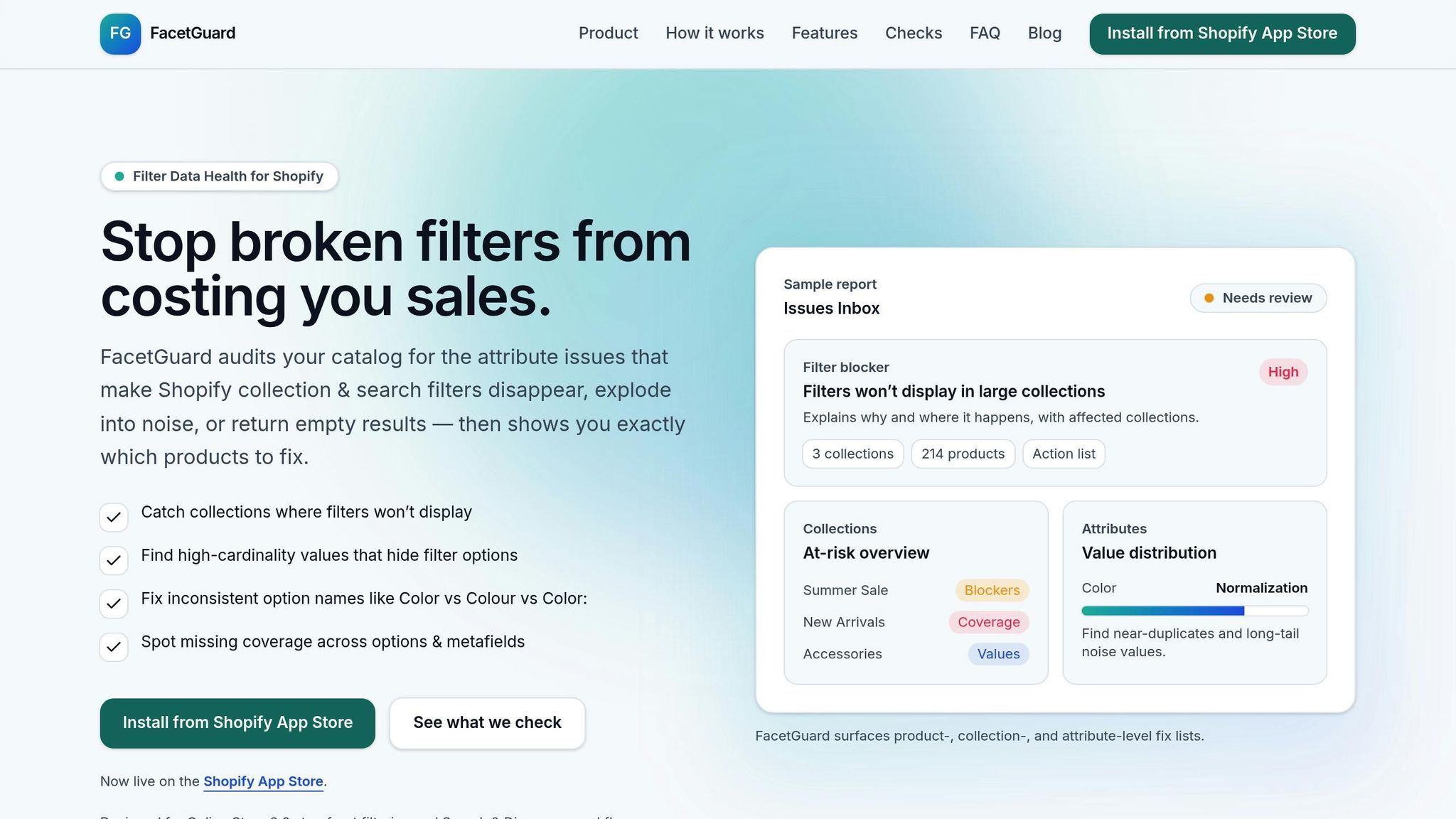
FacetGuard streamlines the process with its Value Limit/Cardinality Audit tool, scanning your entire catalog to find attributes with too many unique values. Instead of manually reviewing each filter, the app provides an Issues Inbox that flags problematic attributes based on their severity and impact.
It also identifies inconsistent entries that inflate filter counts, such as "XL", "X-Large", and "Extra Large." Through its Attribute View, you can see how values are distributed across your catalog and quickly pinpoint opportunities to standardize your data. For collections nearing Shopify's 5,000-product threshold, FacetGuard's Filter Blockers Scanner highlights where filters might fail and explains the root causes.
FacetGuard makes it easy to export affected products and variants as CSV files, so you can use Shopify's Bulk Editor to normalize data efficiently. This saves time, especially for large catalogs, and ensures your filters remain functional and user-friendly.
How to Manage and Reduce Filter Value Cardinality
Auditing and Normalizing Filter Attributes
Start by identifying and consolidating redundant metafields. For example, if your catalog has fields like specs_material, material_type, and product_material all capturing fabric details, you're unnecessarily fragmenting your data. Combine these into a single, well-defined field to simplify your structure.
Next, tackle semantic duplicates. Variations like "XL", "X-Large", and "Extra Large" should be unified into a single, consistent value. Similarly, entries such as "100% Cotton" and "Cotton" should be standardized into one format. Shopify's Bulk Editor can help you make these updates efficiently. Export the affected products as a CSV file, make the changes, and reimport them to apply updates across your catalog.
Consistency in naming conventions is crucial. Mixing singular and plural forms (e.g., "Color" versus "Colors"), using inconsistent casing, or alternating between abbreviations can create unnecessary filter options. This not only confuses your customers but also disrupts your filtering system's functionality.
"Consistency is not cosmetic. It's structural. Without consistent naming, your Shopify product data structure becomes unpredictable." – Performantcode.io
For critical attributes like size and color, aim for at least 95% completeness across active SKUs. Organize your filters into three priority tiers: decision-critical (e.g., size, color), risk-reduction (e.g., dimensions, warranty), and preference-based (e.g., brand, style). This approach ensures your normalization efforts focus on areas that have the most significant impact on the customer experience.
Finally, use clear namespaces for structuring your metafields. This step helps maintain order and predictability in your filter values.
Using Metafield Namespaces and Custom Filtering
Create a strict schema for each metafield. Define its purpose, format, and owner before adding it to your catalog. Group related attributes with namespaces, such as specifications.material, specifications.finish, and specifications.dimensions, rather than scattering field names randomly. This method makes your data more predictable and easier for developers to work with.
Enable the adminFilterable capability for your metafields. Without this setting, those fields can't serve as filter sources. For attributes shared across a large number of products - like a "Material Guide" - consider using Metaobjects instead of standard metafields. Metaobjects are more scalable and allow for easier bulk updates.
When migrating data, do it in phases to minimize disruptions. Also, remember that Shopify's filters are case-sensitive. For example, "Oak" and "oak" will appear as separate values. Structured metafields can help enforce consistent casing, reducing unnecessary duplicates.
Once your data is standardized, tools like FacetGuard can help you identify and address remaining high-cardinality issues.
FacetGuard's Value Limit Audit Tool
FacetGuard's Value Limit Audit scans your catalog to identify attributes that exceed Shopify's limits. The Issues Inbox highlights problematic attributes, prioritizing them based on severity and customer impact. This feature saves you from manually reviewing each filter by providing a clear overview of where high cardinality is causing trouble.
The tool's Attribute View breaks down how values are distributed across your catalog. For example, it might reveal that variations like "Medium", "Med", and "M" are inflating your size filter unnecessarily. FacetGuard also offers CSV exports, allowing you to pull affected products and variants directly into Shopify's Bulk Editor. This streamlines the normalization process for large catalogs, helping you address issues before they disrupt your storefront filters.
Conclusion and Next Steps
Key Takeaways
Let’s recap the main points about filter value cardinality and how it impacts your Shopify store.
Filter value cardinality directly affects how filters appear and function. Shopify has strict limits: filters won’t show at all for collections with over 5,000 products or search results exceeding 100,000 items. Even when filters do display, shoppers can only see up to 100 values per filter - anything beyond that remains hidden. Additionally, your store is limited to 25 total filters, with each filter group capped at 200 unique values.
A common cause of high cardinality is inconsistent data entry. For example, slight variations like "Medium", "Med", and "M" create separate filter values instead of grouping together. Understanding the difference between metafields and tags is also crucial. Metafields provide more control, especially for translations and visual elements like swatches, while tags are easier to use but lack flexibility.
Consistency is key. As Performantcode.io puts it:
"The platform isn't the issue. The lack of governance is."
Without standardized naming conventions and a well-defined schema for metafields, your filter system can quickly become chaotic. These insights provide a foundation for improving your store’s filter functionality.
Action Steps
Turn these insights into action to optimize your catalog and storefront filters. Start with an audit of your filters to identify redundancies and inconsistencies. Use Shopify's Bulk Editor to clean up your catalog, grouping similar values - like "Onyx" and "Ebony" under a single term like "Black" - to stay within the 100-value display limit. For collections that exceed visibility thresholds, consider breaking them into smaller groups.
To make this process more efficient, tools like FacetGuard’s Value Limit Audit can highlight attributes that exceed Shopify’s limits and provide CSV exports for bulk updates. Commit to quarterly reviews to ensure your filter data stays consistent and functional.
FAQs
Why are some filter options missing on my Shopify store?
If your Shopify store's filter options aren't showing up, the problem often lies in how your product data or attributes are set up. Filters rely on attributes such as tags, product types, vendors, or metafields. When these attributes are incomplete, inconsistent, or improperly configured, filters may fail to appear.
To fix this, make sure your attributes are complete and standardized across your product catalog. For added help, tools like FacetGuard can audit your catalog, pinpoint issues, and help resolve filtering problems efficiently.
How can I reduce duplicate filter values like size and color?
To avoid duplicate filter values like size and color in Shopify, start by keeping your attribute data consistent and well-organized. Stick to a standardized naming convention - for example, use "Small" instead of mixing variations like "S" or "small." Regularly review and clean up your catalog attributes to prevent multiple versions of the same value sneaking in.
Additionally, make the most of Shopify's built-in filtering tools. These features can help streamline your storefront navigation, reduce redundancy, and create a smoother shopping experience for your customers. Clear, consistent data management is key to keeping things tidy and user-friendly.
Will big collections or search results remove filters automatically?
Shopify's native filtering system is designed to handle large catalogs, even those with over 1,000 products. Unlike some systems that might automatically remove filters in extensive collections or search results, Shopify allows you to manually configure and manage filters. This means you can keep or adjust them as necessary to ensure your customers can easily find what they’re looking for, no matter the size of your product catalog.