
Shopify Filter Caching: Best Practices
When filters like color, size, or price are applied on a Shopify store, the system processes large amounts of data to deliver results. Without caching, this can slow down your site and strain resources. Filter caching solves this by storing filtered results temporarily, speeding up response times and reducing database load.
Here’s what you need to know:
- What is Filter Caching? It stores filtered results in fast storage (e.g., Redis, Memcached) for quick retrieval, avoiding repetitive database queries.
- Why it Matters: Shopify disables filters for collections over 5,000 products without caching, as managing large datasets becomes too resource-intensive.
- Server-Side Strategies: Use Shopify's
CacheShort()(dynamic data, 10s) andCacheLong()(static data, 1 day) to balance speed and accuracy. - Client-Side Optimization: AJAX enables live filter updates without page reloads, improving user experience.
- Common Challenges: Inconsistent product data can fragment caches, leading to slower performance and duplicate filter options.
For large catalogs or high-traffic stores, techniques like progressive loading, cache invalidation, and standardized metafields ensure smooth operations. Regular audits and tools like FacetGuard help maintain clean data and improve cache efficiency. Prioritize clean, consistent data and monitor performance metrics like Time to First Byte (TTFB) to keep your store fast and responsive.
Core Filter Caching Best Practices
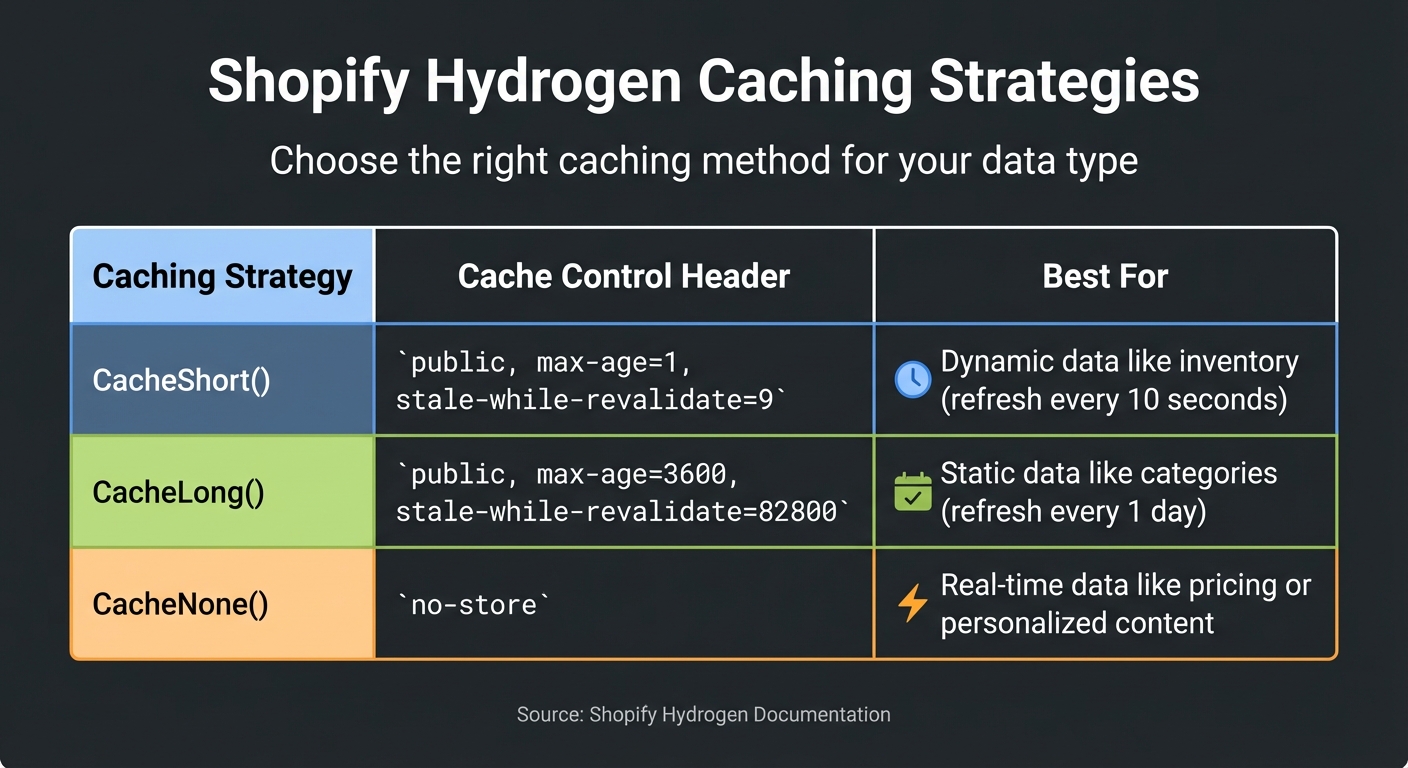
Shopify Caching Strategies Comparison: CacheShort vs CacheLong vs CacheNone
Finding the right balance between speed and accuracy is key when implementing filter caching for both Liquid themes and headless Shopify setups.
Server-Side Caching Methods
Shopify's built-in filtering system relies on URL-based caching. Each unique filter combination generates a distinct URL (like filter.v.option.color=red). This allows browsers and CDNs to cache these URLs as separate pages. The result? When one customer applies a specific filter, any subsequent visitor using the same combination gets instant results from the cache.
For headless Shopify stores powered by Hydrogen, you gain more granular control over caching through built-in strategies. Here's how you can use them effectively:
CacheLong(): Perfect for static data like category names or brand lists. Cache this data for up to one day to reduce server strain.CacheShort(): Ideal for dynamic data like inventory, which changes frequently. Set this to refresh every 10 seconds to ensure accuracy.- Stale-While-Revalidate: This method serves cached results immediately while fetching updated data in the background. It ensures your storefront remains responsive, even during updates.
| Caching Strategy | Cache Control Header | Best For |
|---|---|---|
CacheShort() |
public, max-age=1, stale-while-revalidate=9 |
Dynamic data like inventory (refresh every 10 seconds) |
CacheLong() |
public, max-age=3600, stale-while-revalidate=82800 |
Static data like categories (refresh every 1 day) |
CacheNone() |
no-store |
Real-time data like pricing or personalized content |
These server-side strategies lay the groundwork for efficient caching. Next, let’s look at how client-side AJAX can further refine the experience.
Client-Side Caching with AJAX
Server-side caching handles the heavy lifting, but client-side AJAX takes the customer experience to the next level. By enabling asynchronous updates, AJAX ensures the product grid refreshes without reloading the entire page. This creates a seamless and fast shopping experience.
Shopify's Dawn theme comes with a facets.js script designed to handle these AJAX updates, and it can also serve as a guide for custom implementations.
To maintain URL integrity during asynchronous updates, your JavaScript should use window.history.pushState. This keeps the browser's history up to date, preserving the "Back" button functionality and allowing customers to bookmark or share filtered views. For text inputs or price sliders, implement a debounce timer (about 500 milliseconds) to avoid overwhelming your server with requests while users are still typing.
Finally, enhance the user experience with thoughtful design touches. Use loading indicators during AJAX transitions to set expectations while the cache is queried or new data is fetched. To avoid frustration, disable filters that would lead to zero results or display result counts next to each option. These small details can make a big difference in keeping users engaged.
sbb-itb-e8e54fb
Caching for Large Catalogs and High Traffic
Handling high-traffic online stores with extensive product catalogs can be tricky. Standard caching methods often buckle under the pressure of flash sales or sudden traffic spikes. To navigate these challenges, techniques like progressive loading and debouncing become essential tools.
Progressive Loading and Debouncing
When your product catalog surpasses 100,000 items, traditional offset pagination can cause serious slowdowns. For example, loading results at the 100,000th position using offset pagination takes about 2,221.60 milliseconds. Switching to relative cursor pagination, which picks up right after the last record, slashes that time to just 5.24 milliseconds - a performance boost of more than 400 times.
To keep your storefront running smoothly, try query splitting. This involves loading the main product list immediately while streaming additional details like filter counts and variant data in the background. In Shopify Hydrogen, you can leverage the defer utility with React's <Suspense> and run multiple queries simultaneously using Promise.all, avoiding the delays caused by running queries one after another.
While speeding up data retrieval is crucial, ensuring your cache remains accurate during traffic surges is equally important.
Cache Invalidation Methods
Keeping cached filter data up-to-date during frequent updates requires careful planning. A stale-while-revalidate strategy can be a game-changer. It serves cached results instantly while fetching fresh data in the background, ensuring users experience no delays even during traffic spikes. This approach works well when speed takes precedence over real-time data accuracy.
For critical updates - like price changes or stock adjustments - write-through invalidation is a solid choice. This method clears the cache right before updating the database and rebuilds it only after the update is successful. It’s particularly useful for avoiding race conditions that could lead to outdated or incorrect cached data during simultaneous updates.
Another effective tactic is cache tagging, which enables bulk invalidation for related data. For instance, by tagging entries with labels like products or category:id, you can clear all associated filter and listing caches when a product is updated, without the need to rebuild everything from scratch. However, if you're using Shopify Oxygen, keep in mind that full-page cache can't be purged manually. You'll need to wait for the max-age to expire or trigger a new deployment.
Maintaining Clean Filter Data for Caching
Keeping product data consistent is the backbone of a strong caching strategy. When attribute values are inconsistent, they create duplicate filter options that not only confuse shoppers but also fragment your cache. This issue leads to an explosion of unique URLs, which weakens the effectiveness of cached results.
One major cause of this problem is uncoordinated metafield usage. For example, different teams might create similar fields like specs_material and material_type without aligning their efforts. This lack of coordination results in unreliable theme logic and no single source of truth. As Performantcode.io explains:
"Complex Shopify catalogs rarely fail because Shopify lacks features. They fail because the data model underneath them becomes unmanageable." - Performantcode.io
The solution? Standardize your naming conventions. Using clear, human-readable namespaces like specifications.material makes your data easier to manage and ensures developers can consistently query the same fields across your catalog. Additionally, striving for at least 95% attribute completeness for key fields like size and color is crucial. Missing data in these areas can lead to products disappearing from filtered searches and cause cache misses. Here’s how to keep your filter data clean and cache-friendly.
Keeping Attributes Consistent
Think of your metafields as a formal schema, not just flexible notes. Assign a specific purpose, format, and owner to each field. This approach prevents duplicating logical attributes across product metafields, variant metafields, and tags.
Another key step is normalizing values. For instance, merge variations like "XL", "X-Large", and "Extra Large" into one standardized option. This avoids filter fragmentation and ensures consistent cache results, no matter how a customer phrases their search. Why does this matter? Customers using filters are 2.3 times more likely to make a purchase compared to those who browse without them.
Using FacetGuard for Data Quality
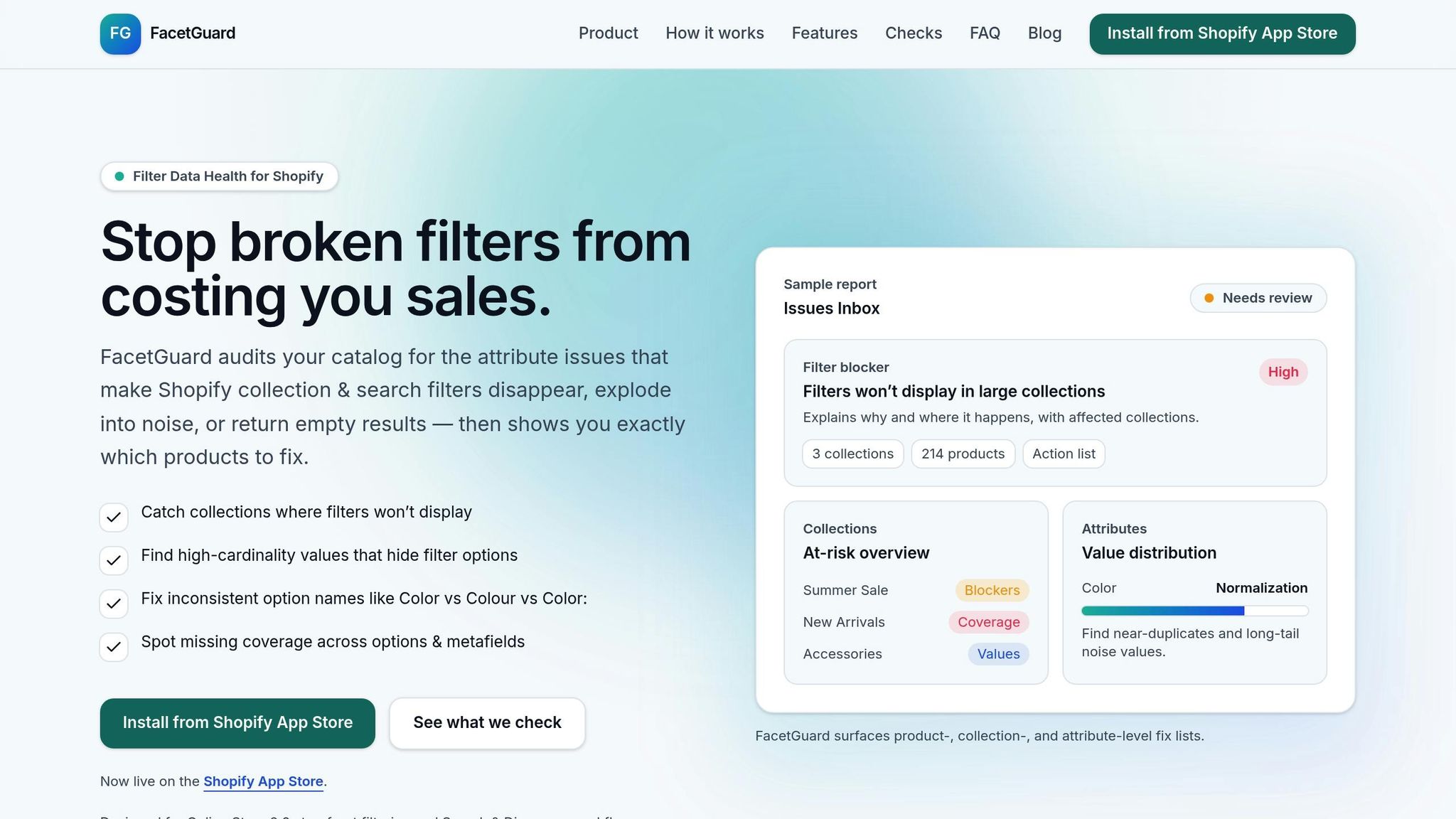
Once your attributes are standardized, tools like FacetGuard can help maintain data quality and optimize cache performance. FacetGuard audits your catalog to identify issues that hurt caching efficiency. It flags inconsistent naming, missing attribute coverage, and excessive unique values that contribute to cache bloat. The tool even provides exportable CSV files of affected products, making it easier to apply bulk fixes and improve cache hit rates across your store.
FacetGuard also includes powerful features like its Filter Blockers Scanner. This tool identifies collections where filters fail to display - often due to Shopify's 5,000-product limit or poor data quality that disrupts indexing. Another feature, the Value Limit Audit, highlights attributes with too many unique values, which reduces the number of cacheable URL combinations. Finally, the Option Name Consistency check helps standardize variations like "M", "Med", and "Medium" into a single, unified value.
Monitoring and Improving Cache Performance
Metrics to Track
Tracking the right metrics is key to understanding and improving filter caching performance. One of the most important metrics is Interaction to Next Paint (INP), which measures the time between a user clicking a filter and seeing the next visual update. An INP under 200ms is considered "Good", while anything over 500ms is rated "Poor".
Another critical metric is Time to First Byte (TTFB), which can help identify server-side issues. If TTFB exceeds 0.8 seconds, it’s time to investigate server processing or Liquid loops. Similarly, Largest Contentful Paint (LCP) measures how quickly the largest visible element, like a product image in filtered results, loads. Aim to keep LCP under 2,500ms to maintain a smooth user experience.
Rather than relying solely on synthetic lab tests, Shopify's Web Performance Dashboard provides real-world insights. According to the Shopify Performance Team, "Lab tests have their place for debugging... but they can't capture the diversity of devices, networks, and conditions that your actual users experience". This dashboard not only highlights which filter buttons or elements are causing delays but also emphasizes the importance of collection pages, which carry a 43% weighting in your overall performance score - the highest among page types.
| Metric | Optimal | Suboptimal |
|---|---|---|
| Interaction to Next Paint (INP) | ≤ 200ms | > 500ms |
| Time to First Byte (TTFB) | < 0.8s | > 1.8s |
| Largest Contentful Paint (LCP) | ≤ 2,500ms | > 4,000ms |
Tracking these metrics is just the start - regular audits are essential for keeping your caching strategy effective.
Regular Audits and Updates
To keep your caching strategy aligned with changing traffic patterns, regular audits are a must. For most stores, quarterly audits should suffice, but high-growth or high-ad-spend stores may need monthly reviews. These audits help uncover issues like script bloat, inefficient Liquid code, or third-party apps that could be slowing down cache performance. Tools like the Shopify Theme Inspector can pinpoint repetitive, complex operations in product loops that might be inflating server response times and weakening caching efforts.
Adopt a systematic approach: measure performance using real user data, apply targeted optimizations, test changes in a controlled environment, and monitor the results. Use annotation tags in performance reports to link performance dips with specific events, such as app installations or theme updates. This is critical, as even a modest increase in page load time - from 1 to 3 seconds - can lead to a 32% jump in bounce rates.
Conclusion
Filter caching is a game changer for performance. It minimizes server strain and speeds up filter responses, keeping shoppers engaged. Quick filters can boost sales, while delays might lead to cart abandonment.
As covered earlier, combining server- and client-side caching is key. Use server-side strategies like CacheShort() for data that changes often and CacheLong() for more stable attributes. On the client side, implement AJAX to update product grids without reloading the page, and adopt progressive loading for catalogs with thousands of items. However, even the best caching strategies fall apart without clean data. Messy or inconsistent tagging leads to duplicate filters, confusing both shoppers and the caching system itself.
Clean, standardized data is the backbone of effective caching. Regular audits and standardized metafields ensure filter parameters remain predictable and cache-friendly. Tools such as FacetGuard can help by identifying inconsistencies, missing data, or broken filters that could undermine your efforts. With clean data, you’ll enjoy faster queries, fewer zero-result pages, and a smoother shopping experience overall.
Key Takeaways
Here are some practical steps to implement the best practices discussed:
- Build filters using HTML/CSS first, then layer JavaScript for live updates. This ensures basic functionality works even if JavaScript doesn’t load.
- Keep JavaScript bundles under 16 KB and use Shopify's CDN for assets to maintain strong performance scores.
- Optimize for mobile users by using drawers or modals with touch targets of at least 44 x 44 pixels to prevent accidental clicks.
- Display product counts and disable options that would return zero results.
- Ensure Shopify themes meet a minimum Lighthouse performance score of 60 across home, product, and collection pages.
Ongoing monitoring and updates are just as important. Use Shopify's Web Performance Dashboard to track metrics like TTFB (Time to First Byte) and LCP (Largest Contentful Paint). Schedule quarterly audits to catch script bloat or inefficient Liquid code. When your filter data is clean, your caching is optimized, and you’re consistently monitoring performance, the payoff will be clear: faster load times, lower bounce rates, and higher conversion rates.
FAQs
How do I choose between CacheShort(), CacheLong(), and CacheNone()?
The choice hinges on how up-to-date and responsive your data needs to be:
- CacheShort(): Perfect for data that changes frequently. It caches for just 1 second and allows a 9-second stale window.
- CacheLong(): Works well for data that doesn't require frequent updates, caching for 1 hour with a 23-hour stale window.
- CacheNone(): Guarantees always-fresh data, making it ideal for highly personalized or fast-changing content.
How can I keep filter URLs shareable with AJAX filtering?
To keep filter URLs shareable while using AJAX filtering, you can use JavaScript to dynamically update the URL parameters whenever filters are applied. This eliminates the need to reload the page and ensures the URL reflects the current filter state. This way, users can easily share the URL, and anyone accessing it will see the correct filtered results. By following Shopify's guidelines, you can achieve accurate filtering and a smooth, reload-free experience for users.
What data issues cause duplicate or missing filters in Shopify?
Duplicate or missing filters in Shopify usually stem from poorly organized or unmanaged metafields. This can lead to filters displaying incorrect or incomplete options, which confuses users and disrupts their shopping experience. Another challenge is the unchecked increase in filter-generated URLs, known as facet index inflation. This creates near-duplicate content, which can hurt crawl efficiency and negatively affect your storefront's performance.