
Translating Filter Values with Shopify Metafields
Translating filter values in Shopify is essential for creating a user-friendly multilingual store. Without proper translations, customers may encounter inconsistent terms like "Couleur" with options still in English, disrupting their shopping experience. Here's how to manage this effectively:
- Enable multiple languages: Activate language support in Shopify settings and assign languages to markets.
- Set up metafields: Create metafield definitions for filters like color or material, ensuring they support translations.
- Translate values: Use tools like Translate & Adapt, CSV exports/imports, or Shopify's Translation API to manage translations.
- Ensure consistency: Standardize terms like "Red" across products to prevent fragmented filters.
- Fix common issues: Address broken links and mixed-language displays by aligning translated values with filter functionality.
Tools like FacetGuard can help identify and resolve inconsistencies, ensuring filters work seamlessly across languages. This process ensures your store provides a smooth, localized shopping experience for all customers.
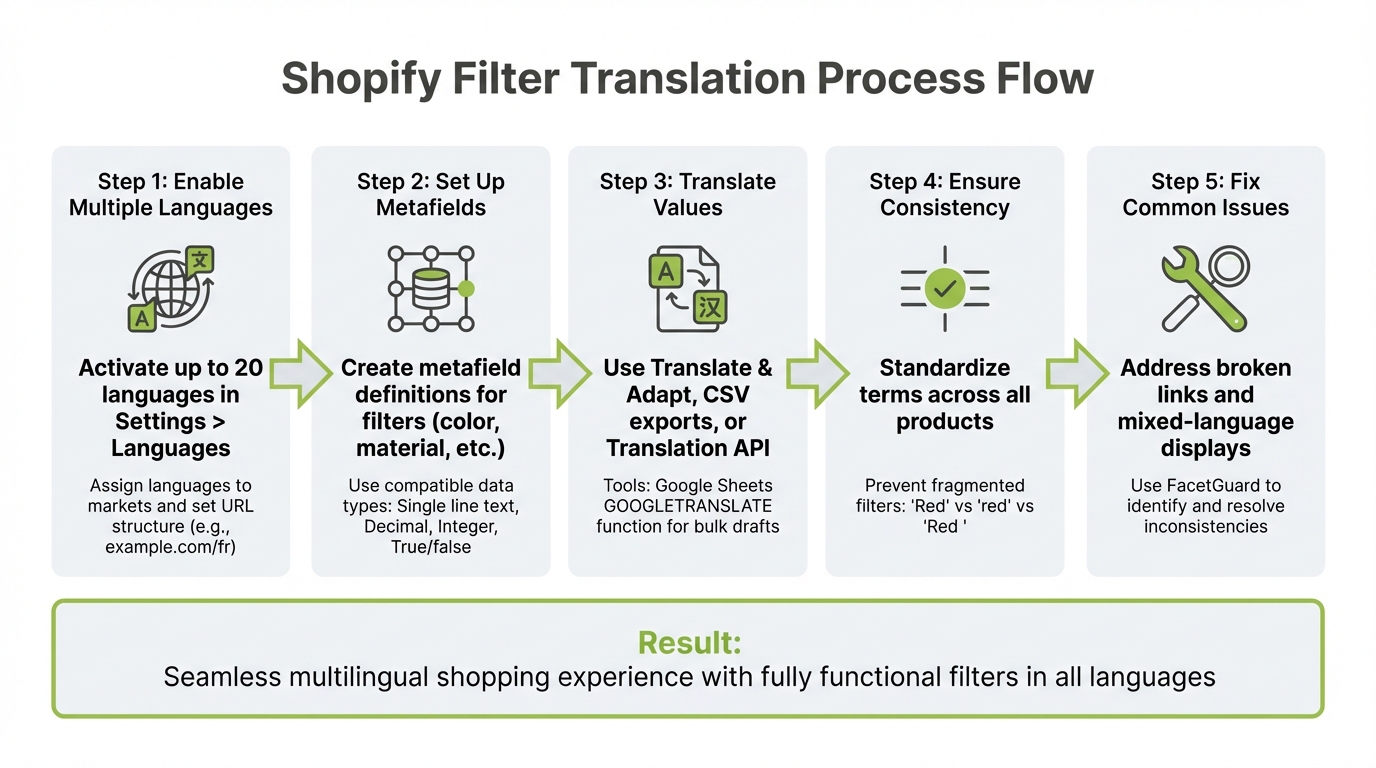
5-Step Process for Translating Shopify Filter Values with Metafields
How to Translate Variant Picker Options in Shopify | Rubik Variant Images Multi-Language Support

sbb-itb-e8e54fb
Setting Up Metafields for Multilingual Filters
Get your Shopify store ready for multiple languages by enabling language support, setting up metafields, and choosing a method to handle translations.
Enable Multiple Languages in Shopify
To begin, go to Settings > Languages in your Shopify admin. With all Shopify plans (except Shopify Lite), you can sell in as many as 20 languages from one store. Adding a language is simple: choose it from the drop-down menu and click Publish to make it visible to your customers.
Next, assign the language to a specific market by navigating to Settings > Markets > [Market Name] > Languages and domains. This step also sets up the URL structure, such as example.com/fr for French. Make sure your theme supports multi-language selling. Shopify's free themes are ready for this by default, but if you're using a custom theme, ensure it uses Shopify's routes Liquid object to avoid broken links in translated versions.
Once this is done, you can move on to defining metafield specifications for translated filter values.
Create Metafield Definitions for Filter Values
After enabling multiple languages, set up metafield definitions to store the translated filter values. Navigate to Settings > Custom Data (or Metafields and Metaobjects) and choose Products or Variants. Click Add definition, give it a name like "Material", and enter a namespace and key (e.g., custom.material).
For filters to work properly, use compatible data types such as Single line text, Decimal, Integer, True or false, or Metaobject reference. If a product needs multiple values for a single filter - like a dress that fits both "Spring" and "Summer" - select the Accept list of values option when creating the definition. Make sure to enable the Storefronts option under the Access section so the Search & Discovery app can use these metafields.
Once definitions are created and values are added to products, open the Shopify Search & Discovery app. Go to Filters, and set your newly created metafield as the Source. Keep in mind that standard filters like Vendor and Tags cannot be translated and will only appear in your store's default language.
Install a Translation App or Use Shopify's Translation API
With languages enabled and metafields defined, choose a translation method to fill in these fields. For manual or bulk translations, you can use:
- Translate & Adapt, which is free for up to two languages.
- CSV Export/Import under Settings > Languages, combined with tools like Google Sheets'
GOOGLETRANSLATE. - The GraphQL Admin API, using
translationsRegisterandtranslationsRemovemutations for automated translations.
"Filter values are now translatable... If you add translations via auto-translate, manually translating the product metafields on every product in Translate & Adapt, or in bulk via the CSV, you should see the filters 100% translated on your storefront." - richbrown_staff, Shopify Staff
Lastly, ensure that your metafields are publicly accessible if you’re planning to use the API.
Adding Translated Filter Values to Shopify Themes
Once you've set up your metafield definitions, the next steps involve filling them with translated content and configuring your theme to display the appropriate language based on your customer's selection.
Add Translated Values to Metafields
Start by adding filter values to product metafields in your default language. Head to Products, select a product, and find the Metafields section. Enter values like "Cotton" for Material or "Blue" for Color. Repeat this process for all relevant products.
To translate these values, export the translation CSV by navigating to Settings > Languages > Export. Open the exported file, filter for product metafields, and add your translations in the corresponding column. Once done, re-import the file. If you're looking for a quick way to draft translations, you can use Google Sheets' =GOOGLETRANSLATE function .
For list-type metafields, such as list.single_line_text_field, translations can be managed using the Translate & Adapt tool. This makes them especially useful for filters that require multiple values per product .
After translating all values, the final step is configuring your theme to display these localized values.
Configure Filters to Show Localized Values
With translations in place, adjust your theme to ensure it reflects these updates. Shopify themes automatically display translated metafield values based on the customer's selected language - provided the translations are available.
For filter labels like "Material" or "Season", go to Search & Discovery > Filters > Actions > Localization to translate them separately. To correctly display translated values, use the metafield_tag Liquid filter. For example:
{{ product.metafields.custom.material | metafield_tag }}
This code generates a <span> element containing the translated value with proper HTML structure.
If you're working with list-type metafields, the metafield_tag filter outputs a <ul> where each value is wrapped in <li> tags. To create an ordered list instead, include the parameter list_format: 'ordered'. This will generate an <ol> element. This approach ensures Shopify handles localization seamlessly, eliminating the need for custom Liquid logic to detect languages.
Maintaining Consistency in Filter Translations
Ensuring consistency in filter translations is essential for creating a smooth, localized shopping experience. Once you've translated your filter values, keeping them consistent across your catalog becomes a critical task. Unlike a centralized translation database, Shopify metafields operate differently. As Shopify Staff member Rich Brown explains:
"Metafields don't have a singular instance that can be translated, in terms of translations consider each metafield as having a different instance wherever it's used".
What does this mean? Each product requires its metafield values to be translated individually, which opens the door to inconsistencies.
Common issues include slight variations like "Color" versus "Colour", or differences in spacing and capitalization that split your filters into separate options. For example, a "Blue" filter in English might appear as "Blue", " Blue" (extra space), or "blue" (lowercase) across products. These discrepancies can lead to inconsistent translations in other languages. To address this, it’s important to use specialized tools to identify errors and then update translations in bulk.
Find Inconsistent Metafield Values
Tools like FacetGuard's Option Name Consistency & Coverage audit can help pinpoint translation errors. This audit detects near-duplicate attribute names and identifies specific products with inconsistent filter values. Running this audit before translating ensures that your default language values are standardized first. For instance, if "Cotton" appears on 50 products but "cotton" is used on 30 others, normalizing these to a single term in your primary language prevents duplicating the translation work.
Once you've identified inconsistencies, correct them systematically in your default language to streamline the translation process.
Update Translated Filter Values in Bulk
To update translations, go to Settings > Languages > Export and select "Metafields" along with "Untranslated content." Shopify will email you a CSV file containing columns for default content, translated content, and a status column flagging "Outdated" translations when the original content has been updated.
When editing the CSV, focus solely on the Translated content column - this is the only field you should modify. Shopify Staff member Rich Brown suggests leveraging tools like Google Sheets for quick drafts:
"You can actually use Google Translate in Google Sheets and then correct afterwards for consistency".
For large catalogs, the =GOOGLETRANSLATE function can generate initial translations, which you can then manually refine to ensure consistent terminology. Once your updates are complete, re-import the CSV using the "Overwrite any existing translations" option. This approach ensures that if you fix "Cotton" in English, the correction applies uniformly to all translated versions across your catalog.
Fixing Common Translation Problems
Even with properly translated metafields, translation issues can still disrupt the functionality of your multilingual storefront. Two frequent problems are broken filter links, which lead to empty collection pages, and mixed displays, where some filter values are translated while others remain in the original language. These problems usually stem from how Shopify handles metafield queries.
Fix Broken Filter Links in Non-Default Languages
Filter links often break when switching languages because URL parameters don't adapt to the translated values. For instance, a URL like ?filter.p.tag=chairs will fail on a French storefront if the metafield value has been translated to "chaises." In this case, the system searches for "chairs" and finds no results.
To avoid this, here's what you can do:
- Avoid hardcoded filter URLs. Instead, use Shopify's built-in navigation features or approved apps for dynamic URL handling.
- If direct links are necessary, ensure both the filter label and metafield values are translated accurately. The URLs must match the translation exactly, including case sensitivity.
This step ensures that your filters function properly across all languages.
Prevent Mixed Original and Translated Filter Displays
Mixed displays happen when some products use translated values while others retain the original language. For example, you might see "Red" and "Rouge" listed together under the same filter. Shopify Staff member Rich Brown explains the challenge:
"The challenge comes from the data model whereby 'rouge' could be red, crimson, scarlet, vermillion etc so the asymmetry needs to be accounted for".
To resolve this, follow these steps:
- Export the translations CSV file via Settings > Languages > Export. Focus on product metafields.
- Use spreadsheet tools to ensure consistent translations for every term (e.g., "Red" should always translate to "Rouge" across the catalog).
- Remember that filter labels (like "Color") and filter values (like "Blue" or "Green") are treated separately. Both must be fully translated to avoid mismatched displays, such as a localized filter title paired with untranslated options.
Using FacetGuard for Filter Translation Management
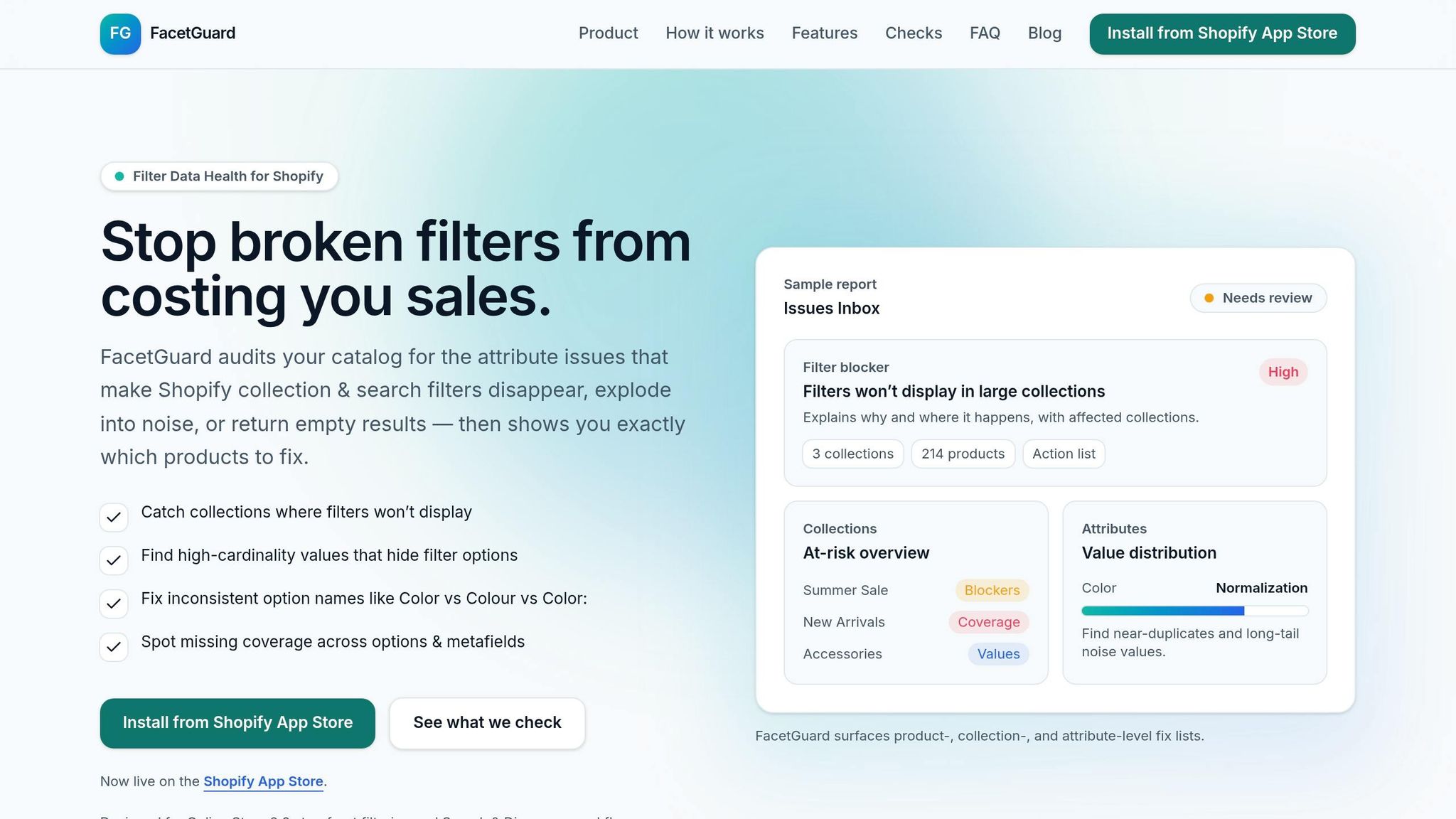
FacetGuard helps pinpoint catalog issues before they disrupt your multilingual storefront. Since consistent filter data is essential for store localization, FacetGuard ensures your translated metafields stay aligned. This tool works seamlessly with the translation setup discussed earlier.
Find and Fix Translation Gaps with FacetGuard
The Issues Inbox gives you a clear overview of missing metafield values that hinder proper translation. Shopify filters depend on metafield data, so any gaps in your catalog can cause products to vanish from filtered results in non-default languages. FacetGuard flags these gaps, highlighting which products lack the necessary metafield values for localized filtering.
The Filter Blockers Scanner goes a step further by identifying collections where filters fail entirely. This can happen due to size thresholds or high-risk search contexts. Incomplete translations make these issues worse - when some products have translated metafields and others don’t, the entire filter system can collapse. Instead of manually reviewing every collection in every language, FacetGuard provides a prioritized CSV list of affected products, saving you time and effort.
Normalize Attribute Values Before Translating
FacetGuard doesn’t just detect gaps - it also standardizes attribute values before translation. Translation apps work with the values you provide, so inconsistencies like "Red", "red", and "Red " each get translated separately. Using the Attribute View, you can spot and fix minor variations in casing, punctuation, or spacing. By standardizing these values, you ensure each term is translated just once, avoiding fragmented filter options across languages.
The tool also identifies "long-tail noise", where attributes have too many unique values, reducing filter effectiveness. For example, if your "Size" attribute has 47 variations due to inconsistent formatting, you’ll end up translating all 47 instead of a streamlined set of standard sizes. FacetGuard generates CSV fix lists, enabling bulk updates in Shopify before you start translating. For headless or API-driven storefronts, FacetGuard’s checks ensure metafield types and schemas are translation-ready, improving the multilingual shopping experience for your customers.
Conclusion
Translating filter values with Shopify metafields requires a clear process: set up metafields, fill them with product data, translate using tools like Translate & Adapt (or through CSV exports), and adjust filter labels via the Search & Discovery app.
Consistency in your data is key. Shopify Staff member Rich Brown explains, "Filter values are now translatable... If you add translations via auto-translate, manually translating the product metafields on every product in Translate & Adapt, or in bulk via the CSV, you should see the filters 100% translated on your storefront." But be cautious - entries like "Red", "red", and "Red " can lead to fragmented filters that confuse customers.
To tackle this, FacetGuard steps in to standardize attribute values. It identifies duplicate options and flags missing metafield data. With tools like the Issues Inbox and Filter Blockers Scanner, it creates prioritized lists for fixes, helping to avoid problems like disappearing filters or incomplete results in translated languages. This approach ensures your Shopify store delivers a seamless and multilingual filter experience.
FAQs
Do I have to translate every product’s metafield value?
When setting up a multilingual store, you don't have to translate every single product metafield value. Instead, prioritize translating the metafields that are relevant to your store's functionality or customer experience. Focus on what truly matters for your specific needs.
Why do filters break when I switch languages?
Filters in Shopify can stop working when switching between languages due to incomplete translations or misconfigured metafields and filter values. If language-specific metafields are not fully translated or properly linked, the filters may not function as expected. To keep filtering smooth across different languages, ensure all metafields and filter values are fully translated and correctly aligned with the appropriate language settings.
How do I keep translated filter values consistent across products?
To keep translated filter values consistent across your Shopify products, it's essential to manage metafield translations effectively. Start by creating metafield definitions and input translated values for every language you support. Apply these translations consistently across all relevant products.
Using a translation app that supports metafields can simplify this process. It helps synchronize translations seamlessly while avoiding metafield limits. This approach ensures your translated values display properly and maintain uniformity throughout your storefront.