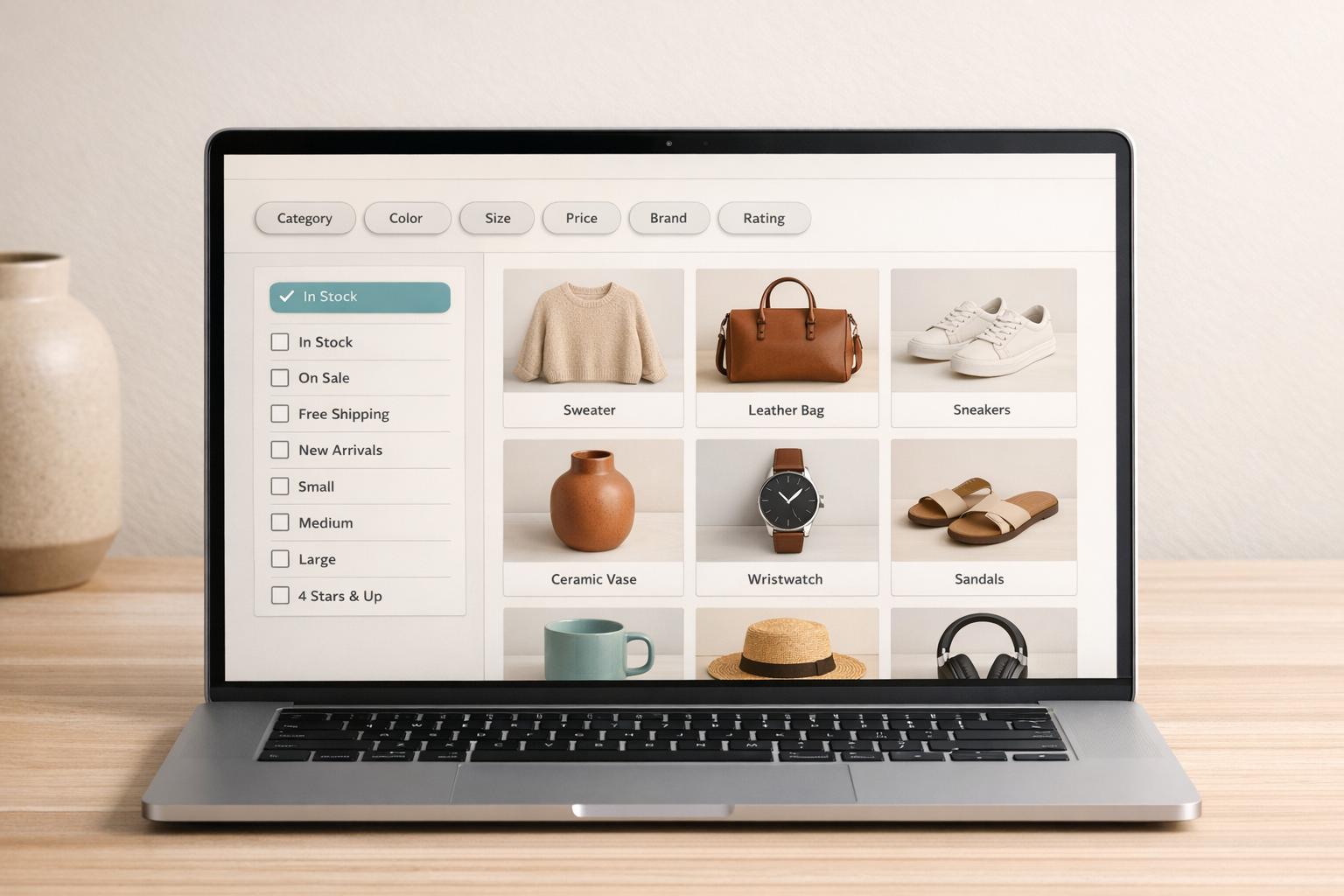
How to Fix Attribute Noise in Shopify Collections
Attribute noise in Shopify collections messes up your filters, making it harder for shoppers to find products. This happens when product attributes like "Red", "red", and "RED" are stored inconsistently. The result? Duplicate filter options, missing products, or empty search results. Fixing this issue improves the shopping experience and prevents customers from leaving your store out of frustration.
Key Steps to Fix Attribute Noise:
- Audit Your Catalog: Identify duplicate values, gaps, or inconsistencies in attributes like Color, Size, and Material.
- Standardize Attributes: Use consistent formats (e.g., "S" instead of "Small") and create a controlled vocabulary for key attributes.
- Clean Up Tags and Metafields: Move key data to metafields and ensure they're structured and complete.
- Update Filters: Use Shopify's tools to group and rename filter values for better usability.
- Monitor Regularly: Use tools like FacetGuard to spot and fix new issues before they impact your store.
Why It Matters: Poor filters can lead to bounce rates as high as 75% on collection pages. Fixing attribute noise ensures filters work properly, helping customers find what they need and boosting conversions.
Keep your catalog clean, standardized, and well-maintained to avoid these issues in the future.
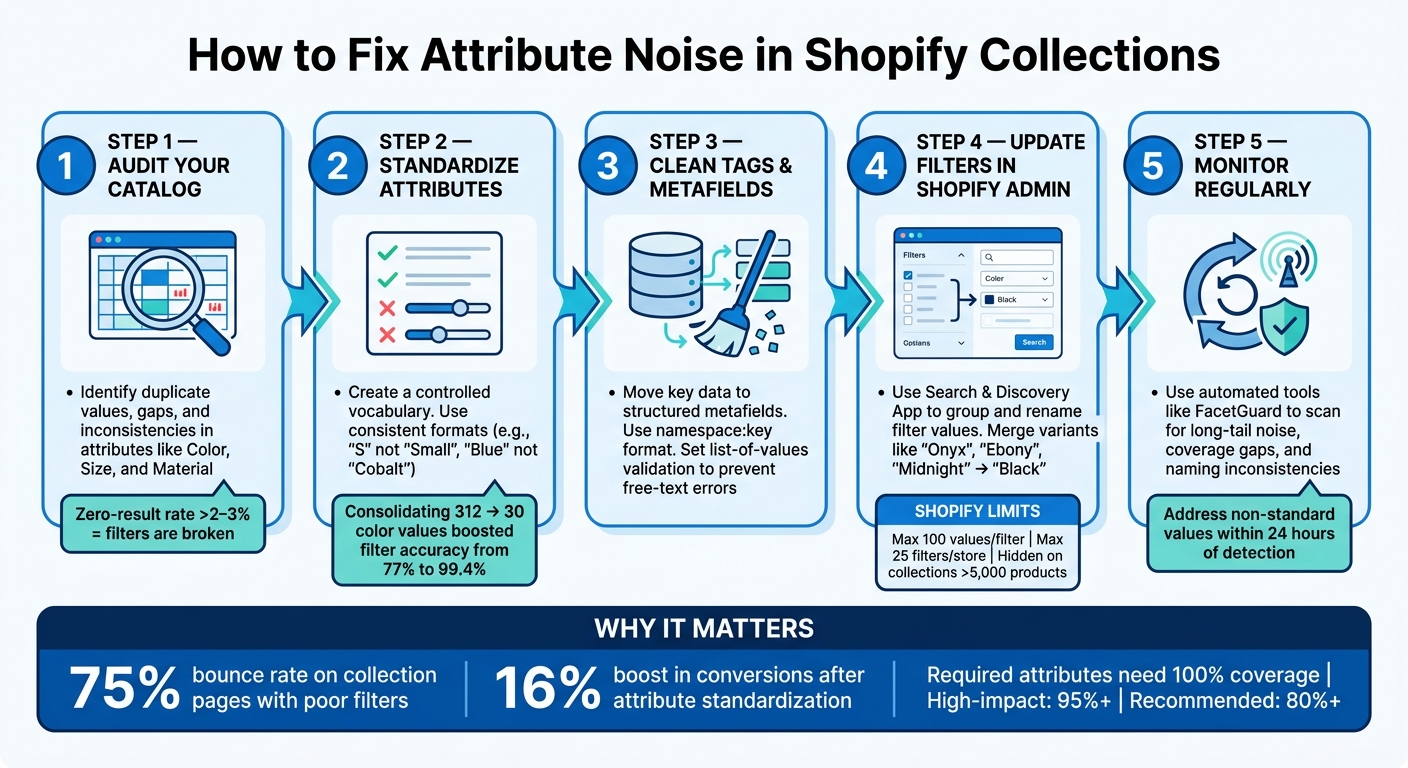
How to Fix Attribute Noise in Shopify Collections: 5-Step Process
Getting Your Shopify Store Ready for Attribute Cleanup

Getting your store ready for attribute cleanup is the first step to tackling attribute noise and ensuring your filters work smoothly. Before diving into edits, take a moment to review your catalog so you don’t miss any issues or waste time on unnecessary changes.
What You Need Before You Start
To begin, make sure you have staff permissions for both Products and Navigation in Shopify Admin. You’ll need access to Online Store > Navigation and Settings > Custom data. Additionally, your theme must support Online Store 2.0 (OS 2.0) filtering. Without this, any filter changes you make won’t be visible to shoppers.
Here are the tools you’ll need for the cleanup:
| Tool | Purpose |
|---|---|
| Shopify Admin | Setting up filter sources and defining metafields |
| Search & Discovery App | Grouping filter values and refining filter logic |
| FacetGuard | Spotting noise, blockers, and naming inconsistencies in your filters |
| Bulk Editor / CSV | Normalizing attributes across a large number of products |
Once you’ve got the permissions and tools ready, you can move on to reviewing how your filters currently behave.
Checking Your Current Filter Behavior
Start by viewing your collection pages exactly as a customer would. Check for filters that show duplicate options (e.g., "S", "Small", and "small" as separate choices), filters that display too few values, or filters that are completely missing.
Keep in mind, Shopify automatically hides filters under certain conditions:
- Filters won’t appear on collections with more than 5,000 products.
- Storefront searches returning over 100,000 results will also suppress filters.
If filters are missing on your largest collections, check the product count first. Additionally, Shopify limits you to 25 filters per store and allows a maximum of 100 values per filter to display on the storefront, even if more values exist in the admin.
To confirm your theme supports filtering, go to Content > Menus in Shopify Admin. If you see a message like “Collection and search filters” indicating the feature isn’t supported, you’ll need to update your theme before moving forward.
Using FacetGuard to Pre-Audit Your Catalog
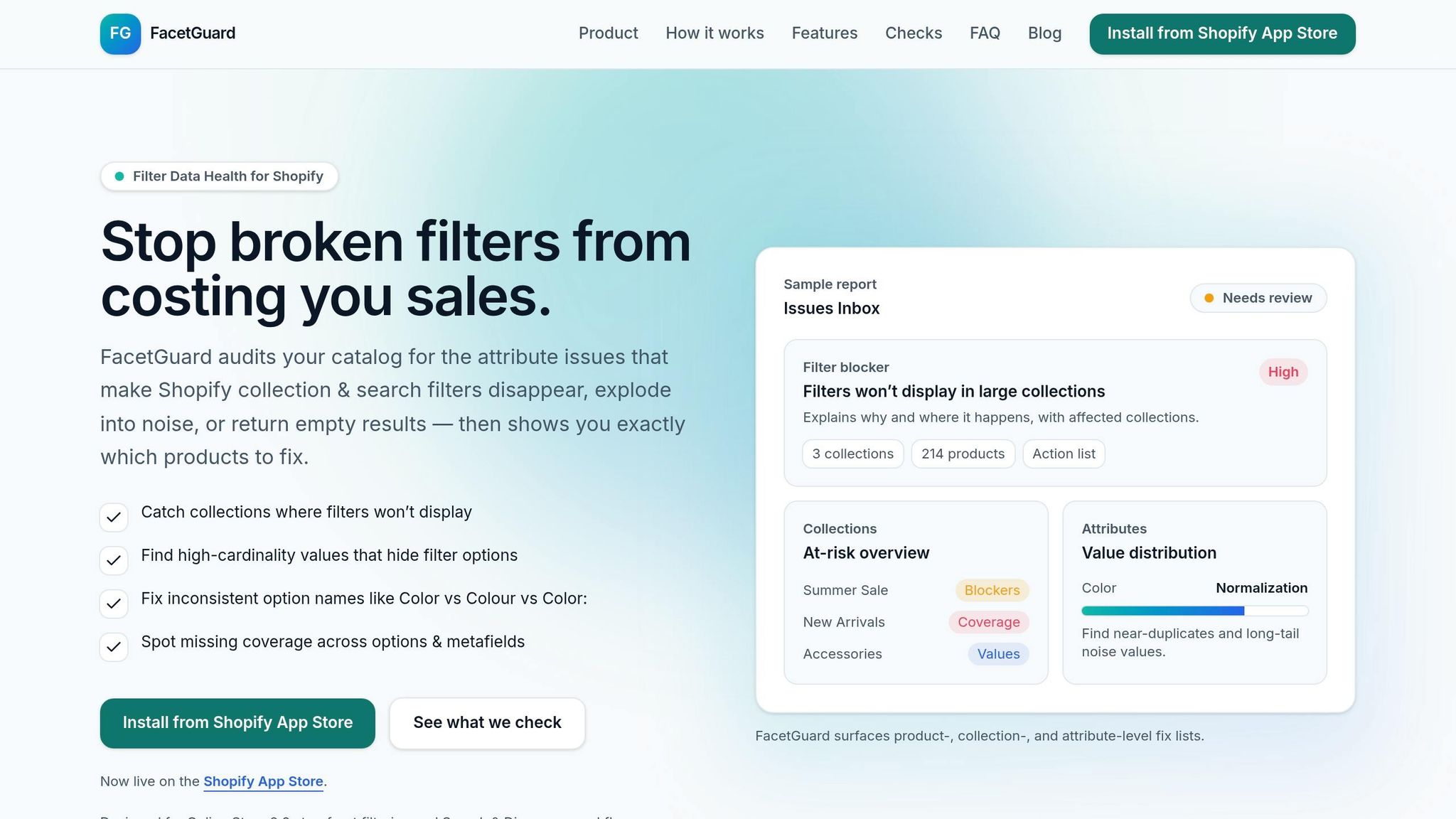
Once you’ve confirmed permissions and gathered the necessary tools, use FacetGuard to uncover hidden attribute problems. Manual checks often miss details like trailing spaces or incomplete metafield values.
FacetGuard performs a read-only audit of your catalog attributes, ensuring it doesn’t interfere with customer data. Its Issues Inbox highlights problems by severity and impact, including:
- Filter blockers: Collections where Shopify’s size limits prevent filters from appearing.
- High-cardinality noise: Attributes with too many unique values that clutter filters.
- Naming inconsistencies: Variations like "Color" vs. "Colour" that confuse shoppers.
"FacetGuard audits your catalog for the attribute issues that make Shopify collection & search filters disappear, explode into noise, or return empty results." - FacetGuard
sbb-itb-e8e54fb
How to Find and Detect Attribute Noise
Common Attribute Noise Patterns
Attribute noise can be subtle. As FacetGuard explains, "Filter issues often don't look like errors - they look like 'the storefront is weird today.'"
Here are some typical patterns to watch for:
| Noise Pattern | Example |
|---|---|
| Near-Duplicates | "colour" vs. "Colour" vs. "COLOUR" |
| Value Fragmentation | "S" vs. "Small" vs. "Sm" |
| High Cardinality | Too many unique "Size" values due to lack of standardization |
| Coverage Gaps | A "Material" filter that only applies to 40% of a collection |
| Unit Inconsistency | "100ml" vs. "100 ml" vs. "0.1L" |
Coverage gaps are particularly tricky. Imagine a filter that only applies to 40% of your collection. Shoppers using that filter will unknowingly miss out on the other 60% of products. If your zero-result rate exceeds 2% to 3% when filters are applied, it's a strong indication that something isn't functioning as it should.
Analyzing Attribute Data Distributions
Once you've identified noise patterns, the next step is quantifying them by examining attribute distributions. Start by exporting your product catalog as a CSV from Shopify Admin. Extract all unique values for each filterable attribute, such as Color, Size, and Material. Then, sort these values by how many products use each one. This will help you pinpoint sparse or inconsistent values that need to be standardized.
Look for clusters of synonymous values, like "Blue", "blue", and "Navy." For example, a fashion retailer managing 18,000 products found that their "Color" attribute had grown to 312 unique values instead of the intended 30. This fragmentation caused 23% of their products to be excluded from filtered results. By consolidating these variations into 30 standardized colors, they improved filter accuracy from 77% to 99.4% and saw a 16% boost in conversion rates.
Pay special attention to cardinality - the number of unique values for an attribute. High cardinality can clutter filters and create problems since Shopify caps displayed filter values at 100. This means customers might not even see the options they’re searching for.
This groundwork sets the stage for automated tools to take over, as explained below.
How FacetGuard Helps Detect Noise
FacetGuard simplifies the process of identifying attribute noise by scanning your entire catalog and consolidating the findings in one place.
The Attribute View allows you to focus on a specific attribute, like "Material", and instantly see the full distribution of its values across your catalog. This makes it easy to identify inconsistencies, such as "Genuine Leather", "leather", and "Full-Grain Leather" showing up as separate filter options.
The Option Name Consistency feature detects near-duplicates caused by minor differences, like trailing spaces or punctuation, which might otherwise slip through unnoticed. Meanwhile, the Issues Inbox organizes problems by severity and impact, giving you a clear list of priorities without the need for tedious spreadsheet reviews.
How to Clean and Normalize Attributes
Getting your product attributes in order is key to creating accurate filters and improving the shopping experience.
Standardizing Product Options and Variants
The first step is to establish a single source of truth for each attribute. Avoid storing the same attribute in multiple places, like a tag, a product metafield, and a variant metafield, as this can lead to conflicting data and broken filters.
To stay consistent, create an attribute dictionary that defines canonical keys and accepted values. For instance, decide that weight will always be recorded as lb and sizes as XS, S, M, L, XL. Map all variations or synonyms to these standardized forms.
"Your catalog won't scale because you 'extract better.' It scales because you normalize consistently." - AvidiaTech
Once you've set up your dictionary, use Shopify's CSV export/import or its bulk editor to apply these changes. For larger catalogs, tools like Matrixify can help you update metafields in bulk.
Cleaning Up Tags and Metafields
After standardizing your product options, turn your attention to tags and metafields. The goal here is to reduce clutter and ensure clarity. Use metafields for defining product attributes and tags for temporary descriptors like sales or promotions. For example, "Material" should be stored in a metafield, while tags like "Sale" or "New In" can highlight temporary product statuses.
To maintain consistency, use the namespace:key format for metafields. This creates predictable and self-documenting schemas. For attributes with predefined options, such as "Fabric" or "Fit Type", set the metafield type to Single line text (list of values). This ensures everyone uses the same terms and avoids inconsistencies.
If you're transitioning from older, unstructured fields to a cleaner setup, take it step by step. Start by defining the new fields, populate them alongside the old ones, update your theme and integrations, and only delete the old fields once you're sure everything is functioning correctly.
"Never delete metafields before confirming replacements work correctly." - Performantcode.io
Updating Filters in Shopify Admin
Once your attributes are normalized, update your filters to reflect these changes. In Shopify Admin, go to Apps > Search & Discovery > Filters.
Two features can help tidy up your storefront filters. The Create group function allows you to merge inconsistent values (e.g., "Onyx", "Ebony", and "Midnight") into a single, shopper-friendly label like "Black" without altering the underlying data. The Rename Label option lets you change what shoppers see in the filter panel without modifying the source attributes. These tools are invaluable for keeping your storefront clean, even if some inconsistencies persist in the backend.
Keep in mind Shopify's limitations: filters display a maximum of 100 values per filter and 25 filters per store. Additionally, filters are hidden on collections with over 5,000 products. If cleaned filters don't show up right away, try triggering a re-index by making a small edit to a product.
"Any attribute that drives significant filter usage should be treated as effectively required, regardless of its formal status." - Binu Mathew, CEO, itmarkerz technologies
Lastly, use Manual sort to arrange normalized values logically (e.g., XS → S → M → L → XL) instead of relying on Shopify's default alphabetical order.
How to Monitor and Maintain Attribute Quality Over Time
Why Attribute Noise Comes Back
Attribute noise tends to creep back in due to issues like inconsistent vendor data, manual entry mistakes, or bulk CSV imports that bypass your formatting rules. For instance, a supplier might send "Midnight Blue" instead of "Blue", or someone on your team might enter "Colour" instead of "Color." These inconsistencies can disrupt filters and make products harder to find. As Binu Mathew, CEO of itmarkerz technologies, explains:
"An attribute that is missing from 30% of your products means a filter on that attribute returns 30% fewer results than it should."
This problem only grows over time. Every new product upload becomes another chance for inconsistent values to slip through.
Setting Rules for Attribute Consistency
The best way to keep noise from returning is to make it nearly impossible for errors to occur in the first place. This involves creating controlled vocabularies - standardized lists of acceptable values for filterable attributes. For example, instead of allowing free-text entries for colors like "Cobalt", "Cherry", or "Forest", stick to a limited set of normalized options such as "Blue", "Red", and "Green".
It's also essential to enforce completeness thresholds for attributes. High-priority filter attributes - the ones shoppers rely on the most - should aim for at least 95% coverage across your catalog. Attributes marked as "required" need full coverage (100%). To achieve this, Shopify's "Single line text" metafield type with a "List of values" validation is a practical tool. It forces users to select from predefined options rather than entering values manually.
| Attribute Priority | Completeness Target | What Happens if It's Missing |
|---|---|---|
| Required | 100% | Product may not appear in core filters or Google Shopping |
| High-Impact | 95%+ | Shoppers filtering by that attribute may not find the product |
| Recommended | 80%+ | Limits discoverability for niche or specific searches |
These rules help ensure your filters remain accurate across the entire catalog. Assigning clear ownership of key attributes is also critical. This way, someone is always responsible for addressing any new values that don’t align with your standardized list.
With these standards in place, you can automate enforcement using tools like FacetGuard to catch issues as they arise.
Using FacetGuard for Ongoing Monitoring
Even with strict rules, some errors will inevitably slip through. That’s where automated monitoring tools like FacetGuard come in handy. FacetGuard regularly scans your Shopify catalog to identify long-tail noise (one-off values), coverage gaps, and naming inconsistencies such as "Color" vs. "Colour" before they cause significant issues.
The tool’s Issues Inbox prioritizes filter-related problems by severity and impact, making it easy for your team to focus on the most urgent fixes. For example, if a bulk import introduces incorrect values, FacetGuard flags them immediately. The goal is to address non-standard values within 24 hours of detection. You can even export a CSV of affected products and variants directly from the app, simplifying the bulk correction process in Shopify.
With scheduled scans in place, you’re not waiting for a shopper to report a broken filter - you catch and fix the problem first.
Conclusion: Key Steps to Fix Attribute Noise in Shopify
Fixing attribute noise requires ongoing effort. Clean and consistent product attributes are essential for reliable filters, accurate search results, and overall shopper satisfaction. As the Baymard Institute explains:
"If your product attributes are inconsistent or incomplete, shoppers will struggle to narrow results and find what they want, regardless of how polished the storefront looks."
To tackle attribute noise effectively, here’s a practical approach based on earlier recommendations:
- Start with an audit: Look for issues like visibility blockers, attributes with excessive values, inconsistent naming, and gaps in attribute coverage.
- Standardize and clean up: Consolidate fragmented values into a controlled vocabulary, ensure uniform formatting, and focus on high-priority attributes like Color, Size, and Material.
- Implement controls: Use dropdown menus instead of free-text fields, set clear targets for attribute completeness (e.g., 100% for required attributes, 95%+ for critical ones), and assign responsibility for maintaining data quality.
Ongoing maintenance is crucial. New noise will inevitably creep in through supplier imports, manual inputs, or bulk CSV uploads. Tools like FacetGuard can automate scans to detect and address issues before they affect filters or hide products.
FAQs
Why are my Shopify collection filters missing?
Shopify collection filters might not appear for several reasons. Common culprits include inconsistent attribute names, missing attribute values, or having too many unique values, which can disrupt the filters' functionality. Other potential issues include incorrect configuration of the Search & Discovery app, disabled filter settings in the theme, or collections that exceed Shopify's limits. To address this, ensure attribute names and values are uniform and verify that filtering is set up correctly. Tools like FacetGuard can also assist in pinpointing and fixing these problems.
Should I store attributes in tags or metafields?
When it comes to organizing product data, metafields are your go-to option. They’re structured and dependable, making them perfect for storing permanent details like materials or dimensions. Plus, they enhance automation, improve SEO, and boost search precision.
On the flip side, tags work best for temporary needs. Think of them as a quick way to label products for short-term purposes, like highlighting items on sale or marking new arrivals.
In short, use metafields for core, consistent data and rely on tags for flexible, time-sensitive merchandising.
How do I stop new attribute noise from coming back?
To keep attribute noise from creeping back into your data, focus on consistent management practices. Start by standardizing attribute names and values - simple steps like replacing freeform text fields with dropdown menus can make a big difference. For example, unify variations like "Gray" and "Grey" into a single option. Creating a controlled vocabulary for filterable attributes also helps maintain clarity and consistency.
Make it a habit to audit your catalog regularly. Tools like FacetGuard can be invaluable for spotting and fixing inconsistencies, ensuring your filters stay clean and preventing noise from reappearing.