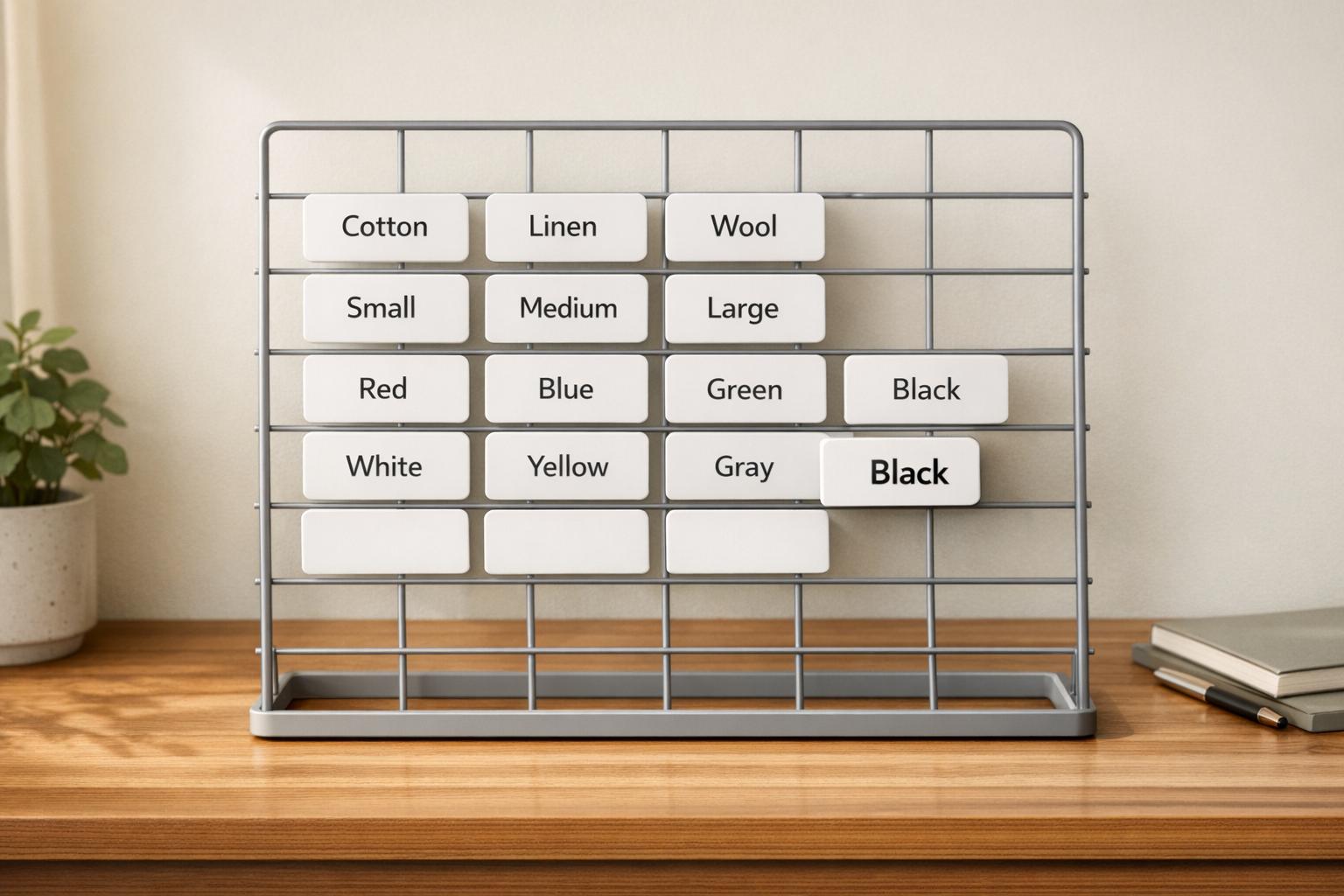
Fix Duplicate Filter Values in Shopify
Duplicate filter values in Shopify can confuse shoppers, clutter your storefront, and even cause filters to disappear. This impacts navigation, frustrates customers, and hurts sales. Common causes include inconsistent data entry, hidden spaces, or translation issues. Fixing these problems ensures a smoother shopping experience and better SEO performance.
Key Fixes:
- Manual Edits: Use Shopify's Bulk Editor to standardize filter values like "Red" vs. "red."
- CSV Export: Audit large catalogs by exporting product data to identify inconsistencies.
- FacetGuard App: Automate detection and resolution of duplicates for larger stores.
- Search & Discovery App: Group similar values (e.g., "Crimson" and "Cherry" as "Red") for cleaner storefront filters.
Why It Matters:
- Duplicate filters spread products across multiple options, leading to empty search results.
- Shopify limits filters to 100 values - duplicates can push you over this limit, hiding filters entirely.
- Properly managed filters improve product discovery and protect your SEO.
Start by identifying duplicates, fix inconsistencies, and test your filters regularly to maintain a clean shopping experience.
How to Find Duplicate Filter Values in Shopify

Identifying duplicate filter values in Shopify involves reviewing your filter data across multiple areas. Shopify doesn't automatically detect these issues, so you'll need to manually inspect your product attributes or use tools to identify inconsistencies.
Checking Filters in Shopify Admin
Your first step is the Search & Discovery app, which helps pinpoint duplicate filter values. In the Shopify Admin, go to Apps > Search & Discovery > Filters, then select a filter like "Color" or "Size." The Values section lists all unique entries for that filter, making it easier to spot duplicates such as "Navy" and "navy" or "Small" and "Small " (with an extra space). Keep in mind, the app shows up to 1,000 values at a time.
Another option is the Bulk Editor, which allows you to compare values side-by-side. Navigate to Products in your Shopify Admin, select the products you want to review, and click Bulk edit. Add the relevant columns for your filters - like product options or metafields - using the Columns button. This view lets you catch variations in spelling, capitalization, and spacing. For instance, "Color" and "Color:" might create separate filter entries, or "red" and "Red" could split inventory into two categories.
For larger product catalogs, manual checks may not be enough, and exporting data for deeper analysis becomes necessary.
Finding Duplicates in Bulk Product Data
If your store has thousands of products, exporting your product data to a CSV file is a more efficient way to spot duplicates. From the Products page, click Export and select All products. Shopify will email you a CSV file, which you can open in Excel or Google Sheets. Sort key columns like "Option1 Value", "Type", or "Tags" to group similar entries and identify discrepancies. As previously mentioned, inconsistencies in data entry - like case sensitivity or trailing spaces - often lead to duplicate values. This method allows you to address those issues across a larger dataset.
| Tool | Best Use Case | Limitation |
|---|---|---|
| Search & Discovery App | Identifying unique storewide values | Displays up to 1,000 values only |
| Bulk Editor | Quick manual fixes with side-by-side comparison | Can be slow for very large catalogs |
| CSV Export | Auditing massive catalogs (5,000+ products) | Requires external tools like Excel |
Look for common patterns that indicate duplicates, such as case differences ("Red" vs. "red"), punctuation variations ("Color" vs. "Color:"), and trailing spaces. These inconsistencies can lead to separate filter entries and may even push you closer to Shopify's 100-value display limit per filter. Careful review and cleanup will help keep your filters organized and functional.
sbb-itb-e8e54fb
How to Fix Duplicate Filter Values in Shopify
Now that you've pinpointed duplicate filter values, it's time to resolve them. You have three main options: manual editing with Shopify's Bulk Editor, automated detection using FacetGuard, or merging values via the Search & Discovery app. Each method suits different needs, depending on the size of your catalog and the complexity of the issue.
Manual Fixes Using Shopify Bulk Editor
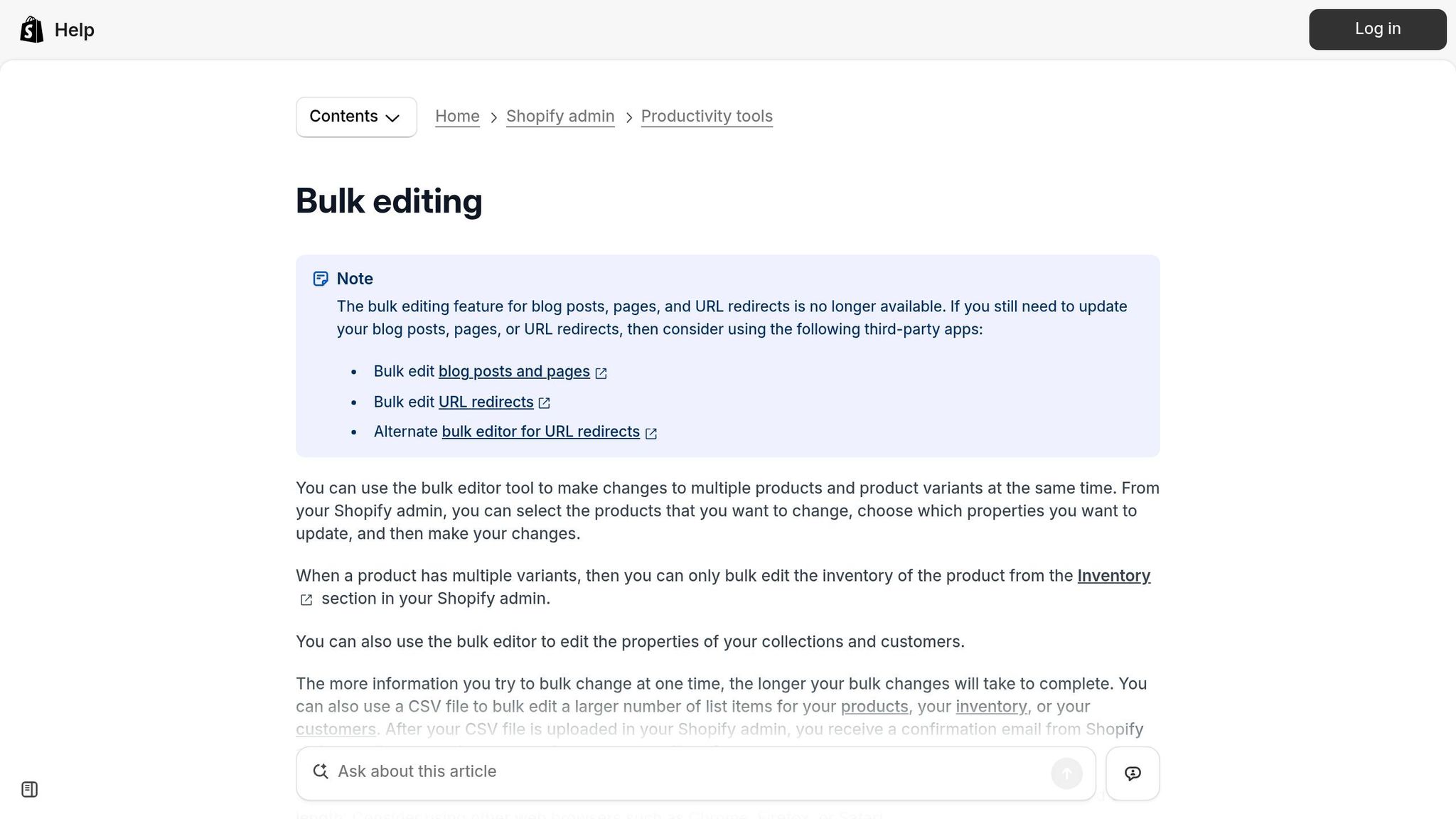
Shopify's Bulk Editor is a handy tool for standardizing values across multiple products. Start by navigating to Products in your Shopify Admin. Use the search and filter functions to focus on products with inconsistent values, such as a specific product type or tag. Once you've identified the items, select them using checkboxes and click Bulk edit.
Next, click the Columns button to add fields that need correction, like Vendor, Product Type, or Metafields. This setup allows you to view and edit all variations side by side. To fix a value, type the corrected version into the first cell (adjusting case, spelling, or spacing as needed) and use the fill handle - click and drag the corner of the cell - to apply the change across multiple rows.
| Bulk Editor Shortcut | Action |
|---|---|
| Arrow Keys | Move between editable cells |
| Click and Drag | Select and edit multiple fields at once |
| Fill Handle | Copy one cell's value to others |
If you encounter an "Update the invalid values" error while saving, add the SKU and Metafield columns to identify validation issues. Keep in mind that filters can display a maximum of 5,000 products.
For larger catalogs or more complex issues, consider shifting to automated tools like FacetGuard.
Automated Detection and Fixes with FacetGuard
FacetGuard simplifies the process by automating the detection and correction of duplicate filter values. It identifies inconsistencies in capitalization, punctuation, and spacing. Instead of manually sifting through products, the app provides an Issues Inbox that prioritizes problems and shows exactly which collections or products are affected.
Key features include the Value Limit/Cardinality Audit, which highlights attributes with an excessive number of unique values. This is often due to duplicates and can push filters beyond Shopify's 100-value display limit, causing them to disappear. Additionally, the Option Name Consistency report flags near-duplicate attributes, like "Size" vs. "Sizing", which can be merged into a single standard name. The Attribute View offers a clear picture of value distribution, helping you pinpoint problematic products.
FacetGuard also generates actionable CSV exports listing products and variants causing duplicate issues. These can be imported into Shopify's Bulk Editor for quick fixes. Start by addressing "Filter Blocker" alerts to identify collections where high cardinality is hiding filters from customers. Then, use the CSV exports to correct the root data issues in bulk.
If you'd rather group similar values without modifying the underlying data, the Search & Discovery app is a great alternative.
Merging Values in Shopify Search & Discovery App
The Search & Discovery app takes a different approach by grouping similar values under a single customer-facing label. Go to Apps > Search & Discovery > Filters, select the filter you want to adjust, and find the duplicate or similar values in the Values section. Click Create group and assign a unified name - for example, combining "Crimson" and "Cherry" under "Red".
This method is ideal for legitimate variations that should appear together, such as grouping "Onyx", "Ebony", and "Midnight" as "Black". Each group can include up to 200 unique values, and your store can have a total of 1,000 filter groups. However, remember that this approach only masks duplicates on the storefront; the underlying data inconsistencies remain in your catalog.
For empty filter values, you can choose to "Hide" them or "Show at the end" in the app settings to maintain a clean interface. If new values or merged groups don't show up after 48 hours, make a small edit to a product title to trigger Shopify's search re-indexing. You can also use the "Manual sort" option to arrange merged values in a logical order if alphabetical sorting doesn't meet your needs.
These methods help ensure a smoother customer experience by eliminating duplicate filter values and improving navigation.
Testing and Maintaining Clean Filters
Testing Filters After Fixes
After making adjustments, check your storefront to ensure that duplicated filter values like "Red" and "red" now appear as a single, consistent option. Also, verify that URL parameters are updating correctly when filters are applied.
If you don’t see the updates immediately, give Shopify 24–48 hours to re-index. Alternatively, you can manually trigger a refresh by making a small product edit. To keep filters functional, ensure collections have fewer than 5,000 products and search results don’t exceed 100,000 items. Additionally, each filter should present no more than 100 unique values to customers.
Once everything checks out, make it a habit to monitor your filters regularly to maintain their accuracy.
Monitoring Filters with FacetGuard
Regular monitoring helps prevent duplicate filters from reappearing. FacetGuard’s Option Name Consistency feature scans for near-duplicates, such as "Color" versus "Color:", and sends alerts when inconsistencies arise. This allows you to address potential issues before they affect your customers.
Schedule scans after importing or making bulk updates to products. Use the Value Limit Audit tool to catch cases where excessive unique values might signal fragmentation. FacetGuard’s Issues Inbox prioritizes problems based on severity, showing which collections are at the highest risk. This helps you focus on resolving the most critical issues first. The app’s Coverage metric also identifies products missing essential filter values, ensuring your storefront filters remain accurate and complete.
Manual Fixes vs. FacetGuard Automation
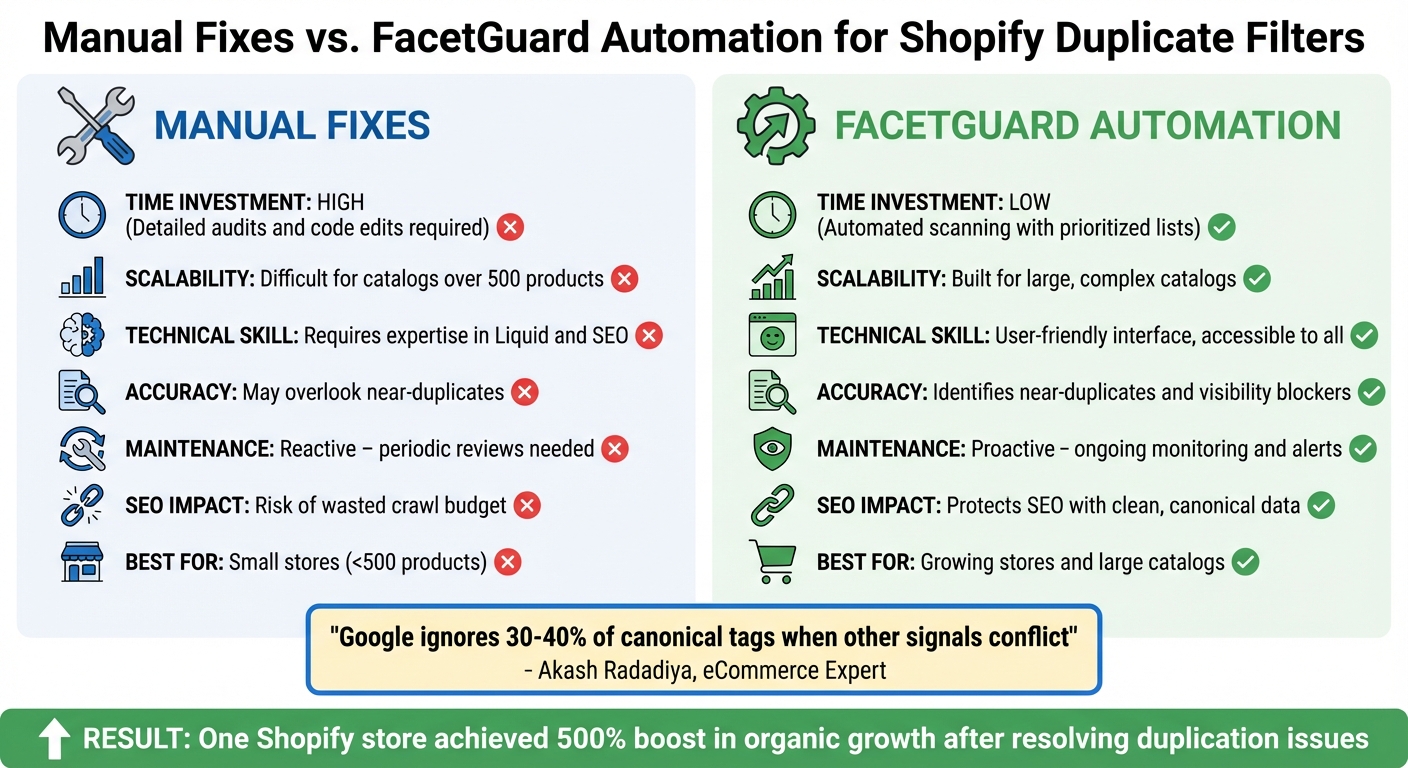
Shopify Duplicate Filter Fix Methods Comparison: Manual vs Automated Tools
Manual vs. Automated: Comparison
When it comes to addressing duplicate filter values, the choice between manual fixes and automated tools largely depends on the size of your catalog and the resources available.
Manual fixes can work well for smaller stores, typically those with fewer than 500 products. However, they require a strong grasp of Shopify's theme code and SEO principles. This approach involves periodic audits, extensive CSV analysis, and meticulous code editing. But as your catalog grows, the process becomes increasingly complex. Even a moderately sized store can generate thousands of crawlable URLs, making manual management a daunting task.
On the other hand, automated tools like FacetGuard offer a more efficient solution. As Akash Radadiya, an eCommerce expert at Adfinite, explains:
"Google ignores 30-40% of canonical tags when other signals conflict".
This highlights a key limitation of manual fixes - conflicting internal signals can undermine even the most carefully implemented solutions. Automation steps in to address these challenges by streamlining detection and resolution.
FacetGuard simplifies the process by automatically scanning your catalog for issues like inconsistent attribute naming (e.g., "Color" vs. "Colour" or "Red" vs. "red"). Its centralized Issues Inbox prioritizes critical problems and pinpoints affected collections and products. Instead of sifting through thousands of URLs, users receive exportable CSV files with only the necessary fixes. This efficiency has real-world results; for instance, one Shopify store saw a 500% boost in organic growth after resolving duplication issues.
Here’s a quick breakdown of how manual fixes stack up against FacetGuard automation:
| Feature | Manual Fixes | FacetGuard Automation |
|---|---|---|
| Time Investment | High; requires detailed audits and code edits | Low; automated scanning with prioritized lists |
| Scalability | Difficult for catalogs over 500 products | Built for large, complex catalogs |
| Technical Skill | Requires expertise in Liquid and SEO | Accessible with a user-friendly interface |
| Accuracy | May overlook near-duplicates | Identifies near-duplicates and visibility blockers |
| Maintenance | Reactive, requiring periodic reviews | Proactive, with ongoing monitoring and alerts |
| SEO Impact | Risk of wasted crawl budget | Protects SEO by ensuring clean, canonical data |
Ultimately, automation offers a more scalable and efficient way to handle duplicate filter values, especially for larger stores, while delivering measurable SEO benefits.
Conclusion
Duplicate filter values might seem like a small issue, but they can seriously mess with product discovery. Imagine filters labeled as "Color" and "Colour" or "Red" and "red" - these inconsistencies split results, leaving shoppers frustrated when they can't find what they're looking for. On top of that, too many filter values can overwhelm users, and visibility issues can make filters disappear entirely on larger collections.
But the problems don't stop there. Duplicate filters can wreak havoc on your SEO. Each filter combination creates a unique URL, and when paired with tagging issues, these URLs can eat up 70–80% of your store's crawl budget by generating duplicate content. This means search engines end up spreading ranking signals thin across numerous filtered variations, which can hurt the authority of your main collection pages. That’s why managing filters effectively is so important.
Fixing these problems doesn’t have to be complicated. If your catalog has fewer than 500 products, Shopify's bulk editor can help you clean things up manually. However, as your store grows, automated tools like FacetGuard become invaluable. They can detect inconsistent naming, excessive filter options, and other issues before they spiral out of control. Instead of manually auditing thousands of URLs, these tools provide prioritized fix lists, saving you time and effort. Whether your store is small or scaling up, there’s a solution to keep your filters in check.
Streamlined filters improve product discovery, boost engagement, and protect your search rankings. By conducting regular audits, standardizing naming conventions, and using proper noindex directives, you can safeguard both the customer experience and your SEO performance.
Whether you tackle it manually or opt for automation, making filter maintenance a regular part of your operations is the key to long-term success.
FAQs
Why do my Shopify filters disappear?
Filters in Shopify can sometimes vanish due to configuration hiccups or catalog attribute problems. This often happens because of misconfigured settings in the Search & Discovery app, missing filter setups, or attribute-related challenges like high-cardinality values (attributes with too many unique options). These issues might cause filters to disappear after being selected or not show up at all. To fix this, it’s important to double-check the app's settings and carefully review your catalog attributes to ensure everything is set up correctly.
How can I stop duplicates from coming back?
To avoid duplicate filter values in Shopify, it's essential to address attribute inconsistencies, such as differing names or near-duplicates (e.g., "Color" versus "colour"). Start by normalizing your values to ensure uniformity across the board. Regularly auditing product attributes can also help you spot and resolve these discrepancies before they cause issues.
Using catalog audit tools can simplify the process by identifying and correcting these problems efficiently. Another helpful strategy is setting filter pages to noindex. This approach minimizes SEO challenges caused by duplicate content, ensuring your filters remain organized and effective.
Should I merge values or fix the product data?
When it comes to product data, the priority should be on fixing the data itself rather than simply merging duplicate values. Why? Because merging duplicates doesn't tackle deeper issues like:
- Inconsistent attribute names that confuse users and systems alike.
- High-cardinality values that make filters cluttered and overwhelming.
- Broken filters that lead to irrelevant or misleading options.
These problems create unnecessary "filter noise", making it harder for customers to find what they’re looking for. By addressing the root of these data issues, you can ensure filters work as intended and improve the overall usability of your storefront.