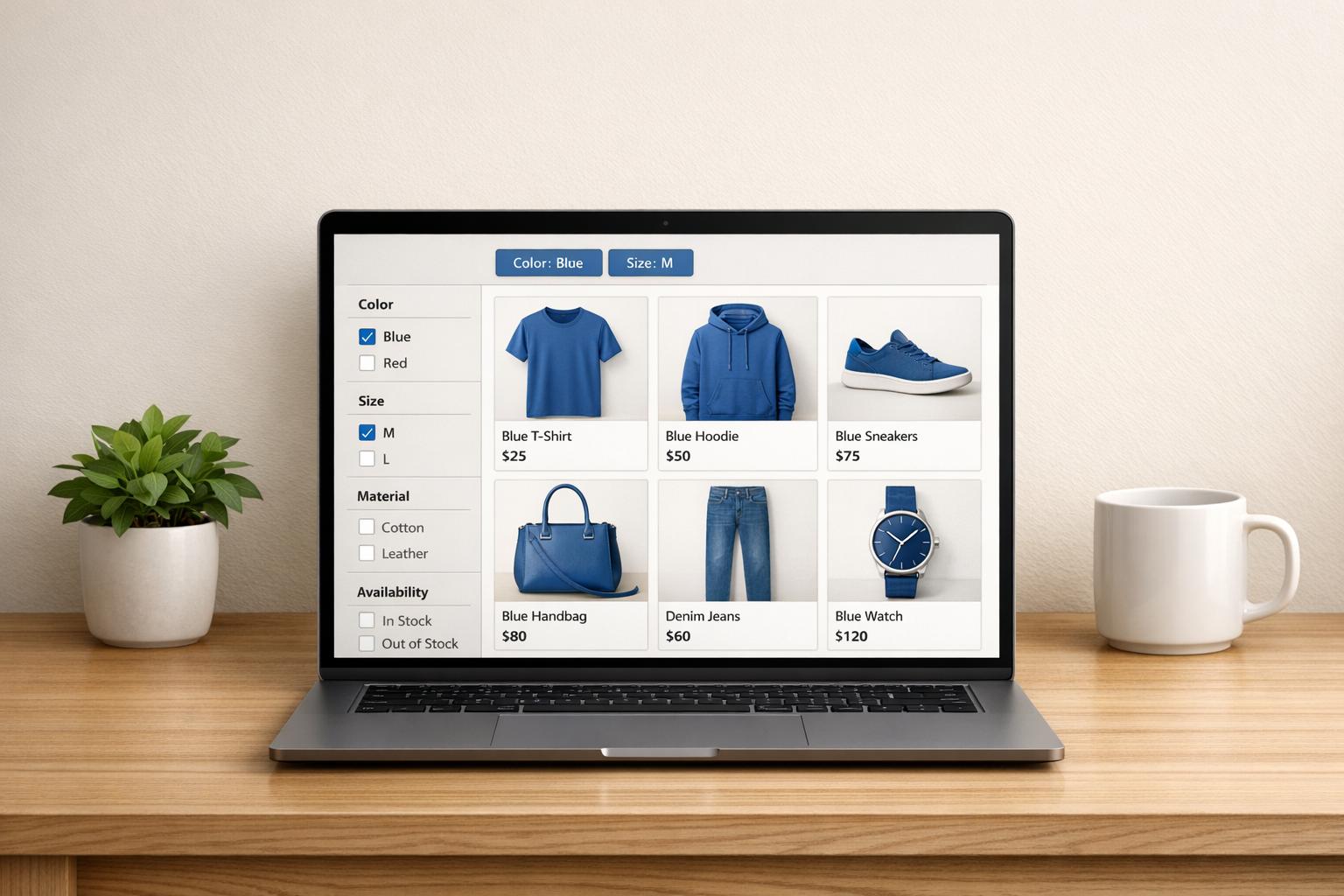
How to Fix Broken Filters in Shopify Collections
When filters in your Shopify collections stop working, it can disrupt the shopping experience and hurt your sales. Common issues include filters disappearing in collections with over 5,000 products, inconsistent product data (like mismatched attributes), or outdated theme configurations. Here’s how to fix them:
- Check the Shopify Search & Discovery App: Ensure it’s installed, configured correctly, and your theme supports filtering features.
- Fix Data Issues: Standardize product attributes (e.g., "Color" vs. "color") and ensure metafields are filled and consistent.
- Optimize Theme Settings: Enable filters in the Theme Editor and choose the best layout (horizontal toolbar, sidebar, or mobile drawer).
- Address Collection Limits: Split large collections (over 5,000 products) into smaller ones to keep filters functional.
- Resolve Technical Conflicts: Remove leftover third-party app code and ensure metafields are correctly configured for storefront access.
Regular testing and monitoring are essential to keep filters working smoothly. Use tools like FacetGuard to identify and fix hidden issues, such as missing metafield settings or high cardinality problems. Broken filters can frustrate customers, but with these fixes, you can ensure a seamless shopping experience.
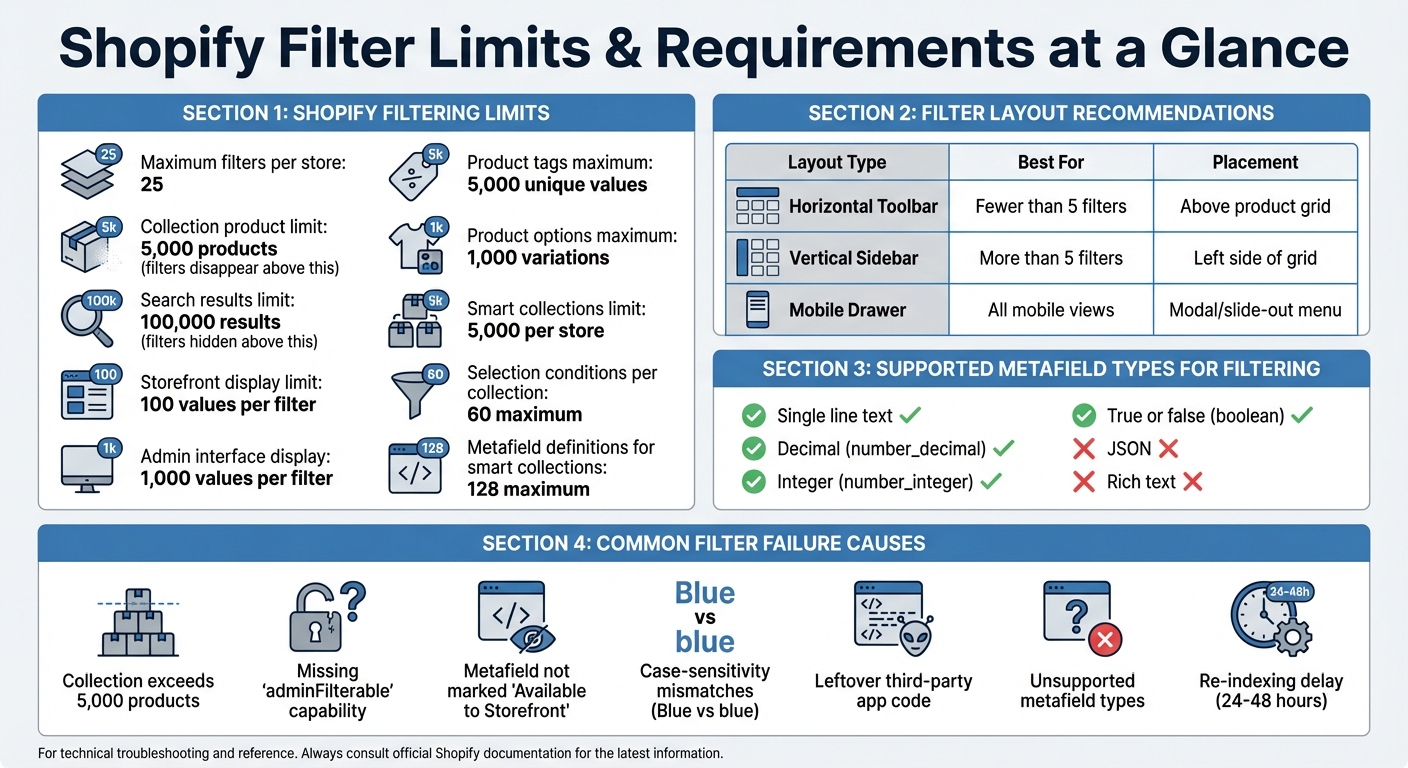
Shopify Filter Limits and Technical Requirements Quick Reference
Collection Filters in Shopify 2.0 - Full Tutorial & Concepts
sbb-itb-e8e54fb
Check Your Shopify Search & Discovery App Setup
The Shopify Search & Discovery app is your go-to tool for setting up and managing storefront filters on collection pages and search results. To ensure filters work correctly, start by verifying that the app is installed and properly configured.
First, check if your theme supports filtering. Go to Content > Menus in your Shopify admin. If your theme doesn’t support the Online Store 2.0 filtering features, you’ll see a warning under the "Collection and search filters" section. In such cases, you might need to update or switch to a compatible theme.
Keep in mind Shopify’s filtering limits. A store can have up to 25 filters. Filters won’t appear on collections with more than 5,000 products, and if a search returns over 100,000 results, filters will be hidden altogether. These limits are built into Shopify’s system and cannot be adjusted.
Install and Set Up the App
To start adding filters, open the Search & Discovery app from your Shopify admin. Navigate to the Filters section and click Add filter. You’ll find standard options like Availability, Price, Product type, Tags, and Vendor. Choose your desired filter source and click Save - note that each source can only be used once.
Price filters are tied to your store’s default currency. If a customer switches to another currency, the price filter will automatically disappear.
Add and Test Metafield Filters
Metafield filters let you create custom filtering options beyond Shopify's default fields. To set one up, go to Settings > Custom data in your Shopify admin. Select the relevant section of your store (e.g., Products), click Add definition, and choose a supported metafield type like Single line text, Decimal, Integer, or True or false.
One key step is enabling storefront access. As merchant peterasmith explained:
I figured out that the missing step was to 'Define' the metafield... Don't forget to check the option to make the definition available to Storefront.
If you skip this step, the metafield won’t appear as a filter source in the app.
After defining your metafield, use the Bulk Editor to assign values to your products. Then, return to the Search & Discovery app, click Add filter, and select your metafield definition from the Source dropdown. Save your changes and check your live collection pages. Keep in mind that new filters may take 24–48 hours to appear due to automatic re-indexing. If you need quicker results, make a small change to a product, like adding a space to its title, to trigger re-indexing manually.
Each filter can display up to 100 values to customers on your storefront. In the app admin interface, you can view up to 1,000 unique filter values. If your filter exceeds these limits, consider breaking it into smaller, more specific filters or reorganizing your product data.
Once your metafield filters are live, move on to reviewing attribute data for consistency in the next steps.
Fix Attribute Data Problems
Even if your filters are set up correctly, inconsistent product data can throw a wrench in the works. The usual suspects? Case-sensitivity mismatches and missing metafield data across your catalog.
Check Product Variant Consistency
Shopify's filtering system is case-sensitive. That means "Blue" and "blue" are treated as entirely different values. To avoid this, standardize attribute values across your products. For example, stick to one format - either "Blue" or "blue" - using bulk edit tools. Similarly, use consistent option names like "Color" instead of alternating between "Color" and "Color:" to prevent duplicate filters.
You have two ways to handle case-sensitivity issues. First, you can bulk-edit your product data to use a uniform format. Alternatively, you can add multiple OR conditions in your filter logic, like material:"cotton" OR material:"Cotton". Using Shopify's Bulk Editor is a quick way to align attribute entries across all products, eliminating these discrepancies.
Another handy tool is the grouping feature in the Search & Discovery app. Let’s say your internal color names include "Onyx", "Ebony", and "Midnight." Instead of displaying all these individually, you can group them under a single customer-facing filter value like "Black". This keeps your filters neat and user-friendly without requiring you to rename your internal product data.
Once you've standardized your variant data, don't forget to check that all metafield values are properly filled out across your collections.
Verify Metafield Coverage Across Collections
Missing metafield values can lead to incomplete or misleading filters. For instance, if some products lack a "Material" metafield, customers might see incomplete filter options.
To find products with missing metafield values, use Shopify's query syntax: -metafields.{namespace}.{key}:*. For example, -metafields.custom.material:* will list all products missing a "material" metafield. On the flip side, the "Exists" query (metafields.{namespace}.{key}:*) can help you identify products with any value in that field. From there, you can check for typos or formatting inconsistencies.
Make sure to enable Smart collections in Settings > Metafields and Metaobjects. This step is crucial because, without it, metafield data won’t be available for filtering, even if the fields are filled in. Keep in mind, Shopify allows up to 128 product and variant metafield definitions for smart collections. Focus on the attributes that matter most to your customers when deciding which ones to activate.
Turn On and Adjust Filters in Theme Editor
Once your product data and metafield settings are aligned, it's time to activate and fine-tune filters in your theme. Keep in mind that filters won't show up on your storefront until you enable them in the Theme Editor - even if you've already set them up in the Shopify Search & Discovery app. These theme settings ensure the filters you configured work properly on your live store.
Turn On Filters in Collection Templates
Start by opening the Theme Editor from your Shopify admin and navigating to a collection page. In the left sidebar, locate the Product Grid or Collection section. This is where you'll find the filtering controls. Select the filtering option, and the filters will become active on that specific template.
Make sure your collection size meets Shopify's filtering requirements. If filters aren't appearing, double-check that your theme supports the Filter Liquid API or Storefront API, as themes without this compatibility won't display filters, no matter your settings.
Once your filters are active, you can move on to designing the perfect layout for your storefront.
Adjust Filter Layout and Display Options
Your theme typically offers two layout options for desktop: a horizontal toolbar above the product grid or a vertical sidebar on the left.
- A horizontal toolbar is ideal if you have fewer than five filters. It keeps the design clean and ensures the focus remains on your products.
- A vertical sidebar works better for stores with more than five filters, offering plenty of space for customers to browse through multiple categories without cluttering the top of the page.
Here's a quick breakdown of the layout options:
| Layout Type | Best Use Case | Placement |
|---|---|---|
| Horizontal Toolbar | Fewer than 5 filters | Above the product grid |
| Vertical Sidebar | More than 5 filters | Left side of the product grid |
| Mobile Drawer | All mobile storefronts | Inside a modal or slide-out menu |
For mobile users, configure filters to open in a drawer or modal to save screen space. You can also limit long filter lists by showing the first 10 values and including a "show more" option. This keeps the interface from overwhelming shoppers.
Lastly, enable swatches in your theme settings for metafield-based filters. This adds a visual preview to the filters, making it easier for customers to navigate and select products.
Fix High Cardinality and Collection Size Issues
Once your product data and theme settings are optimized, it’s time to tackle high cardinality and oversized collections. Even with everything else running smoothly, filters can still fail if there are too many unique values or overloaded collections. Shopify imposes limits to ensure storefront performance, and exceeding these limits causes filters to vanish from your pages. This issue often arises as your catalog grows.
Let’s break down how attribute volume and collection size can affect your filters.
Identify Attributes with Too Many Unique Values
Shopify limits the display of attribute values to a maximum of 100 on the storefront, even if your products have thousands of variations. High cardinality issues occur when product tags exceed 5,000 unique values or product options surpass 1,000 variations. The admin interface, however, can display up to 1,000 values.
If you notice filters disappearing or certain values missing, it’s a sign you’ve hit these limits. For instance, imagine a "Color" attribute with 150 unique values like "Midnight Blue", "Navy", "Ocean Blue", and "Sky Blue." Only 100 of these will show on the storefront. To resolve this, use value grouping - combine similar shades under broader categories like "Blue" to stay within the 100-value limit.
| Filter Attribute Type | Maximum Unique Values | Storefront Display Limit |
|---|---|---|
| Product Tags | 5,000 values | 100 values |
| Product Options | 1,000 values | 100 values |
| Standard Attributes | 1,000 values | 100 values |
| Metafields | Varies (indexing limits apply) | 100 values |
Now that we’ve covered unique attribute values, let’s look at how collection size can cause problems.
Divide Large Collections
Shopify filters won’t work if a collection contains more than 5,000 products. This limit is in place to maintain site performance, and the native filtering system doesn’t offer a workaround. For example, if you have a massive "All Products" or "Women's Fashion" collection with over 8,000 items, filters will fail to display.
The solution? Split large collections into smaller, more focused ones. Use product type, vendor, or custom tags to create targeted collections. Instead of one enormous "Women's Fashion" collection, break it down into smaller groups like "Women's Tops", "Women's Jeans", and "Women's Boots", each containing fewer than 5,000 products. Shopify allows up to 5,000 smart collections per store, and each collection can include up to 60 selection conditions. Regularly check your collection sizes and divide them before they reach the 5,000-product threshold to keep filters functioning properly.
Fix Advanced Filter and Metafield Problems
Even after tackling high cardinality and collection size limits, filter issues might persist due to leftover app code or metafield configuration errors. These problems can be tricky to pinpoint because they often stem from mismatched schemas, missing filter functionality, or conflicts within theme code. Even well-structured data may fail if metafields are improperly set up or if residual third-party code disrupts Shopify's native filtering system. This stage focuses on resolving those deeper issues that earlier fixes might have overlooked.
Remove Leftover Third-Party App Code
Deleting a third-party filtering app doesn’t always clean up its code from your theme. Stray code snippets - often found in files like main-search.liquid or sidebar templates - may override Shopify’s native filter blocks, causing them to malfunction. Additionally, certain themes might not include the required Liquid code to support filters on search pages, even if the Search & Discovery app is correctly configured.
To address this, carefully inspect your theme files for any lingering references to outdated apps. Then, go to Customize > Others > Search (or Collections) in the Theme Editor to confirm that the "filter block" option is available. If it’s missing, you might need to update your theme code manually. Before removing any old metafields, ensure they aren’t linked to active theme blocks - deleting linked metafields can lead to permanent display errors on your storefront.
"Before you delete a metafield, make sure that it isn't connected to a block or section in your live theme. Deleting metafields that are connected to your theme can cause display errors for customers visiting your online store." - Shopify Help Center
Use FacetGuard for Advanced Diagnostics
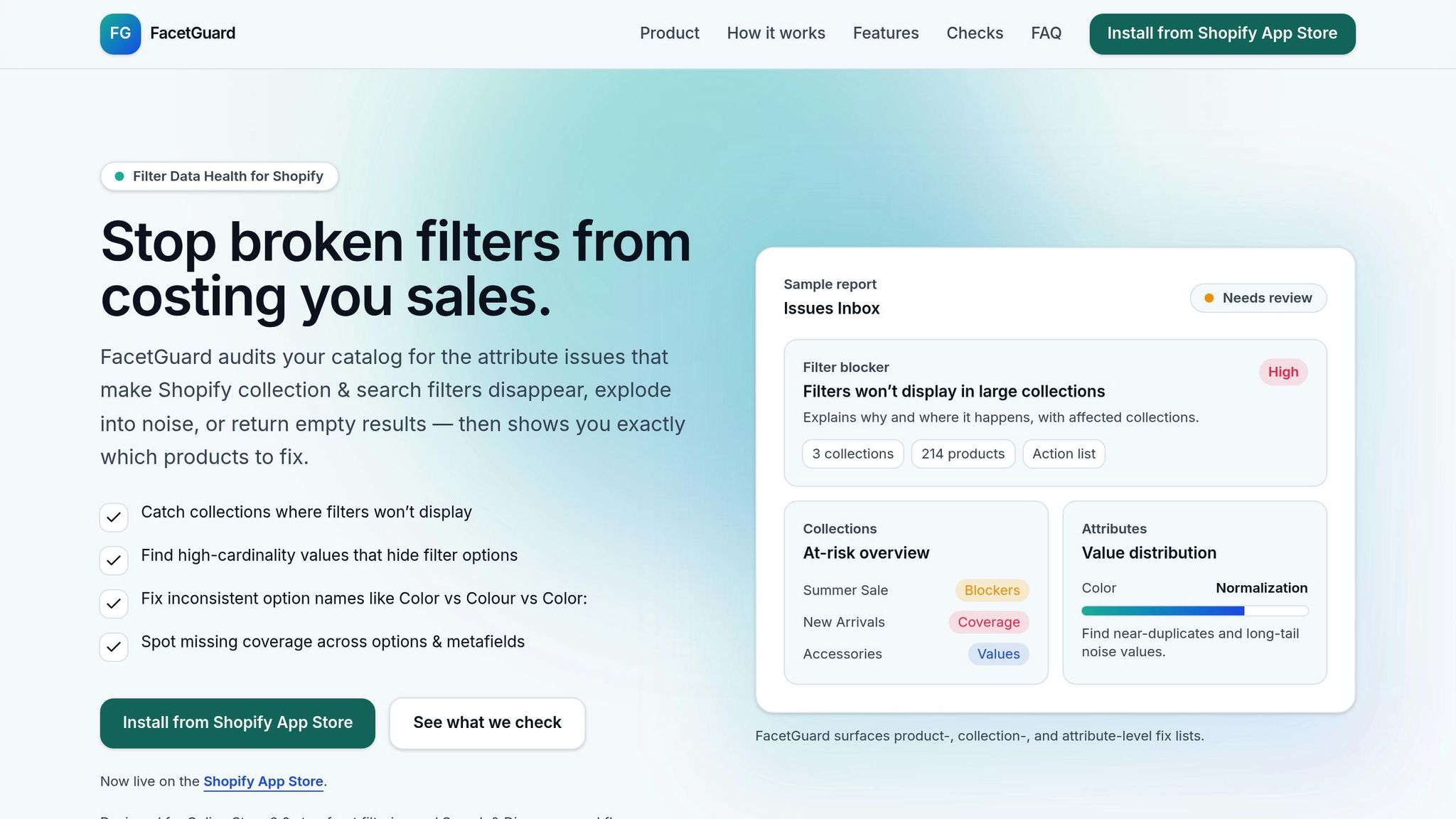
Once outdated code is removed, use FacetGuard to identify and resolve lingering metafield issues. Some metafield problems stem from schema constraints that aren’t visible in Shopify’s admin interface. For a metafield to work as a filter, it must have the adminFilterable capability enabled and be marked "Available to Storefront" in Settings > Custom Data. Keep in mind that the Storefront API only supports specific metafield types: number_integer, number_decimal, single_line_text_field, and boolean. Unsupported types like JSON and rich text will not function as filters.
FacetGuard simplifies this process by scanning for issues such as missing adminFilterable capabilities, data type mismatches, and validation conflicts. For example, if a numeric range validation is applied but certain product values fall outside the allowed range, those metafields will be flagged as "Invalid" until corrected. FacetGuard’s diagnostic reports clearly outline which metafields require attention and even provide actionable exports to help you make bulk corrections efficiently.
Test and Monitor Your Filters
Once you've implemented fixes, the next step is to ensure everything works smoothly in real-world conditions. Testing isn't something you can do once and forget about - filters can quietly break as your product catalog grows or when theme updates introduce unexpected conflicts. Regular monitoring is essential to catch these issues early, protecting both your conversions and SEO performance.
Test Filters on Live Collection Pages
Begin by applying multiple filters on a live collection page and checking the browser's address bar. The URL should update to include the applied filters, following a specific structure like filter.p.product_type=shoes for product attributes or filter.v.option.color=red for variant options. If the URL doesn't change or displays incorrect parameters, your filters aren't working as they should.
Make sure to test both AND logic (between different filter groups) and OR logic (within the same group). For instance, selecting "Red" and "Blue" under Color should display products in either color, while adding a Size filter should narrow the results to items matching both conditions. Confirm that the "Active Filters" section accurately reflects your selections and that the "Clear all" button resets all filters and refreshes the page.
It's also critical to avoid empty result pages. Each filter value should show the number of matching products, and options with zero results should either be disabled or hidden. Keep an eye on collection sizes, too - if a popular collection nears the 5,000-product limit, split it into smaller segments to prevent filters from disappearing altogether. This ensures filter functionality remains intact across your entire catalog.
Use FacetGuard for Ongoing Monitoring
While manual testing can catch visible issues, systematic monitoring is your best defense against recurring or hidden problems. FacetGuard's Collection View is a great tool for this purpose. It tracks collections that are at risk, flags potential problems before they affect your storefront, and identifies inconsistencies like mismatched option names (e.g., "Color" vs. "Color:") or missing adminFilterable metafields.
FacetGuard also helps pinpoint products that need re-indexing when filters show outdated values after bulk updates. Additionally, you can use your browser's Network tab to check for server-side issues, such as 403 or 5XX error codes during filter operations. Regular monitoring like this prevents issues that might quietly harm your storefront - like filters generating thousands of duplicate URLs, which can waste Google's crawl budget on low-priority pages instead of your main product listings.
Conclusion
Broken filters can frustrate customers and hurt your sales. As Shopify staff explain:
"Ecommerce shoppers want quick finds, not endless scrolling through product pages. If search queries are a frustrating slog, sales are at risk".
When filters function properly, shoppers can locate products faster, boosting conversion rates and delivering the smooth shopping experience they expect.
But it’s not just about user experience - accurate filters also protect your store's technical health. Faulty filters can create a flood of unnecessary URL variations, wasting Google’s crawl budget. This can lead search engines to prioritize duplicate filter combinations instead of your most valuable pages. Regular monitoring can help you catch these hidden issues before they damage your SEO and traffic.
The fixes outlined in this guide tackle common problems like large collections, inconsistent data, and leftover app code. These solutions are designed to restore the filtering functionality your customers depend on.
Don’t forget to test every change thoroughly. Make sure URLs update as they should, "Active Filters" reflect the correct selections, and product counts avoid zero-result pages. For ongoing maintenance, tools like FacetGuard's Collection View can identify at-risk collections and catch inconsistencies before they impact your storefront.
Filters aren't just a technical feature - they’re an opportunity to stand out. By keeping your catalog navigation in top shape, you ensure that every visitor can quickly find what they need, turning browsers into buyers.
FAQs
Why did my collection filters suddenly disappear?
If your collection filters seem to have vanished, it’s likely due to a setup issue or missing products in the source collection. Here are some common reasons this happens:
- Filters not added to the filter menu: Double-check that the filters you want are included in your filter menu settings.
- Collections with no matching products: Filters won’t show if the collection doesn’t contain products that match the filter criteria.
- Incorrect theme or filter settings: Misconfigured theme settings or filters can also cause them to disappear.
To fix the issue, make sure your filters are correctly set up, visible, and connected to collections that have relevant products. This should help restore their functionality.
How can I tell if my theme supports Shopify filters?
To determine if your Shopify theme supports storefront filtering, start by checking its compatibility. Themes that support this feature allow customers to filter products by criteria like price, tags, and metafields. Here's how you can verify:
- Enable Filters in the Search & Discovery App: Activate filters through this app to see if they function as expected.
- Review Your Theme’s Documentation: Look for details about filtering capabilities in the theme’s support materials.
- Confirm It’s an Online Store 2.0 Theme: Themes built on Shopify’s Online Store 2.0 framework generally support storefront filtering.
If filters don’t show up after these steps, your theme might require additional configuration or may not support filtering at all.
Why won’t my metafield show up as a filter option?
If your metafield isn't showing up as a filter option, it could be because filtering hasn't been enabled in the metafield definition. It's also worth noting that not every metafield type supports filtering. To fix this, double-check that filtering is turned on for the specific metafield in your Shopify admin or via the API. Also, confirm that the metafield type you're using is compatible with filtering to ensure it appears as an option.