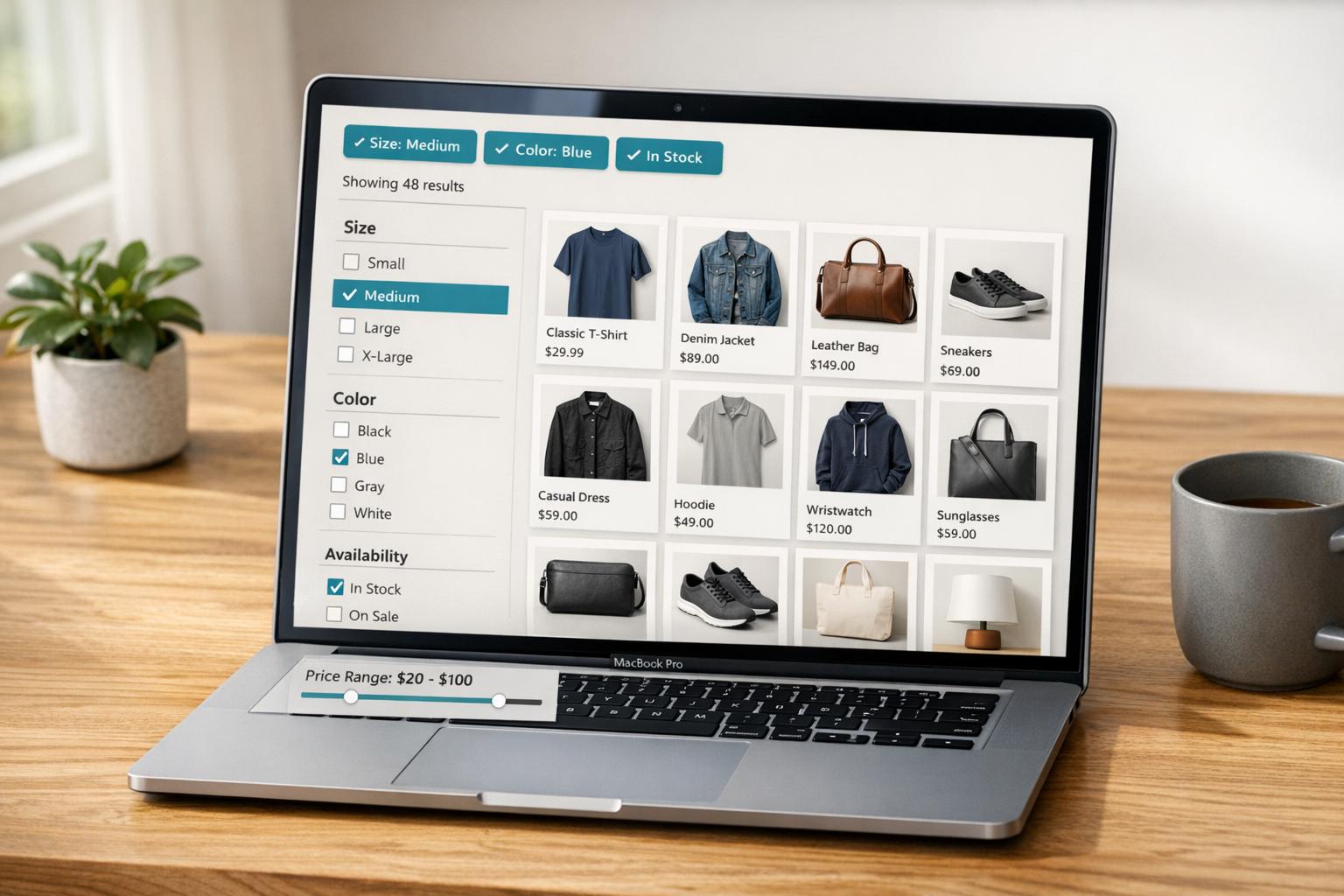
Why Are My Shopify Filters Not Working? Solutions
If your Shopify filters aren’t working, it’s likely due to one of these common issues:
- Catalog Size Limits: Filters won’t appear if a collection has over 5,000 products or search results exceed 100,000 items.
- Indexing Delays: Updates to filters can take 24–48 hours to process.
- Theme Incompatibility: Your theme may not support Shopify’s filtering API.
- Product Data Errors: Inconsistent naming (e.g., "Color" vs. "Color:") or missing variant options can cause filters to malfunction.
- Multi-Currency or Language Issues: Price filters only work with the default currency, and some filters only show in the default language.
- Third-Party App Conflicts: Residual code from apps or customizations may interfere with filter functionality.
Quick Fixes:
- Install the Shopify Search & Discovery App: Ensure it’s active and configured correctly.
- Check Product Data: Use consistent naming for options and enable filtering for metafields.
- Re-Index Products: Make minor edits to products to trigger updates.
- Enable Filters in Your Theme: Turn on filtering in the theme editor under collection and search pages.
- Resolve App Conflicts: Disable third-party apps one at a time and remove leftover code.
If your catalog is too large, break collections into smaller groups or use third-party apps like FacetGuard to manage filtering limits. Always test changes on a default Shopify theme like “Dawn” to rule out theme compatibility issues.
How To Add Product Filters In Shopify (Filtering)

sbb-itb-e8e54fb
Step 1: Check Your Search & Discovery App Installation
First, make sure the Shopify Search & Discovery app is installed and active on your store. This free app is essential for enabling advanced filtering options. Without it, your store is restricted to basic filters like "Availability" and "Price", and even those might not function as expected.
This app manages filter logic, allowing you to rename filters, group similar values (e.g., merging "Onyx" and "Ebony" under "Black"), and set specific conditions for search results. However, filters will only appear on your storefront if your theme supports Shopify's filtering API. To check this, go to Content > Menus in your Shopify admin. If your theme doesn’t support filtering, a warning will appear in the "Collection and search filters" section.
How to Install and Set Up the Search & Discovery App
Installing the app is simple. Head to the Shopify App Store, search for "Search & Discovery", and click the install button. Once installed, navigate to Apps > Search & Discovery in your Shopify admin, then click Filters and select Add filter.
When adding a filter, you’ll need to pick a Source. Common options include Availability, Category, Price, Product Type, Tags, and Vendor. You can also create custom filters using product options (like Size or Color) or metafields you’ve configured. After selecting your source, customize the label, adjust any display settings, and click Save.
Keep in mind that only staff members with permissions for both "Products" and "Online Store Search and Navigation" can manage filters within the app.
Verify Your Installation
Once your filters are set up, allow 24–48 hours for indexing to complete. If you need faster results, you can manually re-index by making a small update to an affected product, such as adding a space to the title, and saving it.
To confirm everything is functioning, visit one of your collection pages on the storefront and check for the filters you created. If the filters aren’t visible, ensure your collection contains fewer than 5,000 products, as filters automatically hide for larger collections. You should also test your theme’s compatibility with filtering. If you’re using a custom theme, try switching to a default Shopify theme like "Dawn" or "Trade" to see if the filters appear.
For multi-currency stores, note that the price filter only works with your store’s default currency and won’t display when customers switch to another currency. Similarly, Tag and Vendor filters only show in your store's default language. If filters are still missing, double-check your product data configurations to identify any issues.
Step 2: Fix Product Data Problems
Inconsistent or missing product data can often cause filters to malfunction. After verifying your app installation, make sure your product data is consistently organized to enable effective filtering. Common issues involve the use of tags versus variant options, metafield configuration, and ensuring your search index is synced with the latest product updates.
Switch from Tags to Variant Options
Tags are limited to filtering at the product level, which means they can’t differentiate between specific product variants. For example, if you’re selling a shirt in both red and blue, tagging the product with both colors won’t allow customers to filter by just "red" or "blue."
To solve this, use variant options instead. Variant options apply filter values to each individual variant. Instead of tagging a product with "Red" and "Blue", create a Color option with "Red" and "Blue" as distinct choices for each variant. This ensures that customers can filter products based on the specific variant they want. You can set this up by going to the product page, selecting the Variants section, and adding options like Size, Color, or Material. Assign the appropriate values to each variant, and these options will automatically become available as filter sources in the Search & Discovery app.
Set Up Metafields for Custom Filters
For attributes that don’t fit into standard variant options - like "Made In", "Fabric Type", or "Care Instructions" - use metafields. To enable metafields for filtering, go to Settings > Custom data > Products and check the box labeled "Filtering for products" (sometimes referred to as "Storefront filtering"). Without enabling this setting, the metafield won’t function as a filter source.
Shopify supports up to 50 indexable metafields for filtering, but only 25 filters can be active on your storefront at any time. Keep in mind that metafield filters are case-sensitive. For instance, a metafield value of "Blue" won’t match a filter query for "blue." To avoid mismatches, standardize capitalization across all product data. If a product requires multiple values for a single filter (like a jacket suitable for both "Spring" and "Summer"), enable the "Accept list of values" option when defining the metafield.
Re-Index Your Products
Sometimes, a manual re-index is necessary to update your filters. You can trigger this by making a small edit to a product, such as adding a space to the product title, and then saving it. This ensures that any changes to your product data are reflected in the filters.
If filters are still not working correctly, check a few key things:
- Ensure your collection contains fewer than 5,000 products, as filters are automatically disabled for larger collections.
- Confirm that the "adminFilterable" capability is enabled in your metafield definitions.
If these steps don’t resolve the issue and products are still missing from filters, it might be time to contact Shopify Support to investigate deeper synchronization problems.
Step 3: Turn On Filters in Your Theme
Filters won’t show up on your storefront unless you enable them in your theme settings. It’s a common mistake that can leave you scratching your head - everything seems fine in the backend, but customers see nothing.
Enable Filters in the Theme Editor
To activate filters, head to Online Store > Themes > Customize in your Shopify admin. Once you’re in the theme editor, use the top dropdown menu to switch from the homepage to either the Collections (Default collection) page or the Search page. If you’re using a Shopify-developed theme like Dawn, you’ll find the filtering option in the Product grid section for collection pages or the Search results section for search pages. Look for a checkbox or toggle labeled "Enable filtering" and turn it on.
To check if your theme supports filtering, go to Content > Menus. If it doesn’t, you’ll see a notification in the Collection and search filters section.
Once you’ve enabled filters for collection pages, don’t forget to add the filter block to the search results template. Navigate to Others > Search in the theme editor and enable filters here too - they aren’t activated by default.
After turning on filters, you can customize how they look to fit your store’s design.
Adjust Filter Display Options
You can choose between two layouts: a horizontal toolbar above the product list or a vertical sidebar to the left. For fewer than five filters, a horizontal toolbar works well to keep things compact. But if you’re using more than five filters, a vertical sidebar is better. It allows customers to scan multiple filter groups easily and lets you collapse sections to avoid overwhelming the page.
On mobile devices, filters are typically tucked into a drawer or modal to keep the interface clean and avoid clutter. When setting up your filters, enable product counts next to each filter value. This helps customers avoid selecting options that lead to zero results, reducing frustration and improving their shopping experience.
If a filter group has many values, consider limiting the visible options to the 10 most relevant ones. Add a “show more” button to keep the sidebar tidy and manageable.
Keep in mind that filters might not appear for very large collections (over 5,000 products) or extensive search results. If this happens, the size of your catalog could be the issue. We’ll dive into solutions for this in Step 5.
Next, we’ll look at how third-party apps might interfere with your filters and what you can do about it.
Step 4: Fix Third-Party App Conflicts
Resolving conflicts caused by third-party apps is essential because leftover code can interfere with Shopify's filters and disrupt the shopping experience. Even after uninstalling an app, its residual code might linger, leading to issues like broken price sliders, missing filter options, or filters that fail to appear altogether.
Find App Conflicts
To identify conflicts, start by using your browser's developer tools. Open the browser console and monitor for JavaScript errors while interacting with the filters. Errors referencing external scripts often point to a specific app as the source of the issue. Additionally, check Online Store > Navigation (or Content > Menus) in your Shopify admin. If your theme isn’t compatible with native filtering due to overrides from an app, Shopify will display a warning in the Collection and search filters section.
For merchants using B2B catalogs with customer-specific pricing, mismatched filter results may occur. Shopify Partner jonathanprestid explains:
"The problem was related to the fact that we use B2B catalogues for our pricing. The Search and Discovery app can only filter on prices in the Shopify admin section, which is why we were getting the errors".
This happens because the Search & Discovery app relies on base admin prices, ignoring custom pricing managed by B2B apps.
To pinpoint the conflicting app, disable third-party apps one at a time from your app dashboard. If filters start functioning properly after disabling a specific app, you've found the culprit. You should also inspect theme files like main-search.liquid and main-collection.liquid for leftover code from old filtering apps that might be interfering with Shopify’s standard filter objects.
Once you’ve identified the app causing the issue, follow the steps below to remove its residual code.
Remove Old App Code
Before making any changes, back up your theme by duplicating it. Navigate to Online Store > Themes, click the three dots next to your active theme, and choose "Duplicate."
Next, search your theme files for traces of the uninstalled app. Check theme.liquid, header.liquid, footer.liquid, and the Snippets folder for references to the app. Look for elements like {% include 'app-name' %}, {% render 'app-name' %}, or <script> tags tied to the app’s server.
Also, review Online Store > Customize > Theme Settings > App Embeds to ensure that no toggles for uninstalled apps remain active. Apps designed for Online Store 2.0 often use these embeds, making them easier to manage and less likely to leave permanent code behind.
If you’re unsure how to locate or remove the code, reach out to the app developer via the Shopify App Store. As Pixel Union advises:
"No one knows how and where an app integrates with the theme files better than the app's developers. Their team would be most equipped to help you in removing their app's code".
If the app used metafields for filtering, delete the metafield definitions under Settings > Custom Data to ensure they no longer appear in your filter options.
Finally, after cleaning up the code, give Shopify 24-48 hours to re-index your store. Filtering issues that seem like app conflicts may sometimes just be delays in search indexing.
Up next, we’ll explore how catalog size limitations can impact filter performance for large collections.
Step 5: Work Around Shopify's Catalog Size Limits
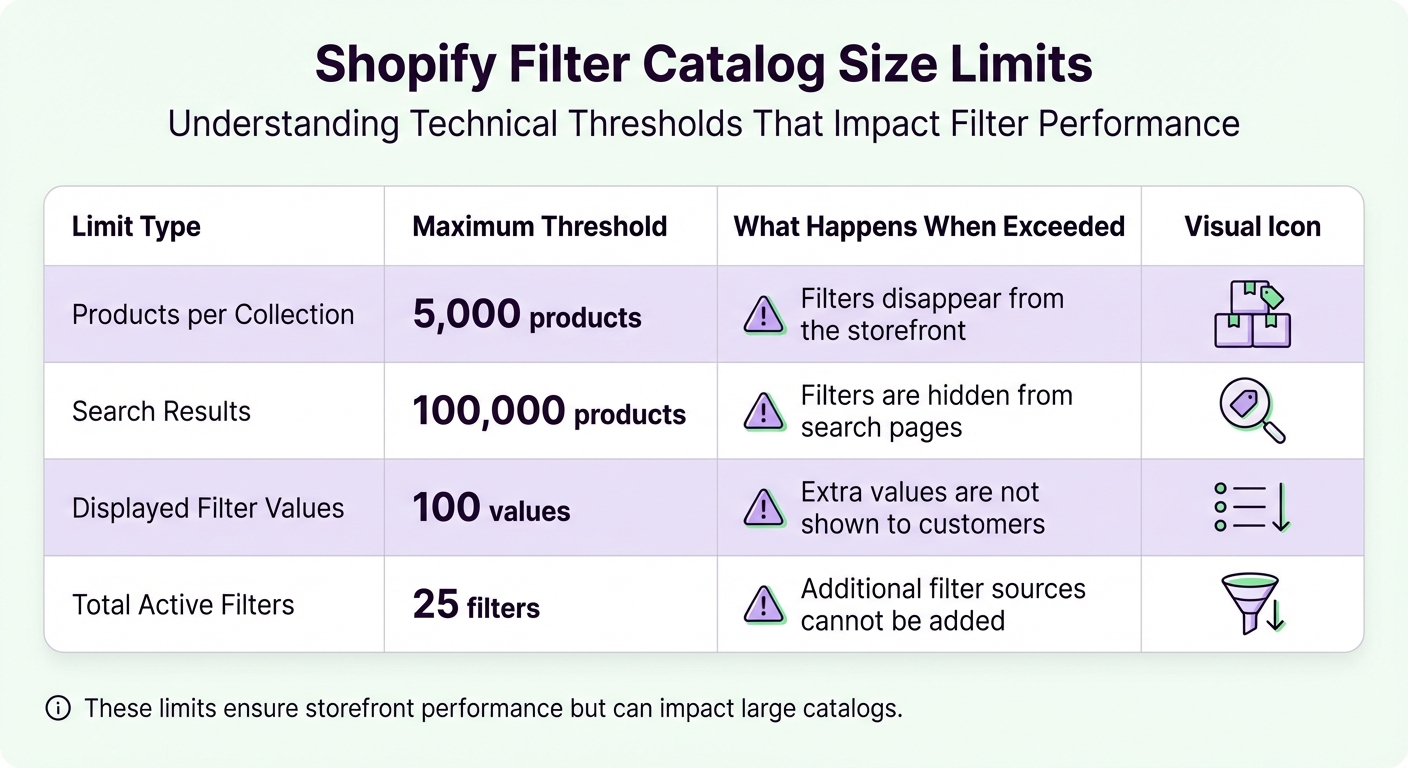
Shopify Filter Catalog Size Limits and Their Effects
If your filters are still malfunctioning, it might be time to check whether your catalog size is the culprit. Even with accurate product data and no app conflicts, Shopify's technical thresholds can cause filters to disappear if your catalog is too large. These limits are in place to ensure storefront performance, but they can make managing large inventories a real challenge. Unlike app conflicts or data errors, this issue demands a different strategy to keep your filters working.
Signs You've Hit Shopify's Limits
One major sign is when your filter sidebar vanishes from collection pages that exceed 5,000 products. For example, the merchant PunkOuter shared their frustration:
"I appear to have hit the limit today after going over 5000 items... A 5000 limit is absurdly low. One card game alone can have 15k+ different cards... making it so you have to break the collections apart into smaller ones".
You might also notice filters failing to load while the rest of the page seems fine. Similarly, filters may break if a single filter includes more than 100 values. Customers might even report they can’t find specific sizes, colors, or other key options.
Here’s a quick breakdown of Shopify’s catalog size thresholds and their effects:
| Limit Type | Maximum Threshold | What Happens When Exceeded |
|---|---|---|
| Products per Collection | 5,000 products | Filters disappear from the storefront |
| Search Results | 100,000 products | Filters are hidden from search pages |
| Displayed Filter Values | 100 values | Extra values are not shown to customers |
| Total Active Filters | 25 filters | Additional filter sources cannot be added |
Spotting these signs early helps you take action before your customers face usability issues.
Solutions for Large Catalogs
To stay within Shopify’s limits, consider breaking large collections into smaller, more focused groups. For instance, instead of having one massive "Apparel" collection with 8,000 items, split it into smaller collections like "Tops", "Jeans", and "Boots", each with fewer than 5,000 products. This not only keeps your filters intact but also makes navigation easier for your customers.
If you’re on Shopify Plus, you can use Shopify Flow to automate this process. Set up workflows to tag products and move them between collections automatically, keeping collection sizes manageable. Another option is the "Group values" feature in Shopify’s Search & Discovery app. This lets you combine similar attributes - like grouping "Ebony", "Onyx", and "Midnight" under a single "Black" filter - to stay within the 100-value limit.
For merchants struggling with segmentation, tools like FacetGuard can help identify collections that are at risk of breaking. You can also explore third-party filtering apps with independent indexing engines. These apps often bypass Shopify’s native limits and typically cost around $15 per month.
Using FacetGuard to Fix Filter Issues
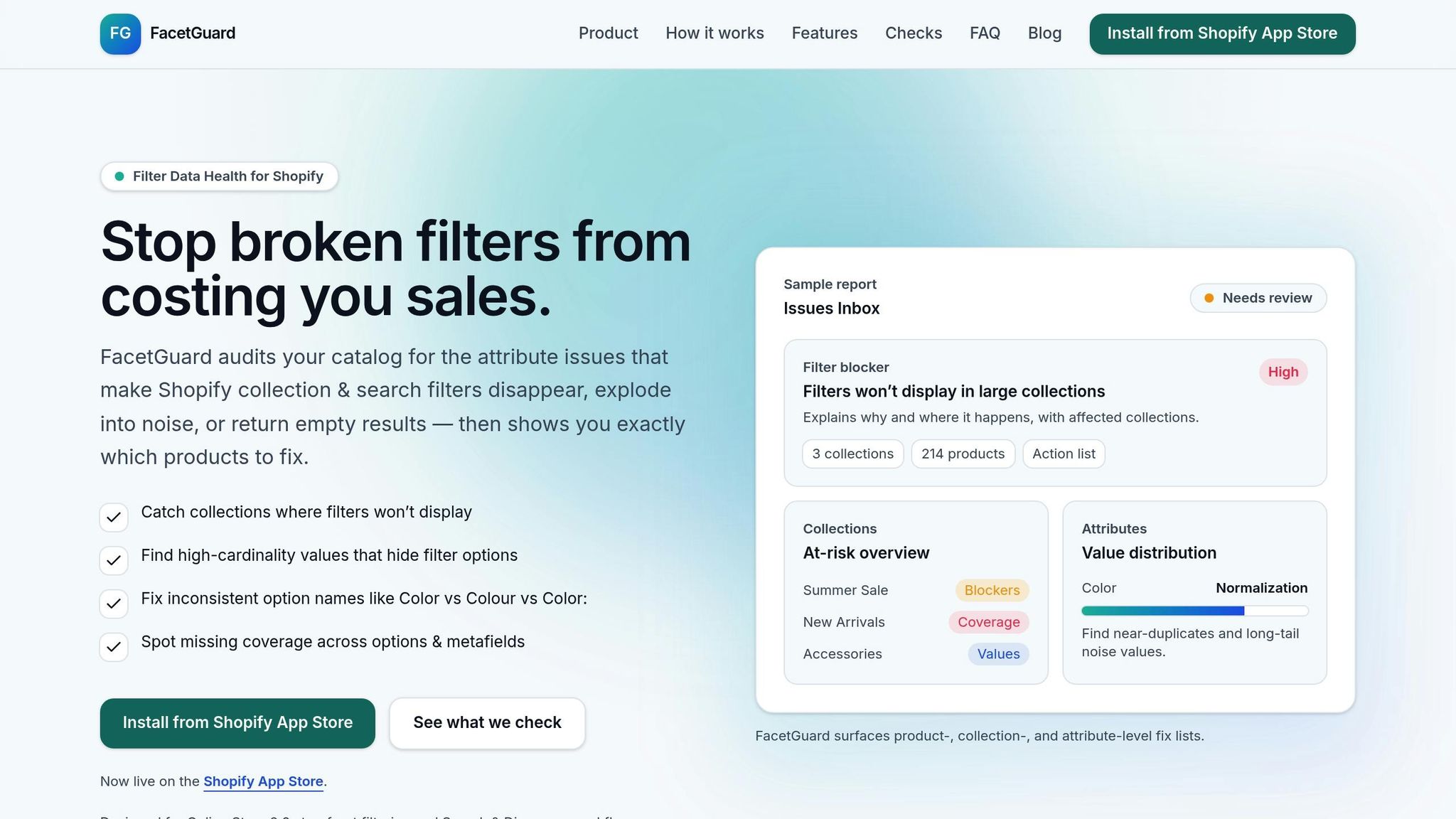
Once you've tried manual troubleshooting, you might be searching for a quicker way to catch filter problems before they escalate. FacetGuard steps in as an automated tool that works alongside the manual methods previously discussed. It’s specifically built to pinpoint and resolve catalog issues that disrupt Shopify filters, saving you from tedious manual checks.
What FacetGuard Does
FacetGuard scans your catalog and organizes problems in its Issues Inbox, highlighting collections that exceed limits and filters nearing the 100-value threshold. Instead of playing a guessing game to find problematic products, you get a clear, prioritized list of what needs attention.
The Filter Blockers Scanner flags collections with over 5,000 products or search results exceeding 100,000 items - both of which can cause filters to stop functioning entirely. Meanwhile, the Value Limit Audit keeps an eye on individual filters, alerting you when they approach the 100-value display cap, ensuring customers don’t encounter incomplete filtering options.
Additionally, FacetGuard identifies JavaScript conflicts caused by third-party apps or theme customizations. These code-level issues, often overlooked during manual checks, can completely break filter functionality. The tool also flags SEO concerns like crawl bloat caused by faceted navigation.
How FacetGuard Saves Time
Manual troubleshooting often involves editing products one by one to trigger re-indexing, which can be incredibly time-consuming. FacetGuard not only identifies issues but also simplifies the resolution process with actionable exports. For larger catalogs, you can download CSV files of affected products and variants, making bulk edits much faster. Plus, you can mark issues as resolved directly in the app, helping you track your progress as you work through the fixes. This continuous monitoring ensures your storefront stays optimized while cutting down on the time spent fixing problems manually.
Conclusion
Main Points to Remember
Setting up Shopify filters effectively requires attention to detail in app setup, product data consistency, and theme configuration. To get started, make sure the Search & Discovery app is installed and configured properly. Your theme must support storefront filtering, and your product data must use consistent naming for variant options and metafields. Even small discrepancies - like labeling some products with "Color" and others with "Color:" - can stop Shopify from grouping them into a single filter category.
As Performantcode.io explains, "Consistency is not cosmetic. It's structural. Without consistent naming, your Shopify product data structure becomes unpredictable". This highlights the importance of standardizing option names, avoiding duplicate attributes, and staying within Shopify's catalog limitations.
Keep in mind that indexing updates can take 24–48 hours to reflect changes. If you need faster updates, making a small manual edit to a product can trigger re-indexing.
With these foundational steps in place, you'll be better equipped to handle filter-related challenges.
What to Do Next
Begin by reviewing your app installation, auditing your product data for inconsistencies, enabling theme filters, and checking for potential app conflicts. If you’re managing a large catalog or experiencing recurring filter problems, regular monitoring is key to identifying and resolving issues early.
For ongoing maintenance, consider tools like FacetGuard, which automates the process of detecting filter blockers and value-limit issues. It also offers prioritized fixes and CSV exports for faster bulk updates. As your catalog expands, maintaining well-functioning filters will require consistent effort and monitoring.
FAQs
How do I know if my theme supports Shopify’s filters?
To see if your theme works with Shopify’s filters, head to your Shopify admin and go to Content > Menus. Look for the Collection and search filters section. Here, you'll find a message letting you know if filtering isn't supported. If your theme doesn’t support it, you can still set up filters, but they won’t show up on your storefront unless the theme is compatible.
Why do my filter changes take so long to show up?
When filter changes on Shopify take longer than expected, several factors could be at play. One common reason is unindexed metafields - metafields need to have filtering enabled in their definitions, and delays in updating or indexing these can impact performance. Another potential culprit is caching issues, which can temporarily prevent updates from appearing. Lastly, overly complex filter setups or misconfigurations can add to the delays. To minimize these issues, ensure your filters are properly configured and optimized for quicker updates.
How can I keep filters working with over 5,000 products?
To keep filters working seamlessly with catalogs exceeding 5,000 products in Shopify, leverage storefront filtering for elements like tags, vendor, price, and metafields. The Shopify Search & Discovery app is a handy tool for managing large product collections efficiently.
For best results, focus on optimizing your data structure. This includes setting up metafields correctly and avoiding unnecessary expansions that could complicate your catalog. By following these practices, you can ensure filters stay functional and effective, even for extensive collections.