
10 Ways to Improve Storefront Filter Performance
Your storefront filters directly impact sales. Shoppers need quick ways to find what they want, and poor filter performance leads to frustration. Did you know 42% of shoppers abandon browsing when filters don’t work, and mobile users who use filters convert at 3.8 times the rate of those who don’t? This guide covers 10 actionable tips to fix slow filters, inconsistent naming, and zero-result issues while boosting conversions by up to 25%.
Key Takeaways:
- Audit your catalog for filter issues with tools like FacetGuard.
- Fix problems like inconsistent names ("gray" vs. "grey") and high-cardinality attributes.
- Hide zero-result filters and show product counts for better user experience.
- Limit filters to 5–7 key attributes that matter most to your shoppers.
- Optimize layouts for desktop and mobile to make filtering smooth.
Quick Overview:
- Audit Catalog Attributes: Spot data issues with FacetGuard.
- Scan for Filter Blockers: Identify missing filters for large collections.
- Fix Cardinality Issues: Reduce clutter by consolidating filter values.
- Standardize Option Names: Keep naming consistent for seamless filtering.
- Structure Metafields: Ensure clean and reliable data for filters.
- Prioritize Key Filters: Focus on attributes that drive purchases.
- Hide Zero-Result Filters: Avoid frustrating shoppers with dead ends.
- Optimize Filter Layouts: Tailor designs for desktop and mobile.
- Use Bulk Fixes: Leverage CSV exports for large-scale corrections.
- Monitor Regularly: Use FacetGuard Views to catch issues early.
These steps improve your store’s navigation, increase conversions, and enhance the shopping experience. Start with catalog audits and focus on resolving the most pressing issues first.
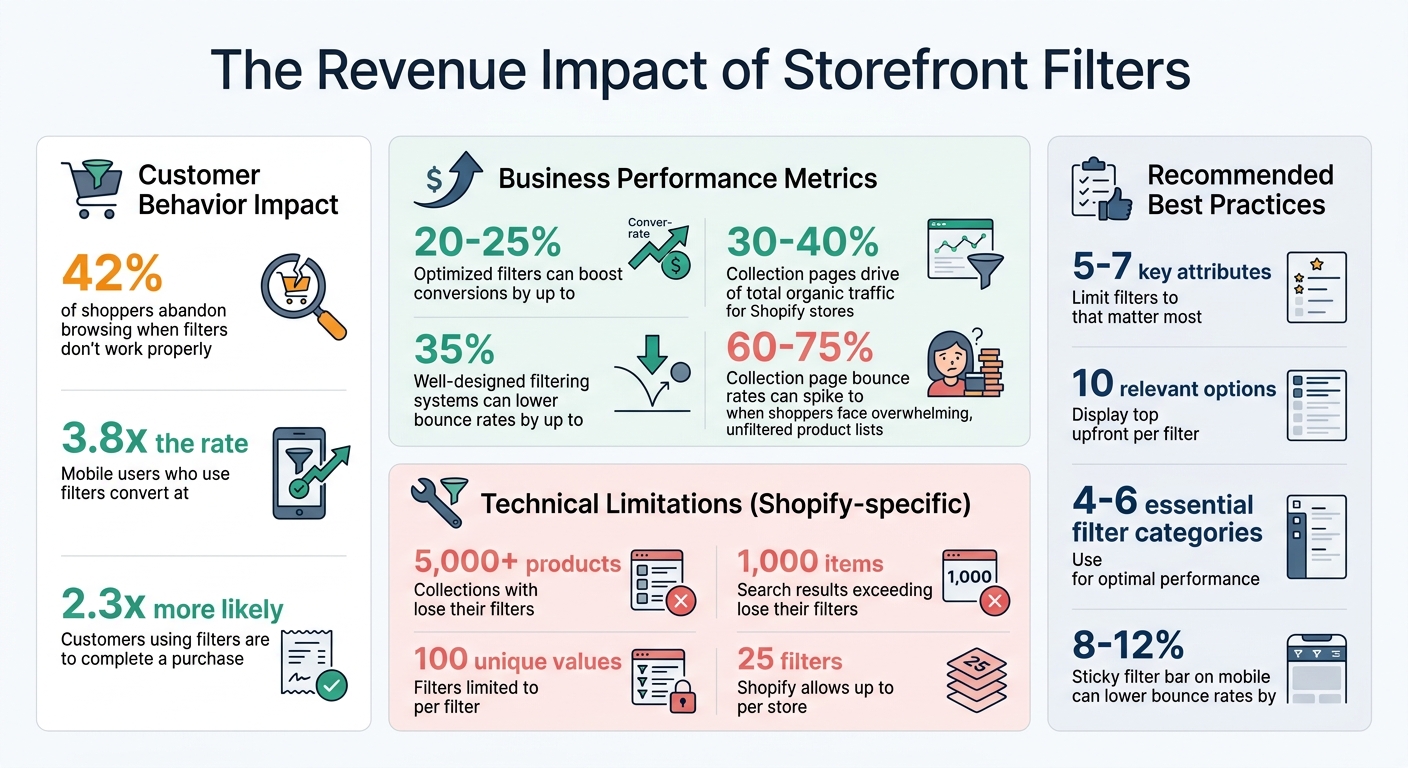
Storefront Filter Performance Statistics and Impact on E-commerce Conversions
How To Add Product Filters In Shopify (Filtering)

sbb-itb-e8e54fb
1. Audit Catalog Attributes with FacetGuard Issues Inbox
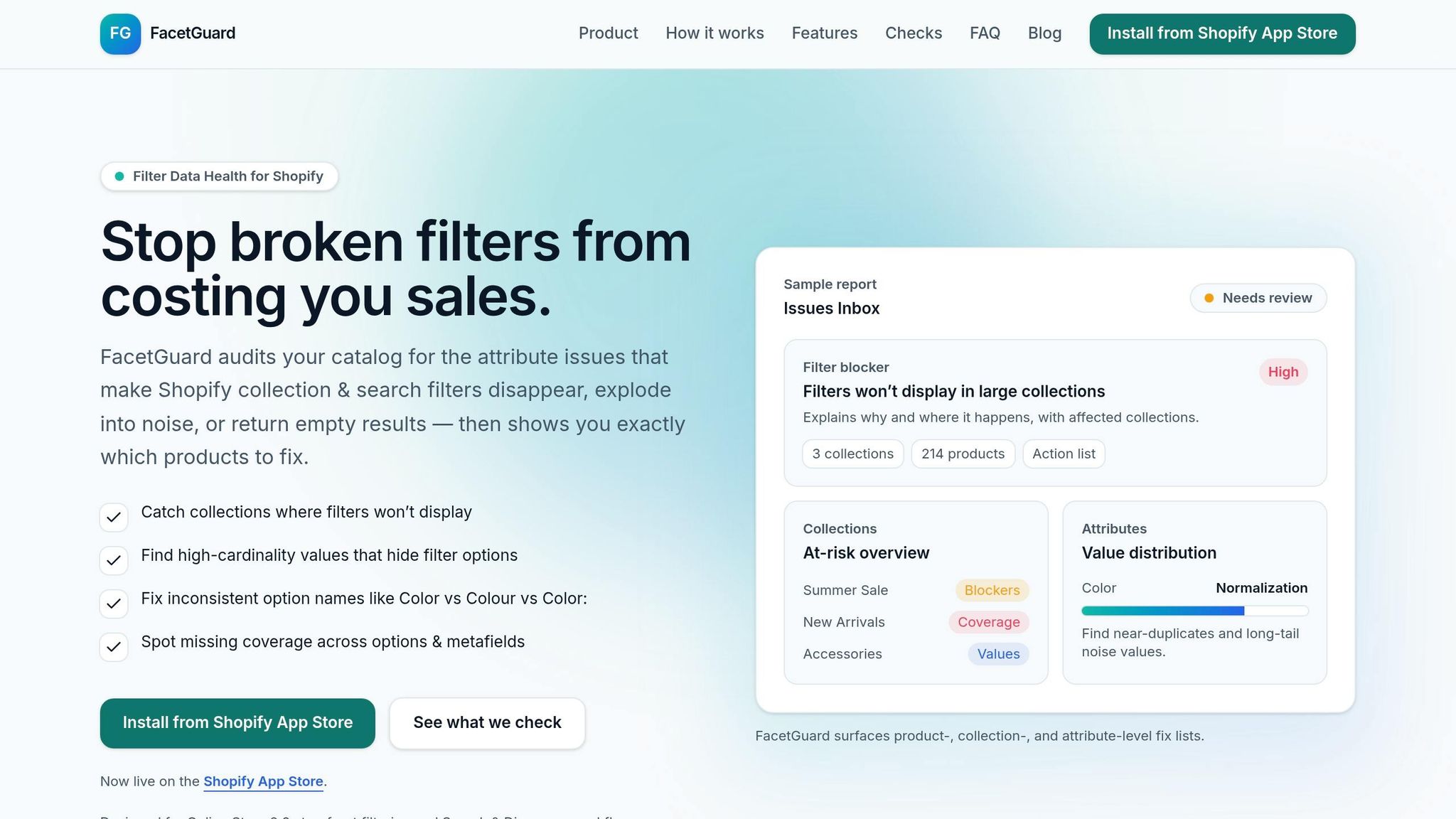
Even a catalog that seems well-organized can hide subtle data problems that disrupt filtering. The FacetGuard Issues Inbox is a dashboard designed to help you spot and address these problems before they affect your customers' shopping experience. This free Shopify app, launched on January 13, 2026, scans your catalog and flags issues based on their severity and impact.
The Issues Inbox focuses on identifying "Filter Blockers", which are situations where Shopify disables filters entirely on large collections, leaving shoppers with only sorting options. It also highlights issues like cardinality explosions - attributes with an overwhelming number of unique values that clutter your filter options. Even small inconsistencies, such as variations in naming ("Color" vs. "Colour" vs. "Color:"), are flagged to ensure filters work seamlessly.
"Filter issues often don't look like errors - they look like 'the storefront is weird today.'" - FacetGuard
To get started, connect FacetGuard to your Shopify store for a read-only audit. The app prioritizes issues based on how many products and collections are affected, helping you tackle the most pressing problems first. For each flagged issue, you can drill down to see the exact products or variants causing the problem and export CSV files for bulk fixes in Shopify.
Scheduling regular scans is key to catching new attribute issues after catalog updates or product imports. Once issues are resolved, you can mark them as fixed within the inbox to keep the dashboard focused on current problems. This routine ensures your filters stay accurate as your catalog grows, keeping your store ready for future improvements in filtering.
2. Scan for Filter Blockers Using FacetGuard Scanner
Shopify merchants often face a frustrating challenge: missing storefront filters. When shoppers can't refine their search by size, color, or price, they’re left endlessly scrolling through products with only basic sorting options. This problem typically occurs when your catalog surpasses Shopify’s thresholds.
Specifically, collections with over 5,000 products or search results exceeding 1,000 items lose their filters. The FacetGuard Scanner identifies these high-risk situations and pinpoints the root causes - whether it's a massive collection size, an overload of unique attribute values (cardinality explosion), or schema constraints affecting headless storefronts.
By using the scanner after your catalog audit, you can zero in on where filters are failing. Once the app is connected for a read-only audit, it generates a prioritized list of collections that have lost their filters or are at risk. It also highlights high-cardinality attributes that clutter the interface. For each issue, you’ll get detailed product data to identify problematic variants and the option to export CSV files for bulk fixes.
Fixing these missing filters isn’t just a technical fix - it’s a direct improvement to your customers’ shopping experience. Without these blockers, shoppers can easily find what they’re looking for, which boosts conversions.
To stay ahead, schedule regular scans after catalog updates or seasonal changes. This proactive approach helps you catch new blockers before they affect your customers. Resolved issues can be marked as "fixed" in the app, keeping your dashboard focused on current problems. Routine scans ensure your storefront’s navigation remains smooth as your product catalog evolves.
3. Conduct Value Limit and Cardinality Audits
When attributes like "Color" or "Material" have hundreds of unique values, filters can become sluggish. Cardinality, which refers to the number of unique values within an attribute, often produces "long-tail noise." This clutter in filter sidebars can reduce precision and make it harder for customers to locate products they’re looking for.
Shopify, for example, limits storefront filters to 100 unique values per filter. If your "Size" attribute includes 150 variations due to inconsistent naming (e.g., "Small", "S", "Sm", and "small"), some of those options won’t even appear to customers. Worse still, collections with over 5,000 products or search results exceeding 100,000 items lose filters entirely. According to research from the Baymard Institute, collection page bounce rates can spike to 60-75% when shoppers are presented with an overwhelming, unfiltered list of products. Understanding these limitations is critical before using any audit tools to address such problems.
"Filters are not a feature. They are a revenue lever. Every click a shopper saves getting to the right product is friction removed from the path to purchase." - Andrew Simpson, Founder & Director, Pea Soup Digital
FacetGuard's Value Limit and Cardinality Audit helps identify attributes causing filter inefficiencies. The tool flags attributes with excessive unique values and highlights "long-tail noise", such as single-product variations that dilute the overall effectiveness of filters. It also provides detailed insights, including per-collection breakdowns, to pinpoint where high cardinality is disrupting the user experience. This information allows for immediate corrective actions to restore proper filter functionality.
Once problematic attributes are identified, standardizing naming conventions becomes essential. For instance, consolidating terms like "Onyx", "Ebony", and "Midnight" under "Black" can reduce redundancy. Similarly, numerical values can be grouped into ranges (e.g., "13-15 inches" for screen sizes) to make filters more intuitive and save space, especially on mobile devices.
4. Ensure Option Name Consistency Across Products
Keeping option names consistent across your products is key to making filters work correctly and improving the shopping experience. When option names vary - like using "Small" for some products and "S" for others - it creates redundant filter values. Shopify treats each variation as a separate filter value, which means a customer selecting "Small" might miss products labeled "S", leading to fragmented catalog views.
"Filters expose every data inconsistency in your catalogue. If some products use 'Grey' and others use 'Gray', shoppers see two separate filter options." - Andrew Simpson, Founder & Director, Pea Soup Digital
The problem isn’t just about clutter. Even small differences in capitalization, spaces, or punctuation - like "Color" vs. "Color:" - can result in redundant checkboxes. This increases the mental effort for shoppers and can drive collection page bounce rates as high as 60–75%. Shopify's storefront APIs require exact matches, so inconsistent naming can break filters or return empty results.
To address this, start by developing a standard naming system. Create a master list of approved names for vendors, product types, and variant options. Tools like FacetGuard’s Option Name Consistency audit can identify near-duplicates caused by differences in capitalization, punctuation, or whitespace. Once identified, standardize these attributes using Shopify's bulk editor or CSV exports. For instance, consolidate variations like "100% Cotton", "Cotton", and "cotton" into one unified value: "Cotton".
To maintain consistency, use field validation. Shopify’s "Single line text (list)" metafield type allows you to predefine acceptable values, ensuring team members stick to the approved naming conventions. Combine this with regular audits - set aside 30 minutes each week to catch and correct inconsistencies before they spread across your catalog. By pairing consistent naming rules with routine checks, you can keep your catalog organized as it grows.
5. Standardize Metafields for Reliable Filtering
Metafields can only serve as effective filters when they adhere to a well-defined data structure. Inconsistent or loosely structured metafields can lead to incomplete or inaccurate filter results, frustrating users and hindering their experience. A standardized schema with clear purposes, formats, and data types ensures faster and more accurate filtering, which ties directly to improving user satisfaction, as highlighted in earlier tips.
"Complex Shopify catalogs rarely fail because Shopify lacks features. They fail because the data model underneath them becomes unmanageable." – Performantcode.io
To get started, stick to consistent naming conventions for namespaces and keys. For instance, using specifications.material across all products ensures clarity. On the other hand, mixing terms like material_type and specs_material can create confusion and disrupt filter logic. Shopify provides standard metafield templates, such as facts.upc or reviews.rating, which are designed to work seamlessly with themes and apps in the ecosystem.
Choosing the correct data type is equally important. Avoid storing numbers as single-line text, as this limits functionality. Instead, use number_integer for whole numbers and number_decimal for measurements, which allows for range-based filters like sliders. For attributes with fixed options, such as "Material" or "Color", opt for the "Single line text (list)" type. This ensures uniform values and avoids variations like "Cotton", "100% Cotton", and "cotton", which can clutter filter options.
Additionally, enable the adminFilterable setting in metafield configurations to activate storefront filters. Since queries are case-sensitive, standardizing capitalization (e.g., always using "Cotton" instead of mixing "Cotton" and "cotton") eliminates duplicate filter options. By following these steps, you can create a reliable filtering system that aligns with earlier catalog audits, ensuring consistency and efficiency across your storefront.
6. Limit Filter Options to High-Impact Attributes
Not every product detail needs to be a filter. Offering too many choices can overwhelm shoppers and slow down your site. The goal? Focus on the 5–7 key questions buyers typically ask when choosing a product.
Start by understanding buyer intent. For example, clothing shoppers often prioritize size, color, price, material, and style. Electronics buyers, on the other hand, care more about brand, price range, technical specs like storage or resolution, and compatibility. Dive into your site’s search data to confirm which attributes matter most to your audience. Then, promote these attributes as top-level filters. By doing so, you align your filters with what your customers truly care about, reinforcing the work you’ve already done in catalog audits. Stick to 4–6 essential filter categories to keep things manageable for users and maintain fast page load times.
This focus on high-priority filters can lead to real results. While Shopify allows up to 25 filters per store, prioritizing the most impactful attributes can boost conversion and engagement metrics by 10–20% within just 60–90 days.
For attributes with long lists of values, display only the top 10 relevant options upfront. Use a "show more" toggle to reveal additional choices as needed. This keeps your filter menu clean and easy to scan - especially important for mobile users, where screen space is limited. Resist the urge to include filters just because the data exists; only add attributes that genuinely influence customer decisions.
"Making the smallest adjustment could make a huge difference in your online sales" – Adam Davis, Senior Marketing Manager at Magnolia Bakery.
Use tools like FacetGuard audits to identify and trim unnecessary filter values. By concentrating on attributes that drive purchases, you’ll pave the way for even more advanced catalog optimization strategies.
7. Hide Zero-Result Filters and Show Product Counts
Avoid frustrating your shoppers with "No products found" pages by hiding filters that yield zero results. When customers encounter these dead ends, most won't bother retracing their steps - they'll simply leave.
To address this in Shopify, use the Search & Discovery app: navigate to Settings > Filters > Empty values and choose Hide to remove options without matching products. Alternatively, you can select Show at the end to push them to the bottom of the list. Shopify already hides irrelevant filter values by default, and if all values in a filter group are empty, the group automatically disappears. This efficient server-side processing adds less than 10 milliseconds to page load times, which is far quicker than third-party apps that can slow pages down by 1–3 seconds.
Displaying product counts alongside filters (e.g., "Red " or "Large ") provides instant feedback, helping shoppers refine their searches more effectively. Studies reveal that customers using filters are 2.3 times more likely to complete a purchase, and well-designed filtering systems can lower bounce rates by up to 35%. This small but impactful feature enhances the shopping experience and aligns with earlier catalog optimization efforts.
"When customers select multiple filters and see 'No products found,' they usually don't backtrack - they leave." – Muhammed Tüfekyapan, Founder, Growth Suite
To make this strategy even more effective, ensure your catalog uses consistent attribute naming. Standardized values prevent redundant or inaccurate filter options. Leveraging Shopify metafields for details like fabric type or certifications can help maintain accuracy. Regularly monitor your filtering setup with tools like FacetGuard to identify and resolve issues before they affect your customers. Together, these steps create a seamless and frustration-free shopping experience.
8. Optimize Filter Layout for Desktop and Mobile
Your filter layout should cater to the specific device your users are on. For desktop users, a vertical sidebar works well if you have more than five filter groups, providing a clear and organized experience. On the other hand, stores with fewer filters may benefit from a horizontal toolbar positioned above the product grid for a cleaner look. For mobile shoppers, filters should be tucked away in a full-screen modal or a slide-out drawer, triggered by a clearly labeled "Filter" button. Avoid directly copying desktop sidebars onto mobile screens, as this can cause unnecessary friction for users. These adjustments align with earlier catalog audits, ensuring a seamless and consistent filtering experience.
A sticky filter bar on mobile can lower bounce rates by 8% to 12%. Instead of relying on heavy third-party filter apps, consider Shopify's native Search & Discovery app, which adds less than 10 milliseconds to load times.
"Mobile filter design should be treated as the primary use case, not a responsive adaptation of the desktop experience." – Pea Soup Digital
For mobile filters, ensure touch targets are at least 44 pixels to avoid accidental taps. On desktop, display active filters as removable chips, while on mobile, show a concise count (e.g., "Filters: 3"). Always include a sticky "Apply" button within the mobile filter drawer for easy access.
To further improve usability, limit filter lists to the top 5–10 options and include a "Show more" toggle for additional choices. On mobile, use a 2-column grid layout to balance visibility and functionality. Additionally, when users navigate to a product and then return to the product listing page, ensure their filter selections remain intact by implementing URL-based filter states with query parameters. These small but impactful details can transform the shopping experience, making it smoother and more likely to convert browsers into buyers.
9. Use Actionable Exports from FacetGuard for Bulk Fixes
FacetGuard's CSV exports take the legwork out of managing large-scale catalog issues. When manual corrections aren’t practical, these exports let you tackle problems like filter blockers, high-cardinality values, or inconsistent option names with precision. For example, if a collection lacks proper filters, you can export only the affected products and variants, focusing your efforts where they’re needed most.
The Issues Inbox is your starting point. Identify critical problems, generate a CSV fix list, and open it in a spreadsheet editor. From there, you can standardize values - for instance, harmonizing "Colour" and "Color:" into a single "Color" field. Once cleaned, save the file in UTF-8 encoding (to avoid the 45% failure rate caused by encoding issues) and re-import it. To ensure everything works smoothly, test your updates on a small batch of 10 products first. This helps confirm formatting and avoids timeout errors during the process.
"FacetGuard surfaces product-, collection-, and attribute-level fix lists... Drill down to the exact products/variants driving the issue, export, and share a report-style summary internally." – FacetGuard
These CSV exports don’t just speed up fixes - they also improve cross-team collaboration. Share the report-style summaries with operations, merchandising, and development teams to align on priorities. Unlike Shopify’s native exports, which often miss metafield data, FacetGuard’s targeted lists ensure you maintain the custom attributes that power your storefront’s navigation. Regular scans after bulk imports or updates can help you quickly catch and resolve new filter-related issues, keeping your catalog in top shape.
10. Monitor Collections and Attributes Regularly with FacetGuard Views
Filter issues don’t come with flashing error messages; instead, they quietly disrupt your site’s functionality. This can result in missing filters, zero search results, or inconsistent options like “Color” versus “Colour”. That’s where FacetGuard’s Collection View and Attribute View step in, giving you the tools to catch these problems early - before they start affecting your sales.
The Collection View helps you identify collections at risk. It highlights products that are causing filter failures, whether due to size thresholds or messy attribute data. Considering that collection pages typically drive 30% to 40% of organic traffic for Shopify stores, keeping these filters in top shape is crucial for your revenue. You can automate scans after bulk imports or seasonal updates and get alerts when new issues arise. Meanwhile, the Attribute View takes a closer look at how individual filters are performing.
With the Attribute View, you can dive into specific filters - like Size or Material - to uncover problems such as uneven value distribution, one-off variations that clutter your catalog, and inconsistent product naming. This level of detail emphasizes just how important consistent filtering is for both user experience and sales.
Once you’ve addressed an issue, you can mark it as resolved or ignore it within the workflow controls, keeping your dashboard focused on what truly matters. Regular monitoring is key to maintaining the 20%–25% conversion boost that well-optimized filters can deliver. Setting up monthly or quarterly audits will help ensure your catalog stays organized, even as products come and go. With FacetGuard Views, you can keep your filters fine-tuned to drive sales and improve the shopping experience.
Conclusion
Storefront filters play a key role in boosting revenue, with optimized collection pages increasing conversions by 20–25% and mobile users converting at 3.8 times the rate. However, when filters fail to function properly, 42% of shoppers abandon their browsing experience. By addressing common filtering issues, you can turn these frustrations into a competitive edge.
The ten strategies outlined - ranging from auditing catalog attributes to using tools like FacetGuard Views - work together as an integrated system. These improvements aren't just one-time fixes; they build on each other over time. Initial optimizations often deliver noticeable gains, while ongoing refinements continue to drive performance. For Shopify stores, where collection pages account for 30–40% of total organic traffic, these enhancements directly impact revenue.
This highlights the value of a systematic approach:
"The ROI of faceted search optimization is substantial and compounding." - Jack Smith, Author
Stores that thrive often rely on well-designed systems, especially as catalogs grow beyond 1,000 SKUs. Manual processes simply can't keep up. Tools like FacetGuard automate the detection of hidden issues, such as disappearing filters caused by collection size limits or inconsistent naming conventions. By generating actionable fix lists, these tools eliminate the need for tedious manual corrections.
To put these strategies into action, start by conducting a comprehensive audit using FacetGuard's Issues Inbox and Scanner. Focus on resolving high-impact problems first, such as filter blockers, cardinality issues, and naming inconsistencies. Then, establish a routine monitoring schedule - monthly or quarterly - to catch new problems before they affect conversions. By following these steps, you can ensure your filters consistently turn browsers into buyers.
FAQs
Why do my Shopify filters disappear on some collections?
Filters in Shopify may vanish for several reasons, such as missing attribute coverage, inconsistent naming for options, or an overwhelming number of unique values. Additionally, filters might not work properly on collections containing more than 5,000 products. To avoid these problems, it's crucial to set up filters correctly and maintain clean, well-organized catalog data. This ensures filters function effectively and remain visible across all your collections.
How do I decide which 5–7 filters to keep for my store?
When selecting 5–7 filters for your store, focus on attributes that make shopping easier and encourage purchases. Start with essentials like size, color, price, and availability - these are the filters shoppers rely on to quickly locate what they need. Dive into your data to uncover which filters your customers use most often, and skip over options that don't add much value. This way, you'll create a cleaner, more intuitive filtering system that matches what your shoppers are looking for.
What’s the fastest way to fix inconsistent values like “Gray” vs “Grey” across my catalog?
To address inconsistencies like “Gray” vs. “Grey,” start by identifying and standardizing attribute values across your catalog. Tools such as FacetGuard can help by auditing your catalog, flagging mismatched entries, and highlighting products that need correction. If automation isn't an option, you can manually update values by editing product metafields or options. Ensuring consistency in these values not only makes filters function properly but also improves accuracy and creates a smoother user experience.