How to Optimize Manual Collections in Shopify
Want to take full control over your Shopify collections? Manual collections let you hand-pick products for curated experiences like flash sales, seasonal promotions, or gift guides. Unlike automated collections, which rely on rules, manual collections require you to personally add and arrange items. This approach is ideal for smaller catalogs or specific themes, giving you precision over product selection and order.
Here’s what you’ll learn:
- When to use manual collections: Perfect for temporary promotions or curated themes like "Valentine’s Day" or "Staff Picks."
- Benefits: Full control over products and presentation, ensuring no irrelevant items appear.
- Drawbacks: Requires frequent updates and manual maintenance, especially for large inventories.
- How to create and manage collections: Step-by-step instructions for setup, product arrangement, and SEO optimization.
- Common challenges and fixes: Addressing out-of-stock items, filter issues, and product visibility problems.
Quick Tip: Use tools like FacetGuard to simplify data corrections and filter management, ensuring a seamless shopping experience for your customers.
Keep reading for actionable steps to create and maintain effective manual collections.
How To Create Manual Collections In Shopify (Easy Guide)

sbb-itb-e8e54fb
When to Use Manual Collections Instead of Automated Collections
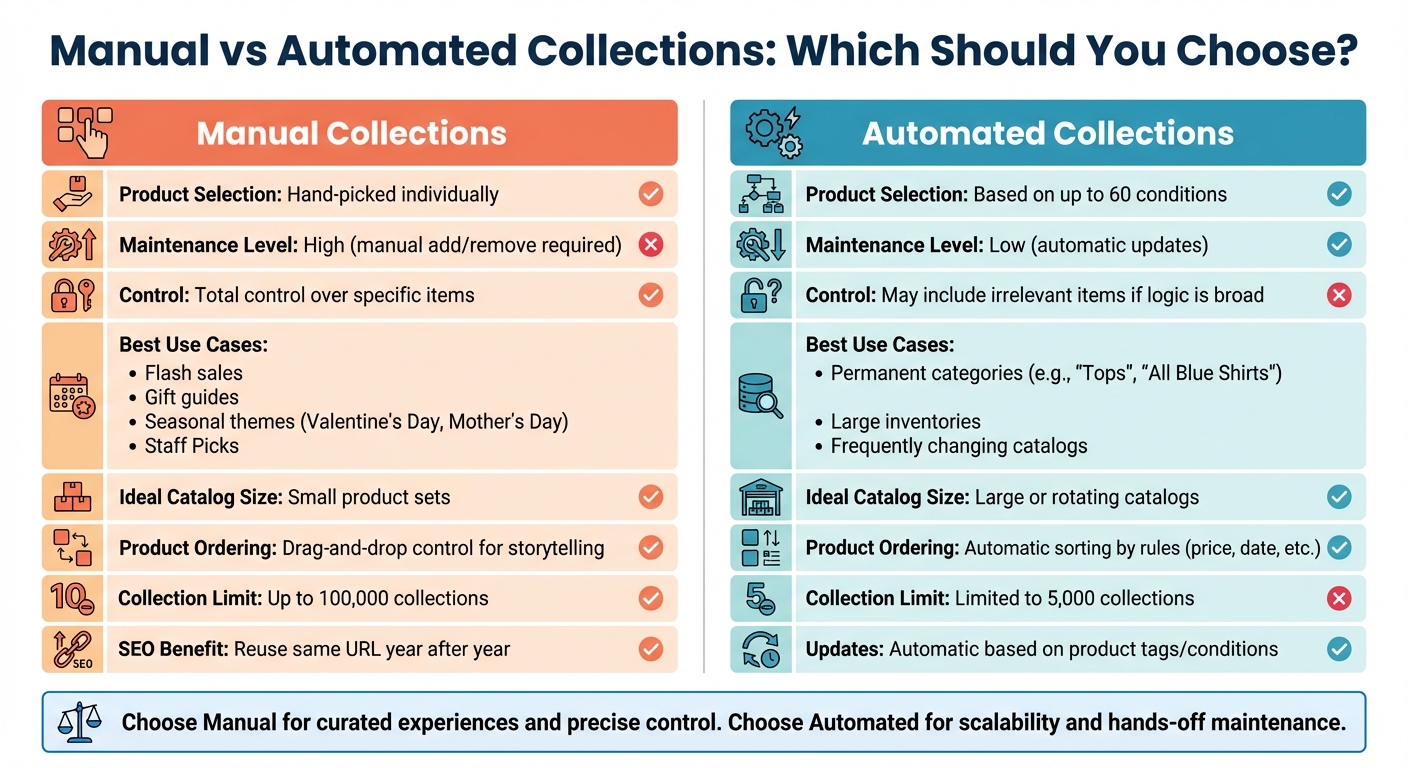
Manual vs Automated Shopify Collections: Feature Comparison Guide
Manual collections are perfect when you need full control over which products to feature and how they’re arranged. They work especially well for temporary promotions like "Mother's Day", "Back to School", or "Valentine's Day", where you can hand-pick items that fit a specific theme.
"Manual collections... can be a good choice for small or specialized collections that you intend to curate personally." – Shopify Help Center
For smaller stores with limited product catalogs, setting up complex automated rules might not be worth the effort. Plus, manual collections help retain SEO value by allowing you to reuse the same collection URL year after year. This avoids broken links in email campaigns or ads and helps maintain your search rankings.
Benefits of Manual Collections
With manual collections, you get complete control over which products are included and how they’re displayed. There’s no risk of irrelevant products slipping in due to overly broad automated rules. This level of precision is especially useful for landing pages where showcasing best-sellers or high-margin items is key.
Since manual collections remain static until you make changes, they provide a consistent, curated experience. This is ideal for promotional campaigns or when you want to group unrelated products together without needing to adjust tags or settings. This hands-on approach ensures your collection aligns perfectly with your brand’s aesthetic.
Drawbacks of Manual Collections
The downside? Manual collections require more upkeep. Every time you add or remove a product, it has to be done manually. For stores with large or frequently changing inventories, this can quickly become time-consuming and prone to mistakes.
Another challenge is managing out-of-stock items. Unlike automated collections, manual ones don’t automatically remove unavailable products, which could lead to customer frustration if not updated promptly. While this method works well for smaller catalogs, it’s not practical for stores with extensive or fast-changing product lines.
| Feature | Manual Collections | Automated Collections |
|---|---|---|
| Product Selection | Hand-picked individually | Based on up to 60 conditions |
| Maintenance | High (manual add/remove) | Low (automatic updates) |
| Best Use Case | Flash sales, gift guides, seasonal themes | Permanent categories (e.g., "Tops") |
| Control | Total control over specific items | May include irrelevant items if logic is broad |
| Catalog Size | Best for small product sets | Best for large or rotating catalogs |
Up next, discover how to create manual collections that are optimized for performance.
How to Create Optimized Manual Collections
Creating a Manual Collection
Setting up a manual collection in Shopify is simple, but making thoughtful choices during the process can significantly impact its effectiveness. Start by going to Products > Collections in your Shopify admin and clicking Create collection. Choose a concise, descriptive, and keyword-rich title, such as Men's Running Sneakers, to improve SEO and make the purpose of the collection clear. Avoid vague names like "Men's Collection" - specificity is key.
Under Collection type, select Manual. Before saving, take a moment to customize the Search engine listing to enhance visibility across search engines. Once saved, use the Search or Browse tool to add products to your collection. Keep in mind that you can only include entire products, not individual variants.
To make your collection visible, manually add it to your navigation menu by navigating to Online Store > Navigation. Collections won’t appear on your storefront unless linked to a menu. If you want to control when the collection goes live, you can set a future publishing date for specific sales channels.
Finally, focus on how products are presented within the collection to drive conversions.
Arranging Products Within Collections
How you arrange products within a collection can directly influence what shoppers notice first. Shopify provides several automatic sorting options, such as:
- Best selling: Based on total orders.
- Product title: Alphabetical order.
- Price: From high to low or low to high.
- Newest: By creation date.
However, for curated collections like promotional events or gift guides, Manual sorting gives you complete control over product placement.
"Manual sorting lets you prioritize high-margin or promotional items." – Power Commerce
With manual sorting, you can drag the ⠿ icon to rearrange products, placing your bestsellers, new arrivals, or high-margin items at the top. For example, during a Valentine's Day promotion, you might want to highlight featured gift sets by moving them to the top of the collection instead of leaving them buried in alphabetical order. Don’t forget to click Save after making any adjustments.
Product Selection and Ordering Tips
Create manual collections that tell a story or serve a specific purpose. For instance, a "Cozy Winter Nights" collection could include candles, tea, blankets, and books to evoke a specific mood - something automated, tag-based rules simply can't replicate. This storytelling approach helps you strategically organize and present your products.
Organize collections based on customer personas or shopping habits rather than just product details. For example, categories like "Gifts for Dads" or "Gifts Under $50" make shopping easier for specific audiences. This tactic is especially useful since 76% of ecommerce sites struggle with poor navigation, and improving navigation can boost conversion rates by 18.5%.
Map out your collection structure on paper first before setting it up in Shopify. Consider how customers will move between collections and optimize for mobile users, who have less screen space. This step is crucial for manual collections, which offer flexibility that automated systems lack.
When arranging products, place your bestsellers, high-margin items, or new arrivals at the top to grab attention. Disorganized product displays lead to almost 70% of cart abandonments. Use Shopify's drag-and-drop feature to position high-performing items prominently. For larger collections, the "Move" button allows you to quickly rearrange multiple products.
Manual vs. Automated Collections Comparison
To highlight the advantages of manual curation, here's a quick comparison between manual and automated collections:
| Feature | Manual Collections | Automated Collections |
|---|---|---|
| Product Ordering | Drag-and-drop control for storytelling and prioritization. | Automatic sorting by rules like price or date. |
| Best Use Case | Perfect for curated themes, flash sales, or "Staff Picks". | Ideal for routine categories (e.g., "All Blue Shirts"). |
| Limits | Supports up to 100,000 collections. | Limited to 5,000 collections. |
How to Maintain and Update Manual Collections
Manual collections don’t update themselves automatically. To keep them relevant and aligned with your inventory and marketing goals, regular maintenance is essential.
Set Up Regular Update Schedules
How often you review your collections depends on your inventory cycle. For example, if you introduce new products weekly, plan weekly reviews. For seasonal promotions, conduct an audit before each new season begins. Keep an eye on traffic, conversion rates, and bounce rates to pinpoint collections that may need adjustments.
Shopify’s future publishing feature can help you schedule collections to go live at specific times. For instance, you might prepare a "Spring 2026" collection in February and schedule it to launch on March 1st at 12:01 AM. To avoid clutter, hide outdated collections from sales channels instead of deleting them.
It’s also important to manually remove out-of-stock items to keep your storefront looking polished. When adding new products, you can do so directly from their product details page, ensuring they appear in the right collections. Shopify’s built-in tools can simplify these tasks further.
Use Shopify Tools for Collection Maintenance
Shopify offers several tools to make managing collections easier. Bulk editing tools allow you to add or remove multiple products at once, saving you the hassle of updating items individually. Plus, Shopify alerts your team to simultaneous updates, helping you avoid conflicts.
The duplicate feature is handy for seasonal or recurring collections. You can create a master collection with your preferred settings and duplicate it for new campaigns or promotions. If maintaining manual collections takes up too much time, consider converting them to automated collections. This involves tagging products and setting up a smart collection based on those tags.
Improving Storefront Filtering with FacetGuard
Keeping filters functional is just as important as updating your product collections. Without proper filtering, customers can quickly become frustrated, leading to a poor shopping experience.
Even the best-organized manual collections can run into trouble with filters. Shopify has its own limitations: collections with over 5,000 products lose filter functionality, and only 100 filter values are visible at a time. On top of that, inconsistent product attributes or missing data can make it harder for customers to navigate your collections effectively.
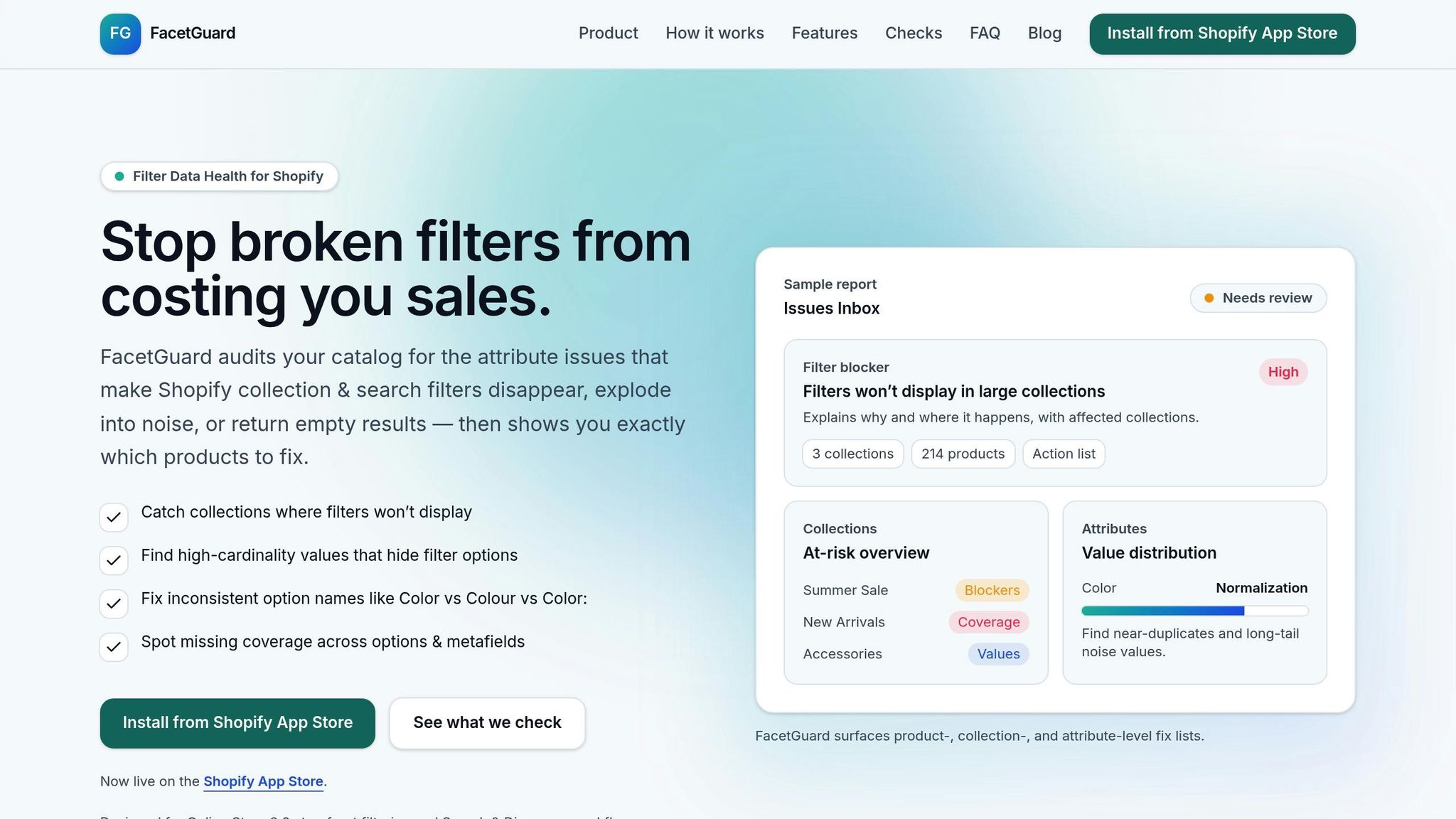
Identifying Filter Problems with FacetGuard
FacetGuard’s Issues Inbox makes it easier to spot and fix filter-related problems across your manual collections. The Filter Blockers Scanner pinpoints collections where filters fail to appear and explains why - whether it’s due to exceeding Shopify’s 5,000-product limit or gaps in attribute data. By prioritizing these issues, you can focus on the ones that have the biggest impact on your customers, saving you from manually reviewing every collection page.
Fixing Attribute Naming and Coverage
Inconsistent naming conventions can make filters unreliable. For instance, if some products are labeled as "Navy" while others are listed as "Dark Blue", customers searching by color might miss out on part of your inventory. FacetGuard’s Option Name Consistency tool helps identify these discrepancies, while its Coverage audit highlights products missing essential details - like dresses without size or material information. Filters based on metafields require every product to have the correct metafield definitions assigned and populated. Once you’ve standardized attribute names and filled in missing data, you can use FacetGuard’s export tools to make bulk updates.
Streamlining Data Fixes with Export Tools
FacetGuard’s export tools simplify bulk corrections. You can export affected products as CSV files and use spreadsheet filters to identify missing attributes. The Find and Replace function allows you to standardize naming conventions across thousands of products in one go - for example, turning "Navy", "Dark Blue", and "Midnight Blue" into a consistent "Blue." After cleaning up your data, re-import it into Shopify to instantly improve how your filters work and display to customers.
Fixing Common Manual Collection Problems
Even the best manual collections can run into issues that frustrate customers and impact sales. Problems like missing filters or invisible products can disrupt the shopping experience. Below are targeted solutions to address these common challenges and improve collection functionality.
Fixing Filter Display Problems
Filters might not show up for a few reasons:
- Too many products in your collection: Shopify disables filtering for collections with over 5,000 products. To fix this, break the collection into smaller, more manageable groups.
- Theme limitations: Some themes don’t support filtering. Check for compatibility warnings under Content > Menus in your admin panel.
- Filters not enabled: Make sure filters are activated in your theme editor. You’ll typically find this option in the Product grid section of the collection page settings.
If products only show up after customers click "Clear all filters", it could be due to tags acting as permanent filters. To fix this, go to Online Store > Navigation, locate the menu item for the collection, and remove any tags listed under "Filter collection with tags (optional)". This ensures a smoother filtering experience for users.
For filters that appear but don’t work - such as getting stuck on "Loading" or causing errors - there might be JavaScript conflicts in your theme code. In this case, you’ll need a developer to troubleshoot and resolve the issue.
Fixing Product Visibility Problems
If products exist in your admin but don’t show on the storefront, these are the most likely causes:
- Product status: Check if the product is marked as Draft or Archived. Only products with an active status will appear on the storefront.
- Sales channel settings: Both the product and the collection must be published to the Online Store sales channel. Open the product, find the Sales channels and apps section, and confirm that Online Store is selected.
- Navigation link errors: If a collection page looks empty when accessed through a menu link, verify the link under Online Store > Navigation. It should point to Products > Collections > [Your Collection Name], not a manually entered URL.
If you’ve checked all these settings and products still don’t show, try removing the product from the collection, saving the changes, and then re-adding it. This forces a sync, which can resolve visibility issues. Keep in mind that changes can take 1–5 minutes to update on your storefront. If updates don’t appear immediately, refresh the page using Ctrl+Shift+R (Windows) or Cmd+Shift+R (Mac).
Addressing these visibility and filtering issues ensures your manual collections function smoothly, enhancing the overall shopping experience for your customers.
Conclusion
Manual collections give you full control over which products are showcased and how they're arranged. However, their effectiveness hinges on clean, well-organized data. Consistent product attributes, accurate tagging, and regular upkeep can transform a collection from a source of frustration into a tool that drives conversions.
Keep in mind, collections with more than 5,000 products won't display filters. If you hit this threshold or face problems like incomplete metafields or inconsistent naming (e.g., "Navy" vs. "Dark Blue"), consider breaking your catalog into smaller sections or refining your data.
To tackle these challenges, tools like FacetGuard can simplify the process. It scans your catalog to pinpoint issues that interfere with filtering. Whether it’s collections with filter blockers, attributes with too many unique values, or naming inconsistencies, FacetGuard identifies the problem areas and provides CSV exports to help you make bulk corrections efficiently.
"A collection page should never be static. Treat it as a living part of your store." - Convertibles.dev
FAQs
Should I use a manual or automated collection?
When deciding between manual and automated collections, it’s all about what suits your store best. Manual collections give you the freedom to hand-select products, making them perfect for curated themes or special promotions. On the other hand, automated collections rely on predefined rules to automatically group products, saving time and effort - especially useful if you’ve got a large inventory or need frequent updates. Opt for manual collections when you want complete control, and go with automated collections for a more dynamic and scalable approach.
Why did my collection filters disappear?
Collection filters might vanish due to problems with filter settings or conflicts in filter values. This can occur if your theme doesn’t support filtering or if the filters aren’t configured correctly. To address this, make sure your theme is compatible with storefront filtering and double-check that filters are properly set up. Tools like FacetGuard can be useful for spotting and fixing catalog attribute issues, helping to ensure your filters work as intended.
How do I quickly fix inconsistent filter values like colors?
Dealing with inconsistent filter values, such as varying color names, can be a headache in Shopify. Luckily, there are ways to address this issue effectively.
One option is using tools like FacetGuard, which can audit your catalog attributes and help you resolve discrepancies. This ensures your filter values are aligned and consistent across your store.
Another approach is to edit filter values directly within the Shopify Search & Discovery app. By standardizing options like color names (e.g., "Blue" instead of "Light Blue" or "Sky Blue"), you can create a more cohesive filtering system.
Make it a habit to regularly review and update your filter settings. This not only keeps your filters accurate but also improves the shopping experience for your customers by making it easier for them to find what they’re looking for.