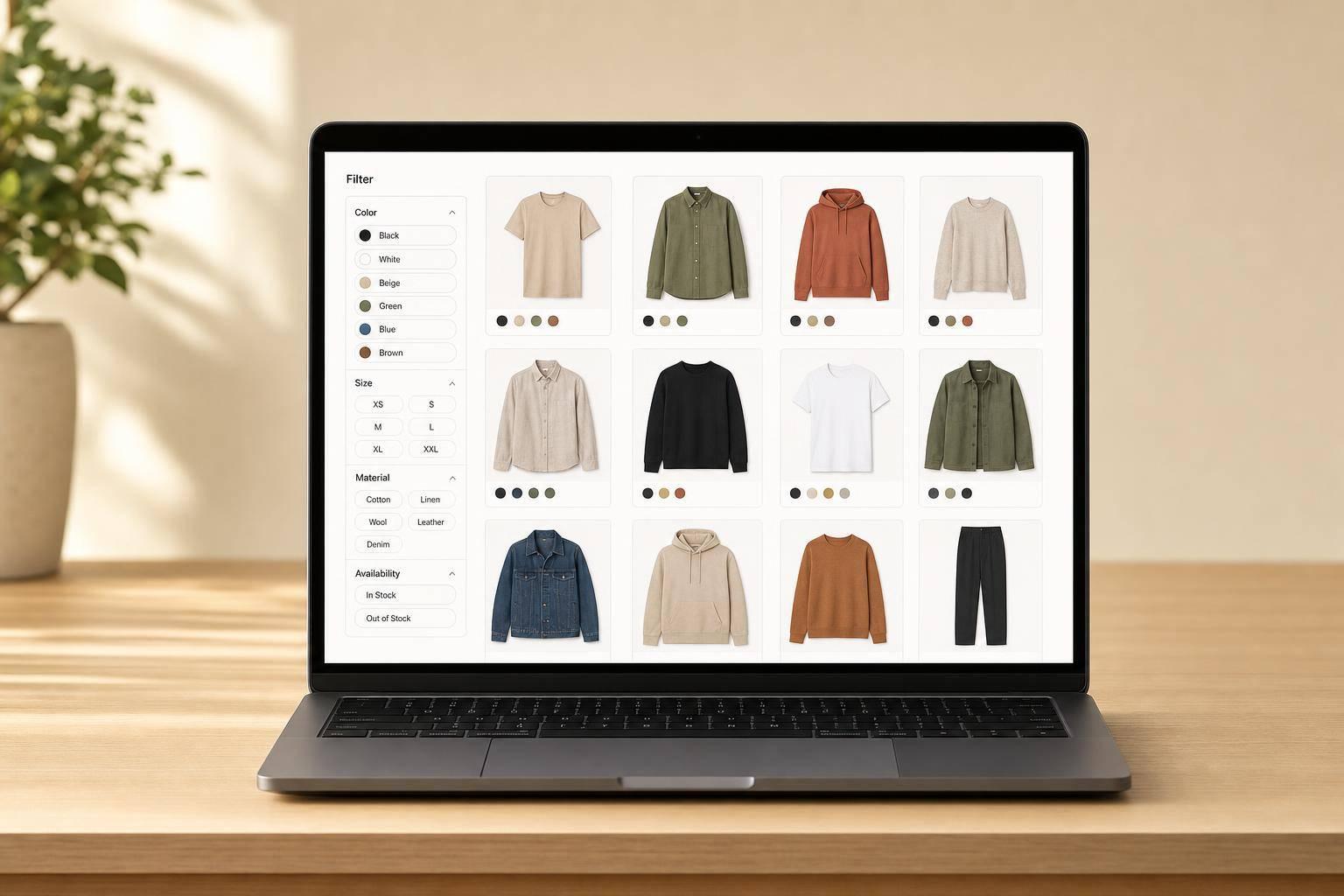
Optimizing Variant Data for Shopify Filters
Bad variant data breaks Shopify filters fast. If your store uses mixed option names, messy values, or the wrong data source, shoppers can hit split filters, bad matches, or empty result pages.
Here’s the short version: I keep Shopify filters accurate by doing four things:
- Match each filter to the right source: product data, variant options, variant data, or metafields
- Standardize names and values: use one label like Size and one value set like XS, S, M, L, XL
- Use metafields only when options are not enough: especially for SKU-level specs like inseam, finish, or compatibility
- Audit filter data on a schedule: because Shopify catalogs drift over time
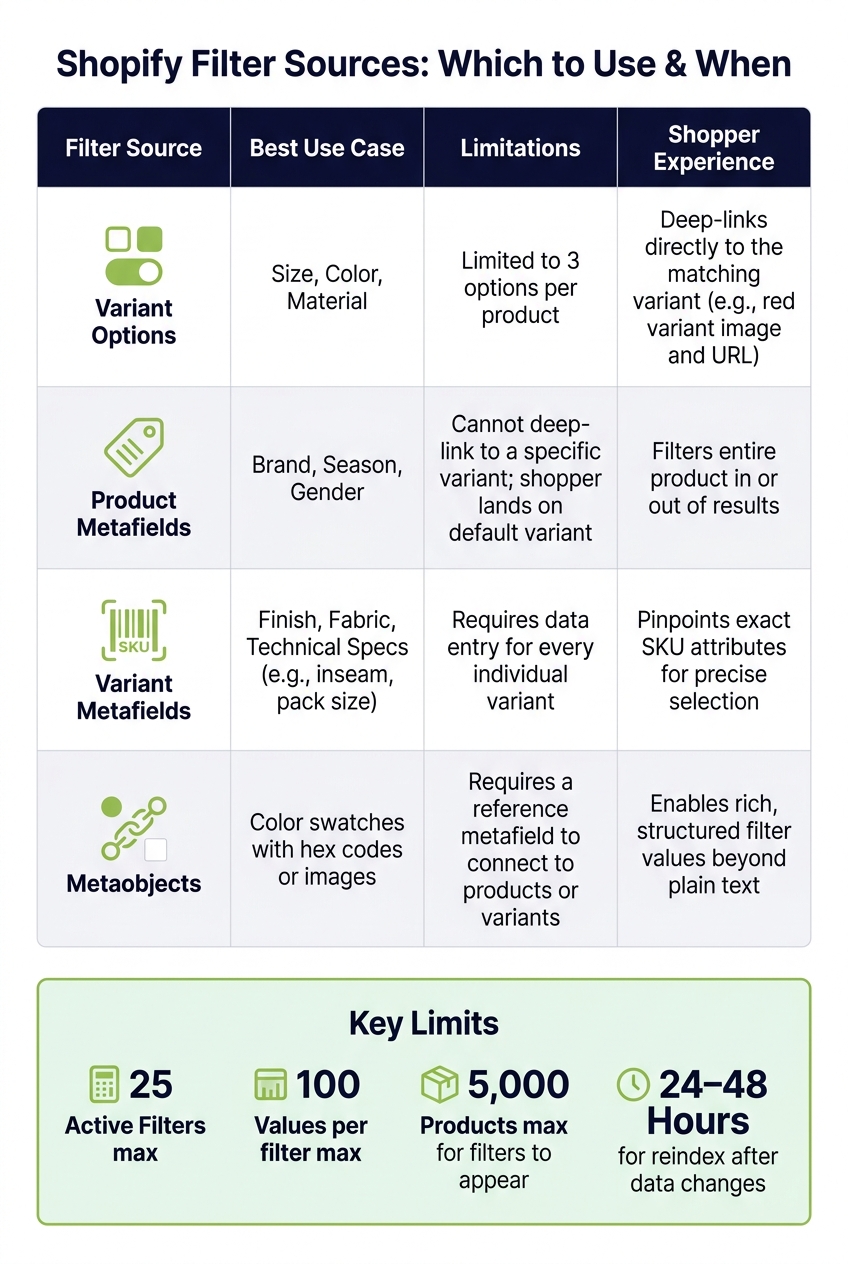
A few Shopify limits shape setup too: 25 active filters, 100 values per filter, and filters may not appear for collections over 5,000 products. Also, data edits may take 24–48 hours to show after reindexing.
If I had to boil the whole article down to one line, it would be this: <u>clean variant data is what makes Shopify filters useful</u>.
This guide shows how I’d clean option names, trim noisy values, choose between product and variant metafields, wire filters in Search & Discovery, and keep results accurate as the catalog changes.
How to Set Up Shopify Search and Filters for Better Conversions

sbb-itb-e8e54fb
How to Structure Variant Options for Clean Filters
Variant filters only stay tidy when option names and values follow one clear pattern across your catalog. Before you set up anything in Shopify Search & Discovery, make sure your variant options are structured the same way from product to product. Once the source is mapped, clean up the option labels that drive those filters.
Standardize Option Names in Shopify Admin
The option name is what Shopify uses to group filter concepts. So if one product uses Size and another uses Sizes, Shopify treats them as two separate facets. That splits the filter experience and makes products harder to find.
The fix is simple: choose one label for each concept and use it across the full catalog. In most cases, singular nouns work best - Size, Color, Material. If you sell footwear with U.S. sizing, keep the option name as Size and put the regional detail in the value instead, like 8 US. That keeps the filter clean while still giving shoppers the detail they need.
If you need to clean this up in bulk, export your products to CSV and review the Option1 Name, Option2 Name, and Option3 Name columns. Then apply a mapping table before re-importing, such as:
Sizes → SizeColour → Color
That one step can prevent a lot of filter mess later.
Normalize Option Values Before Enabling Filters
Once the option names are fixed, the next job is cleaning up the values inside each option. Mixed values create separate filter entries and split product coverage. In plain English: if your catalog says Small, Sm, and S, shoppers may see three different filter choices for what is basically the same thing.
Set an approved value list for each option before you turn filters on. For U.S. apparel, a common size set is XS, S, M, L, XL, XXL. Keep it tight. Avoid near-matches like Dark Navy, Midnight, and Navy Blue unless those labels point to meaningfully different products.
Review Cardinality and Fix Inconsistencies in Bulk
Cardinality means the number of distinct values an option has across your catalog. If your Color option includes Sky Blue, Light Blue, Baby Blue, and Powder Blue, the filter list gets crowded fast. That makes scanning harder, especially on mobile.
A good rule of thumb: keep each filter’s value list short enough for shoppers to scan without thinking too hard.
To measure cardinality, use a pivot table or another spreadsheet tool to count unique values per option. From there, build a value mapping table and apply it with find-and-replace or a script before you re-import the cleaned file.
| Option pattern | Resulting filter behavior | Search impact | Maintenance effort |
|---|---|---|---|
| Mixed names: Size, Sizes, Size US | Filters split into separate facets; products appear under different groups | Search terms may not map to all relevant variants | High - constant reconciliation needed |
| Mixed values: Small, Sm, S | Duplicate filter entries; partial product coverage per choice | Merchandising rules targeting Size: S may miss products labeled Small | High - manual cleanup with every upload |
| Consistent name: Size across all products | One clean filter; all variants grouped under one facet | Reliable signal for rules like promoting in-stock Size M items | Low - occasional audits keep it stable |
| Normalized values: XS, S, M, L, XL, XXL | Clear, predictable size list; each filter returns all relevant products | Algorithms consistently interpret size data for queries like XL men's t-shirts | Low - new sizes are added only when needed |
For large catalogs, manual cardinality checks don’t scale well. FacetGuard scans product, variant, and metafield attributes to flag duplicate values and bloated cardinality, then returns a prioritized fix list.
If a filter needs structured values beyond a simple option list, move that data into metafields next.
Using Metafields and Metaobjects for Advanced Variant Filters
When product options get too broad or messy, it makes sense to move that attribute into metafields or metaobjects. Some catalogs need more precision than basic options can handle. A product with variants made from different materials, or a technical item that fits specific models, often needs structured data so filters stay accurate.
When to Use Product Metafields vs Variant Metafields
Use product metafields for attributes shared by every variant. Use variant metafields for attributes that change by SKU. The simplest way to decide is this: does the value apply to the whole product, or just one SKU?
If a warranty policy or brand story stays the same no matter which size or color a shopper picks, store it as a product metafield. If the attribute changes between SKUs - like inseam length on pants, finish on hardware, or pack size on consumables - it belongs in a variant metafield.
A product metafield filters the entire product in or out of a collection. A variant metafield can target one SKU. That's especially helpful for compatibility filters on phone cases or engine parts.
| Product Metafields | Variant Metafields | |
|---|---|---|
| Scope | Applies to all variants of a product | Unique to each individual SKU |
| Common use cases | Brand story, warranty, general material | Inseam, finish, pack size, lead times |
| Filter behavior | Filters the entire product in or out | Pinpoints specific SKU attributes |
| Storefront API access | Via Product object | Via Variant object |
| Best for shoppers | Broad discovery | Precise selection |
Create Metaobjects for Structured Filter Values
Metaobjects let you store structured, reusable entries and reference them across products and variants. They're a good fit for filter values that need more than one field, such as a swatch label, hex code, and taxonomy reference. Shopify Search & Discovery can use these metafields to power storefront filters, so shoppers can filter by exact variant attributes.
Here's the idea: instead of typing a color name as plain text across hundreds of products, you create one metaobject for that value and reference it anywhere it applies. That gives you one source of truth. It cuts down on duplicate or inconsistent filter values and helps keep filters aligned. Use this setup when a filter value needs multiple fields, not just a text label.
Connect Metafield Data to Search & Discovery and the Storefront API
Creating the metafield definition is only half the work. First, create the definition in Settings > Custom data. Then go to Online Store > Navigation and add it under Collection and search filters.
If a filter isn't showing up, don't assume it's broken. Shopify hides a filter group when no products in the current collection have a value for that metafield. In plain English: no data, no filter. Check data population first.
The metafield type also shapes the filter UI. Text lists appear as checkboxes, numbers show up as range filters, and boolean fields appear as toggles. Pick the type based on how shoppers are most likely to narrow things down.
Configure Shopify Filters to Work with Your Variant Data
Shopify Filter Data Sources: Variant Options vs Metafields Compared
Once you've cleaned up option names and values, the next step is simple: connect each attribute to the filter type that fits where that data comes from. This is the point where normalized variant data starts doing useful work for shoppers.
You do that in the Shopify Search & Discovery app under Filters > Add filter.
Add Variant Option, Price, Availability, and Metafield Filters
Shopify puts filters into two groups: standard and custom. Standard filters include Availability, Category, Price, Product type, Tags, and Vendor. Custom filters pull from product options or structured metafield data.
A common setup is to turn on Size and Color as variant option filters, Price as a USD range, and Availability for in-stock browsing. That gives shoppers a clean way to narrow results without guessing.
There are a few limits to keep in mind. Shopify allows 25 active filters and up to 100 values per filter. If a collection has more than 5,000 products, filters won't appear at all. And the price filter only shows in your store's default currency.
Use Variant Data for SKU-Specific Results
If an attribute changes by SKU, use a variant source instead of a product-level field. That's the key move.
Why? Because variant-level sources keep the filter tied to the right SKU. If a shopper clicks "Red" in a Color filter, they should land on the red variant's image and URL, not some generic product page. Shopify does that when the filter source is a variant option or variant metafield.
Shopify handles this automatically when the filter uses the filter.v scope. Use variant-level filters when the shopper needs to land on the exact SKU.
If you use a product metafield instead, the product can still show up in results. But the shopper lands on the default variant, which may not match what they picked. For stores where visual match matters, that's a big miss. Variant-level linking is usually the better call.
Match Filter Settings to Your Storefront Setup
Filters only show up if your theme can render them. Check theme compatibility in Shopify admin, because incompatible themes won't display filters at all. So even if your data is clean, discovery won't improve if the storefront can't use that filter source.
If you're running a headless storefront with the Storefront API, use p for product data and v for variant data in filter parameters.
Different filter sources come with different tradeoffs:
| Filter Source | Best Use Case | Limitations |
|---|---|---|
| Variant Options | Size, Color, Material | Limited to 3 options per product |
| Product Metafields | Brand, Season, Gender | Cannot deep-link to a specific variant |
| Variant Metafields | Finish, Fabric, Technical Specs | Requires data entry for every individual variant |
| Metaobjects | Color swatches with hex codes or images | Requires a reference metafield to connect to products or variants |
One more thing: Shopify uses AND between filter categories and OR within each category. That logic is fixed, so it should shape how you group attributes from the start.
How to Audit Variant Data and Keep Filters Accurate Over Time
Filters drift as catalogs change. That's normal. New products get added, naming slips, and small data issues pile up until shoppers start seeing messy or missing filter options.
The fix is simple: audit your data on a schedule. Recurring checks help keep option names, option values, and variant metafields in good shape over time.
Run Manual Audits for Coverage, Consistency, and Missing Values
Start in the storefront. Open your main collections and test the filters shoppers use most, like size, color, price, and availability. Watch for values that show up twice with different spelling, or filters that return fewer products than they should.
Then export products and variants to CSV. Review whether every variant has a value for each filterable attribute. Missing values are often the reason a filter shows an incomplete list of options - or disappears from a collection altogether.
A simple cadence works well:
- Weekly spot checks
- Monthly CSV reviews
- Quarterly full audits
If you fix the data and a filter still doesn't show the expected results, don't assume something failed right away. Shopify's index can take up to 24–48 hours to re-sync after a data change.
Once your catalog gets too large for comfortable spreadsheet review, it makes sense to automate the same checks across the whole catalog.
Use FacetGuard to Find Filter Blockers and Noisy Attributes
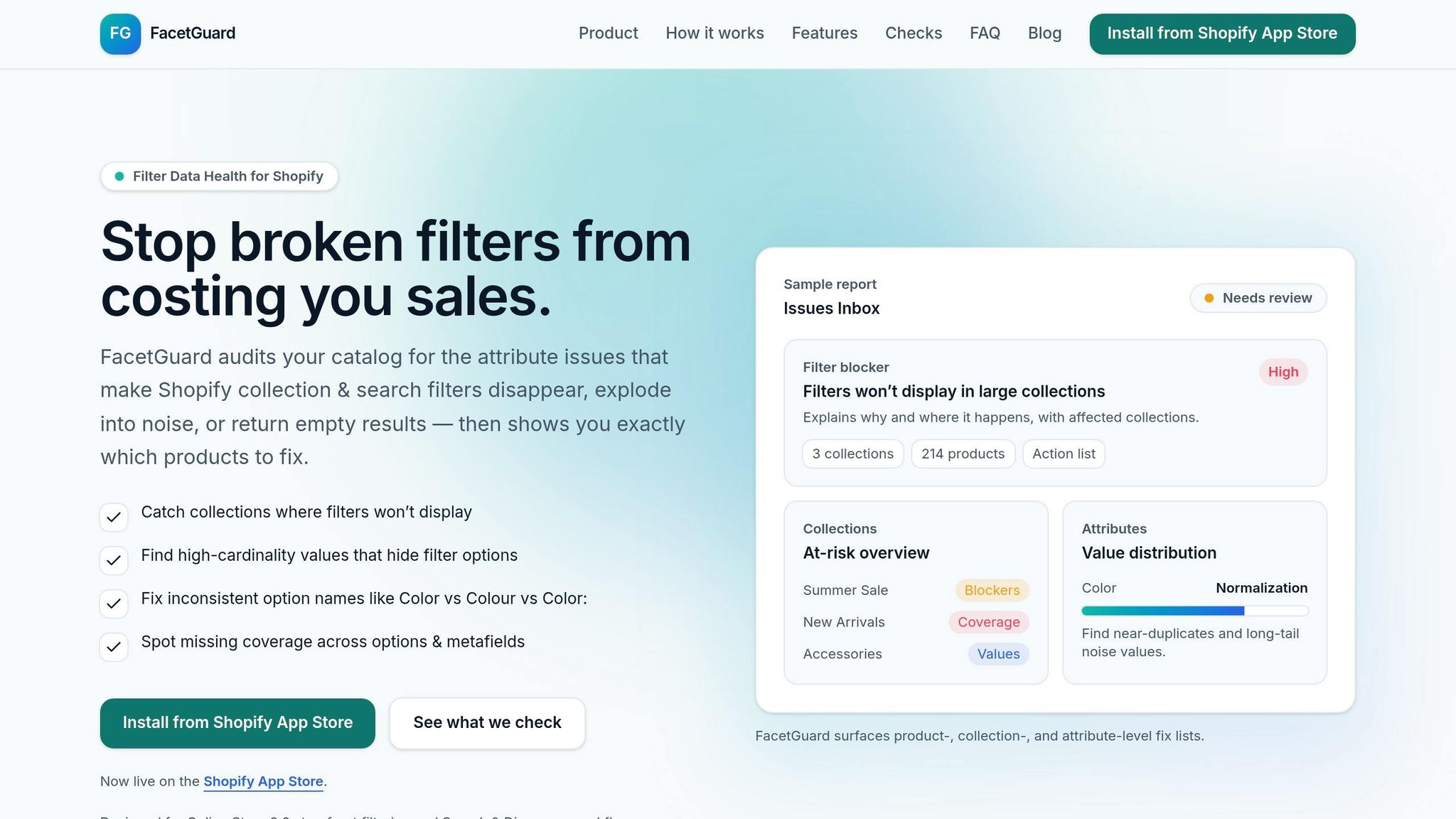
For larger catalogs, automated scans catch the issues manual spot checks miss. FacetGuard scans catalog attributes for broken filters, missing coverage, and noisy values, then ranks fixes by impact.
It also flags naming drift, cardinality spikes, and checks for headless or API storefronts. And if you're fixing data in bulk, CSV exports help move things along.
Conclusion: Keep Variant Data Consistent, Filterable, and Maintainable
Standardize option names and values. Store attributes at the right data level. Set up filters in Search & Discovery so they match the way your data is modeled. Then audit on a regular basis.
Manual checks catch the problems you can see in the storefront. Automated audits catch catalog drift when the product count gets large.
FAQs
How do I choose between variant options and metafields?
Use variant options for the core attributes that define SKUs, like size, color, or material. These are the choices customers need to make before they can add an item to the cart.
Use variant metafields for secondary details, like chest measurements or battery life. That lets you show extra product info without adding more SKUs or cluttering the page with extra dropdowns.
In both cases, keep naming consistent. If one product uses “Gray” and another uses “Grey,” your filters can split into separate values. Also make sure metafield filtering is turned on so those fields can appear on your storefront.
Why are my Shopify filters split or missing?
Shopify filters usually split up or disappear for three main reasons: messy data, platform limits, or simple setup issues.
Here’s what that looks like in practice. A size filter can break apart when products use "M", "Med", and "Medium" for the same thing. A color filter can get messy when some items say "Color" and others say "Colour". Even small case changes, like "Blue" vs. "blue," can create separate filter values.
Missing metafield data can also knock filters out. If some products have the metafield filled in and others don’t, the filter may not work the way you expect.
There are also technical limits to watch for. For example, collections with more than 5,000 products can cause filter issues.
And sometimes the problem is much simpler than people think: the filters just aren’t turned on in your theme or in the Search & Discovery app.
How often should I audit filter data?
Audit your product filter data on a regular schedule to keep the shopping experience clean and easy to use. A monthly audit is a good rule of thumb because it helps stop data from drifting over time.
You should also review your data right away if your zero-result search rate climbs above 2% to 3%. The same goes for any bulk data migration or large-scale update. Those are the moments when filter issues tend to slip in fast.
FacetGuard can help spot the problems that throw storefront filters off, including naming variations, missing attributes, and high-cardinality issues.