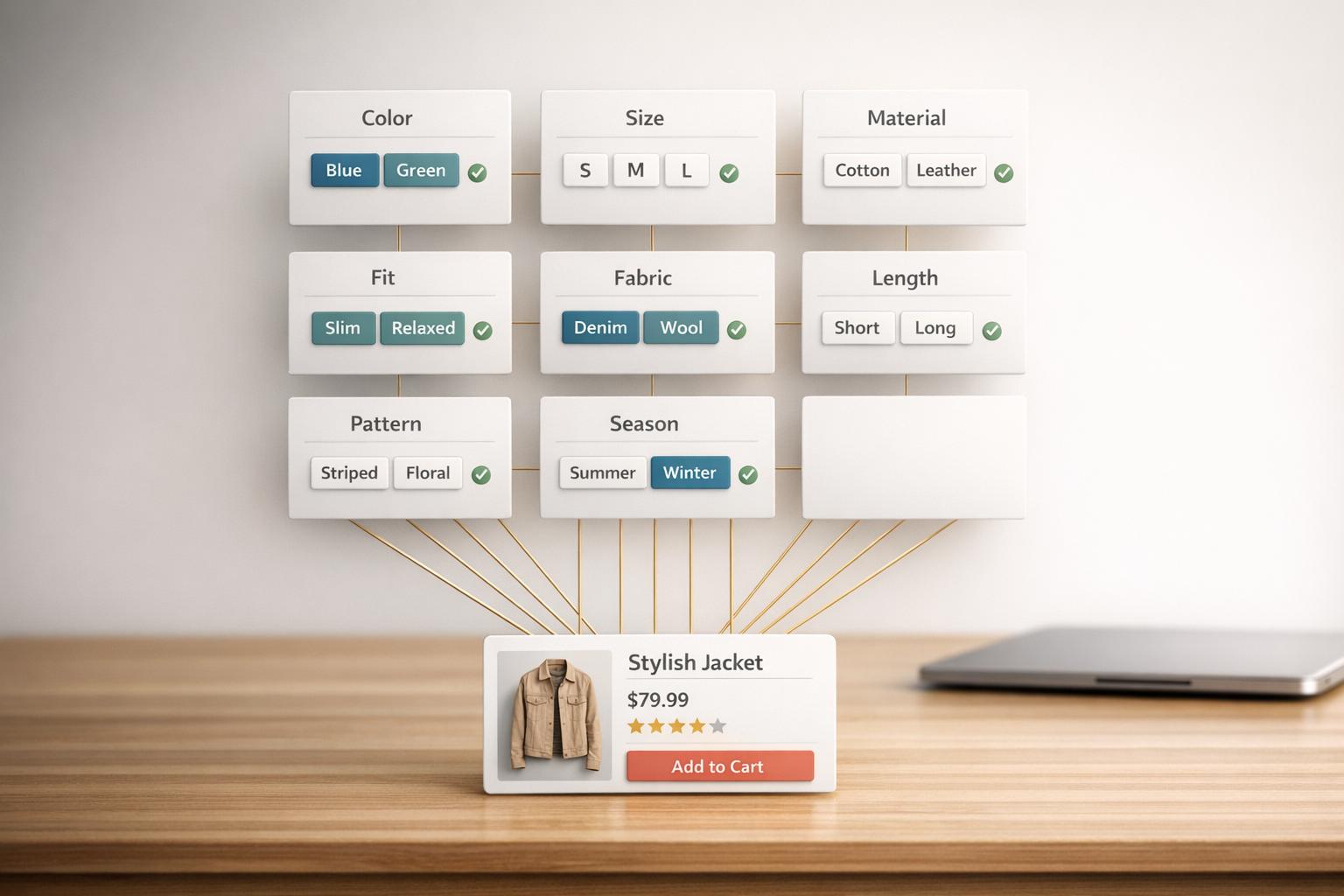
How Metafields Improve Shopify Filters
Metafields in Shopify let you add custom data fields to your products, enabling filters tailored to your store's unique needs. Unlike default fields like price or vendor, metafields allow you to organize and display specific attributes such as fabric type, dietary certifications, or dimensions. This makes it easier for shoppers to find exactly what they want, improving their experience and boosting conversions.
Key Benefits of Metafields for Filters:
- Customizable Filters: Create filters for niche attributes like skin type, voltage specs, or seasonal tags.
- Structured Data: Avoid clutter and inconsistencies common with product tags.
- Multi-Value Filtering: Assign multiple attributes (e.g., "Spring" and "Summer") to one product.
- Improved Performance: Shopify processes metafield filters quickly, adding less than 10ms to load times.
How to Use Metafields for Filters:
- Define metafields in Shopify Admin under Settings > Custom Data.
- Enable the "Filtering for products" option in the metafield settings.
- Use the Search & Discovery app to turn metafields into storefront filters.
Tips for Managing Metafields:
- Use logical namespaces (e.g.,
specsfor technical details). - Set validation rules to maintain consistent data.
- Regularly audit and clean up outdated or duplicate metafields.
Metafields make filtering efficient, helping you organize large catalogs and improve shopper satisfaction.
How To Add Product Filters In Shopify (Filtering)

sbb-itb-e8e54fb
What Are Metafields and How Do They Work with Filters?
Metafields are essentially key-value pairs that enhance Shopify's default data structure. Each metafield consists of an identifier (like custom.material), a value, and a type that defines how the data should be interpreted - such as text, numbers, or dates. This setup allows custom product details to become searchable and filterable, making them practical for shoppers to refine their choices. This capability works seamlessly with Shopify's filtering system.
To integrate metafields with Shopify's filters, you simply enable the "filtering" option in the metafield's settings, specifically through the adminFilterable feature. Once turned on, these custom fields function just like Shopify's standard ones, such as price or availability. Shopify processes these queries server-side, adding less than 10 milliseconds to page load times.
Standard Attributes vs. Metafields
Metafields shine by addressing the limitations of Shopify's fixed attributes. Standard fields like title, price, vendor, product type, and availability are helpful but aren't flexible enough for niche needs. For instance, if you're selling furniture, there's no default field for dimensions. Running a food business? There's no built-in spot for dietary certifications.
Unlike product tags, which are unstructured and can lead to messy overlaps (e.g., a "red" tag could refer to color, urgency, or clearance), metafields enforce type validation. If you create a "Color" metafield, it will only accept color values - no irrelevant data allowed. This structure eliminates the clutter that can confuse filters or create duplicate options on your storefront.
Metafield Types That Support Filtering
Not every metafield type works with filters, but the ones that do cover most common needs. Single line text fields are great for exact matches or prefix searches (using a * wildcard), making them perfect for attributes like color, material, or brand. For numeric data - such as dimensions, thread counts, or carat weights - integer and decimal types allow range queries with operators like >, <, >=, and <=.
True or false fields are ideal for simple yes/no filters, such as "eco-friendly" or "engravable". Date metafields enable range-based filtering, which is useful for things like release dates or expiration periods. Meanwhile, rating types support star-based filters for customer reviews or audience scores. Shopify even handles unit conversions automatically, so a weight filter will work regardless of whether values are stored in pounds or kilograms.
The "list of values" option in single line text fields is another powerful feature. It allows a single product to carry multiple attributes - like a sweater marked for both "Spring" and "Summer" seasons - so it appears in filter results for either selection.
How to Set Up Metafields for Filters in Shopify
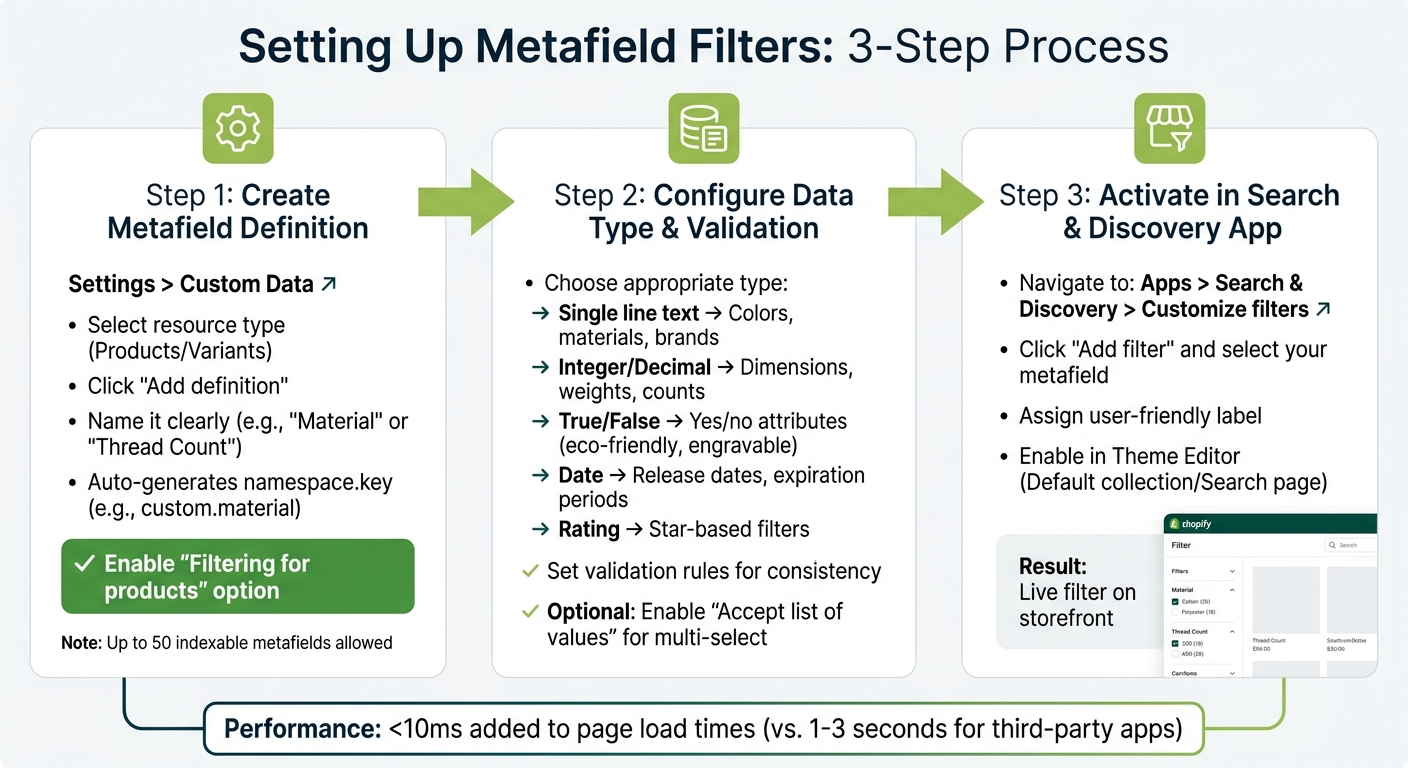
How to Set Up Shopify Metafield Filters in 3 Steps
Metafields are a powerful way to capture specific data and improve the precision of your storefront filters.
Creating Metafield Definitions in Shopify Admin
To create a filterable metafield, head to Settings > Custom data in your Shopify Admin. Choose the resource type you want to enhance - commonly Products or Variants. Click Add definition, then give it a clear name like "Material" or "Thread Count." Shopify will automatically generate a Namespace and Key based on your name, creating a unique identifier such as custom.material.
One key step is enabling the "Filtering for products" option in the definition settings. Without this, your metafield won't show up as a filter on your storefront, no matter how much data you input. Select the appropriate data type - like Single line text for colors or Integer for numeric dimensions. Keep in mind, Shopify allows up to 50 indexable metafields for filtering, so plan carefully.
Once the definition is saved, you can add values to individual product pages. If Shopify’s standard definitions (like ISBN or care instructions) meet your needs, use those instead of creating custom ones. This ensures better compatibility with themes and apps.
After setting up your metafields, organizing them effectively is the next step.
Best Practices for Organizing Metafields
To manage up to 250 metafield definitions efficiently, use logical namespaces. For example, group technical details like voltage or weight under a specs namespace and promotional text under a marketing namespace. This structure helps you avoid naming conflicts as your catalog expands.
Set validation rules during setup to ensure data consistency. For example, you can enforce character limits for text fields or define minimum and maximum values for numbers. These rules prevent errors that could disrupt your filters. If products belong to multiple categories - like a jacket that fits both "Spring" and "Fall" - use the "Accept list of values" setting. This allows multi-select filters, eliminating the need for redundant tags while keeping your data organized.
Lastly, regularly review and clean up outdated namespaces or duplicate metafields created by older apps. This helps prevent conflicts with new definitions and keeps everything running smoothly.
Turning Metafields into Storefront Filters
Once you've set up your metafields, the next step is to make them work for your customers by converting them into storefront filters. This process connects the backend data with the shopping experience, allowing customers to refine their searches more effectively. To do this, you'll use Shopify's Search & Discovery app.
Configuring Filters with Metafields
The Shopify Search & Discovery app is the go-to tool for transforming metafield data into functional filters. Here's how to set it up:
- Go to Apps > Search & Discovery > Customize filters, then click Add filter.
- Choose your custom metafield (e.g.,
custom.origin) as the data source. - Assign a user-friendly filter label. For example, you could rename
custom.battery_lifeto "Battery Duration (Hours)" for easier understanding.
Once you've saved the filter, open your Theme Editor and navigate to the Default collection or Search page. Under Sorting and filtering, enable your new filter to ensure it appears on the storefront.
Keep in mind that metafield queries are case-sensitive, so consistency in capitalization is important. For numeric metafields, you can use comparison operators like >, <, >=, or <= to create dynamic range filters.
Common Use Cases for Metafield Filters
After configuring your filters, you can use metafields to highlight specific product details that standard Shopify fields might not cover. Here are a few examples:
- Product Certifications: Help shoppers find items with certifications like "Organic", "Fair Trade", or "Eco-friendly" by using boolean or single-line text metafields.
- Technical Specifications: Metafields are perfect for details like "Battery Life" in electronics or "Weight" and "Material" in furniture.
- Seasonal Tags: A fashion retailer could use metafield lists to categorize a sweater for both "Spring" and "Summer." This ensures the product appears in multiple seasonal filters without needing duplicate listings or complicated tagging systems.
Managing Filters for Large Product Catalogs
Handling a massive product catalog can be tricky, especially when it comes to keeping metafield data clean and consistent. Even small errors can mess up filters and leave shoppers frustrated. Here’s a practical guide to help you efficiently edit, standardize, and audit metafields for large catalogs, building on earlier steps for setting up filters.
Bulk Editing Metafields
When dealing with large catalogs, Shopify's Bulk Editor is a lifesaver. It lets you update multiple metafields at once in a table format. Alternatively, you can use CSV export/import to make quick updates across the board. Just make sure to use a modern browser like Chrome, Firefox, or Safari to avoid any issues with URL lengths.
Keeping Data Consistent to Avoid Filter Problems
Inconsistent data is the top culprit behind broken filters. For example, something as simple as "Grey" versus "Gray" or "Small" versus "S" can split filter options and create clutter.
To avoid this, use a "Single line text" metafield with a predefined "List of values" when setting up metafield definitions. This ensures everyone sticks to the same naming conventions, eliminating room for error. Before launching your filters, take the time to audit your catalog. Check for uniformity in product types, variant options, and vendor names. Stores with poorly functioning filters often see bounce rates as high as 60%-75% on collection pages. Consistent data lays the groundwork for effective filtering, and specialized tools can help you maintain that consistency across large catalogs.
Tools for Identifying Filter Issues
Even with the best planning, filter issues can still sneak in, especially in large catalogs. Tools like FacetGuard can scan your collections to identify problems, such as missing filters due to size limits, attributes with too many unique values, or inconsistent naming (e.g., "Color" vs. "Color:").
FacetGuard also creates CSV exports of affected products, making it easy to fix issues in bulk or assign cleanup tasks to your team. Additionally, it calculates coverage gaps by showing the percentage of products in a collection missing key metafield values. This information is crucial for ensuring your filters work seamlessly and shoppers can find what they need.
Conclusion
Metafields bring Shopify filters to a new level by supporting attributes like fabric type, dietary preferences, and certifications - details that default fields simply can't handle. Unlike product tags, which can often lead to clutter and inconsistencies, metafields provide structured data that integrates seamlessly with filters every time.
Using metafields for filtering doesn't just improve organization - it also enhances user experience. They streamline navigation in large catalogs and can directly impact add-to-cart rates. Plus, Shopify's native metafield filters are lightning fast, adding less than 10ms to page load times. In contrast, third-party apps often add 1–3 seconds, which can frustrate users and hurt conversions.
However, achieving success with metafields requires careful planning. It's crucial to select the right metafield types, standardize naming conventions, and regularly audit your catalog to avoid filter mishaps. As Jesus Suero, Founder of ButterflAI, explains:
"Managing extensive catalogs in Shopify often leads to scattered information... Metafields are the technical vehicle to manage them at scale".
When properly set up, clean and organized metafields empower precise filtering, ultimately driving better customer experiences and higher conversions.
FAQs
Should my filter use a product metafield or a variant metafield?
Product metafields work well for filters because they are broadly supported in storefront filtering. In contrast, variant metafields have encountered challenges with compatibility in filtering. If you want dependable and efficient filters for your Shopify store, it's best to stick with product metafields.
Why isn’t my metafield showing up as a storefront filter?
If your metafield isn’t showing up as a storefront filter, it could be due to a few setup or configuration issues. Start by checking that the namespace and key are correctly defined. Next, ensure the metafield is enabled in the Shopify Search & Discovery app and properly linked to your products. Also, confirm the metafield contains valid and relevant data - empty or incorrectly configured metafields won’t appear as filters.
How do I prevent duplicates like “Gray” and “Grey” in filters?
To prevent duplicates like "Gray" and "Grey" from cluttering your filters, it's crucial to standardize attribute naming conventions throughout your catalog. Tools such as FacetGuard can assist by spotting inconsistencies, like mismatched terms or overly varied values, and offering practical suggestions to resolve them.
When creating metafields or filters, focus on using consistent terminology, merging similar values, and conducting regular audits of your data. This approach ensures uniformity and enhances the accuracy of your filters.