Troubleshooting Predictive Search Issues in Shopify
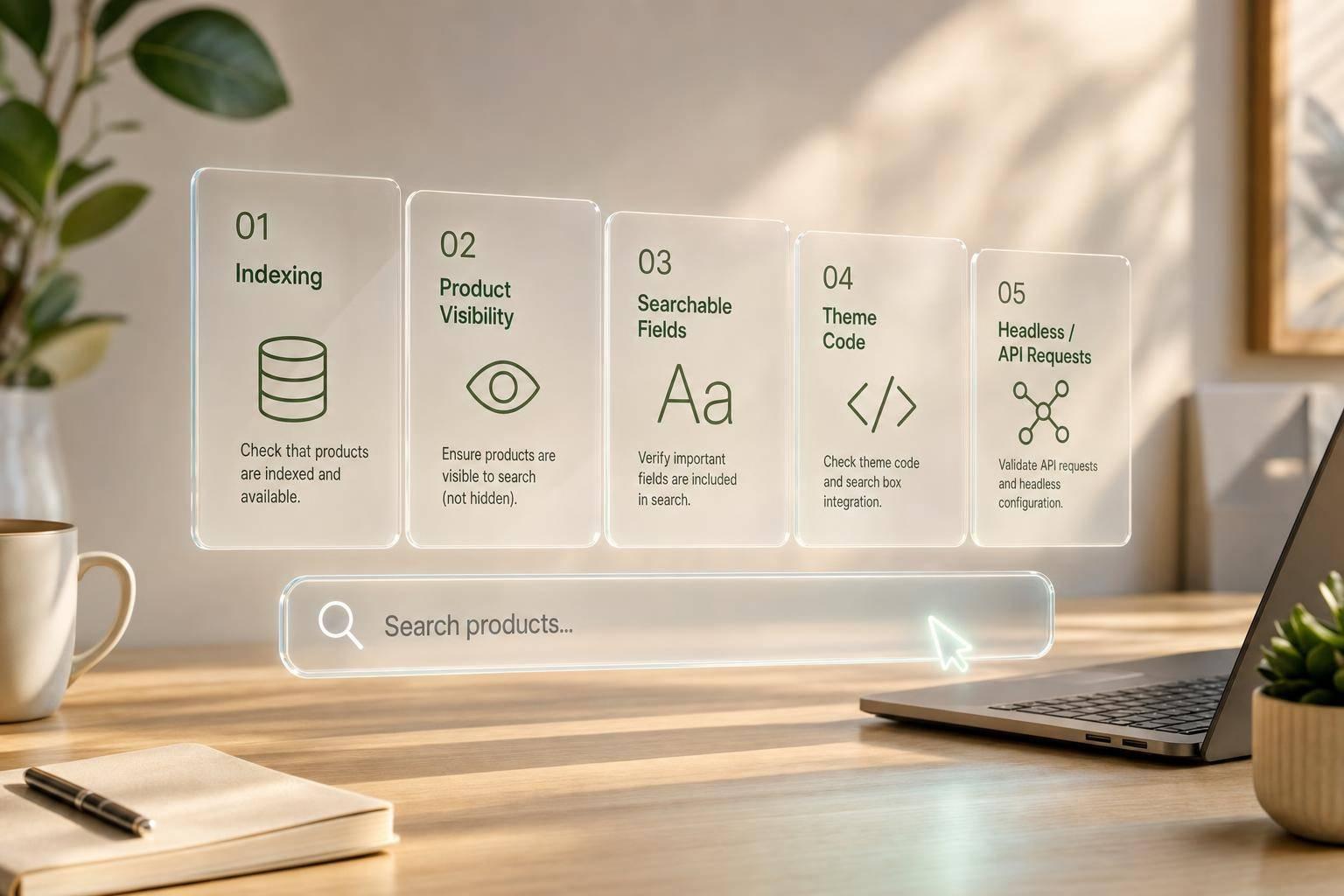
If Shopify predictive search is failing, I’d check five things first: indexing, product visibility, searchable fields, theme code, and headless request setup. In most cases, the product isn’t missing by accident. It’s usually excluded, not indexed yet, not searched by the dropdown request, or pushed out by Shopify’s 10-result limit.
Here’s the short version:
- Predictive search and full search are different. A product can appear after pressing Enter but still not show in autocomplete.
- By default, predictive search looks at only a few fields: title, product type, variant title, and vendor.
- SKUs, tags, descriptions, and barcodes may not be searched unless the request includes them.
- Visibility settings matter. If a product is Draft, not on the Online Store channel, or has
seo.hidden = 1, it can stay out of results. - Theme and API issues are common. A bad
section_id, wrong selectors, missing JS, unsupported locale, or too many requests can break suggestions. - Relevance problems often come from catalog data. Weak titles, messy tags, and inconsistent attributes can fill the dropdown with the wrong items.
A few details matter more than they look:
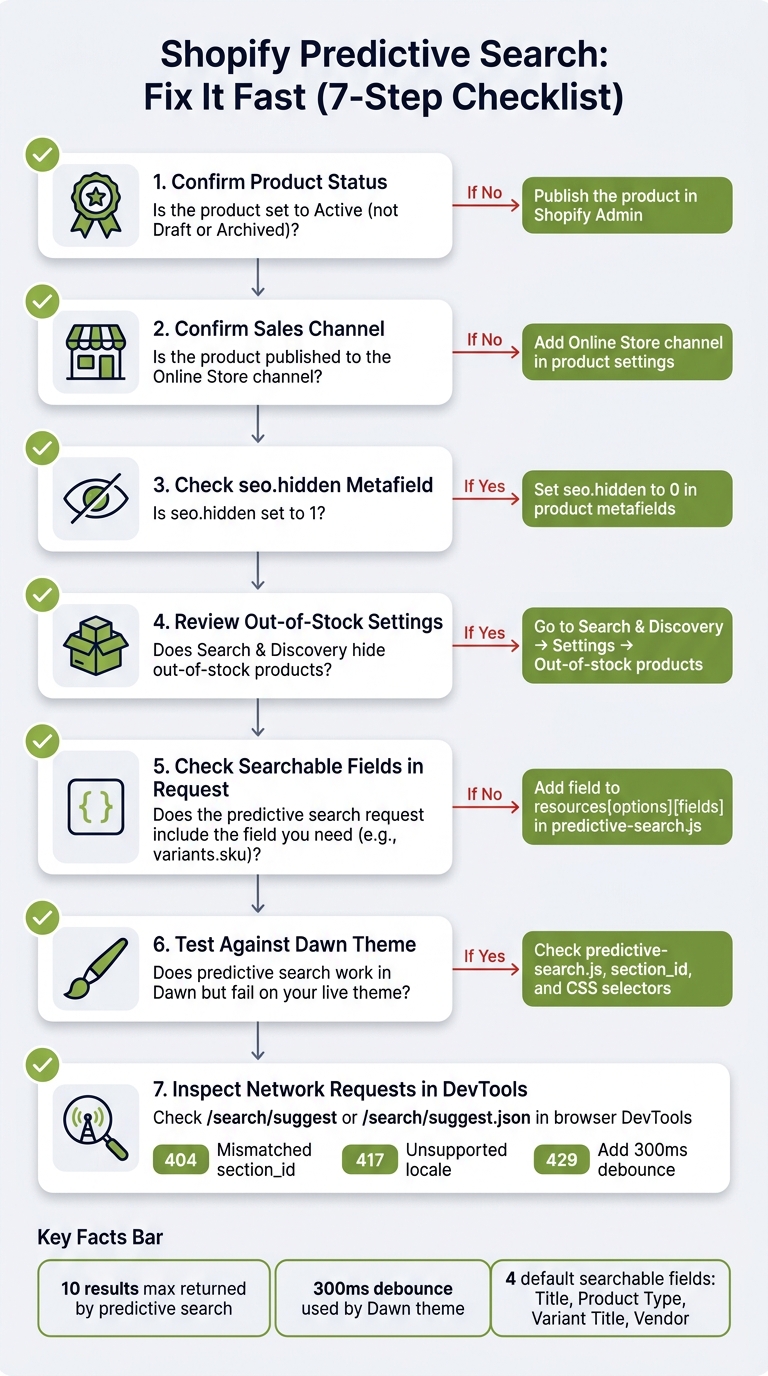
- Shopify predictive search returns up to 10 combined suggestions
- Dawn uses a 300 ms debounce
- Unsupported headless locale requests can return 417
- Too many rapid calls can return 429
If I were fixing this fast, I’d start in this order:
- Confirm the product is Active
- Confirm it’s published to Online Store
- Check whether
seo.hiddenis set to1 - Review Search & Discovery settings for out-of-stock handling
- Check whether the predictive search request includes the field you want, like
variants.sku - Test the live theme against Dawn
- Inspect
/search/suggestor/search/suggest.jsonin DevTools
Shopify Predictive Search Troubleshooting: 7-Step Diagnostic Process
Shopify Dev Tips: Predictive Search

sbb-itb-e8e54fb
Quick Comparison
| Issue Type | What Usually Goes Wrong | What I’d Check First |
|---|---|---|
| Indexing | Product data isn’t searchable in the dropdown | Searchable fields in the request |
| Visibility | Product is hidden from storefront search | Status, sales channel, seo.hidden |
| Matching | Search term doesn’t match how Shopify tokenizes text | Hyphens, prefixes, SKU format |
| Theme code | Dropdown request or markup is broken | predictive-search.js, selectors, section_id |
| Headless setup | JSON request, locale, or rate limit issue | URL format, locale, debounce, CORS |
Bottom line: if a product shows in full search but not predictive search, I’d assume the dropdown request, searchable field list, or storefront visibility rule is the cause until proven otherwise.
How Shopify Indexes Products and Controls Search Visibility
When a product doesn’t show up in predictive search, start with two basics: what Shopify indexes and whether the product can be seen on the storefront.
By default, /search/suggest checks only these product fields:
- product title
- product type
- variant title
- vendor
That means it doesn’t look at descriptions, tags, SKUs, or barcodes unless the request is set up to include them.
Plan level matters too. Predictive search is available on Grow, Advanced, and Plus plans. If you're on a lower-tier plan, check support for the feature before you spend time chasing dropdown issues.
There’s also a timing piece here. After bulk edits or imports, Shopify may need a bit of time to update the search index before new results appear.
If a product is active and still missing, the next place to look is visibility settings and index timing.
Check Status, Sales Channels, Hidden Settings, and Sync Timing
If a product is in your catalog but still won’t appear in the predictive dropdown, these are the usual trouble spots in Shopify admin:
| Check | Check | Action |
|---|---|---|
| Product status | Must be "Active", not "Draft" or "Archived" | Publish the product |
| Sales channel | Must be available to "Online Store" | Add the Online Store channel in product settings |
seo.hidden metafield |
If set to 1, the product is excluded from search results |
Set value to 0 in the product's metafields section |
| Out-of-stock setting | Search & Discovery app may hide unavailable products or push them to the end of results | Go to Search & Discovery → Settings and review "Out-of-stock products" |
The seo.hidden metafield is a big one. If it’s set to 1, Shopify leaves the product out of search results, including predictive search. To check it, open the product in Shopify Admin and look at the metafields section.
The out-of-stock setting in the Search & Discovery app can also cause problems without making much noise. If unavailable products are hidden, they won’t appear in predictive results at all. If they’re pushed to the end, they may still show up, just much lower in the list.
If those settings look right, the next step is to check searchable attributes and metafields.
Fix Missing Products in Predictive Search
If visibility checks pass, the next place to look is searchable fields and query matching. This is where things often get slippery.
Hyphens can throw off matches. Shopify splits terms on hyphens, dots, and slashes, and predictive search matches prefixes, not random chunks in the middle of a term. So JM-XL1 may not match jm-xl. On top of that, predictive search returns only 10 combined results, which means lower-priority matches can get pushed out by other items.
Check Searchable Attributes and Metafield Setup
Predictive search does not search SKU, barcode, tags, or body text unless the request includes those fields.
"The SKU may exist in Shopify, but the theme's predictive search request might not be asking Shopify to search that field." - Robin Singh, Founder, Thought Bulb
To make SKU searches work, add variants.sku to resources[options][fields] in predictive-search.js. If you can't change the theme code, add the SKU or part number as a product tag.
Metafields can also be part of the problem. If values are missing, inconsistent, or set up the wrong way, matches may not show up when you expect them to.
Match Symptoms to Fixes Using a Reference Table
Use this table to narrow down the cause fast:
| Symptom | Likely Cause | Recommended Fix |
|---|---|---|
| Exact product name typed, no suggestions appear | Hyphenated terms are split into separate tokens | Add the term as a product tag |
| SKU search returns nothing | variants.sku not in default searchable fields |
Add variants.sku to resources[options][fields] in predictive-search.js |
| SKU matches in admin, not in dropdown | Theme request not sending the SKU field to predictive search | Verify and update the fetch URL in predictive-search.js |
| Product appears after pressing Enter, not in dropdown | Theme JS not requesting the right fields | Verify and update the fetch URL in predictive-search.js |
| Partial mid-string search fails (e.g., "123" for "ABC_123") | Underscores don't create token boundaries; predictive search relies on prefix matching | Use hyphens instead of underscores in SKUs, or add the partial term as a tag |
If the right fields are already indexed and results still look off, you're no longer dealing with a missing-product issue. At that point, it's more about relevance quality.
Fix Irrelevant or Low-Quality Predictive Suggestions
When the right products are indexed but the wrong ones keep showing up, the problem usually starts with your catalog data, not Shopify's predictive search logic. Weak titles, messy tags, and uneven attribute values can push the wrong products into that 10-item suggestion list.
So if the right products are in the index but the wrong ones still rank at the top, start by cleaning up the catalog data Shopify uses to score matches.
Improve Titles, Tags, and Attribute Consistency to Improve Relevance
Predictive search puts the most weight on product title, product type, variant title, and vendor. That means title quality has a big effect on relevance. A title that includes the brand, product type, and key attributes is much more likely to match what a shopper types than one that's short or vague.
Tags need attention too. Review them and remove generic or uneven values that customers would never search for. If your theme is set up to search the tag field, loose tags can pull unrelated products into the dropdown.
Attribute inconsistency causes a quieter kind of problem. If the same product type or attribute value appears in several formats across the catalog, matching gets less predictable. Standardizing those values helps cut down on irrelevant matches. One smart way to spot this is with a cardinality audit. Attributes with too many one-off values often create noisy suggestions. FacetGuard provides this type of audit as part of its catalog attribute analysis.
Predictive search is keyword-based, so synonyms and boosts are the main tools for connecting customer language with catalog language. Use Search & Discovery synonyms to link shopper terms to your catalog terms. For example, connect "belt bag" and "fanny pack." Then use Product Boosts to pin certain items higher for priority search terms. After the first mention, "boosts" refers to the same feature.
Compare Relevance Tuning Options by Impact and Effort
| Tuning Option | Expected Impact | Technical Complexity | Maintenance Effort |
|---|---|---|---|
| Title & Tag Cleanup | High – directly improves matching accuracy | Low – managed in Shopify Admin | Moderate – requires ongoing catalog discipline |
| Search & Discovery Synonyms & Boosts | High – bridges the gap between customer language and catalog | Low – user-friendly app interface | Moderate – needs periodic review of "no results" reports |
| API/Query Parameter Adjustments | High – enables searching SKUs, tags, and additional fields | High – requires editing JS or API logic | Low – works globally once implemented |
The way these rules get applied depends on your setup, but the first move is almost always the same: cleaner catalog data.
Resolve Theme and Headless Implementation Issues, Then Keep Search Quality in Check
If relevance tuning doesn’t fix the problem, the issue is often the storefront request itself. Even when your catalog data looks fine, theme code or API settings can still stop predictive search from working or cause empty results.
Debug Online Store 2.0 Themes and Headless Storefronts by Implementation Type
Start with the storefront setup you actually run: Online Store 2.0, older theme code, or headless.
A good first test is Dawn. If predictive search works in Dawn but fails on your live theme, the problem is likely in your theme’s JavaScript or Liquid. If it also fails in Dawn, go back and review indexing plus Search & Discovery.
For Online Store 2.0 themes, check the /{locale}/search/suggest request in your browser’s Network tab. A mismatched section_id will return a 404. Also make sure predictive-search.js is loading as expected and that your JavaScript points to the right elements, usually input[type="search"] for the input and #predictive-search or #predictive-search-results for the results container.
For headless storefronts, use /{locale}/search/suggest.json if you want JSON responses. Unsupported locales return 417. A 429 error means you’re sending too many requests, so add debounce. Dawn uses a 300 ms debounce. If CORS gets in the way, route requests through the primary domain or a proxy.
| Setup Type | Common Failure Mode | Primary Debug Step |
|---|---|---|
| Online Store 2.0 | 404 error on API call | Verify section_id in your JS matches the Liquid section filename |
| Online Store 2.0 | Dropdown doesn't open | Confirm predictive-search.js is loaded and selectors match the HTML |
| Headless (JSON) | 417 Expectation Failed | Ensure the URL includes a supported {locale} prefix |
| Headless (JSON) | Missing specific results | Check resources[type] and resources[options][fields] parameters |
| All implementations | 429 Too Many Requests | Implement or increase debounce timing (300 ms minimum) |
It’s also worth checking the <script id="shopify-features"> tag in the <head>. That tag includes a predictiveSearch boolean. If predictiveSearch is false, the feature isn’t supported for that locale or plan.
Conclusion: Build a Repeatable Process for Predictive Search Health
Predictive search needs regular checks. Catalog edits, theme updates, and new app installs can quietly knock things off track. Once the setup is working, keep a short routine in place: confirm product status and sales channel visibility, review Search & Discovery result type settings, and test search after each theme update.
Also watch zero-result queries, retest after theme or catalog changes, and use FacetGuard to spot attribute issues that can make predictive search noisy or incomplete.
FAQs
Why does a product show in search but not autocomplete?
A product can show up in the full search results page but still miss autocomplete. That happens because those two search features run on different systems and follow different indexing rules.
By default, Shopify predictive search only looks at title, product_type, variants.title, and vendor. So if an item’s key detail, like a SKU, lives in another field, the product may not show in the dropdown.
There’s also a speed factor. Predictive search is built to respond fast, so it uses narrower prefix matching than full-page search.
How long does Shopify take to update predictive search?
Shopify doesn’t give a set timeline for predictive search updates.
So if product or catalog changes aren’t showing up in suggestions, the problem often isn’t just a delay. More often, it comes down to what Shopify is set up to index by default. A common example is missing SKU data.
If that happens, FacetGuard can audit your product data and help surface indexing issues that are easy to miss.
How do I make SKU searches work in predictive search?
By default, Shopify predictive search doesn't index product SKUs.
If you want shoppers to search by SKU, you'll need to edit your theme's JavaScript file - usually predictive-search.js - and add variants.sku to the search request fields.
For example, update the fetch request like this: url.searchParams.set('resources[options][fields]', 'title,product_type,variants.title,vendor,variants.sku');
It's smart to test this in a duplicate theme before you publish the change.