
Missing Filters in Shopify: Causes and Quick Fixes
When Shopify filters stop working, it can frustrate customers and hurt sales. Missing filters often result from three main issues: messy product data, incorrect settings in the Search & Discovery app, or theme configuration errors. Fixing these problems is straightforward if you know where to look:
- Product Data Issues: Inconsistent naming (e.g., "Color" vs. "Colour"), missing values, or exceeding Shopify's filter limits can cause filters to disappear.
- Misconfigured Settings: Filters must be linked to the right data source (tags, metafields, etc.), and unsupported metafield types won't work.
- Theme Problems: Filters need to be enabled in your theme settings, and JavaScript errors or leftover app code can interfere.
To resolve these issues:
- Ensure product data is clean and consistent.
- Verify Search & Discovery settings and enable storefront access for metafields.
- Check your theme's filter settings and fix any code conflicts.
Tools like FacetGuard can automate the process by identifying data inconsistencies and filter-related issues, saving time and improving store functionality. Fixing filters ensures customers can easily find what they’re looking for, reducing abandoned carts and boosting conversions.
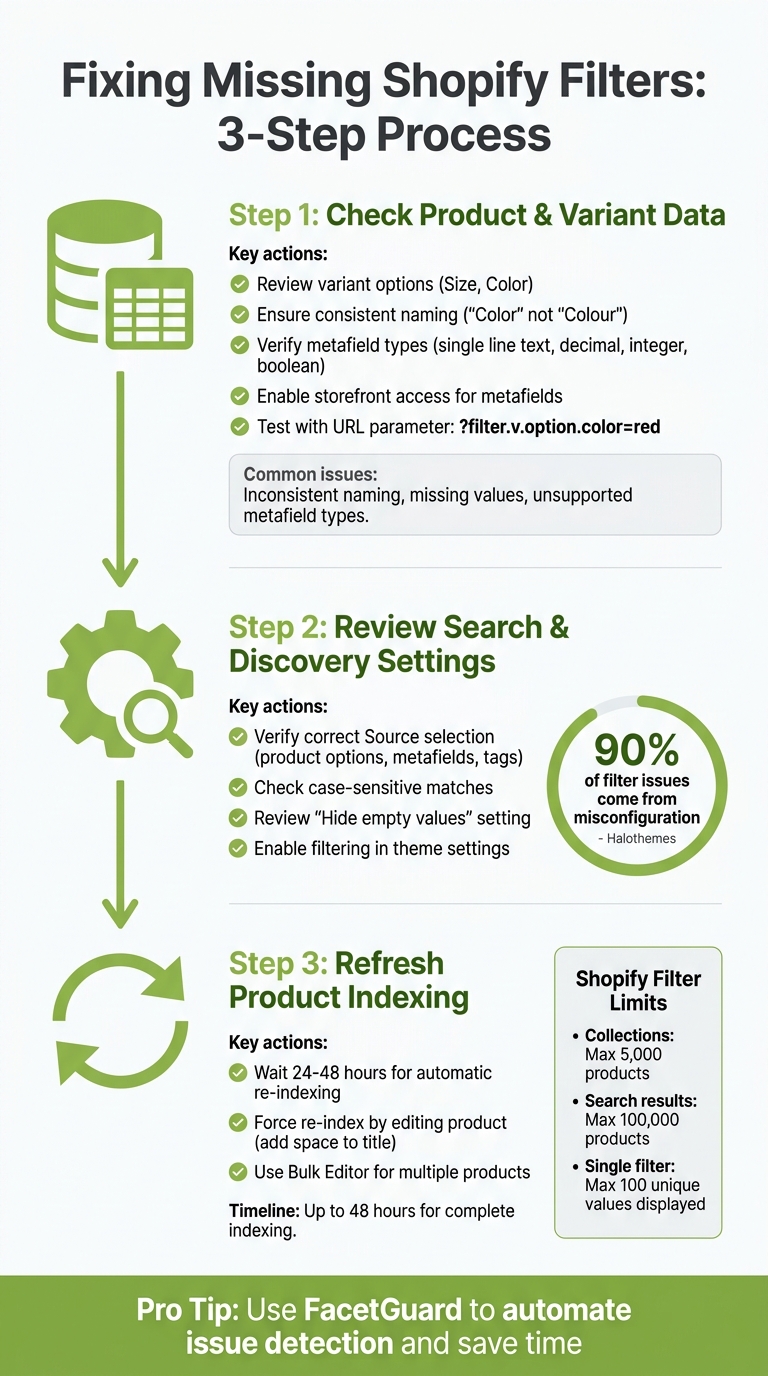
How to Fix Missing Shopify Filters: 3-Step Troubleshooting Guide
Shopify Filters Broken? Fix Product Option Filtering with Metafields (Step-by-Step)

sbb-itb-e8e54fb
Why Filters Go Missing in Shopify
If your Shopify filters suddenly disappear, the culprit usually falls into one of three areas: messy product data, incorrect settings, or overlooked theme configurations. Let’s break it down.
Problems with Catalog Data
Your product catalog is the backbone of Shopify filters. When the data isn’t clean or consistent, filters simply won’t show up. A common issue? Inconsistent naming conventions. For example, if some products use "Color" while others use "Colour" or "Color:", Shopify treats them as entirely separate attributes, making it impossible to create a single filter.
Another issue is missing data. If many products lack specific metafield values or variant options, the related filter won’t appear. Shopify also has some hard limits:
- Collections with more than 5,000 products won’t display filters.
- Search results exceeding 100,000 products will hide filters entirely.
- A single filter can only display up to 100 unique values on the storefront.
Search indexing delays can also be a headache. If you’ve recently updated a lot of product data or added new metafields, Shopify’s re-indexing process can take 24 to 48 hours. During this time, your new filters remain invisible.
Even with perfect catalog data, misconfigured settings can still cause filters to vanish.
Incorrect Filter Settings
One of the most frequent mistakes is choosing the wrong source for a filter. For instance, you might set up a filter for "Tags" while your product data is actually stored in "Product Options" or "Metafields". Shopify collaborator johncraigcole explains it well: "The collection variant metafield filters are dependent on the filters being defined in the Search & Discovery App".
Not all metafield types can be used for filtering. Only specific types - like single line text, decimal, integer, boolean, and metaobject references - are supported. If you try to use unsupported types like "weight" or "measurement", the filter won’t appear. Also, don’t forget to enable storefront access for metafields in the settings. Without this, they won’t be visible as filter sources.
Another sneaky issue is the app’s "Hide empty values" option. If this is enabled and no products in a collection have the selected attribute, the filter will disappear entirely from the storefront.
Even if your data and settings are correct, your theme setup might still block filters.
Theme Display Issues
Filters won’t show up unless they’re enabled in your theme settings. Even if everything is configured correctly in the Search & Discovery app, you’ll need to manually turn on filtering in your theme. Go to Online Store > Themes > Customize, select the Collection template, and make sure "Enable filtering" is toggled on in the Product Grid section.
JavaScript conflicts can also cause trouble. Errors in the facet.js file - responsible for filtering and sorting - can prevent filters from working or cause them to get stuck in an infinite loading state. Leftover code from uninstalled third-party apps can also interfere with Shopify’s default filtering logic.
Some premium themes only support filters in specific layouts, like Sidebar or Toolbar views, so it’s worth checking your theme’s documentation. If filters work in your theme preview but not in the live store, caching issues or code validation tied to the active theme might be to blame.
How to Fix Missing Filters
Now that we've covered why filters might disappear, let's dive into how to fix them. The good news? Most issues can be resolved by focusing on three main areas in a specific order.
Check Product and Variant Data
Start by reviewing your product and variant details. Open several products and examine their Variants section. Make sure attributes like "Size" or "Color" are set up as variant options, not just added as tags. This distinction is especially important for modern Shopify themes.
Consistency is key. Use the Bulk Editor to ensure uniform naming conventions across your product catalog.
If you're using metafield-based filters, double-check the metafield definitions. Only certain types - like single line text, decimal, integer, boolean, or metaobject references - are supported. Types such as "weight" or "measurement" won't work. Also, make sure storefront access is enabled for both the metafield and metaobject definitions. Without this, they won't show up as filter sources.
To test if your data is indexed correctly, try adding a filter parameter to the URL, such as ?filter.v.option.color=red. If the relevant products appear, your data setup is fine. If not, there could be a deeper indexing issue.
Review Search & Discovery Settings
Next, ensure your Search & Discovery app settings align with your product data. Misconfigurations here often cause filter issues. Open the app and confirm each filter has the correct Source selected, whether it's product options, metafields, or standard attributes like Price or Availability.
"If your Collection Filters aren't working, 90% of the time it's due to a misconfiguration in the Search & Discovery app or a theme setting issue." - Halothemes
Pay attention to case-sensitive matches. For example, if you’ve created a metafield filter for "skin_tone", the values in your product catalog must match exactly. Even small mismatches can result in empty filter results.
Also, check the app's Settings > Empty values option. If this is set to hide values with no matching products, filters may disappear from collections where no products have that attribute. Lastly, ensure that filtering is enabled in your theme settings as previously outlined.
Refresh Product Indexing
Finally, make sure Shopify’s indexing is up-to-date, especially if you've recently added metafields or updated product data. Keep in mind that Shopify’s system can take 24 to 48 hours to automatically re-index changes.
To speed things up, you can force a re-index by making a minor edit to a product - like adding a space to the title or description - and then saving it. This action triggers immediate re-indexing for that specific product.
For larger catalogs, use the Bulk Editor to apply changes across multiple products and prompt broader re-indexing. If filters still don't appear after manual edits, give it up to 48 hours for Shopify's background indexing to complete. This step ensures that your storefront filters reflect the most recent product data accurately.
Using FacetGuard to Fix Filter Problems
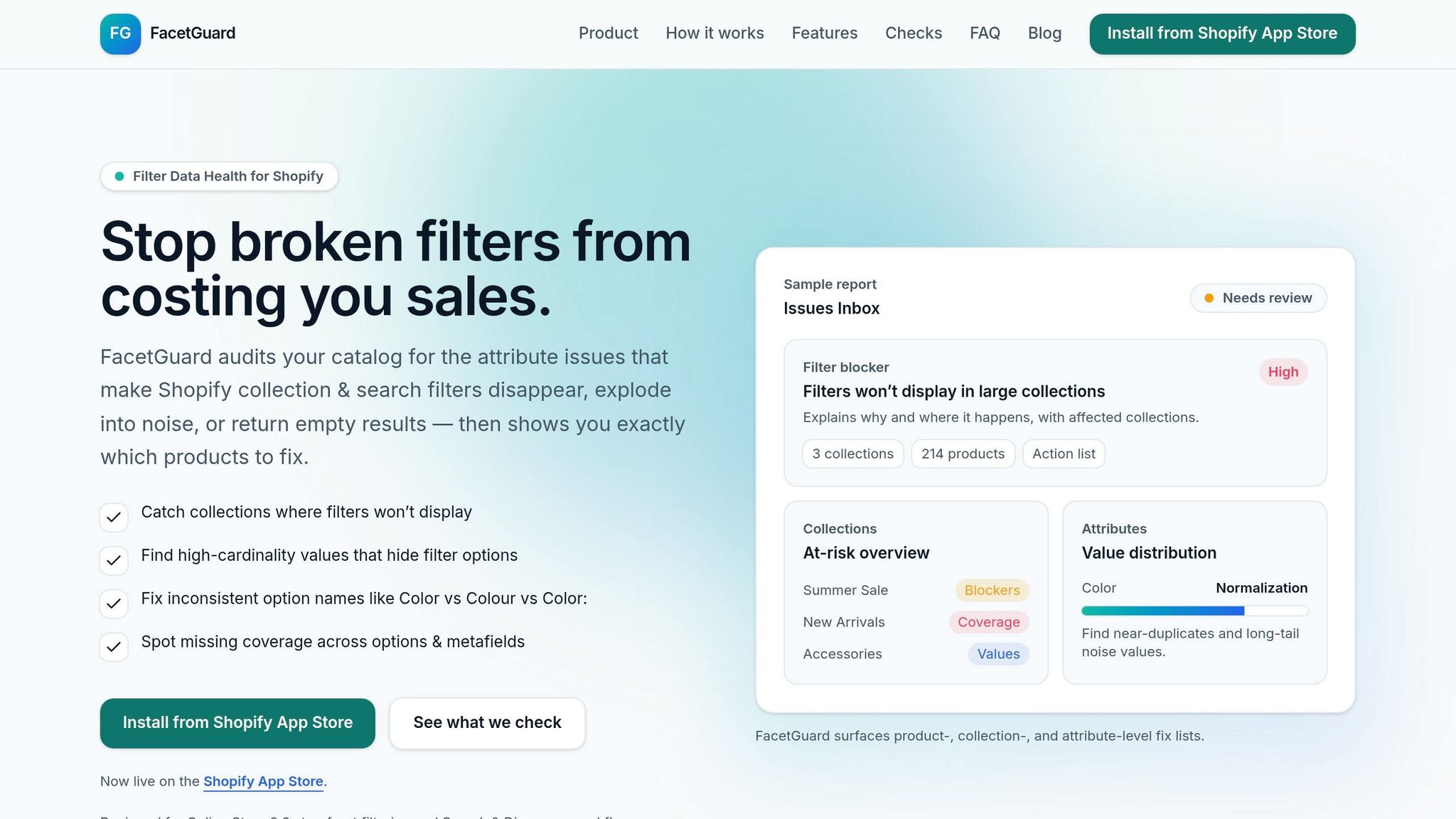
Manually troubleshooting filter issues can be a real time sink, requiring you to check products one by one. FacetGuard simplifies this process by automating the detection of data issues. It scans your catalog, flags the problems causing missing filters, and provides a prioritized list of actionable fixes at the product level. No more endless manual checks - FacetGuard does the heavy lifting.
Let’s dive into how FacetGuard tackles these challenges.
Find and Fix Data Problems
FacetGuard makes resolving data issues much easier. Its Option Name Consistency & Coverage feature identifies naming inconsistencies that can break your filters. For instance, it catches variations like "Color" versus "Colour", case mismatches, or trailing spaces that confuse Shopify’s indexing system. Once identified, you can export a CSV file of the problematic items and fix them in bulk using Shopify’s Bulk Editor.
It also highlights gaps in coverage, such as products missing required option or metafield values, which can prevent them from appearing in filtered results. Instead of waiting for customers to complain about missing products, you’ll know exactly what needs fixing and where.
Identify Attributes with Too Many Values
When an attribute has too many unique values - known as a cardinality explosion - it can cause filters to fail or clutter them with unnecessary, one-off entries that confuse shoppers. FacetGuard’s Value Limit/Cardinality Audit identifies these problematic attributes and flags excessive unique values that dilute your filter lists.
For example, imagine a "Brand" filter with 200 unique values, where 150 of those values apply to just one product each. FacetGuard identifies this as a high-risk issue. From there, you can decide whether to consolidate the values, restructure the attribute, or reorganize large collections into smaller, more manageable groups.
This feature connects the dots between identifying data problems and taking practical steps to resolve them.
Track Filter Health Over Time
To keep your filters running smoothly and prevent future issues, FacetGuard offers the Issues Inbox. This centralized dashboard shows all filter-related problems, ranked by severity and their impact on specific collections. You can mark issues as resolved or ignore them, helping you stay organized. The Collection View pinpoints which collections are most at risk and identifies the "top offender" products causing the majority of the problems.
FacetGuard also lets you schedule regular scans to catch new issues as they arise. This is especially helpful after importing products from suppliers or making bulk catalog updates. By staying proactive, you can stop filter problems from creeping back in and disrupting your customers’ shopping experience. Plus, since FacetGuard is currently free on the Shopify App Store, there’s no cost to maintaining well-functioning filters over time.
Conclusion
Keeping your store's filters functional boils down to addressing common culprits like messy catalog data, misconfigured settings, or theme-related display problems. Often, the root of the issue lies in your product data - things like inconsistent naming (e.g., "Color" versus "Colour"), missing metafield values, or an overload of unique attribute values that can confuse the system.
Clean, consistent data is key to avoiding situations where filters disappear or yield empty results. When shoppers can't refine their search by size, color, or brand, they’re more likely to leave your site, which can directly affect your sales. In fact, even optimized stores see 10% to 15% of search queries returning zero results.
To make filter management easier, automated tools like FacetGuard can help. It detects data issues, flags inconsistencies, and prioritizes fixes based on their impact. Since it’s currently free on the Shopify App Store, running regular audits becomes a simple way to catch problems early, ensuring your filters stay reliable as your catalog expands.
Staying on top of these challenges ensures your customers can always find what they’re looking for, keeping your store user-friendly and your sales on track.
FAQs
Why are my filters missing on only some collections?
Filters might not show up in some collections due to configuration problems or inconsistencies in your product data. To fix this, make sure metafields are correctly set up and properly linked to each collection. Filters also rely on accurate theme settings and the functionality of the "Search & Discovery" app. If metafields or app settings are missing or incorrectly configured, filters may fail to appear. Double-check these elements to address the issue effectively.
How do I know if Shopify is still re-indexing my products?
If you notice that new products aren’t showing up in filters or collections, or if filters display outdated results, it’s likely that Shopify is still re-indexing. This process usually takes about 10-15 minutes after catalog updates. To monitor activity, check your product admin or use the Search & Discovery app. If the issue continues beyond 15 minutes, it might be time to troubleshoot or reach out to Shopify support for assistance.
Which metafield types can Shopify use for filters?
Shopify offers support for these metafield types when it comes to filters: number_integer, number_decimal, single_line_text_field, and boolean. These options enable you to create tailored filter choices, enhancing the search experience for your store visitors.