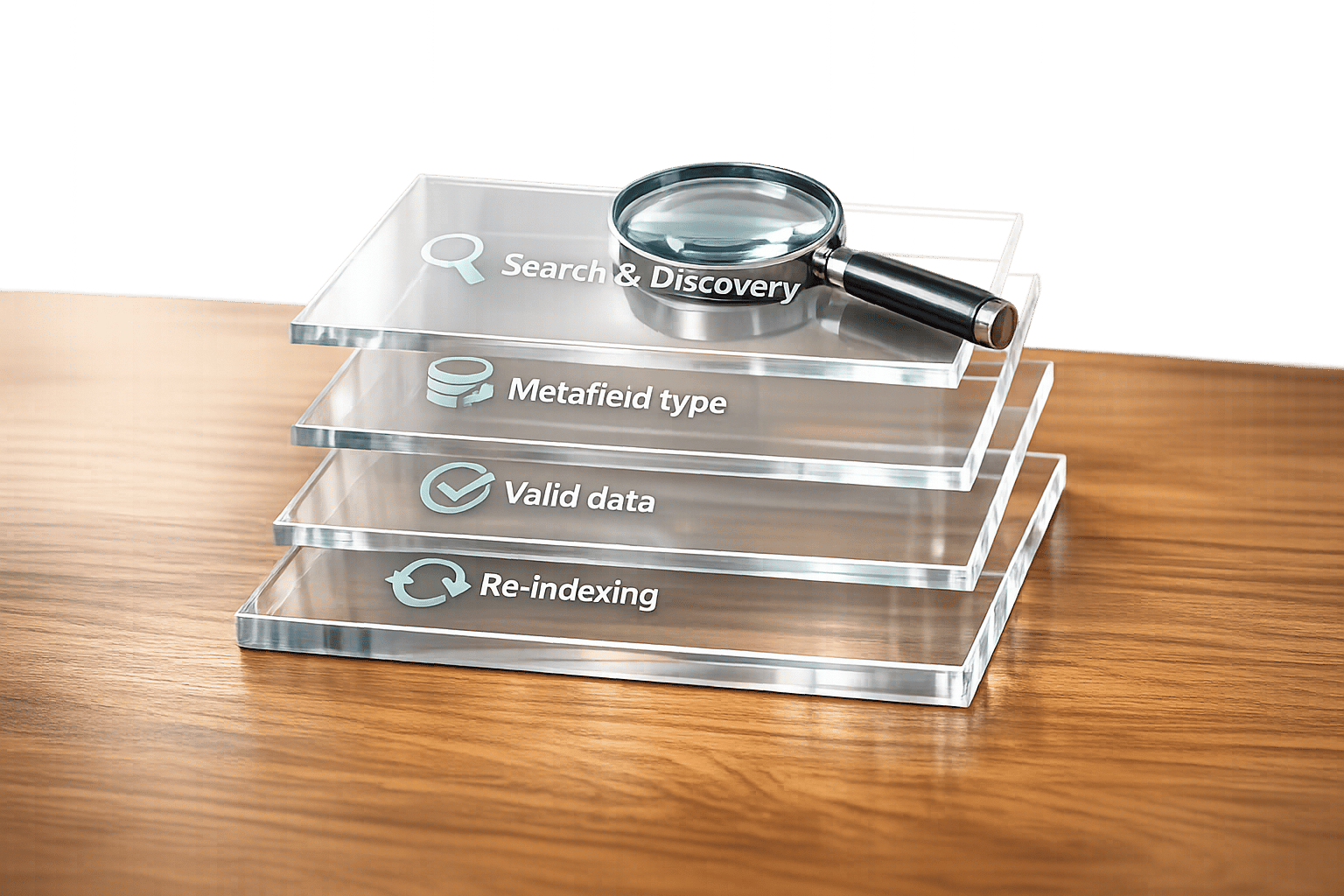
Troubleshooting Shopify Filters with Metafields
Shopify filters and metafields can enhance product discovery but often encounter configuration issues. Here's how to fix common problems:
- Filters not showing up: Check the Shopify Search & Discovery app and theme settings. Filters won't display in collections with over 5,000 products.
- Missing filter options: Ensure metafields use supported types (e.g., single-line text, integers) and don't exceed the 100 unique value limit.
- Incorrect product results: Verify metafield data accuracy, namespaces, and that empty values are managed properly.
- Outdated filter values: Shopify's search index may take up to 48 hours to update. Trigger re-indexing by editing affected products.
Pro Tip: Use tools like FacetGuard to audit and resolve metafield issues efficiently, especially for large catalogs or headless storefronts.
Keep filters functional by maintaining consistent metafield data and regularly reviewing configurations.
How to Filter Shopify Collections by Product Tags (or Metafields)

sbb-itb-e8e54fb
Common Shopify Filter and Metafield Problems
Metafields bring a lot of flexibility to Shopify filters, but they can also introduce new challenges. Here are some of the most common issues merchants face, along with their causes. These problems generally fall into four main categories.
Filters Not Showing Up in Collections
One of the most frequent complaints is filters failing to appear in collections, which often boils down to a configuration issue.
"If your Collection Filters aren't working, 90% of the time it's due to a misconfiguration in the Search & Discovery app or a theme setting issue." - Halothemes
The two most common reasons are:
- The metafield hasn't been added as a filter source in the Shopify Search & Discovery app.
- The "Enable filtering" option in the Theme Editor (under the Product Grid section) is turned off.
Both settings need to be active for filters to function. Additionally, Shopify automatically hides filters on collections with more than 5,000 products. So, if a filter works on most collections but disappears on one with a large product count, check the size of that collection.
Now, let’s look at cases where filters appear but don’t work as expected.
Missing or Incomplete Filter Options
Sometimes filters show up but lack certain values. This often happens when unsupported metafield types are used. Shopify supports specific metafield types for filters, including single-line text, integers, decimals, booleans, and metaobject references. Using unsupported types can cause values to go missing.
Another limitation is the display cap: a single filter can only show up to 100 unique values. For catalogs with more than 100 variations, some filter values may be cut off. To address this, you can use the "Group filter values" feature in the Search & Discovery app. This allows you to combine similar values, such as merging "Onyx" and "Ebony" into a single "Black" option.
Filters Showing Wrong or No Products
Filters may also fail to return the correct products - or any products at all. These issues are often tied to inconsistencies in metafield data. For example, a mismatched namespace or key can break the connection between products and filters. Even a small typo can cause this problem.
Another common issue is empty metafield values. If the Search & Discovery app is set to hide empty values and most products in a collection lack data for that metafield, the filter will either show very few options or disappear entirely. The quickest way to diagnose this is by checking which products have the metafield filled in.
Outdated or Ghost Filter Values
Ghost values - filter options that appear but don’t match any products - are another common problem. These usually occur after metafield data has been edited or deleted. The issue arises because Shopify's search index doesn’t update immediately; it can take 24 to 48 hours to sync automatically.
To speed up the process, you can force re-indexing by making a small edit to an affected product, such as adding a space. This triggers Shopify to re-index the product and typically clears the stale values. For a broader fix, you can set empty filter values to "Hide" in the Search & Discovery app, ensuring that options with no matching products are removed from the storefront.
How to Troubleshoot Metafield Filters Step by Step
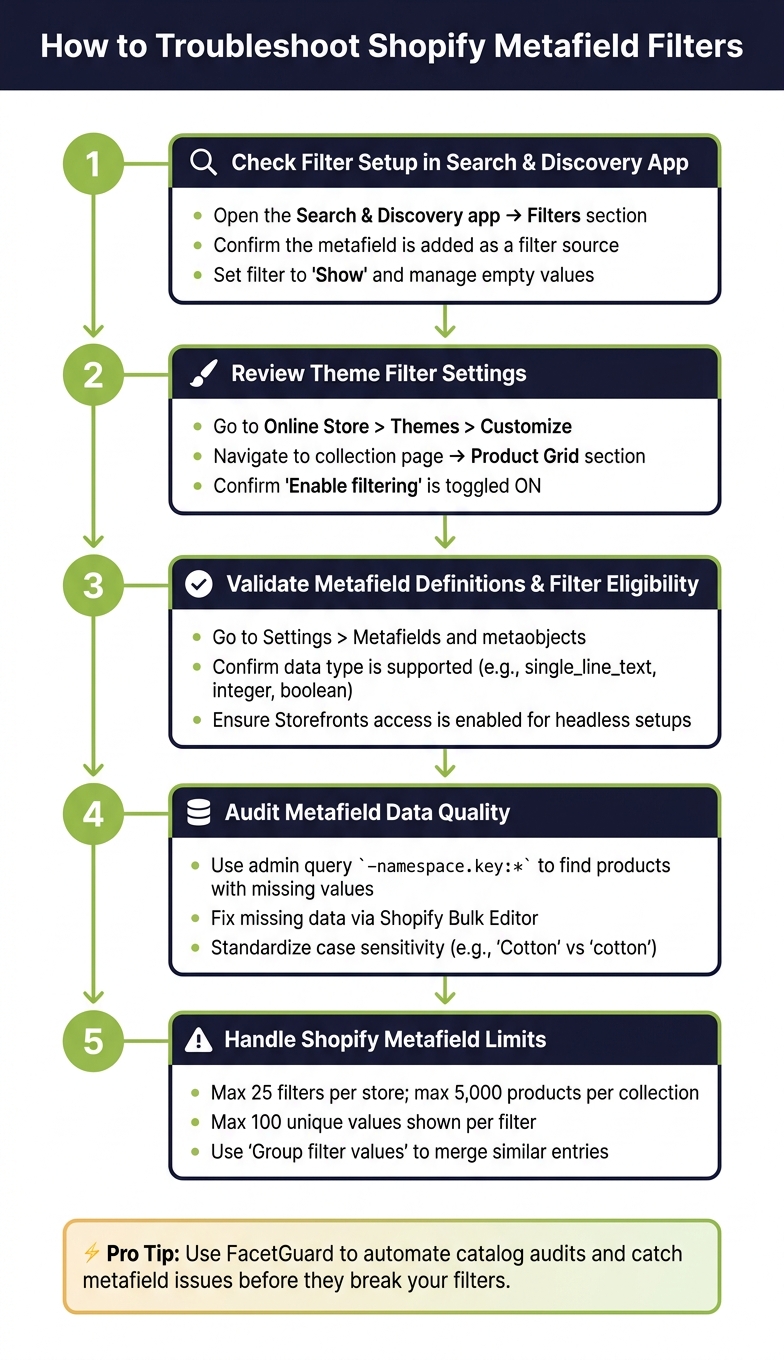
Shopify Metafield Filter Troubleshooting: Step-by-Step Guide
If you're dealing with metafield filter issues, here’s a step-by-step guide to help you identify and resolve them.
Check Filter Setup in the Shopify Search & Discovery App
Start by opening the Shopify Search & Discovery app and navigating to the Filters section. Ensure the metafield you want to use as a filter is explicitly selected and added as a filter source. Just defining a metafield isn’t enough - it must be assigned to a specific template, such as a collection or search results page. Double-check that the filter is set to "Show" and that any empty values are being managed according to your preferences.
Review Theme Filter Settings
Even if the Search & Discovery app is correctly configured, your filters won’t appear unless your theme supports them. Open the Theme Editor (Online Store > Themes > Customize), and go to the collection page template. In the Product Grid section, confirm that filtering is enabled. Additionally, check for compatibility under the Content > Menus section in Shopify admin.
Validate Metafield Definitions and Filter Eligibility
Go to Settings > Metafields and metaobjects and review the metafield definition. Confirm that the data type and capabilities align with Shopify’s filter requirements. Only specific data types are eligible for storefront filtering:
| Supported Type | Example URL Parameter |
|---|---|
single_line_text_field |
filter.p.m.custom.made_in=usa |
list.single_line_text_field |
filter.p.m.custom.colors=red,blue |
number_integer |
filter.p.m.custom.weight=10 |
number_decimal |
filter.p.m.custom.rating=4.5 |
boolean |
filter.p.m.custom.eco_friendly=true |
metaobject_reference |
filter.v.t.shopify.fabric=gid://shopify/Metaobject/1 |
list.metaobject_reference |
filter.p.m.custom.fabric_ids=gid://shopify/Metaobject/1,gid://shopify/Metaobject/2 |
Unsupported types like rich text and JSON won’t work. Also, ensure the Smart collections checkbox is enabled, and if you’re using headless or custom storefronts, make sure Storefronts access is turned on.
Audit Metafield Data Quality
If the definitions are correct, the issue might be with the metafield data itself. Use the admin query syntax -namespace.key:* (e.g., -custom.material:*) to locate products missing specific metafield values. To fix this, use the Shopify Bulk Editor to update or add missing values.
Be mindful of case sensitivity - Shopify treats "Cotton" and "cotton" as separate entries, which can lead to fragmented filter results. Standardize all values using the Bulk Editor to maintain consistency and avoid future problems.
If data accuracy isn’t the issue, you may need to address Shopify’s metafield limits.
Handle Shopify Metafield Limits
If your filters still don’t work as expected, check for these Shopify limits:
| Limit Type | Maximum |
|---|---|
| Total filters per store | 25 |
| Products per collection before filters hide | 5,000 |
| Unique values shown to customers per filter | 100 |
| Unique values per filter group | 200 |
| Total filter groups per store | 1,000 |
For collections exceeding 5,000 products, filters may not display. If a filter has more than 100 unique values, use the "Group filter values" feature in the Search & Discovery app to combine similar entries under one label. This can help streamline the filter display and improve usability for customers.
Using FacetGuard to Find and Fix Filter Issues
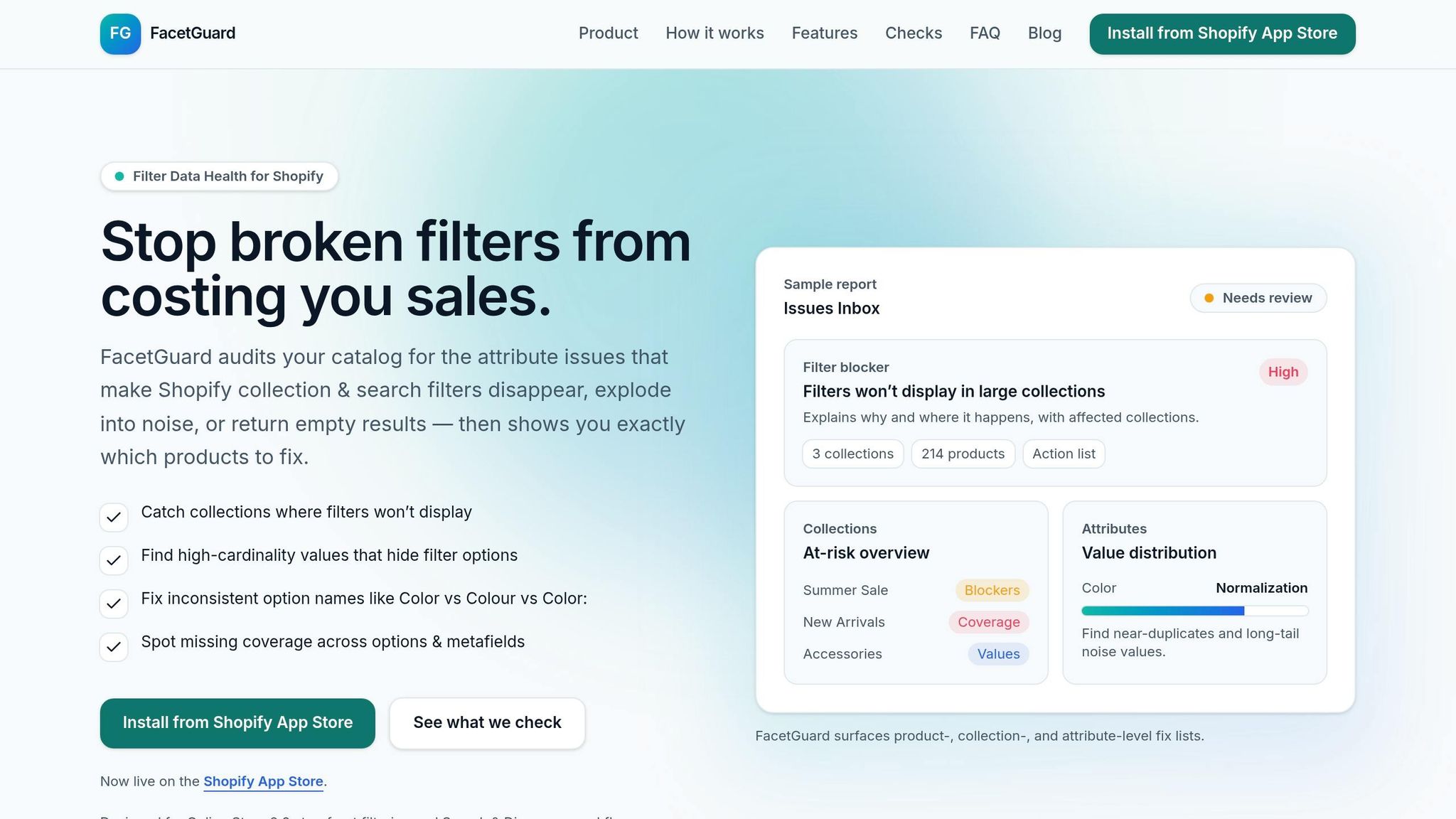
FacetGuard takes manual troubleshooting to the next level by automating the process and making it more efficient. When dealing with large catalogs riddled with filter issues, FacetGuard audits catalog attributes and identifies the root causes of broken filters.
Automated Catalog Audits with FacetGuard
FacetGuard scans your catalog for common problems like missing metafield values, unsupported data types, and configuration errors. It can spot complex issues such as metafield sprawl, where the same attribute is stored under different names (e.g., "specs_material" versus "material_type"). It also flags inconsistent naming conventions, like mixing "feature" with "features" or using both "spec_sheet" and "specSheet".
"Complex Shopify catalogs rarely fail because Shopify lacks features. They fail because the data model underneath them becomes unmanageable." – Performantcode.io
Prioritized Fix Lists for Faster Resolution
FacetGuard simplifies the repair process by organizing issues based on their severity and impact through its Issues Inbox. This allows you to focus on fixes that restore the most filters first. It also provides CSV exports for bulk edits and workflow tools to track resolved issues. This functionality is particularly useful for headless and API-driven setups, where accurate metafield configurations are essential.
Checks for Headless and API-Powered Storefronts
Diagnosing metafield issues in headless storefronts or Storefront API queries can be tricky because broken filters often fail without visible errors. FacetGuard includes specialized checks tailored for API-driven setups, auditing metafield naming and structure to ensure a consistent schema.
"Without defensive data modeling, themes break silently. This is not a theme problem. It's a data discipline problem." – Performantcode.io
This is especially critical for headless builds, where enabling Storefront access on each metafield definition is a must. FacetGuard highlights these misconfigurations, eliminating the guesswork when filters work in the Shopify admin but fail on a custom frontend. By addressing these challenges directly, FacetGuard helps ensure reliable filtering across your Shopify storefront.
Conclusion: Keeping Shopify Filters in Good Shape
Reliable storefront filtering doesn’t happen by accident - it requires careful management and consistent attention. This article has walked through the troubleshooting steps and strategies needed to keep your filtering system running smoothly.
Key Takeaways
Filter problems often arise from issues like inconsistent metafield naming, incomplete or incorrect data, and gaps in the configuration of the Search & Discovery app or theme settings.
The most critical habit to develop is maintaining a structured approach to metafields. Each metafield used for filtering should have a specific purpose, a consistent format, and a designated owner within your team. Without this discipline, unused data piles up in the catalog, and filters inevitably break as a result.
When addressing broken filters, a phased approach is the safest route: first, define the correct structure, then populate new fields while keeping the old ones intact, and finally, update your theme logic before retiring outdated fields. Rushing through this process often creates new issues while trying to resolve existing ones. By following these methods and conducting regular audits, you can maintain a reliable storefront filtering system.
Ongoing Filter Maintenance with FacetGuard
Consistent monitoring is key to preventing filter issues from resurfacing. As your catalog expands, new products are added, naming conventions shift, and metafield clutter sneaks back in. This is where FacetGuard becomes a valuable tool in your long-term maintenance plan. Its automated audits catch structural inconsistencies - like redundant fields or missing values - before they escalate into bigger problems. The Issues Inbox helps your team prioritize what needs attention, and CSV exports make large-scale corrections more manageable. For merchants who want to ensure their storefront filters remain accurate and dependable, incorporating FacetGuard into regular catalog reviews is a smart and practical step to stay ahead of potential issues.
FAQs
How do I know if my theme supports Shopify filters?
To determine if your theme supports Shopify filters, head to Content > Menus in your Shopify admin. If your theme doesn’t support filtering, you’ll see a message in the Collection and search filters section. Themes that do support filtering typically offer settings in the Product grid or Search results sections, allowing you to turn filters on or off. If your theme lacks this feature, you might want to update it or switch to one that includes filtering options.
What should I do if my metafield has more than 100 filter values?
Shopify limits storefront filters to a maximum of 100 unique values. To avoid running into problems, it's a good idea to consolidate or standardize your filter values, which helps reduce redundancy. If you exceed this limit, filters might not work as intended. Keeping your metafields well-organized and optimized is key to smooth functionality. Tools like FacetGuard can assist in auditing and streamlining duplicate or excessive filter values, ensuring everything runs more efficiently.
How can I force Shopify to refresh “ghost” filter values faster?
When you update products or metafields in Shopify, it may take 24–48 hours for the platform to re-index. During this time, filters might not reflect the latest changes. Unfortunately, there's no way to trigger an instant refresh. To minimize issues, double-check that your metafields and filter settings are properly configured in the Search & Discovery app. Additionally, using tools like FacetGuard can help you audit your catalog and pinpoint any problems that could slow down filter updates.