Shopify Collection Rules: Troubleshooting Guide
If your Shopify store's filters are acting up - showing irrelevant options, missing key choices, or simply confusing shoppers - the issue likely lies in your collection rules. Shopify collections determine how products are grouped and directly control which filters appear on your storefront. Misconfigured rules can lead to cluttered or missing filters, frustrating customers and impacting sales.
Key Takeaways:
- Shopify collections are either manual (products added individually) or automated (products grouped by rules like tags, price, or type).
- Filters are tied to the attributes of products in a collection. Poorly set rules can clutter filters or cause them to disappear.
- Collections with over 5,000 products automatically lose filters, and filters can show up to 100 unique values per attribute.
- Common issues include mismatched attributes, inconsistent naming, and overly broad or narrow rules.
Quick Fixes:
- Check Collection Settings: Ensure logic is set to "All conditions" or "Any condition" as needed. Watch for collections exceeding 5,000 products.
- Review Rule Logic: Avoid typos, extra spaces, and incorrect operators. Use precise conditions like "is equal to" over "contains" where possible.
- Verify Product Data: Ensure attributes like tags, prices, and metafields match the rules exactly (e.g., "Red" vs. "red").
- Monitor Filters: Use tools like FacetGuard to identify missing attributes, inconsistent data, or collections that exceed limits.
Properly managing collection rules ensures filters work smoothly, helping shoppers find what they need faster. Regular audits and standardized product data can prevent future issues.
Diagnosing Collection Rule Issues
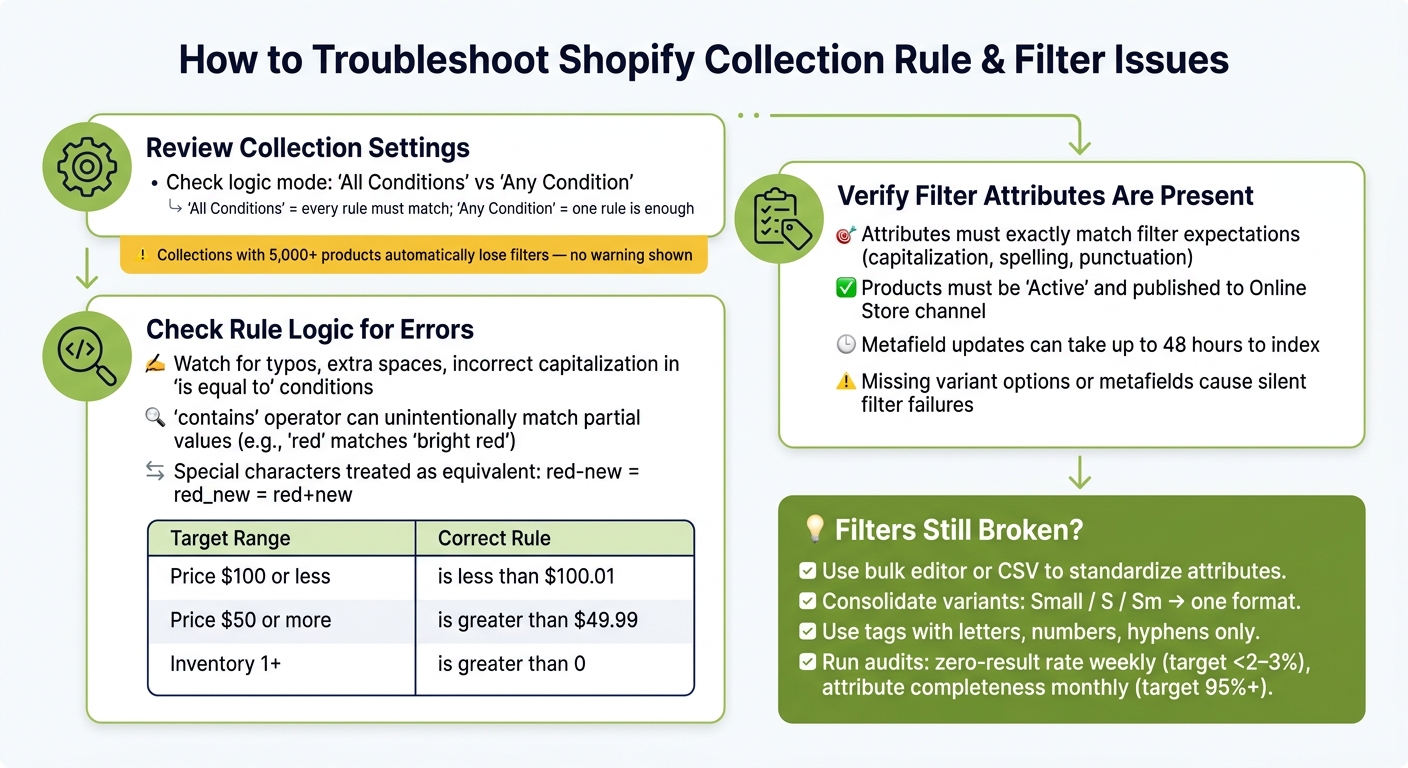
Shopify Collection Rules: Filter Troubleshooting Workflow
To troubleshoot issues with collection rules, focus on examining the collection settings, rule logic, and product attributes. These steps help address problems with filter displays and ensure filters function as intended.
Review Your Collection Settings
Start by opening the affected collection in Shopify Admin and checking the logic settings. Collections can be set to "All conditions" (requiring all rules to match) or "Any condition" (requiring only one rule to match). This choice directly impacts which products are included and the filters available.
- With "All conditions", products must meet every rule to be included.
- With "Any condition", meeting just one rule is enough.
Selecting the wrong logic can result in collections that are either empty or too broad. Additionally, pay attention to the product count - collections with over 5,000 products will have their filters automatically disabled by Shopify, without any warning or error message. If filters disappear from a large collection, this is likely the reason.
After confirming these settings, take a closer look at the rule logic for potential misconfigurations.
Check Rule Logic for Errors
Once the basic settings are verified, carefully review each condition in the collection rules. The choice of operators is critical, as even small mistakes - like extra spaces or incorrect capitalization in "is equal to" - can cause rules to fail silently. While the "contains" operator offers more flexibility, it can unintentionally include products. For example, a rule for "red" might also match "bright red", so use it thoughtfully.
"A typo in a 'not equal to' condition could exclude nothing, or an invalid tag in an 'is equal to' condition could pull in your entire catalog." - Biscuits Bundles
Shopify doesn't offer a "greater than or equal to" operator, so you'll need to use workaround logic. For example:
| Target Range | Correct Rule |
|---|---|
| Price is $100 or less | Product price is less than $100.01 |
| Price is $50 or more | Product price is greater than $49.99 |
| Inventory is 1 or more | Inventory stock is greater than 0 |
Also, be aware that Shopify treats certain special characters as equivalent in tag-based rules. For instance, a rule targeting red-new will also match tags like red_new or red+new.
Once the rule logic is solid, ensure the product attributes align with the filters.
Verify Filter Attributes Are Present
Even if your rules are accurate, filters may fail if the required product attributes aren't configured correctly. A mismatch between the filter's data source and the collection's setup can cause filters to disappear. For example, if a filter relies on variant options or metafields that aren't defined, it won't display - without providing an error message. Confirm that the attributes for each product match the filter's expectations.
Additionally, ensure products are set to "Active" status and published to the Online Store sales channel. Draft or archived products won't appear in collections or filters. If you've recently updated metafield values, note that it may take up to 48 hours for Shopify's search index to process changes.
To streamline the troubleshooting process, consider using tools like FacetGuard. Its Filter Blockers Scanner pinpoints collections where filters fail and explains why, while the Attribute View highlights data gaps and inconsistencies - saving you from manually inspecting each product one by one.
Fixing Broken or Misleading Filters
Fixing filter issues often involves addressing three key areas: product data, collection rules, and managing products across multiple collections. Let’s start with ensuring product attributes align with rule conditions.
Align Product Attributes with Rule Conditions
Filters often fail because of mismatches between product data and collection rule criteria. Shopify requires exact matches for attributes like capitalization, spelling, and punctuation when using "is equal to" conditions. For example, a product tagged as Grey won’t match a rule looking for gray, and Running Shoe won’t align with running shoe. These discrepancies can have a big impact - stores with poor filtering tend to see bounce rates on collection pages ranging from 60% to 75%.
To avoid mismatches, standardize your product attributes. Use Shopify’s bulk editor or update your catalog with CSV files to ensure consistency. For instance, consolidate variations like Small, S, and Sm into a single format. When it comes to tags, stick to letters, numbers, and hyphens. Avoid mixing underscores and hyphens, as Shopify may treat them as identical in some cases.
Adjust Collection Conditions
If your product data is accurate but filters still misbehave, it’s time to review your collection rules. Switching from "Any condition" to "All conditions" can help prevent unintended inclusions.
"With any condition, a product is included if it doesn't match at least one exclusion criterion, which can inadvertently include products you want to exclude. Consider using product tags with the 'is equal to' condition instead for more reliable exclusions." - Biscuits Bundles
To exclude specific items, like clearance products or pre-orders, use the "is not equal to" operator alongside "All conditions" mode. If products aren’t showing up despite seemingly correct rules, try refreshing the collection. Add a temporary duplicate condition, save it, and then remove it to prompt Shopify to reprocess the collection.
Handle Products in Multiple Collections
When products belong to multiple collections, filters can behave inconsistently, especially at the variant level. For example, a product with both Red and Blue variants might appear in multiple color-filtered views, potentially confusing shoppers.
"A single product can satisfy multiple filter values across variants (e.g., one product has Red and Blue variants). FacetGuard helps you spot where this behavior creates confusing intersections." - FacetGuard
To manage this, use combined tags like shoes_red for precise rule matching across collections. For broader control, create master tags such as bundle or clearance to easily group and manage products. Regular audits of variant-level data can also help. Look for inconsistencies like Color versus Colour or trailing spaces to prevent these issues from building up over time.
sbb-itb-e8e54fb
Preventing Collection Rule Issues Going Forward
Once your filters are functioning as intended, the task shifts to keeping them that way. Over time, new products are added, team members may input data differently, and collections expand - all of which can disrupt filters without any immediate red flags. Here are some key practices to ensure your filters remain effective.
Set Standards for Attributes and Rules
Create a standardized system for product types, vendors, tags, and variant options. Document these guidelines so your team can follow them consistently. This avoids conflicting logic when new collections are created. For custom attributes like material or fit type, Shopify metafields with the "List of values" validation setting are a great tool. This feature forces data entry to align with a predefined list, reducing errors caused by freeform text and preventing fragmented filter values. Additionally, keep an eye on attributes with too many unique values - Shopify may hide filters with excessive variety from the storefront.
"Filters are not a feature. They are a revenue lever. Every click a shopper saves getting to the right product is friction removed from the path to purchase." - Andrew Simpson, Founder & Director, Pea Soup Digital
With these standards in place, conducting regular audits will help maintain accuracy.
Run Regular Collection and Filter Audits
Even with clear standards, bulk imports or updates can introduce issues. Regular audits are essential to catch problems before they affect your shoppers. Monitor your zero-result rate weekly - if more than 2–3% of filter combinations return no results, it’s a sign of a potential data or rule issue. On a monthly basis, review attribute completeness and aim for at least 95% completeness for filters that are critical to purchasing decisions.
Tools like FacetGuard are designed to simplify ongoing filter monitoring. This app scans your Shopify catalog for missing attributes, inconsistent option names, excessive attribute variety, and collections that exceed Shopify's product limits (which can cause filters to disappear). It also flags inconsistencies at the variant level - details that are often overlooked during manual checks. FacetGuard is available for free on the Shopify App Store, having launched on January 13, 2026.
| Audit Type | Frequency | Goal |
|---|---|---|
| Zero-result rate | Weekly | Keep below 2–3% |
| Attribute completeness | Monthly | 95%+ for critical filters |
| Value normalization | Monthly | Merge duplicate/fragmented values |
| SEO/canonical check | Quarterly | Prevent crawl budget waste |
Conclusion: Keeping Shopify Filters Working Through Better Collection Rule Management

Effective collection rule management is the backbone of maintaining smooth and reliable filter performance on Shopify. Broken filters don’t usually come with glaring error messages; instead, they quietly create a confusing shopping experience, often slipping under the radar until they start affecting sales.
The main culprits behind filter issues are mismatched attributes, inconsistent naming conventions, missing metafield values, or collections that are too large. Tackling these problems with a structured approach ensures your storefront operates as expected. To make this process easier, you might want to explore using a dedicated tool.
For instance, FacetGuard offers a solution by automating the upkeep of your collections. It scans your catalog for common problems that mess up Shopify filters - like visibility blockers, overly complex attributes, gaps in coverage, and naming inconsistencies - and categorizes them by severity. Instead of sifting through hundreds of products manually, FacetGuard provides a prioritized list of fixes and CSV exports for efficient bulk updates. Designed for Online Store 2.0 filtering workflows, this tool is available for free on the Shopify App Store.
"FacetGuard finds the catalog attribute issues that make Shopify filters messy, missing, or misleading - and gives you a prioritized fix list by product, collection, and attribute." - FacetGuard
FAQs
How do I find which collection rule is breaking my filters?
To figure out which collection rule is causing filter problems, start by auditing your catalog for common issues. Look for things like missing values, inconsistent naming (e.g., "Color" versus "colour"), or incorrect configurations. Tools like FacetGuard can make this easier by identifying problems such as oversized collections, mismatched attributes, or values with too many variations. Tackling these flagged issues one by one can help you find and fix the rules that are disrupting your filters.
Why did my filters disappear after I added more products?
Filters might vanish in Shopify when a collection grows beyond 5,000 products or search results exceed 100,000 items. This happens because Shopify prioritizes performance and may disable filters in such cases. Other reasons include inconsistent product data, missing metafields, or having too many unique attribute values. To address these issues, consider breaking large collections into smaller ones, streamlining your metafields, and allowing time for re-indexing if filters aren't updating or appear outdated.
What’s the fastest way to standardize tags and options across my catalog?
To streamline the process of standardizing tags and options, start by building a structured attribute dictionary with clear, consistent naming rules. For example, use lowercase, hyphenated tags like "summer-dresses" and uniform attribute options such as "Color" and "Size." Tools like FacetGuard can help by auditing your catalog for inconsistencies and generating exportable fix lists for bulk updates. Automating these tasks not only ensures consistency across your catalog but also minimizes the chance of manual errors.