
Filter Queries for Shopify Collections Over 1K Products
If your Shopify collection passes 1,000 products, filters may start acting weird - and at 5,000+, Shopify can stop showing them at all.
I’d boil the article down to this: check collection size first, then check theme settings, then clean up your filter data. Most filter failures on large collections come from platform limits, bad attribute data, too many one-off values, or a search app replacing native filters.
Here’s the short version:
- Under 1,000 products: filters usually work as expected
- 1,000–4,999 products: filters can become less stable
- 5,000+ products: Shopify may hide collection filters
- 25 total filters: Shopify’s native limit
- 100 distinct metafield values: fields with too many different entries can cause filter issues
- Sparse data: filters can disappear when products in the current view don’t share that attribute
If I were fixing this on a store today, I’d do four things:
- Compare a small collection and a large collection on the same template
- Check whether the theme or a search app is blocking native filters
- Review filter fields for messy labels like “Navy” vs. “Dark Blue”
- Cut weak filters like SKU or part number fields that create too many one-off values
A few patterns matter most:
- Missing filters on one large collection often point to product-count limits
- Missing filters across the whole store usually point to theme setup
- Noisy filter values usually mean bad normalization
- Filters that appear and disappear often come from low field coverage
- Filters that stop updating can mean the field has too many different values
Bottom line: when collections get big, Shopify filtering depends less on setup alone and more on clean data, fewer filter fields, and tight control over catalog growth. I’d treat this as a maintenance problem, not just a one-time fix.
Collection Filters in Shopify 2.0 - Full Tutorial & Concepts
sbb-itb-e8e54fb
How filter limits work in large Shopify collections
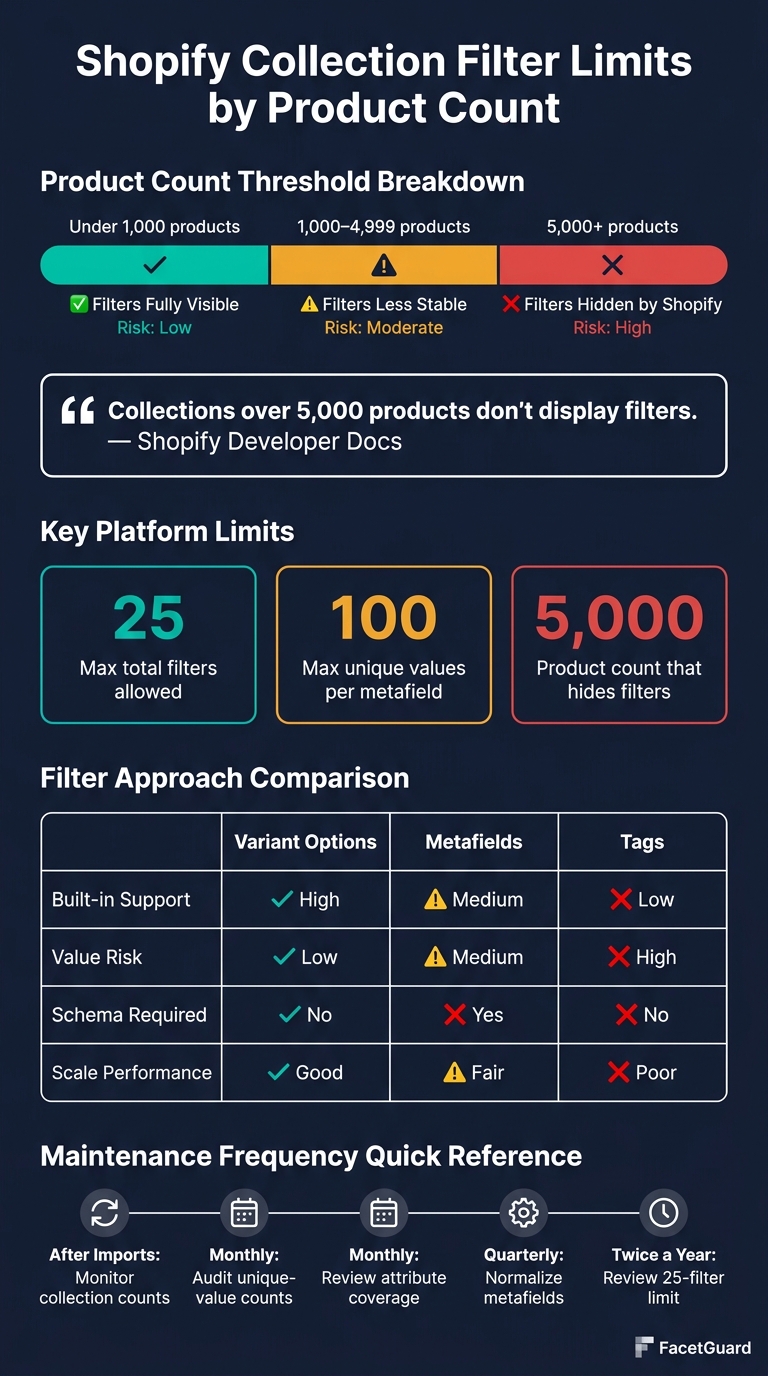
Shopify Collection Filter Limits by Product Count
Shopify filter queries depend on collection size, theme support, and attribute quality. Once a collection passes 1,000 products, the cracks can start to show. A filter may look fine in Shopify admin and still fail on the storefront because the platform limits, the theme, and app logic aren't working in sync.
How Shopify builds filtered collection results
Shopify filters the collection, finds filterable attributes, builds facets, and then sends the results to the storefront or API. On large collections, that process doesn't always fail with a clear error. Sometimes Shopify just returns an empty filter array instead.
That makes troubleshooting annoying. Everything can look set up the right way, yet the storefront still shows missing or partial facets. As collections grow past that range, those gaps tend to show up more often.
Product count thresholds that affect filter behavior
The breakpoints below show where Shopify filtering shifts from stable to less predictable.
| Product Count | Filter Visibility (Collections) | Filter Visibility (Search) | Performance Risk |
|---|---|---|---|
| Under 1,000 | Fully visible | Fully visible | Low |
| 1,000–4,999 | Visible | Hidden | Moderate |
| 5,000+ | Hidden | Hidden | High |
As Shopify's developer documentation states:
"Collections that contain over 5,000 products don't display filters."
Past 1,000 products, filter behavior tends to depend less on the filter definition alone and more on how well the whole setup is put together. The 1,000–4,999 range is often the messiest. Some merchants say filters disappear once they cross that line.
As Sebastian Hooker of Nimstrata explains:
"Shopify's decision to hide filters on these larger collections is a trade-off. The platform's standard filtering can become resource-intensive with very large datasets, potentially slowing down page load times."
Common filter problems on collections over 1,000 products
On bigger collections, the trouble usually shows up in a few familiar ways:
- Filters disappear without warning
- Facet values show up incomplete or cut off
- Large result sets return empty filter arrays
Fields with lots of one-off values or messy naming make things worse. In plain English, if your product data is all over the place, Shopify has a harder time building clean facets. These symptoms usually point to one of two issues: a collection-size threshold problem or a data-quality problem.
How to diagnose filter query problems on collections over 1,000 products
Start by figuring out how the failure happens. That matters because the fix changes based on the cause. In most cases, the issue comes from one of four places: collection size, theme settings, attribute data, or an app layer. When you isolate the cause first, the fix usually gets a lot easier.
The checks below help you sort those causes fast.
Check when filters fail relative to product count
The fastest way to spot a size-related issue is simple: compare a smaller test collection with your large production collection using the same theme template. If filters work on the smaller collection but disappear on the large one, collection size is the likely trigger.
Then check the theme customizer on the collection or search template and make sure filtering is turned on. If a third-party search app is active, native Shopify filters may not render at all.
If both size and theme settings look fine, the next place to check is the attribute data.
Find high-cardinality and inconsistent filter attributes
After you've ruled out size or theme problems, look closely at your attribute data. One common issue is high cardinality, which means too many distinct values inside a single filter field. Shopify's storefront filtering supports a maximum of 100 unique values per metafield. So if a field like "Color" or "Part Number" contains hundreds of separate entries, the filter may stop updating the way you expect or fail to appear.
Inconsistent labels can also make a mess of things. If one product uses "Navy" and another uses "Dark Blue", Shopify may treat them as separate values. That creates noisy facets and makes filtering less useful. A cleaner setup is to split mixed fields into typed attributes so the values stay consistent.
Another thing to watch is low attribute coverage. Shopify hides a filter if no products in the current view have that value. So if an attribute only appears on a small slice of products, that filter can vanish depending on what the shopper is viewing.
Use FacetGuard to audit filter blockers and attribute quality
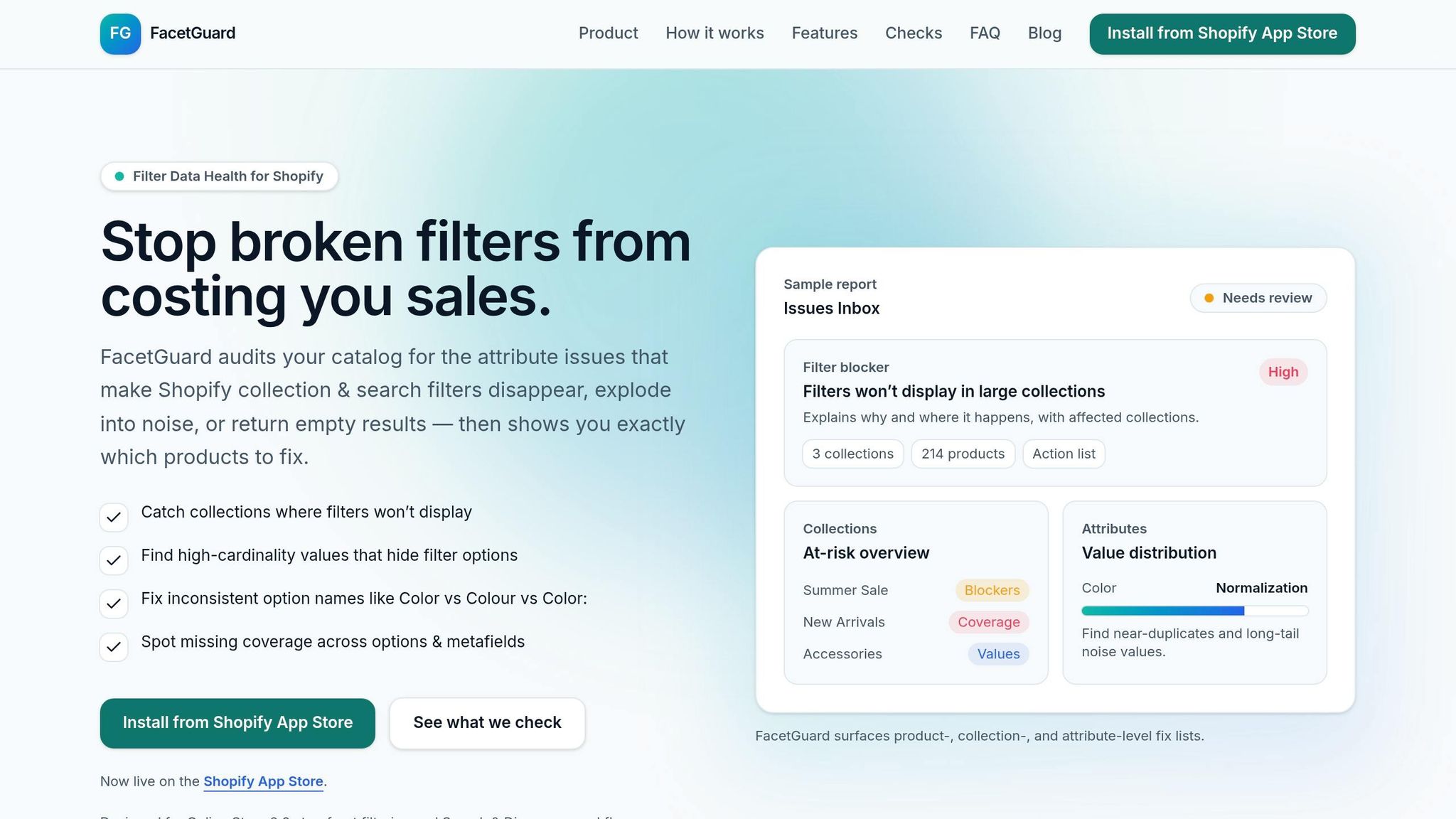
With larger catalogs, a manual review can turn into a slog. A catalog audit can surface the blocking pattern much faster. FacetGuard audits filter blockers and attribute quality, then shows prioritized fixes for collections and attributes.
Use the matrix below to match each symptom with its most likely cause.
| Issue | How to Detect | Typical Cause in Large Collections |
|---|---|---|
| Filters missing on a specific large collection | Compare a smaller collection with the large one using the same template. | Collection size or theme behavior suppresses native filters. |
| Filters missing across all collections | Check Theme Customizer > Collection Page > Product Grid settings. | Theme filtering is disabled or unsupported. |
| Filters show in admin but not storefront | Check whether a third-party search app is installed. | A third-party discovery layer bypasses native Shopify filters. |
| Filter values are noisy or irrelevant | Review metafield values for high cardinality or mixed data types. | Lack of normalization; broad metafields mixing incompatible values. |
| Filters appear and disappear by slice | Check attribute coverage across products in the current view. | Sparse data; Shopify hides filters if no products in view have that attribute. |
| Filter interactions do not recalculate | Apply one filter and see whether others update. | Exceeding the 100-unique-value limit per metafield. |
How to improve filter query design and catalog structure
Once you know where things break, the next step is simple: fix the fields and data setup that stop working when the catalog gets big. Use the audit to pick the smallest change that still works when the collection grows. In most cases, that comes down to three things: stable fields, normalized values, and smaller queries.
Choose filter fields that hold up past 1,000 products
Not every product attribute should become a storefront filter. Focus on the fields shoppers actually use, like size, color, material, and price.
Try not to turn near-unique values into filters. Part numbers and SKU-style identifiers often create way too many one-off values, which can lead to performance-related filter removal as the catalog gets larger.
Here’s how the three main filter approaches compare on large collections:
| Approach | Pros on Large Collections | Cons and Performance Risks |
|---|---|---|
| Variant options | Built-in support; highly performant for standard attributes like Size or Color. | Limited to variant-level data; can lead to excessive unique values if not normalized. |
| Metafields | Supports richer, collection-specific attributes; use metafields for category-specific attributes that need tighter control and cleaner values. | Requires manual setup or app integration; subject to the 25-filter limit in Search & Discovery. |
| Tags | Flexible and quick to add; no strict schema required. | High risk of value fragmentation (e.g., "Cotton" vs. "cotton"); no native range support; hard to manage at scale. |
A good rule of thumb: start with the fields shoppers use most, then clean up the values behind those fields.
Normalize values and remove duplicate and inconsistent values
Standardize spelling, casing, and naming before values ever hit the storefront. That step alone can prevent a lot of mess later.
Some attributes naturally create too many distinct values. When that happens, group them into shopper-friendly buckets instead. Price ranges are easier to scan than a giant list of single price points. The same idea works for dimensions and other numeric fields where exact values add clutter more than help.
If you’re working with old tags that were added unevenly over time, map those inconsistent tags into a smaller set of standardized metafields.
Adjust pagination and API requests for large collections
If your storefront uses the Storefront API, only request the filter fields and product data needed for the current view. That keeps requests small and fast.
After trimming the request, test the same filters again on large collections and make sure they still behave cleanly.
Staying within Shopify limits and keeping filters healthy as catalogs grow
Fixing the blocker is only the first step. After that, keep an eye on the same fields so the issue doesn’t creep back in.
Why? Because as you add products, old problems have a way of coming back. Coverage gaps show up again. Attributes go missing. And some collections get large enough that Shopify stops showing filters at all.
Balance server-side and client-side filtering on large collections
Keep your main filters server-side. Use client-side updates for small UI changes only.
That split matters on large collections. Standard filtering can get heavy and slow pages down, so lighter requests help keep performance under control.
Track filter performance, coverage, and value limits over time
Watch collection size closely. Shopify stops rendering filters on very large collections.
New imports are often where things start to slip. A batch of new products can leave gaps in the metafields your filters rely on. When those metafields are missing, filters can disappear after imports under Shopify’s sparse-data behavior. It’s the same blocker pattern you diagnosed earlier, just coming back through new catalog data.
Run the same audit checks after every major import.
Here are the maintenance tasks that matter most once a collection passes 1,000 products:
| Task | Frequency | Tooling | Why It Matters Over 1,000 Products |
|---|---|---|---|
| Monitor collection counts after major imports | After major imports | Shopify Admin | Filters stop displaying at 5,000 collection products. |
| Audit filter unique-value counts | Monthly | Search & Discovery app | Each filter is capped at 120 values, so high-cardinality fields can create filter issues as the catalog grows. |
| Review attribute coverage on new arrivals | Monthly | FacetGuard | Missing metafields can cause filters to auto-hide under Shopify's sparse data behavior. |
| Metafield normalization and cleanup | Quarterly | Shopify Admin / Matrixify | Reduces value fragmentation and keeps standardized filters usable across a growing catalog. |
| Filter limit review | Twice a year | Search & Discovery app | Shopify limits stores to 25 total filters, so consolidating fields becomes important as you grow. |
Conclusion: Diagnose first, simplify filters, and keep validating
The maintenance cycle is simple: monitor counts, clean values, and recheck coverage after imports.
Large collections expose two problems fast: platform limits and messy data. The fixes that tend to last are cleaner attributes, lower-cardinality filters, lighter requests, and a steady audit cycle.
Diagnose the blocker, simplify noisy fields, and recheck filters after each major import. FacetGuard supports that cycle by surfacing coverage gaps and high-cardinality attributes before they reach the storefront.
FAQs
Why do Shopify filters disappear on large collections?
Shopify may turn off storefront filters when a collection goes past 5,000 products. The goal is simple: avoid slow load times and other performance problems.
Filters can also vanish for a few common reasons. Sometimes an attribute has more than 100 unique values, which makes it harder for Shopify to handle cleanly. Other times, product data doesn't match across the catalog, so the filter can't work the way you'd expect. And in some cases, filtering is just turned off in the theme settings.
FacetGuard helps you spot these problems before they cause a mess on the storefront. It audits catalog attributes and flags high-risk collections, so you can see where filters are most likely to fail.
Which filter fields should I avoid on collections over 1,000 products?
Avoid high-cardinality attributes - fields with too many one-off values. In Shopify, that can push past display limits and split your cache, which makes filters work worse.
You should also avoid inconsistent formatting. Small differences like capitalization, spacing, or spelling can turn one filter into several duplicate options.
FacetGuard can audit your catalog and flag both issues:
- high-cardinality fields
- naming inconsistencies
How can I quickly find what’s breaking my collection filters?
Start with FacetGuard’s Issues Inbox to spot Filter Blockers, cardinality explosions, and the collections or attributes they affect. From there, you can drill into specific products or variants and export CSVs for bulk fixes.
You can also check for:
- Shopify limits
- Missing metafield values with
-metafields.{namespace}.{key}:* - Inconsistent naming
- Theme filter support
- Whether Available to Storefront is enabled
That gives you a clear place to begin before you make changes across your catalog.