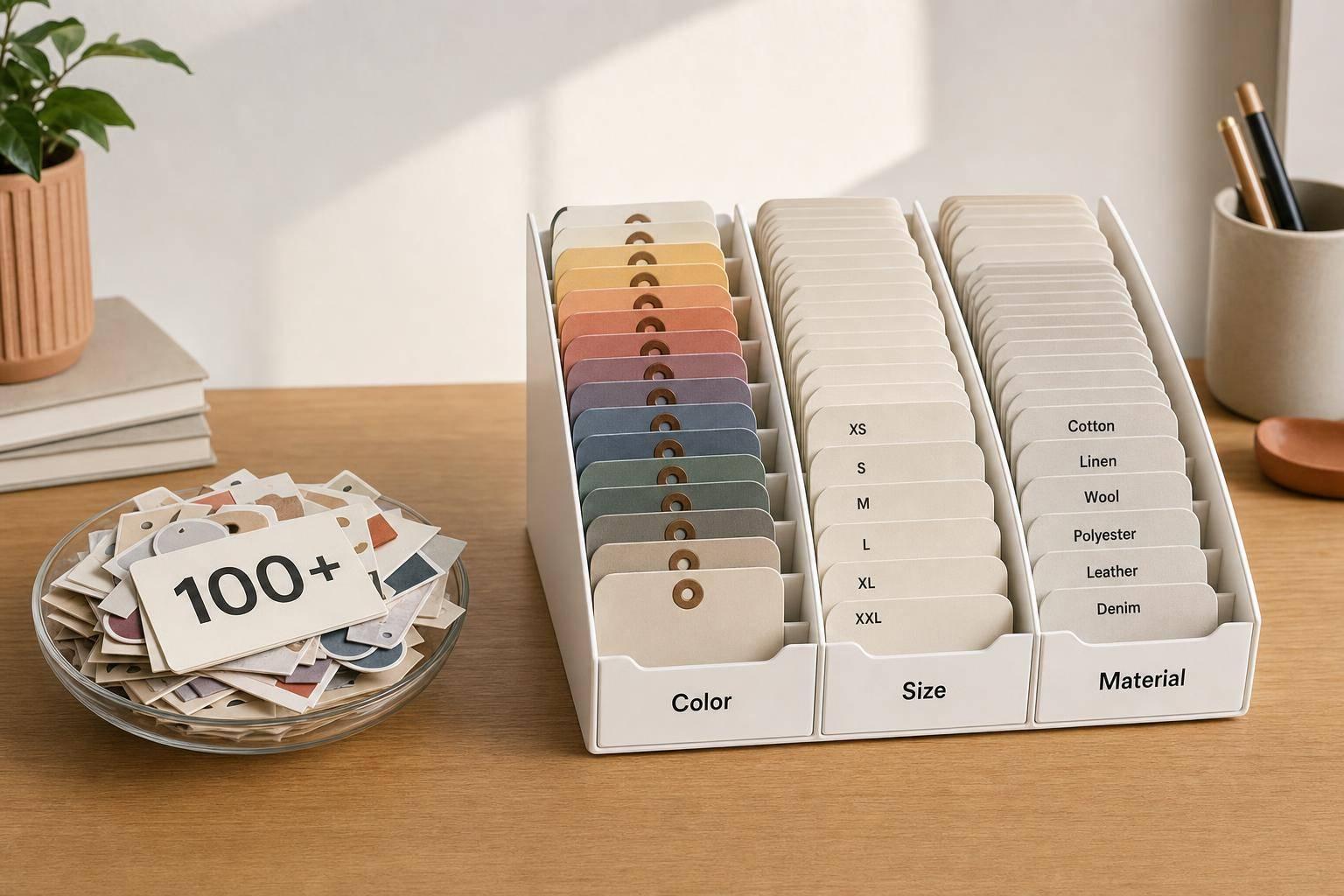
Shopify Filter Errors: Fixing 100+ Values
If one Shopify filter goes past 100 values, it can stop working the way you expect. In most cases, the fix is not in the theme or app settings. It starts with cleaning up product data, cutting down duplicate entries, and splitting overloaded fields.
Here’s the short version:
- Shopify has a 100-value limit per filter attribute
- Messy entries like "Red", "red", and "Red " can count as separate values
- Large catalogs and imported data often push filters over the limit
- The fix is to audit fields, merge duplicate values, and group or split fields
- To keep filters working, you need rules, batch checks, and a set review schedule
A few examples make the issue easy to spot:
- A color field with case and spacing errors can hit the limit far sooner than expected
- A measurement field with exact specs like 10 in, 10.5 in, and 11 in can create too many values
- A mixed metafield that stores both series and model number can overload one filter
Here’s the core fix path I’d follow:
| Step | What I’d check | Goal |
|---|---|---|
| 1 | Active filters in Search & Discovery | Find fields tied to filter problems |
| 2 | CSV export or metafield data | Count values per field |
| 3 | Formatting issues and near-duplicates | Cut waste in value counts |
| 4 | Overloaded attributes | Group ranges or split fields |
| 5 | Monthly and per-batch reviews | Keep the issue from coming back |
The article points to one clear idea: filter errors come from catalog structure. If you keep filter fields clean, limited, and well-reviewed, your storefront filters are far less likely to fail.
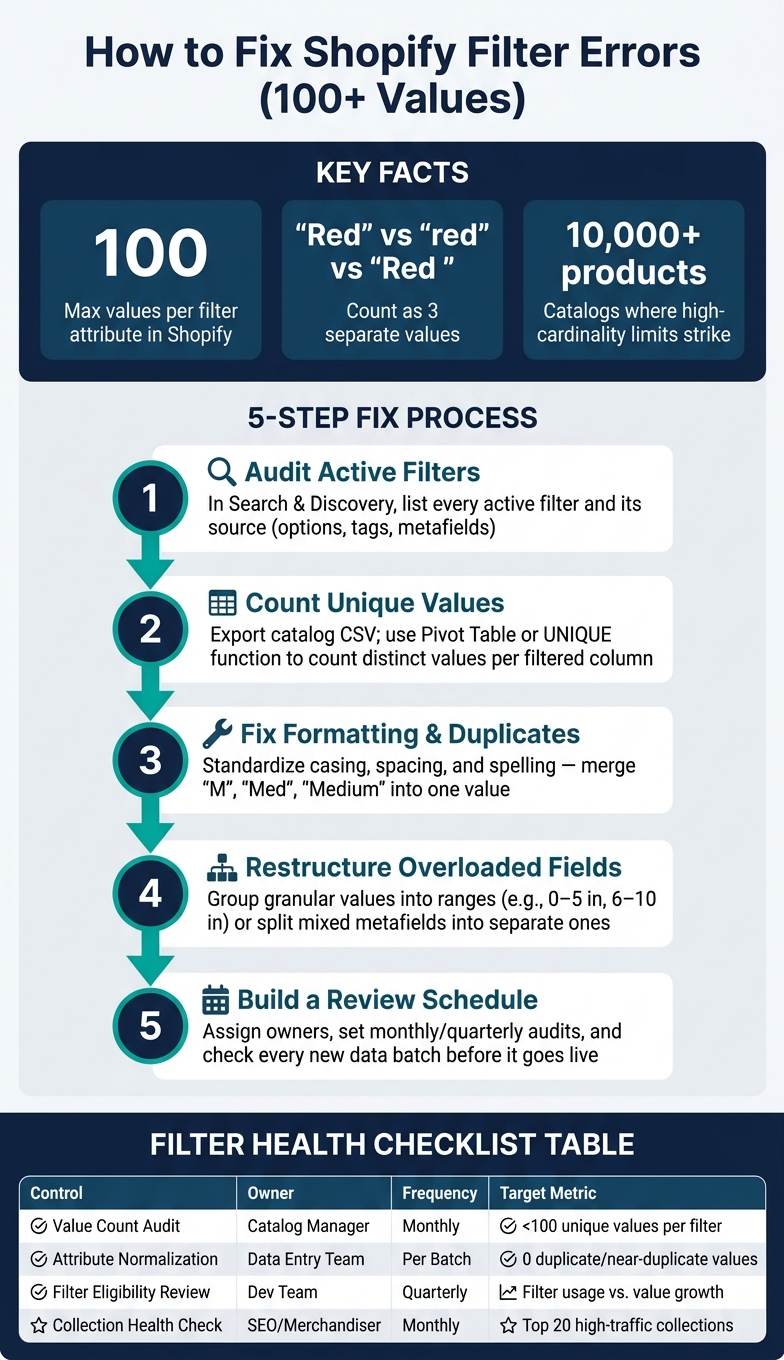
How to Fix Shopify Filter Errors: 5-Step Process
How to Diagnose Which Filters Exceed 100 Values
Count unique values per attribute across active filters
In Shopify Search & Discovery, start by listing every active filter and noting where each one comes from: product options, tags, product metafields, or variant metafields.
Then export your product catalog as a CSV and use a Pivot Table or the UNIQUE function to count distinct values in each filtered column. If an attribute is getting close to the limit, it deserves a closer look. It also helps to check Custom Data in the Shopify admin, since freeform text metafields often produce lots of one-off entries.
After you pinpoint the source field, check for formatting drift and near-duplicates.
Spot data patterns that inflate value counts
Small formatting differences can blow up your filter counts fast. Extra spaces, case changes, or slight spelling changes can turn one value into several. For example, Navy Blue and Navy-Blue should be standardized so they count as one value. The same problem shows up when too much detail gets packed into one field, like 10-inch waterproof blue. That kind of entry can create duplicate filter values in a hurry.
Shopify still evaluates all values for that attribute, so one overloaded field can break the filter across the store.
If tracing the count by hand starts to feel like hunting for a needle in a haystack, it makes sense to switch to an automated audit.
Use FacetGuard to find filter blockers faster
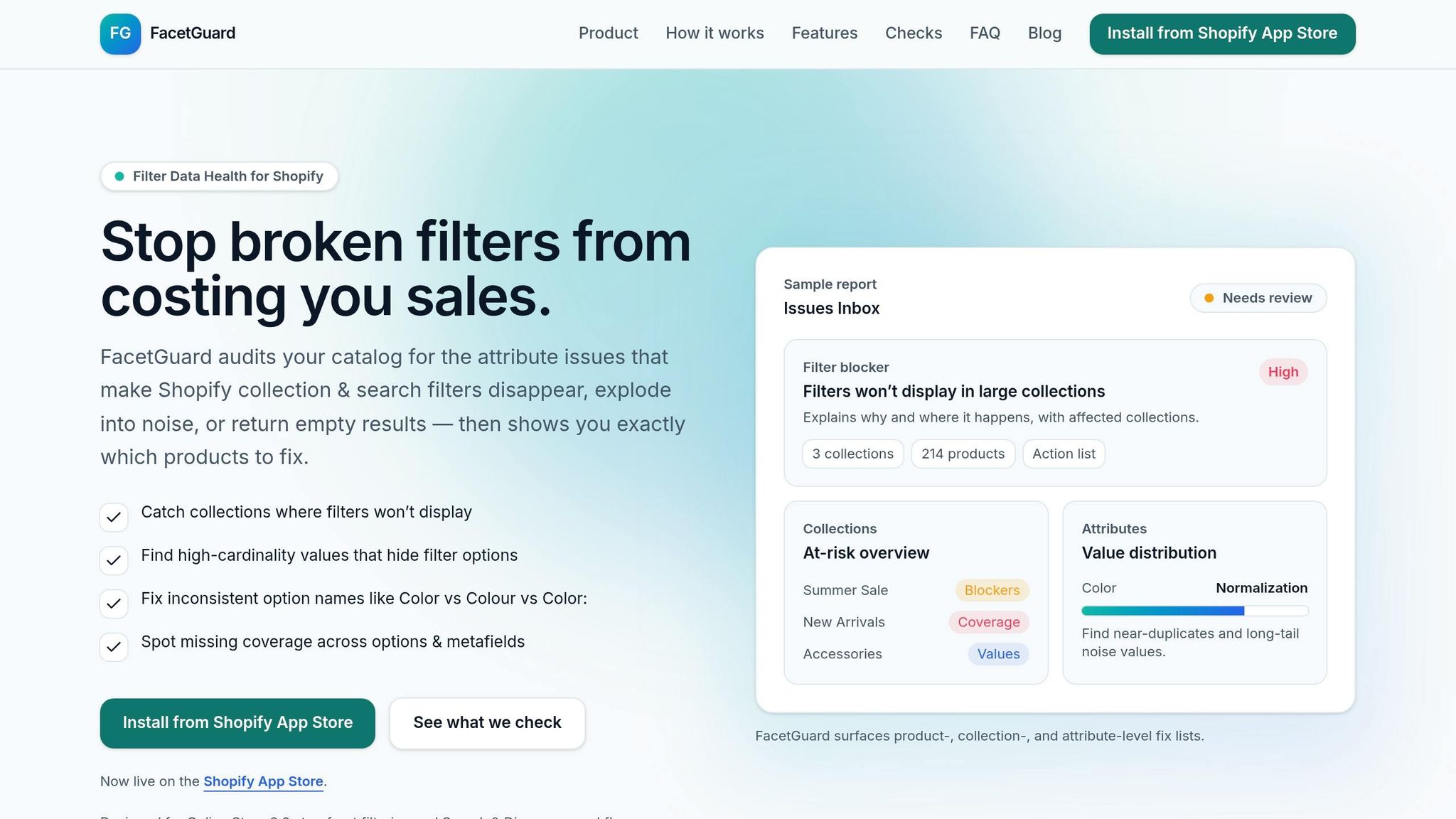
On larger catalogs, manual CSV checks can drag out the diagnosis. FacetGuard automates cardinality audits, flags over-limit attributes, and shows which collections are affected first.
sbb-itb-e8e54fb
How to Fix 100+ Value Filters by Restructuring Catalog Attributes
Once you've found overloaded attributes, the fix usually isn't in the filter settings. It's in the data structure.
Normalize duplicate and inconsistent attribute values
Start with cleanup before you change the structure. Small differences create separate values. M, Med, and Medium don't count as one thing. Shopify treats them as different entries. Same with red and Red.
Pick one standard value for each item and bulk-edit the rest to match it. This kind of cleanup can shrink filter counts fast, sometimes before you even touch the field setup.
Group granular values and split overloaded attributes
If cleanup doesn't do enough, change the field itself. Some attributes end up with hundreds of different values, which pushes past Shopify's 100-value limit.
There are two main ways to handle this:
- Group very specific values into broader ranges
- Split one mixed field into separate metafields
For example, instead of storing every exact measurement, map values into ranges like 0–5 in, 6–10 in, and 11–15 in. And if one metafield mixes Model Number with Series, separate them into two metafields so the value count is spread across both.
That approach is safer than leaning on storefront filtering to clean up the mess later.
Prioritize fixes by collection impact
After cleanup and restructuring, start with the collections that feel the pain most. Rank your fixes by collection impact.
FacetGuard's Collection View shows which collections are getting hit hardest, and Actionable Exports let you batch-edit the affected products in CSV.
How to Stop the Problem From Coming Back
After cleanup, the next job is simple: put rules in place so the same mess doesn’t return.
Set rules for attribute naming, formatting, and filter eligibility
Not every attribute should become a filter. Some fields help product discovery. Others just add noise.
Set clear rules for which fields can be filterable, and keep that list tight. Focus on attributes that matter for shopping decisions and have a low, predictable number of values.
For each filterable attribute, create an approved value list and block anything outside of it. Use one U.S. standard across the catalog for spelling and units: Color, Gray, in., lb. If one team enters “grey,” another enters “Gray,” and a feed sends “gray,” Shopify treats those as separate values. And each one counts toward the 100-value limit.
Once those rules are set, enforce them at import time. That’s where this either works or falls apart.
Audit new catalog data before filter issues reach the storefront
Standards help, but they only matter if someone checks new data against them.
Audit every new batch before it goes live. Give that job to both catalog operations and development. If only one side owns it, things slip.
Before turning on any new metafield in the Search & Discovery app, check its unique value count across the collections where it will appear. Before syncing a new product batch or third-party integration, run a normalization check to catch casing changes and near-duplicates before they push the count up. Even merchants with catalogs as small as 10,000 products can run into these limits when they use high-cardinality attributes.
FacetGuard’s implementation-aware checks can flag metafield and schema constraints for headless or API-powered storefronts, which helps teams catch problems during review instead of after launch.
Build a repeatable filter health checklist
Rules are a start. A repeatable audit cycle is what keeps them in place.
Prevention needs three things: an owner, a schedule, and a metric. Without that, checks get skipped, and filter issues creep back in.
| Control | Owner | Frequency | Metric |
|---|---|---|---|
| Value Count Audit | Catalog Manager | Monthly | < 100 unique values per active filter |
| Attribute Normalization | Data Entry Team | Per Batch | 0 duplicate/near-duplicate values (e.g., "Blue" vs. "blue") |
| Filter Eligibility Review - block fields trending toward 100 values | Dev Team | Quarterly | Filter usage vs. value growth trends |
| Collection Health Check | SEO/Merchandiser | Monthly | Unique-value count on top 20 high-traffic collections |
Assign each control to one owner. Unowned checks usually don’t happen.
If a monthly audit surfaces problems, FacetGuard’s Actionable Exports can help you batch-fix affected products through CSV.
Conclusion: Clean Attributes Keep Shopify Filters Working

The 100-value limit is a catalog-structure problem. It starts with how attributes are named, formatted, and assigned.
When filters go over the limit, the cause is usually pretty simple: too many mixed-up values in the same field. That often comes from overloaded attributes, messy data entry, and no regular audit process.
The fix is just as practical:
- Find the fields causing the issue
- Standardize how values are entered
- Split broad metafields into narrower ones
- Review new data on a regular basis
For day-to-day monitoring, FacetGuard flags attributes that are near or over the limit and shows which collections are affected.
FAQs
What happens when a Shopify filter exceeds 100 values?
When a Shopify filter goes past 100 values, Shopify hides everything after that point on your storefront. Shoppers only see the first 100 distinct values, even if your catalog has more.
That can make a filter a lot less helpful. It can also make it harder for customers to find the exact option they want.
The fix is usually pretty simple:
- Group similar values in the Search & Discovery app
- Audit your product data and clean up inconsistent entries
FacetGuard can help you spot these high-cardinality attributes so you know which filters need attention.
Which product fields usually cause filter value limits?
Filter value limits in Shopify usually come from high-cardinality attributes. In plain English, that means a field has too many different values and blows past the 100-value storefront cap.
A few things tend to cause this:
- Inconsistent naming, like
Redvs.red - Punctuation differences
- Trailing spaces
- Overlapping fields, such as
product_materialandmaterial_type
It sounds minor, but these small data issues add up fast. One attribute can split into dozens of near-duplicate values, which eats through your limit before you even notice it.
How often should I audit Shopify filter data?
Audit your Shopify filter data on a regular basis. Testing and monitoring over time help make sure your filters still work as expected and keep the shopping experience smooth.
Shopify doesn’t automatically catch problems like duplicate values or high-cardinality attributes that can push past the 100-value limit. That’s where tools like FacetGuard come in - they can automate audits and flag issues early.