Shopify OS 2.0 Filtering: Best Practices for 2026
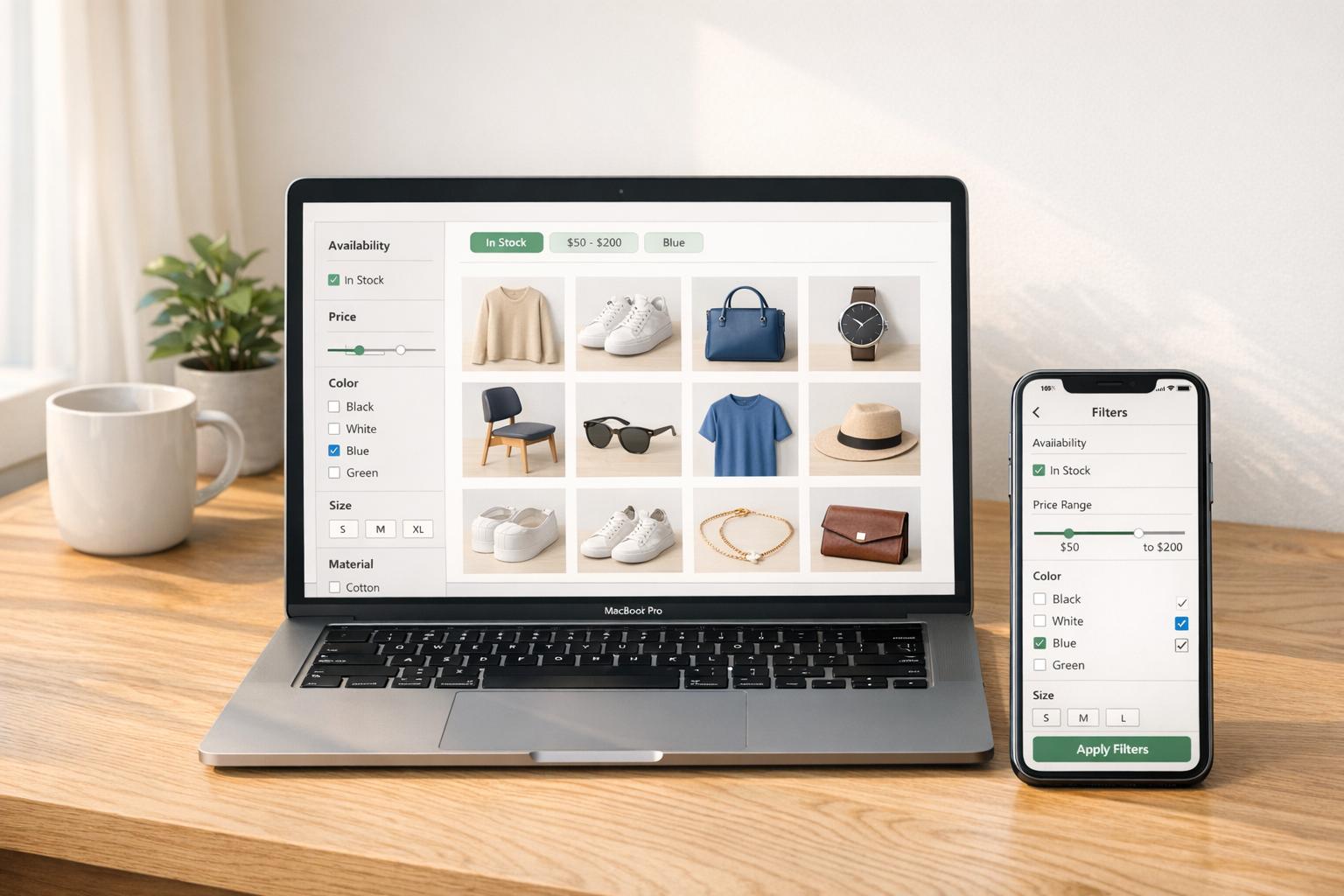
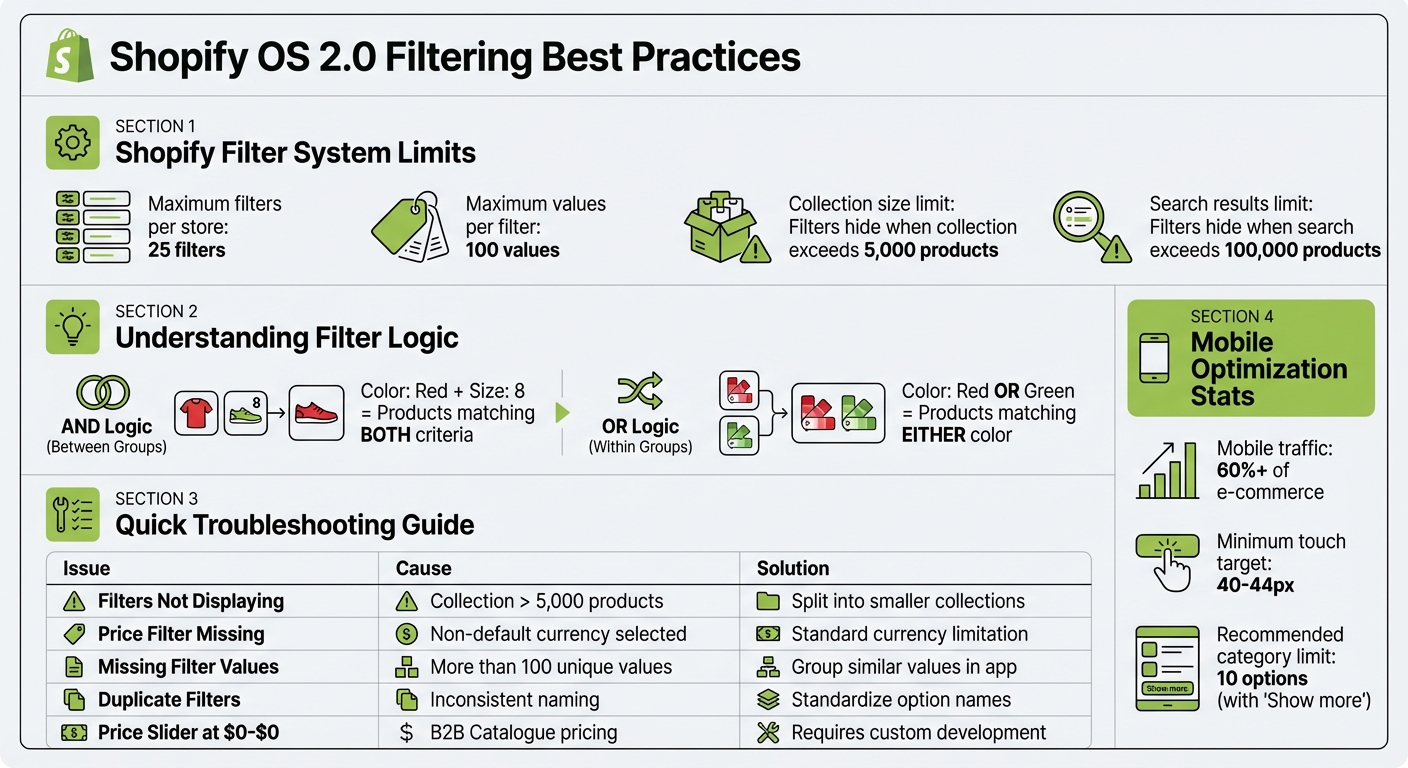
Shopify OS 2.0 filtering, or storefront filtering, helps customers find products faster by using filters like price, availability, tags, and custom metafields. This improves navigation, reduces bounce rates, and boosts conversions. The system uses AND logic between groups and OR logic within groups, allowing for precise filtering options. Stores can create up to 25 filters with 100 values each using the Search & Discovery app, but filters won’t appear for collections over 5,000 products or search results exceeding 100,000 items.
To optimize filtering:
- Use consistent product data (e.g., standardize tags and metafields).
- Enable metafield filtering for custom attributes like materials or ratings.
- Design mobile-friendly filters with clear layouts and intuitive controls.
- Regularly clean up duplicate or outdated filter data.
Challenges like missing filters, duplicates, or slow performance can usually be resolved by managing collection sizes, ensuring theme compatibility, and using tools like FacetGuard to audit filter issues. Investing time in setting up clean, effective filters can significantly improve the shopping experience, especially on mobile.
Shopify OS 2.0 Filtering System Limits and Common Issues Quick Reference
Shopify Storefront Filtering (Online Store 2.0)

How to Set Up Filters: Basic and Advanced Methods
To configure Shopify OS 2.0 filters, you’ll need the Search & Discovery app. Filters created in the app will only appear on storefronts using compatible OS 2.0 themes. Each store can support up to 25 filters, with a maximum of 100 values visible per filter to customers [2,12]. Let’s break down how to activate default filters and create custom ones for better functionality.
Turning On Default Filters
To enable default filters, navigate to Apps > Search & Discovery > Filters in your Shopify admin. Click Add filter, select a standard source like Price or Availability, and hit Save. Keep in mind:
- Filters won’t show on collections with more than 5,000 products [12,13].
- Search results exceeding 100,000 products will also hide filters.
- The price filter is unavailable if a customer switches to a currency other than your store’s default.
For more specific filtering needs, custom filters using metafields are the way to go.
Building Custom Filters with Metafields
Custom filters rely on metafield definitions, which you can create under Settings > Custom data. Here’s how:
- Select the relevant section of your store, such as Products or Variants.
- Click Add definition and fill in the Name, Namespace, and Key fields.
Only certain metafield types can be used for filtering:
single_line_text_field, list.single_line_text_field, number_integer, number_decimal, boolean, metaobject_reference, and list.metaobject_reference [2,10].
To make a metafield filterable, enable the adminFilterable capability either in the Shopify admin or through the GraphQL Admin API [5,14]. Once done, activate these metafields as filters in the app [6,10]. Use validations during the metafield setup to ensure consistent data across your store catalog.
Once the filters are in place, you’ll want to fine-tune their logic for optimal performance.
Choosing the Right Filter Logic
Shopify applies AND logic between different filter groups and OR logic within the same group [2,12]. For example:
- If a customer selects "Red" and "Green" within a color filter, products with either color will appear.
- If they choose "Red" for color and "Size 8", only products matching both criteria will be shown.
For product tags, metafield lists, and metaobject reference lists, you can manually switch to AND logic in the Search & Discovery app under the "Logic" section. A general rule of thumb is to use OR logic for visual attributes like Color or Material, while applying AND logic for technical features - such as filtering for items that are both "Waterproof" and "Breathable".
Maintaining Clean and Consistent Filter Data
For filters to work effectively, your data needs to be consistent. Variations like "Red", "red", and "RED" can create redundant and confusing options since metafield queries are case-sensitive. Similarly, issues arise when team members create overlapping metafields, such as specs_material and product_material, for the same purpose.
"Complex Shopify catalogs rarely fail because Shopify lacks features. They fail because the data model underneath them becomes unmanageable." - Performantcode.io
Here’s how to tackle these challenges:
Standardizing Tags and Product Attributes
Start by creating clear naming conventions for your catalog. For example, use formats like specifications.material instead of mixing styles like spec_sheet and specSheet. When setting up metafields in Settings > Custom data, opt for pre-set lists over open text fields. This helps prevent inconsistencies like someone entering "Extra Small" when "XS" is the standard. For product titles, stick to a consistent structure, such as Brand + Name + Type, across your entire store.
To avoid duplicate entries, enable the uniqueValues feature on metafield definitions for attributes like external ERP or PIM IDs. Shopify’s product taxonomy also includes Category Metafields for specific types like "Apparel & Accessories", providing ready-to-use attributes like neckline, sleeve length, and target gender.
Removing Duplicate and Old Data
Use GraphQL queries to identify gaps in your data. For instance, the pattern -field:* can help you find products missing specific metafield values, making it easier to spot incomplete entries. To address duplicates, you can query for exact matches, such as color:"blue", and correct any inconsistencies in bulk.
Plan regular reviews, ideally every quarter, to clean up outdated entries that clutter your backend. A phased approach works best: define new fields, populate them alongside the old ones, update your theme, and then retire obsolete entries. This ensures your live site remains unaffected during the cleanup process.
Using FacetGuard to Audit Your Data
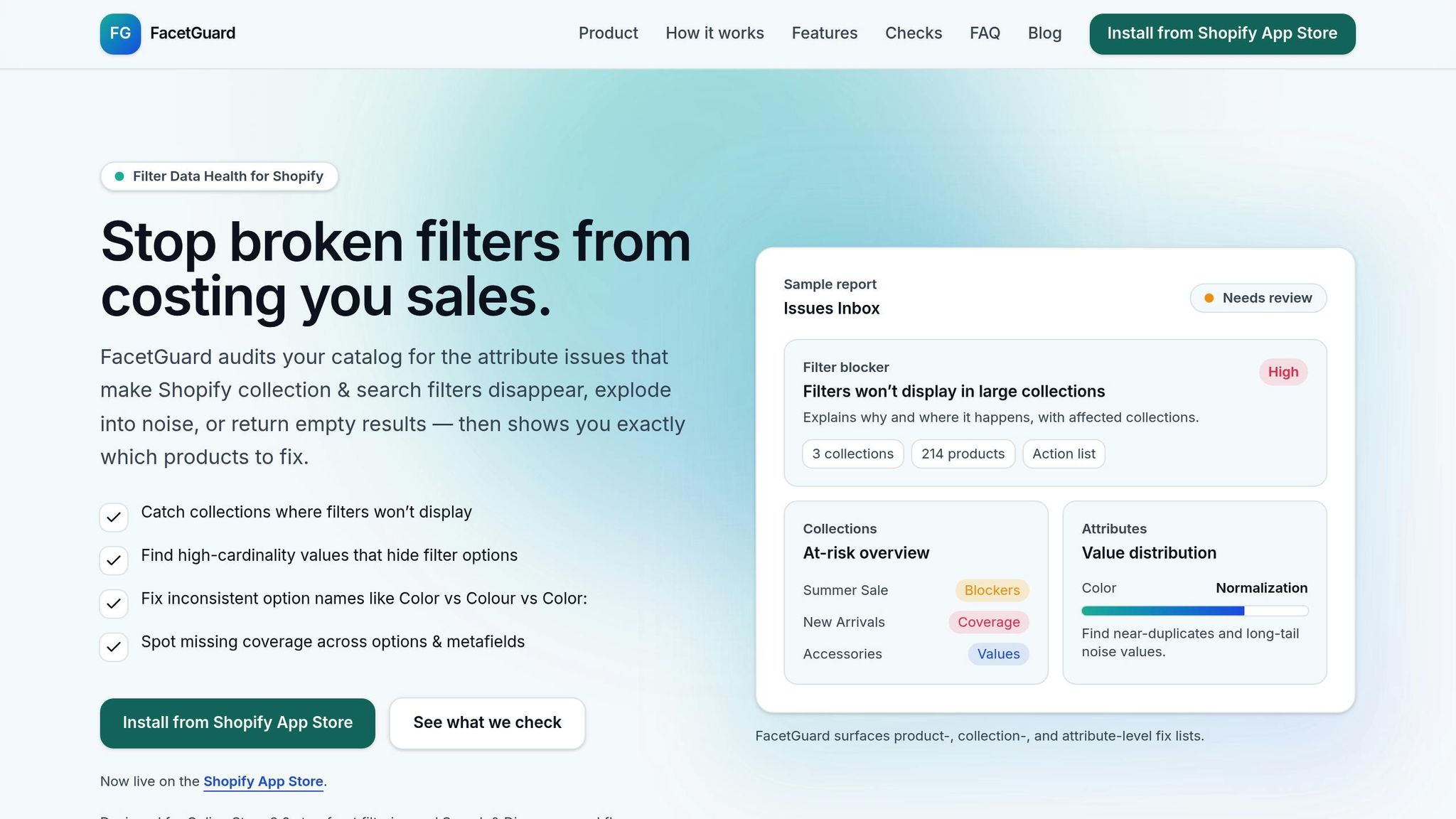
While manual reviews are helpful, automated tools like FacetGuard can make the process more efficient. Its Issues Inbox highlights filter-related problems with severity ratings, while the Value Limit/Cardinality Audit identifies attributes with too many unique values. The Option Name Consistency check flags discrepancies like mixed singular/plural forms or inconsistent casing. You can export these flagged products as CSV files, resolve the issues, and mark them as cleaned up. This keeps your catalog organized and manageable, even as your SKU count grows.
sbb-itb-e8e54fb
Fixing Common Filter Problems
Even with a well-organized setup, filter issues can still crop up. These problems often follow predictable patterns, making them easier to resolve. Here's how to tackle some of the most common filtering challenges to ensure your storefront runs smoothly.
When Filters Don't Show Up
This issue often occurs due to Shopify's collection size limits. Filters are automatically hidden if a collection contains more than 5,000 products or if search results exceed 100,000 products. To address this, try splitting large collections into smaller, more manageable ones. For instance, instead of a single "All Footwear" collection, create subsets like "Men's Shoes", "Women's Shoes", and "Kids' Shoes."
Another factor to check is theme compatibility. Filters only work with themes that support the filter Liquid API or Storefront API. If your theme isn’t compatible, Shopify will display a warning under Content > Menus in your admin dashboard. Additionally, multi-currency setups can cause the price filter to disappear when a customer selects a currency other than your store's default.
Indexing delays are another common culprit. Shopify's search index can take 24 to 48 hours to sync new metafield values. To speed things up, make a small change to an affected product, like adding a space to its title, and save it to trigger a manual re-index. Also, double-check that adminFilterable is enabled in your metafield definition settings to ensure those fields are available as filter options.
Next, let’s look at how to address duplicate or unwanted filter options.
Handling Duplicate or Unwanted Filters
Duplicate filters usually result from inconsistent data entry. To fix this, use Shopify's Bulk Editor or the "Group Values" feature in the Search & Discovery app to standardize terms. For example, you can group variations like "Crimson", "Maroon", and "Burgundy" under a single "Red" filter option.
Using both product tags and metafields for the same attribute can also create duplicates. To avoid this, stick to one method. If you're transitioning to OS 2.0, consider switching from tag-based filtering to metafields for better compatibility. Keep in mind that Shopify imposes a limit of 25 filters per store. This is worth addressing, as 61% of shoppers will leave a site quickly if they can’t easily find what they’re looking for.
Once duplicate entries are sorted, the next step is to ensure filters load quickly and work efficiently.
Fixing Slow or Non-Working Filters
Slow filters are often caused by oversized JavaScript (JS) bundles or inefficient Liquid code. To improve performance, keep JS files under 16 KB and use HTML/CSS for core functionality, reserving JavaScript for optional enhancements. Shopify emphasizes:
"JavaScript shouldn't be required for the basic functionality of your theme, such as finding or purchasing products".
For B2B stores, there’s a specific limitation: the Search & Discovery app filters only based on admin prices, not B2B catalog-specific price lists. This can result in the price filter displaying "$0 to $0" for B2B customers. As Jonathan Prestid, a Shopify Partner, explains:
"The Search and Discovery app can only filter on prices in the Shopify admin section, which is why we were getting the errors [with B2B catalogues]".
Here’s a quick breakdown of common filter issues and their fixes:
| Issue | Common Cause | Recommended Fix |
|---|---|---|
| Filters Not Displaying | Collection > 5,000 products | Split into smaller collections |
| Price Filter Missing | Customer using non-default currency | Refer to standard currency limitations above |
| Missing Filter Values | More than 100 unique values | Group similar values in the Search & Discovery app |
| Duplicate Filters | Inconsistent option naming | Rename options to match across all products |
| Price Slider at $0-$0 | B2B Catalogue pricing in use | Requires custom development or third-party app |
Making Filters Work Better on Mobile
With mobile shopping now driving over 60% of e-commerce traffic, optimizing filters for mobile devices is more important than ever. As Sebastian Correa, Co-Founder & CCO at BrokenRubik, explains:
"The mobile filter experience is critical - most e-commerce traffic is mobile, and a poorly designed mobile filter is effectively no filter at all."
To improve usability, consider moving filters into a dedicated drawer or modal. This keeps the product grid free of clutter while offering a focused space for filter options. You can implement this with either a single "Filter" button that opens a full-screen modal or a horizontally scrolling list of filter categories that expand into specific options. These design choices are key to creating an intuitive and streamlined mobile shopping experience.
Designing Filters for Mobile Screens
When designing filters for mobile, simplicity and clarity should take center stage. Start by ensuring all interactive elements are large enough for easy tapping, with a minimum touch target size of 40–44px.
To enhance usability, provide clear visual feedback. For instance, display the number of active filters directly on the "Filter" button (e.g., "Filters (3)") so users can see their selections at a glance without reopening the menu. Additionally, show dynamic result counts next to filter values - like "Blue (23)" - and on the "Apply" button (e.g., "Show 47 results"). This helps users avoid applying filters that yield no results.
Keep category lists manageable by limiting them to 10 options, with a "Show more" toggle for additional values. While Shopify filter groups can handle up to 100 values, displaying all of them at once can overwhelm users on smaller screens. For price filtering, use dual-handled sliders or steppers (plus/minus buttons) instead of dropdown menus, as these are easier to navigate on touchscreens.
Make resetting filters simple by including a prominent "Clear All" button. Also, ensure your filter modal has both "Close" or "Back" icons and a clearly marked "Apply" button for a smooth user experience.
Once your design is in place, thorough testing is essential to fine-tune the mobile filter functionality.
Testing Filters on Mobile Devices
Testing ensures your filters work seamlessly across different devices and conditions. Begin by testing filters with JavaScript disabled, relying on basic HTML forms. This approach guarantees that filters remain functional even on slower mobile networks. Once the basics are solid, layer in JavaScript for live-updating features.
Leverage tools like Lighthouse and a performance test CSV to evaluate speed, accessibility, and load handling. Simulate common challenges, such as sold-out products, multiple filter combinations, and local pickup options, to ensure the system performs reliably. Additionally, confirm that the filter modal doesn’t close prematurely after selections, which can frustrate users.
For stores offering multi-currency options, test by switching from the default currency to verify that price filters either hide or adjust correctly. When targeting international markets, use Shopify Translate & Adapt to ensure filter labels and values appear accurately in all supported languages.
| Testing Tool | Purpose |
|---|---|
| Performance Test CSV | Evaluate filter speed with large product volumes |
| Lighthouse | Audit performance and accessibility of mobile filter interfaces |
| Shopify Search & Discovery App | Customize filter logic and group values |
| Shopify Translate & Adapt | Test filters in multiple languages and regions |
Summary and Next Steps
Turning casual browsers into paying customers often hinges on one crucial element: effective filtering. As Sebastian Correa from BrokenRubik aptly states:
"Faceted search makes or breaks product discovery".
The success of your store, especially on mobile devices where most shopping happens, can depend heavily on how well your filters function. Poorly managed filters not only frustrate users but can also drive them away.
At the heart of reliable filtering lies precise data management. Redundant metafields and inconsistent naming conventions can derail even the most comprehensive catalogs. By standardizing tags, maintaining clean product attributes, and ensuring consistent naming, you can avoid broken filters or duplicate options. These steps pave the way for immediate and measurable improvements in your store's performance.
What Store Owners Should Do Now
Begin by conducting a thorough audit of your current filter setup. Ensure product option names are consistent across your catalog - using "Color" uniformly instead of mixing formats like "Color" and "Color:" will prevent duplicate filter groups. For custom fields, enable metafield filtering manually in your Shopify admin. Be aware that filters automatically hide in very large collections.
On mobile, focus on usability by implementing full-screen modals with 44px touch targets and dynamic result counts. To protect your SEO, use canonical tags that link back to unfiltered category pages and apply noindex to filtered URLs. This strategy prevents filters from generating thousands of unnecessary URL combinations that could waste your crawl budget.
How FacetGuard Helps with Filter Management
FacetGuard simplifies the process of managing and auditing your filters. Designed to address the challenges of data governance, it identifies potential issues in your catalog before they impact customers. From pinpointing collections with failing filters to catching inconsistent naming and flagging attributes with excessive unique values, FacetGuard provides actionable insights.
Its Issues Inbox organizes problems by severity and impact, giving you a clear path to resolution without the need for manual product searches. For stores with extensive catalogs, FacetGuard's attribute view highlights value distribution and normalization issues, while its collection view identifies at-risk collections and allows you to export data for further analysis. By treating metafields as structured data rather than flexible notes, as industry experts suggest, FacetGuard helps you maintain the rigorous standards required for advanced filtering systems.
FAQs
How should I prioritize which 25 filters to use?
To make the most of your 25 filters, aim to improve how easily customers can find products while matching their search habits. Start with essential attributes like availability, price, product type, vendor, and tags. Use user-friendly filter styles, such as checkboxes for categories or sliders for price ranges, to make navigation simple and effective. Avoid cluttering the experience with overly specific or repetitive filters. Keep an eye on how filters perform and adjust them regularly to stay in tune with changes in your inventory and what your customers are looking for.
What’s the best way to migrate from tag filters to metafield filters?
To switch from tag filters to metafield filters, start by enabling filtering on your metafield definitions using the adminFilterable capability. Next, adjust your storefront's filtering logic to utilize productMetafield or variantMetafield filters. Be sure to specify the correct namespace, key, and value for your metafields. It's important to structure your metafields to support query types such as exact matches or ranges. This approach improves scalability and makes catalog management more straightforward.
How do I prevent filtered URLs from hurting SEO?
To keep filtered URLs from harming your SEO, use canonical tags to consolidate duplicate content and clearly indicate the preferred version to search engines. Additionally, tools like Google Search Console can help manage URL parameters, reducing crawl inefficiencies and duplication issues. By setting up canonical tags correctly and controlling parameters, you ensure that search engines focus on indexing your site's most important filtered URLs, helping maintain your site's SEO strength.