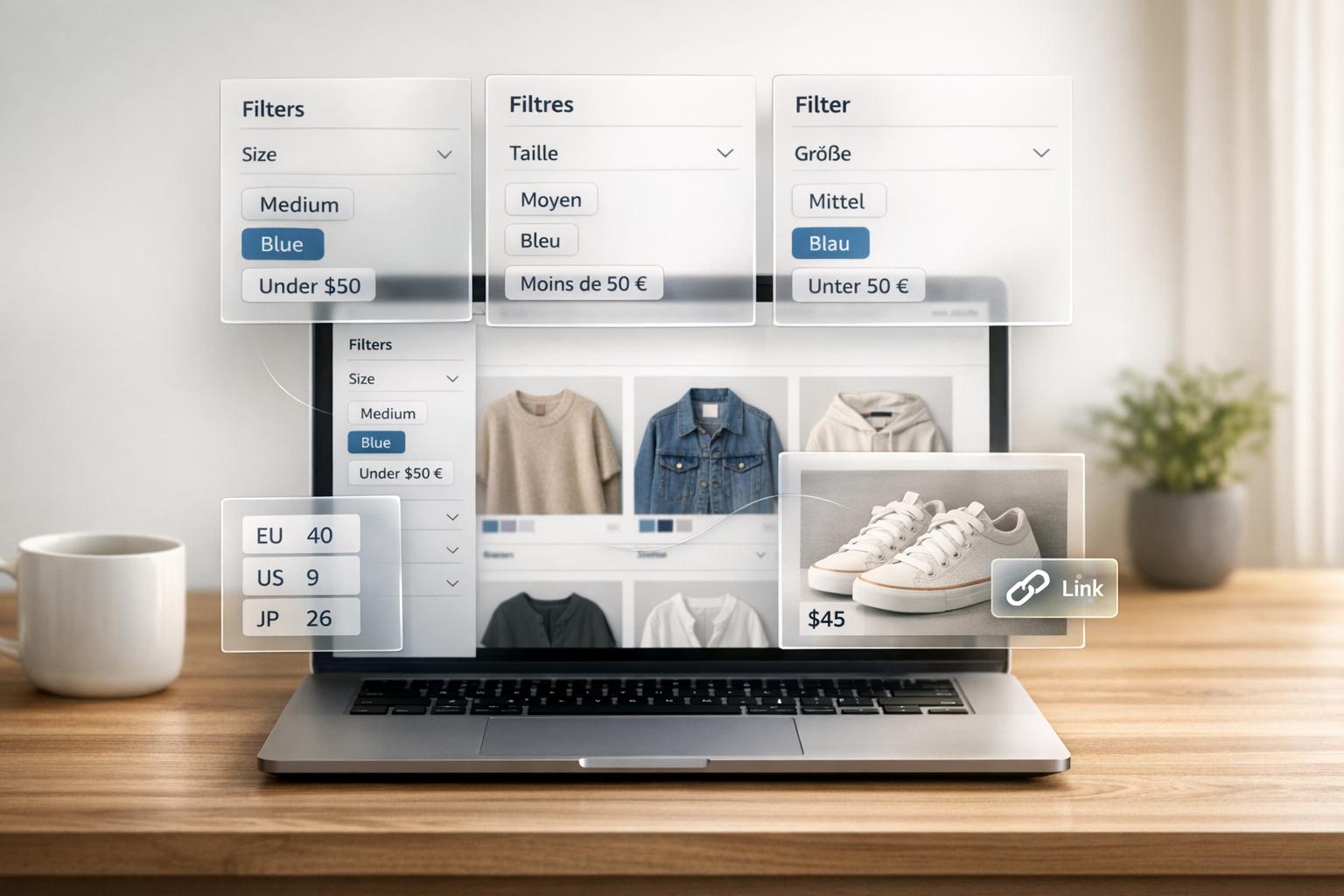
Fix Common Issues in Localized Shopify Filters
Running a multi-language Shopify store can lead to filter problems that confuse shoppers and hurt sales. Filters may break due to untranslated backend values, outdated URLs, or mismatched regional standards. Here's a quick breakdown of the key issues and solutions:
- Filter URLs Fail in Other Languages: Shopify's older text-based filter URLs often break when switching languages. Update to Shopify's new GID-based URLs for stable, language-agnostic links.
- Translation Errors: Only translate visible filter labels, not backend values. Use Shopify's Search & Discovery app to manage translations properly.
- Regional Size, Currency, and Measurement Issues: Create custom metafields for regional standards (e.g., US vs. EU sizes) and ensure consistent formatting across your catalog.
- Missing Filters: Replace non-translatable fields like Product Type with metafields and split large collections to avoid Shopify's size limits.
Regular audits are essential to ensure filters work across all languages and regions. Tools like FacetGuard can automate this process by identifying broken filters and inconsistencies. Fixing these issues improves the shopping experience and reduces the risk of losing customers.
Localization Breaks Filter URLs
Adding a second language to your Shopify store can cause filter URLs to malfunction. For instance, a shopper browsing in French might click on a filtered link only to land on an empty collection page. The issue isn't that the products have vanished; it's that the URL doesn't resolve properly in the new language.
Why Filter URLs Fail During Localization
Shopify's original filter URLs were based on plain-text product data. For example, a filter for blue products would generate a URL like .../all?filter.v.option.color=Blue. This worked fine in English. But when a customer switched to French, Shopify expected Bleu instead of Blue. As a result, the filter broke because the URL no longer matched the active language.
This issue affected many stores. For example, in August 2024, Technilight Canada discovered that a French navigation link (filter.p.m.filter.subcategory=Enseigne+de+sortie+d%27urgence) returned no results when accessed by English-speaking users, as the parameter didn't map to the English equivalent.
To address this, Shopify made a major change on March 16, 2026. They replaced text-based filter values with stable group identifiers (GIDs). Now, instead of URLs like .../all?filter.v.option.color=Blue, Shopify generates URLs like .../all?filter.v.option.color=gid://shopify/FilterSettingGroup/123. According to Shopify's changelog:
"Stable identifiers make links with filters more reliable across languages and when filter labels are renamed."
Because GIDs remain consistent regardless of language or label changes, the same URL works seamlessly in English, Spanish, French, or any other supported language. However, this change requires stores to update legacy URLs to the new GID format.
How to Ensure Filter URLs Work Across Languages
To prevent issues, you need to update all outdated text-based filter URLs to the GID-based format. While Shopify's changes improve reliability, legacy URLs still pose problems - especially if they're hardcoded into Google Ads campaigns, emails, navigation menus, or blog posts. These old links may load the collection page but fail to apply the intended filter, leaving shoppers with unfiltered results.
Here’s how to update your URLs:
- Manually Update Links: Visit each collection page, apply the necessary filters, and copy the new GID-based URL directly from your browser's address bar. Replace old links in your ads, emails, and navigation menus with these updated URLs.
- Automate for Large Catalogs: For stores with extensive catalogs, use a headless browser tool like Puppeteer to programmatically capture updated URL mappings.
Keep in mind, Shopify's native URL redirect tool doesn’t support query strings, so you can’t automatically redirect old text-based URLs to the new GID format. Instead, you’ll need to update each link at its source.
Additionally, avoid building filter URLs manually by concatenating text strings in Liquid templates. Always rely on URLs generated by Shopify's storefront UI to create dynamic, language-agnostic links. After updating, test each link across all published languages to confirm that filters apply correctly in every locale. This ensures a smooth shopping experience for users, no matter their language preference.
sbb-itb-e8e54fb
How to Translate Filter Labels and Values Without Breaking Filters
Translating your store's filters goes beyond just replacing words. If you alter the wrong elements, filters can malfunction - products might vanish from search results, or filter options could appear blank. To keep filters functioning properly, it's crucial to know what can be translated and what must stay untouched. A key point: backend values should remain unchanged to maintain filter reliability.
Keep Backend Filter Values Consistent
Backend values are the backbone of your filter system, linking products to their respective filter categories. These should never be translated. Only the visible labels, such as "Bleu" for shoppers, should be localized - not the backend value like "Blue." Translating backend values disrupts the filter's functionality.
Inconsistent backend data can lead to messy filters. For instance, if some products are labeled as Small, others as S, and a few as small, Shopify will treat these as separate filter options. This results in a cluttered filter panel that doesn't accurately reflect your product range. To avoid this, standardize attribute values across your catalog before localizing - stick to one format consistently.
Also, remember that some fields, like Product Type, can't be translated directly. For these, you'll need to migrate to custom metafields.
How Translation Apps Affect Filter Data
Translation apps play a big role in how filter labels appear to your customers. Shopify's localization process is divided between two tools. Translate & Adapt manages product data like metafields, variant options, and descriptions, while Search & Discovery controls filter labels and interface text. Both tools need to remain synchronized to ensure filters work as expected.
Most third-party translation apps work well when they use Shopify's standard Translations API. This API keeps content synced without altering the original source values. Problems arise when apps write translations directly into backend fields instead of creating a separate translation layer. This can corrupt source data and break the filter logic.
One common issue is that changing your store's default language doesn't automatically update standard filter labels like "Availability" or "Price." These labels may stay in the original language. To fix this, you’ll need to manually update them in the Search & Discovery app by navigating to Actions > Localization.
For larger catalogs, exporting a translation CSV file can save time. You can update values in bulk and re-import the file to ensure consistent naming and avoid duplicate entries.
Fix Size, Currency, and Measurement Mismatches in Filters
Localization isn’t just about translating text - filters need to reflect regional norms for sizes, currencies, and measurements. Overlooking these details can confuse shoppers and lead to lost sales. Here’s how to address these mismatches effectively.
Adjust Filters for Regional Size Standards
Size standards differ greatly between regions. For example, a US men's shoe size 10 corresponds to a European size 43. If your filters only display one system, shoppers unfamiliar with conversions might abandon their search. While tools like Translate & Adapt update product pages, filter sidebars often remain inconsistent.
To fix this, create custom metafields like custom.size_us and custom.size_eu, and set up market-specific filters for each. This ensures US shoppers see US sizes, while European shoppers see EU sizes in their filter panels.
Before setting up regional filters, standardize size naming across your catalog. Shopify treats variations like Small, S, and sm as separate options, causing unnecessary clutter. Use the "Single line text (list)" metafield type to enforce a unified naming system, preventing team members from entering inconsistent size formats.
Handle Currency and Number Formatting in Filters
Currency formatting in filters can be surprisingly complex. Shopify relies on the CLDR to manage price formats, including symbol placement, decimal separators, and grouping. For example, en-US displays prices as $12.50, while German locales format it as 12,50 €.
However, Shopify has a key limitation: the native price filter doesn’t appear when a customer selects a currency other than your store’s default. If your store’s default is USD, customers browsing in CAD won’t see price filters at all. Unfortunately, there’s no built-in fix for this issue yet.
Another challenge arises when multiple currencies share the same symbol. For instance, USD, CAD, AUD, HKD, and SGD all use "$". To avoid confusion, use the explicit format (e.g., $12.50 USD) in filters to clearly indicate the currency.
Manage Metric and Imperial Units in Filters
Shopify doesn’t automatically convert units between metric and imperial systems. To address this, create separate metafields like custom.weight_lbs and custom.weight_kg, using numeric metafield types (Integer or Decimal) for better filter functionality. Numeric types allow Shopify to display range sliders, which are far more user-friendly for filtering by weight, length, or volume.
"Sizes must be consistent across the entire catalog. Don't mix S with Small, 36 EU with 36 and EU 36, 200 ml with 200мл and 0.2 l." - SEOexpert.bg
Inconsistent unit formatting often leads to duplicate filter values. Stick to a single format - use ml instead of milliliters or in instead of inches - and apply it consistently across your product catalog before enabling filters. This small step can make a big difference in creating a seamless shopping experience.
Fix Missing or Incomplete Filters in Shopify Search and Discovery

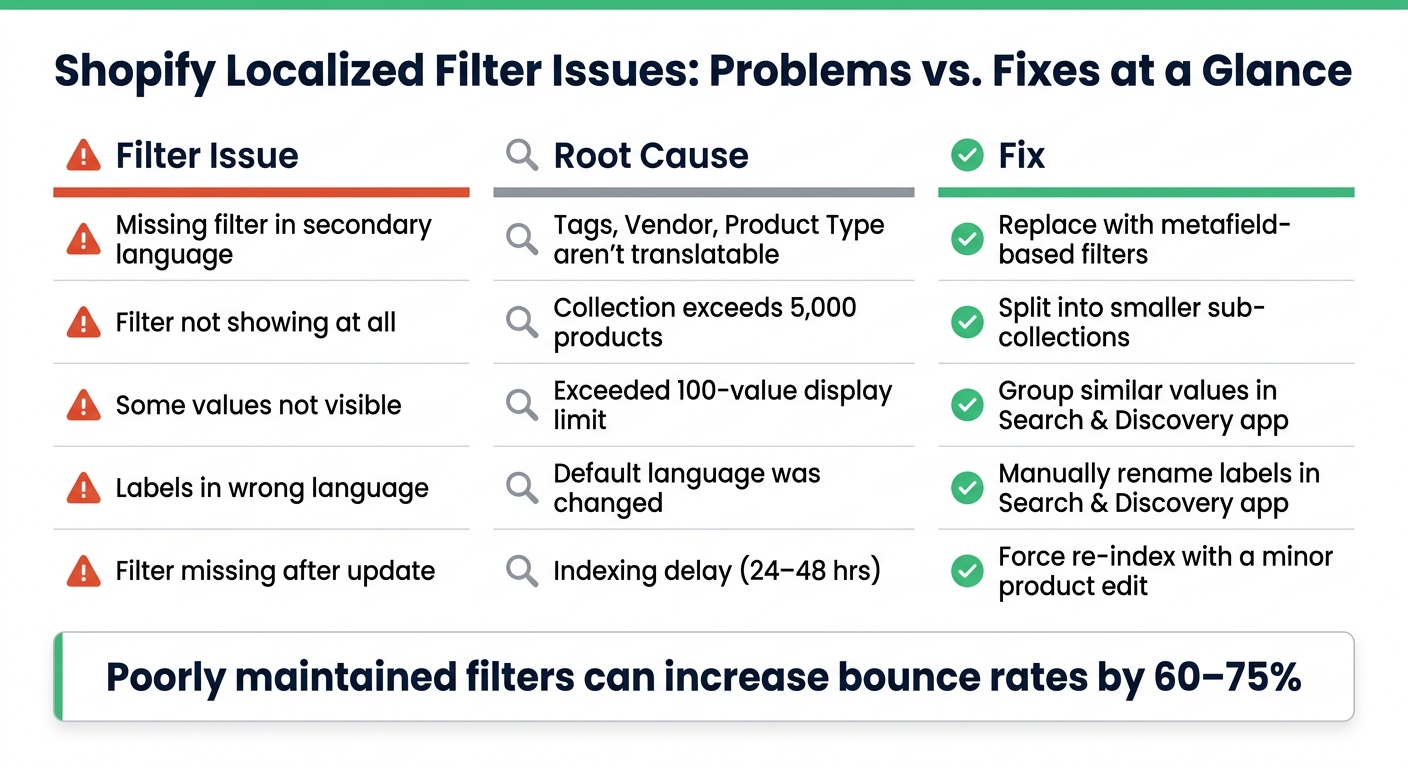
Shopify Localized Filter Issues: Problems vs. Fixes at a Glance
Even after addressing translation and format issues, you might notice that some filters are still missing or incomplete. This can happen due to Shopify's platform limitations, which may cause filters to disappear entirely, especially in localized stores. Here's how to tackle this problem.
Common Reasons Filters Go Missing
Shopify's built-in constraints often lead to missing or inconsistent filters across different languages.
"The product tag filter only displays to customers shopping in your store's default language. Vendor filter values are always based on your store's default language." - Shopify Help Center
For example, Product Type filters don't appear in non-default languages because they aren't translatable. But translation isn't the only issue - there are additional limits to consider:
- Collections with over 5,000 products won't display any filters.
- Search results exceeding 100,000 products face the same restriction.
- A single filter can show a maximum of 100 visible values, so filters with more than 100 options (e.g., a large "Brand" filter) may hide some values.
- Indexing delays can cause new metafield values or product updates to take 24 to 48 hours to appear in filters after saving.
These restrictions can make filters disappear, but there are steps you can take to fix them.
Steps to Restore Missing Filters
If you're dealing with filters that have gone missing, here’s how you can resolve the issue:
- Replace Product Type and Tags with custom metafields: Shopify's metafields support translations across all languages and work consistently in every market. Use the "Single line text (list)" metafield type for category or tag-style data, then set these metafields as filter sources in the Shopify Search & Discovery app.
- Trigger a manual re-index: If filters disappear after a product update, edit and re-save the product to force a re-index.
- Rename filter labels manually: If filter labels are stuck in the default language, open the Search & Discovery app and update them with the correct terms.
- Split large collections: For collections with more than 5,000 products, divide them into smaller sub-collections to restore filter functionality.
Here’s a quick reference table to match issues with their fixes:
| Filter Issue | Root Cause | Fix |
|---|---|---|
| Missing in secondary language | Tags, Vendor, Product Type aren't translatable | Replace with metafield-based filters |
| Filter not showing at all | Collection exceeds 5,000 products | Split into smaller sub-collections |
| Some values not visible | Exceeded 100-value display limit | Group similar values in Search & Discovery app |
| Labels in wrong language | Default language was changed | Manually rename labels in Search & Discovery app |
| Filter missing after update | Indexing delay (24–48 hrs) | Force re-index with a minor product edit |
Audit Catalog Attributes to Keep Filters Healthy
As your catalog grows, tiny inconsistencies - like mismatched names or missing metafields - can wreak havoc on your filters. This can lead to fragmented option lists and missing results, ultimately frustrating users. Poorly maintained filters can increase bounce rates by as much as 60–75%, which directly impacts revenue. Regularly auditing your catalog's attributes is essential to keep your filters accurate and effective.
How to Spot Common Attribute Issues
Most filter problems stem from four main issues: inconsistent naming, high cardinality, coverage gaps, and visibility blockers.
Take inconsistent naming, for example. Variations like "Small", "S", and "Sm" may all refer to the same size but are treated as separate options. This reduces product visibility and creates a confusing user experience. Similarly, color attributes such as "Navy", "Dark Navy", and "Midnight Blue" can fragment filters without a standardized naming system. For localized stores, this issue can be even worse when attributes appear in both English and translated forms.
High cardinality is another challenge. Attributes like "Material" with more than 50 unique values can clutter and overwhelm filter lists. Moreover, if an attribute is missing from 30% of your products, it will return 30% fewer results than expected. To maintain a clean filter experience, aim for a 95% or higher completeness rate for your most-used attributes. Regularly check for zero-result filters, as they often point to data gaps or normalization problems.
Automated tools can simplify the process of identifying and fixing these issues, saving time and effort.
Using FacetGuard to Audit and Fix Filter Issues
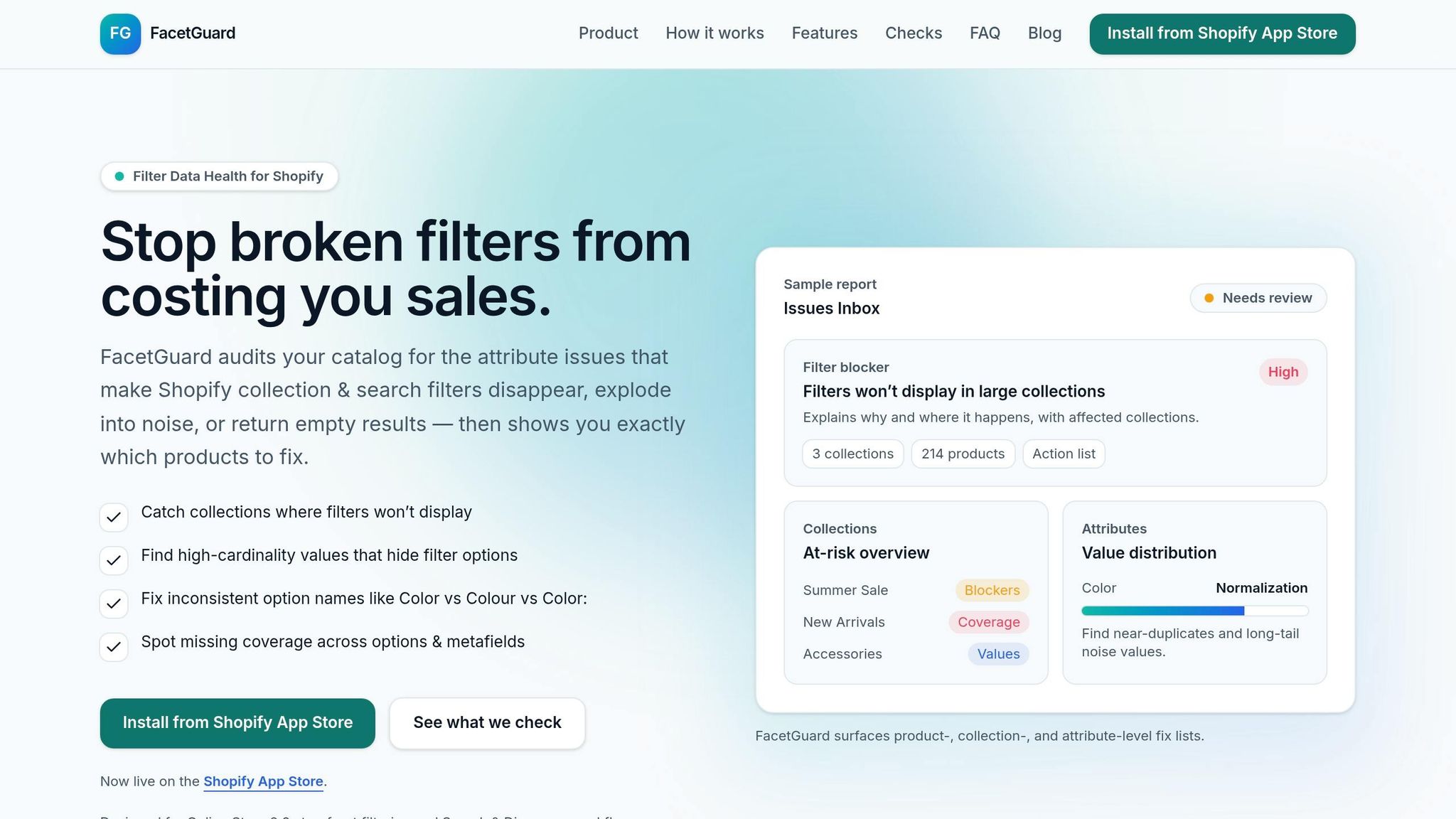
Manual audits may work for smaller catalogs, but they quickly become impractical as your product range expands. That’s where tools like FacetGuard come in. Available for free on the Shopify App Store (as of January 13, 2026), FacetGuard automates the process of scanning your catalog for issues that affect filter performance. It’s especially useful for maintaining accuracy across multiple languages as your catalog grows.
FacetGuard’s Issues Inbox prioritizes problems by severity, so you know exactly where to start. Its Filter Blockers Scanner identifies collections where Shopify’s size limits cause filters to disappear - issues that often go unnoticed until customers complain. The Cardinality Audit flags attributes with too many unique values, while the Normalization Check finds near-duplicate names like "Color" and "Colour" that split filter coverage.
When problems are detected, FacetGuard generates product-specific fix lists and CSV exports, making bulk edits in Shopify’s editor quick and easy. This eliminates the need for tedious, manual corrections.
Here’s a breakdown of how FacetGuard tackles common attribute problems:
| FacetGuard Feature | Problem It Solves |
|---|---|
| Filter Blockers Scanner | Pinpoints collections where filters vanish due to Shopify’s size thresholds |
| Cardinality Audit | Highlights attributes with excessive unique values that clutter filter lists |
| Normalization Check | Finds near-duplicate names that fragment filter coverage |
| Coverage Audit | Identifies products missing essential metafields or options |
| CSV Exports | Simplifies bulk edits, eliminating the need for manual product adjustments |
Conclusion: Keep Localized Filters Accurate and Working
Localized filter problems often arise from conflicts between translations and backend consistency. These issues can show up in various ways - URL parameter changes, attribute value splits due to translations, regional standard mismatches, or missing metafields that hide products. What makes these problems tricky is that they usually appear as subtle storefront quirks rather than outright errors, making them easy to miss but costly in terms of lost revenue.
Fixing these issues isn't a one-and-done task - it requires ongoing effort. Steps like standardizing attributes, converting old URLs to GID formats, and using tools like FacetGuard for regular audits are crucial for maintaining dependable filters. Focus on achieving at least 95% completeness for high-impact filters and ensure external links use GID-based URLs to minimize potential revenue loss. Andrew Simpson, Founder & Director of Pea Soup Digital, puts it well:
"Filters are not a feature. They are a revenue lever. Every click a shopper saves getting to the right product is friction removed from the path to purchase."
Even small inconsistencies - like having both "Colour" and "Color" as options - can split filters, reducing product visibility without any clear warning.
FacetGuard simplifies ongoing monitoring by automatically identifying filter blockers, normalization errors, coverage gaps, and other issues. It prioritizes fixes in an actionable list, and since it's free on the Shopify App Store, it’s an accessible solution for merchants who want to keep their filters accurate, reliable, and effective across all languages and markets.
FAQs
How do I find and replace old text-based filter links with GID URLs?
To switch from old text-based filter links to GID URLs in Shopify, you'll need to update your filter URLs to use stable group identifiers (GIDs). Starting March 16, 2026, Shopify mandates GID-based URLs for consistent filtering across stores.
Here's how to make the change:
- Locate any text-based URLs, such as
filter.v.option.color=Blue. - Replace them with GID URLs, like
filter.v.option.color=gid://shopify/FilterSettingGroup/XXX. - Update all store links and filters to reflect this new format.
This ensures your store complies with Shopify's updated requirements for filter URLs.
Which filter parts can I translate without breaking results?
When setting up multilingual stores, you can translate metafield names and values by creating product metafields, defining them for filters, and using tools like Translate & Adapt for manual translations. However, keep in mind that certain elements, such as product types and resource tags, cannot be directly translated.
Additionally, you might encounter issues with filter URL parameters. To address this, consider workarounds like translating filter labels through metafields to ensure your filters remain functional across different languages.
Why do filters disappear on some collections or languages?
Filters might stop working for several reasons, often tied to inconsistencies in how attribute data is managed, translation problems, or incorrect settings. Some typical culprits include:
- Missing or untranslated product tags and metafields
- Mismatched language settings
- Bugs within the theme itself
Additionally, filters can malfunction if system limits are exceeded or if the filtering setup - like the Search & Discovery app - isn't fully configured. To prevent these issues, double-check that all attributes are correctly translated and properly set up.