
Shopify Metafields vs. Schema for Filters
If your Shopify filters are messy, the cause is usually simple: data and rules are out of sync. I’d sum it up like this: metafields store the attribute, and schema controls whether that attribute works cleanly as a filter.
Here’s the short version:
- I use metafields to store custom product details like material, fit, certification, or dietary tags
- I use schema and metafield definitions to lock the type, allowed values, and filter behavior
- I expect list text fields to work for checkbox filters, number fields for range filters, and true/false for toggle-style filters
- I watch for messy inputs like “Gray” vs. “Grey” or “S” vs. “Small”, because even small differences can split one filter into many
- I treat high-cardinality fields as a warning sign, because too many one-off values can stop a filter from showing at all
- I know Shopify’s native filters work best when the catalog team and the technical setup follow the same rules
In plain English: metafields give me flexibility, but schema gives me control. If I only add data and skip rules, filters get cluttered. If I only define rules and ignore data quality, filters still fail.
Quick takeaway: for simple filters, metafields plus tight validation are often enough. For filter logic, value control, and scale, I need schema discipline too.
| Criteria | Metafields | Schema |
|---|---|---|
| Main job | Store product attribute data | Control type, validation, and filter behavior |
| Best for | Custom fields like color, fabric, fit, care | Keeping values clean and filters stable |
| Main risk | Duplicate or messy values | Limited by Shopify’s native filter rules |
| Common owners | Merchandisers and catalog teams | Developers and store admins |
| Storefront effect | Supplies filter values | Decides how those values can appear |
So before I add another filter, I check two things: Is the data clean? And are the rules tight enough to keep it clean?
Shopify Metafields for Filters

How Metafields Work in Practice
Metafields let you add filterable product details that Shopify doesn’t store out of the box. Common examples include fabric, fit type, dietary requirements, and certification. These are the kinds of details shoppers often look for before they buy.
To set this up, define the metafield in Settings > Custom data. Then add it as a filter source in Online Store > Navigation.
The metafield type you pick shapes how the filter appears on the storefront:
| Metafield Type | Best Use Case | Filter Output |
|---|---|---|
| Single line text (list) | Standardized options (e.g., Cotton, Polyester, Silk) | Checkbox multi-select |
| Integer / Decimal | Numeric attributes (e.g., thread count, weight) | Range slider |
| True / False | Binary attributes (e.g., Organic, Vegan) | Toggle |
That part is simple enough. The harder part is keeping the values clean and consistent behind the scenes.
Where Metafields Help and Where They Break Down
Metafields are useful because they let merchants add filterable attributes without extra app work. Those attributes sit next to Shopify’s standard fields and plug straight into native Shopify filters.
Where things go sideways is value control.
If your team doesn’t use the same terms every time, one attribute can split into a mess of separate filter values. "Small", "S", "Sm", and "small" all show up as different options. "Nike", "NIKE", and "nike" turn into three separate filter entries. It sounds minor, but on a large catalog, this gets out of hand fast.
Instead of helping shoppers narrow results, the filter starts to look cluttered and confusing. A single "Size" filter can swell into dozens of near-duplicate values just because people entered data in slightly different ways.
There’s another snag too: attributes with too many one-off values. A "Color" metafield filled in by several team members, with no naming rules, can turn into a giant filter list that no one wants to scroll through.
This is where schema constraints start to matter. Without them, metafields can drift from useful to messy in a hurry.
How FacetGuard Audits Metafield-Backed Filters
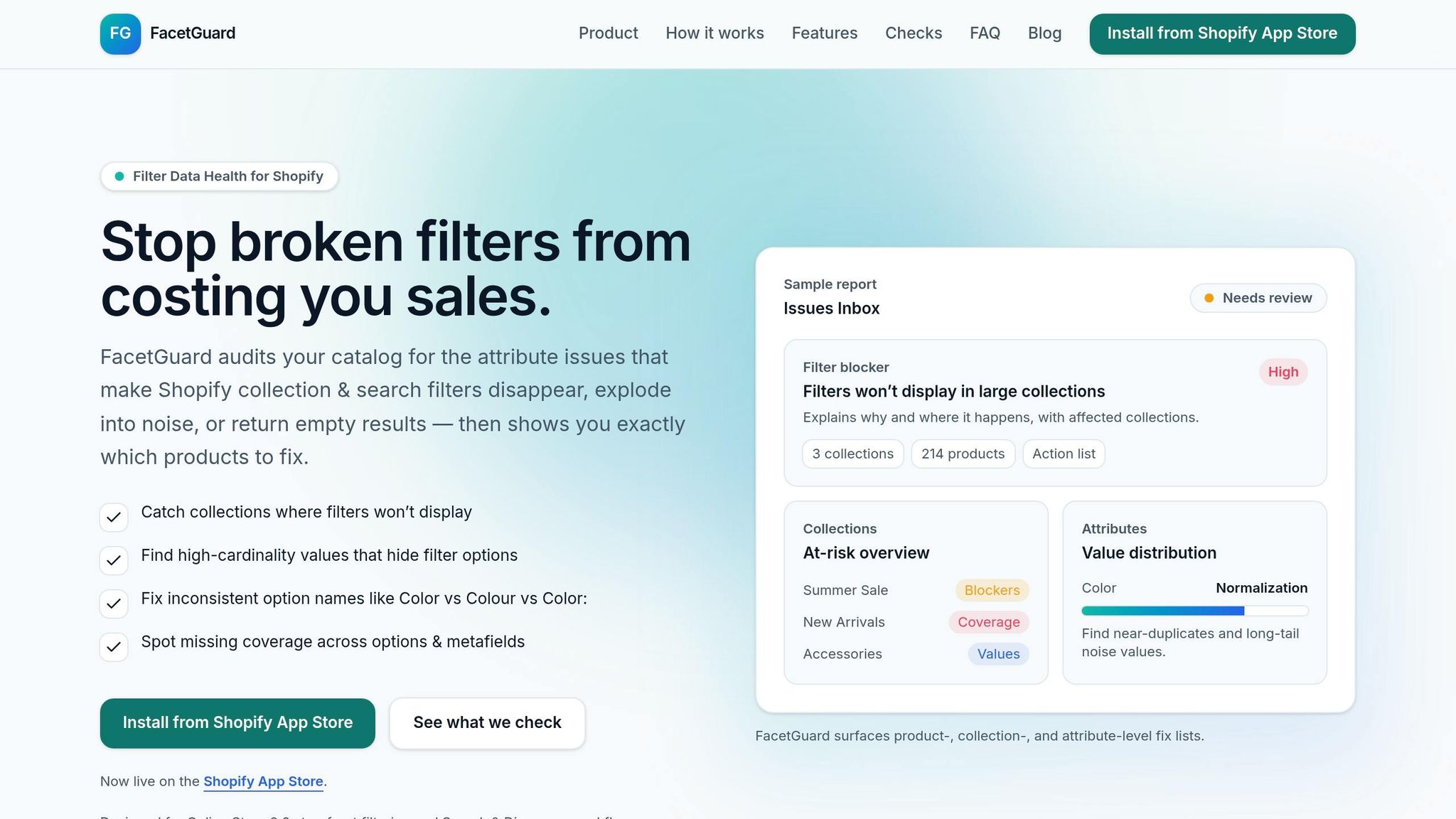
Bad metafield data is often the reason filters split apart, vanish, or point shoppers in the wrong direction. FacetGuard audits metafield-backed filters for inconsistent values, excessive cardinality, and missing coverage, then ranks the issues by impact.
Those audit results make one thing clear: filter quality depends on both data hygiene and schema control.
sbb-itb-e8e54fb
Schema Constraints for Shopify Filters
Schema as the Contract for Filter Attributes
Once metafield data is in place, schema decides whether that data can become a stable filter. The metafield holds the value. The schema sets the rules: which attributes are filterable, what data types they can use, and how they show up on the storefront.
If values aren't kept in line, one attribute can split into several filter options. A simple example: slight value changes can turn one filter into a mess of near-duplicates. That's why schema has to block bad inputs before they reach the catalog. Without a fixed set of allowed values, fields start to pile up with variations, and those variations break into separate filter entries. The answer is a tight schema that doesn't let those bad values in.
Technical Limits That Shape Filter Design
High-cardinality attributes - attributes with hundreds of different values - can make filters disappear altogether. That's not just a display issue. It's a warning sign. If an attribute has too many distinct values to support filtering, the schema has to be changed before the filter can work at all.
Why Schema Governance Matters Across Channels
Schema governance keeps each attribute name, type, and value set aligned across storefront, search, and feeds. That's the control layer that keeps metafield-backed filters steady as the catalog grows. It also makes the metafields-versus-schema tradeoff easy to see.
Shopify Metafields Explained (2026 Tutorial)
Shopify Metafields vs. Schema for Filters: A Direct Comparison
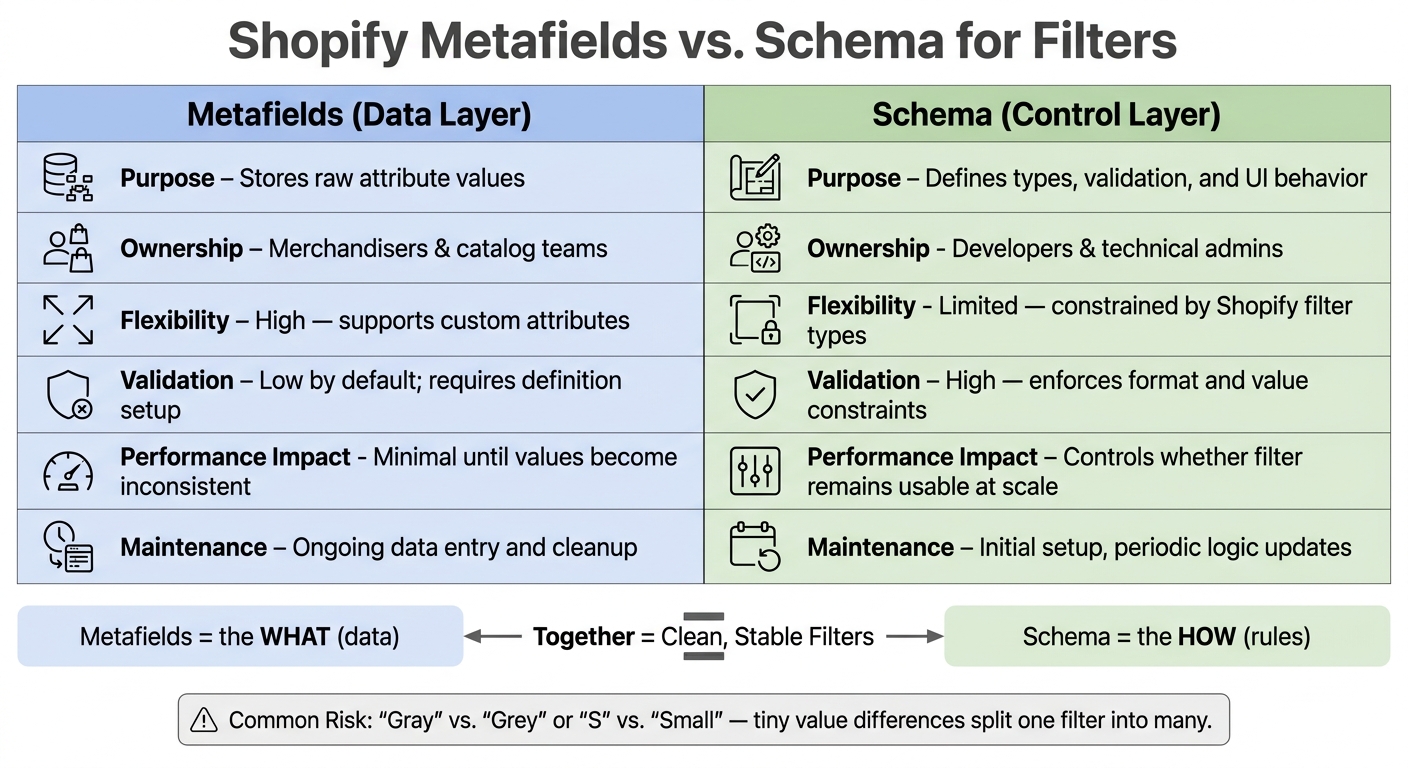
Shopify Metafields vs. Schema: Filter Data vs. Filter Control
Conceptual Differences and Ownership
Metafields hold the filter data. Schema defines the rules that make that data usable in filters. In plain English: catalog teams fill in the values, while technical teams decide the type, validation, and how the filter behaves in the storefront UI.
That split matters most in three places: ownership, validation, and scale.
| Dimension | Metafields (Data Layer) | Schema (Control Layer) |
|---|---|---|
| Purpose | Stores raw attribute values | Defines types, validation, and UI behavior |
| Ownership | Merchandisers, catalog teams | Developers, technical admins |
| Flexibility | High - supports custom attributes | Limited - constrained by Shopify's supported filter types |
| Validation | Low by default; requires definition setup | High - enforces format and value constraints |
| Performance impact | Minimal until values become inconsistent | Controls whether the filter remains usable at scale |
| Maintenance | Ongoing data entry and cleanup | Initial setup, periodic logic updates |
A simple way to think about it: metafields are the what, and schema is the how. You can add data to a product all day, but if the rules behind that data are loose, filters start to get messy fast.
Implementation, Reliability, and Scale Tradeoffs
Adding a new filter with metafields is usually fast once the metafield definition and validation are already set up. That part feels easy.
The trouble starts when values aren't controlled. As the catalog grows, metafield-backed filters can drift. One team enters “Cotton,” another enters “cotton,” and someone else types “Cotton Blend.” Now the filter still exists, but it's less useful. That's the catch: native filters work well only when definitions and values stay clean.
So while metafields help you move fast, they don't fix data discipline on their own. If the structure is loose, scale exposes the cracks.
When Metafields Are Enough and When Schema Must Change
Metafields are enough for simple filters like material or color, as long as values stay controlled. For numeric filters, use Integer or Decimal. For binary filters, use True/False.
That works well up to a point. But native filtering doesn't handle conditional logic or custom sort order. If you need filters to behave differently based on context, or you want more control over how options appear, schema and theme logic have to change. Free-form text won't get you there.
When filter rules need tighter control, schema design becomes the main lever.
Building a Stable Filter Model on Shopify
This is the day-to-day version of the metafields-versus-schema split: define the attribute, then lock down how it behaves.
Choose Canonical Attributes and Model Them Correctly
For most stores, Shopify’s native filters already handle price, availability, vendor, and variant options. For custom attributes like material, certification, fit, or care, use metafields.
Metafields hold the data. Schema decides whether that data stays usable as a filter.
The metafield type should match the job you want it to do:
- Use a list for fixed options
- Use a number for ranges
- Use true/false for binary attributes
Normalize units before you do anything else. Use pounds for weight and inches for length.
Once you’ve modeled the attribute, the main risk shifts to consistency. That’s where things often start to go sideways.
Keep Metafields Aligned with Schema Expectations
Each metafield needs to be linked as an active facet in Shopify Search & Discovery before it can show up on the storefront.
Across the catalog, stick to one normalized value for each option. Tiny differences in wording can create duplicate facets and messy filters as the catalog grows.
Use "Single line text (list)" validation instead of freeform text whenever you can. It keeps options within a set list and stops random entries from splitting filter results into fragments.
Conclusion: Use Metafields for Data, Schema for Control
Metafields store data. Schema controls exposure. Those two need to stay in sync if you want filters to stay clean and reliable as the catalog gets bigger.
As new products come in, attributes tend to drift. Teams reuse definitions with different values or types, and that’s when filters start to split, vanish, or return noisy results. FacetGuard audits metafield and schema issues that break, hide, or distort filters before shoppers see them.
FAQs
When should I use metafields alone?
Use metafields when you need to store and filter custom product details that Shopify’s standard fields don’t cover, like title, price, or vendor.
They work best for niche details such as dimensions, dietary certifications, or technical specs. Unlike plain product tags, metafields give you type validation and consistent naming. That helps avoid messy filter clutter and keeps storefront filtering accurate.
To make this work, enable filtering on the metafield definition and stick to supported data types.
Why do Shopify filters split into duplicates?
Shopify filters often split into duplicates when the same product detail lives in different places, like tags, standard fields, and more than one metafield. Shopify reads those as separate values, so you end up with split filter options instead of one clean group.
Naming issues make things worse. A label like "Color" in one place and "Colour" in another can create two different filters. The same thing happens with values such as "navy blue" and "Navy." On top of that, duplicate metafield definitions left behind by older apps or set up by different teams can fragment filters even more, which leads to clashing and messy options.
How do I fix a filter that doesn’t show?
If a filter doesn’t show up, start with the basics in Shopify.
Make sure it’s added as a filter source in the Shopify Search and Discovery app. Then check that Enable filtering is turned on in your theme’s Product Grid settings. Also look at the metafield definition itself, because it needs to allow filtering.
There are a couple more gotchas. Shopify hides filters on collections with more than 5,000 products. And some data types, like weight or measurement, just aren’t supported.
If you’re stuck, FacetGuard can help spot missing attributes or broken setup.