
Why Metafield Filters Stop Working
If your Shopify metafield filter stops working, the problem is usually one of four things: setup, data, theme display, or storefront logic. In plain terms, the filter either was not set up all the way, uses a type Shopify will not filter, points to the wrong data source, or has messy product values behind it.
Here’s the short answer:
- Check the metafield definition first in Settings → Custom data
- Make sure the metafield type is supported for filtering
- Confirm the filter source in Search & Discovery matches where the data lives
- Turn filtering on in the theme
- Review product data for missing values, mixed case, and wrong product/variant level
- Wait for indexing if you just changed a lot of data
- Watch collection limits: Shopify may hide filters on collections above 5,000 products and search result sets above 100,000 items
In many stores, the filter is not “broken” at all. It is just missing one required step. And if the filter appears but shows 0 results, that often means the source is wrong or the value is stored at the wrong level.
A few fast examples:
- You chose Product option when the data is in a metafield
- The metafield exists on products, but the filter is set up for variants
- Values like “Blue” and “blue” split into two filter options
- The filter is added in the app, but the theme setting for filtering is off
My takeaway: start in the admin, not the theme code. That is where most filter issues come from. Once setup checks out, move to data quality, then indexing, then headless or cache issues if your storefront is custom.
| Problem area | What you’ll see | First place to check |
|---|---|---|
| Setup | Filter missing | Custom data definitions |
| Filter source | Filter shows no matches | Search & Discovery |
| Theme display | Filter in app, not on page | Theme customizer |
| Data quality | Missing or split values | Product metafield values |
| Store size / storefront logic | Filter missing only on some pages | Collection size, API, cache |
If you want the shortest fix path, use this order: definition → type → source → theme setting → product data → indexing → storefront logic.
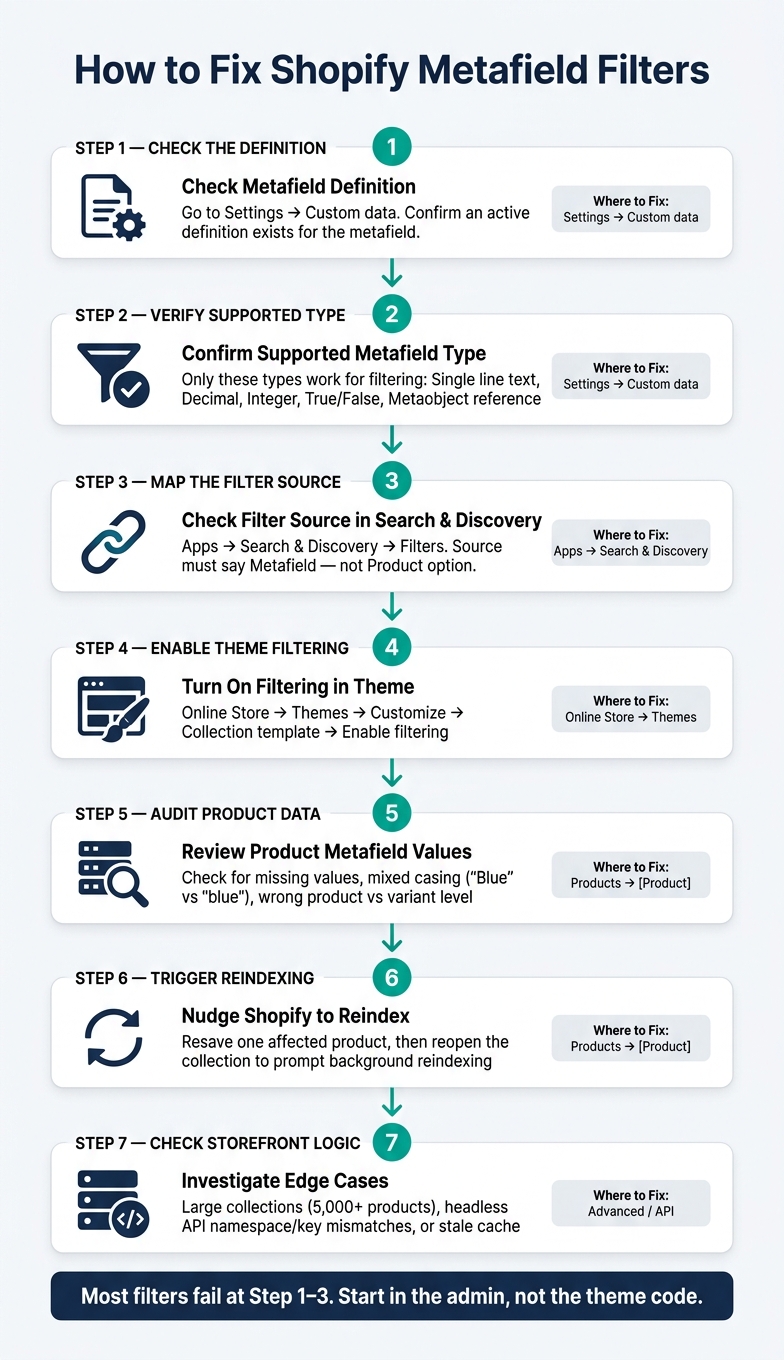
How to Fix Shopify Metafield Filters: Step-by-Step Troubleshooting
Collection Filters in Shopify 2.0 - Full Tutorial & Concepts
sbb-itb-e8e54fb
Configuration Problems That Break Metafield Filters
Most broken metafield filters come from admin setup, not theme code. So if a filter is missing or looks off on the storefront, start in the admin first.
Missing Definitions and Unsupported Metafield Types
A metafield can be filled out and still fail as a filter if Shopify doesn’t have an active definition for it in Settings → Custom data. If that definition is missing, Search & Discovery won’t show it as a filter source.
Type matters too. Shopify only allows these metafield types for filtering: Single line text and list, Decimal, Integer, True or False, and Metaobject reference and list.
You also need to match the definition to where the data lives: product or variant.
If the metafield checks all those boxes, the next place to look is filter source mapping and theme display.
Search & Discovery vs Theme Display Errors
Once the definition is set up right, check two things: the filter source in Search & Discovery and whether the theme is set to show filters.
In Search & Discovery (Apps → Search & Discovery → Filters), the filter source has to match the data location. One common slip-up is choosing Product options for metafield data, or choosing a metafield source for product-option data. Everything can look fine in the app, yet the filter still shows zero results.
On the theme side, go to Online Store → Themes → Customize, open the collection template, click the Product grid or Collection section, and make sure Enable filtering or Show filtering is turned on. It’s also worth checking Content → Menus for a Collection and search filters warning if theme support seems shaky.
Setup Errors vs Theme Display Errors: A Quick Comparison
| Symptom | Likely Cause | Where to Fix |
|---|---|---|
| Metafield not listed as a source in Search & Discovery | Unsupported type or missing definition | Settings → Custom data |
| Filter added in the app but missing on storefront | Theme filtering is off or the theme doesn’t support it | Online Store → Themes → Customize |
| Filter appears but shows zero results | Source mismatch, like scanning Product options instead of Metafields | Apps → Search & Discovery → Filters |
| Filter disappears only on large collections | Collection exceeds 5,000 products | Admin → Collections |
| Specific variant values are missing from the filter | Variant data is stored at the wrong level | Admin → Products |
Data Problems That Make Filters Disappear or Return Bad Results
If your configuration is fine, the next place to look is your catalog data. Start with coverage and value consistency. After that, check whether Shopify has finished reindexing.
Low Coverage, Inconsistent Values, and Wrong Value Shape or Level
When only a small number of products have a given value, a filter can look thin or vanish as the collection changes.
Consistency matters just as much. Shopify metafield filters can be case-sensitive, so "Blue" and "blue" may show up as two separate values. The same thing happens with mixed formats or units. What should be one filter option gets split into several. The fix is simple: use one label, one format, and one unit across all products.
Sometimes the values are there, but the filter still looks off. When that happens, the next thing to check is indexing.
Indexing Delays and Product-Level vs Variant-Level Mismatches
Saving a metafield change doesn't always update the storefront right away. Shopify indexes catalog data in the background, so edits can take a little time to appear. If a filter still looks wrong after a bulk edit, re-save one affected product and see if the filter changes.
Another common issue is storing data at the wrong level. If the value sits at the variant level but the filter is set to the product level, the filter can return zero matches even though the data exists.
"If your filter scans 'Product option' but your color data is in a metafield (or vice versa), the filter will not find anything." - Umid, Co-Founder at Craftshift
How FacetGuard Helps Audit Filter Data Quality
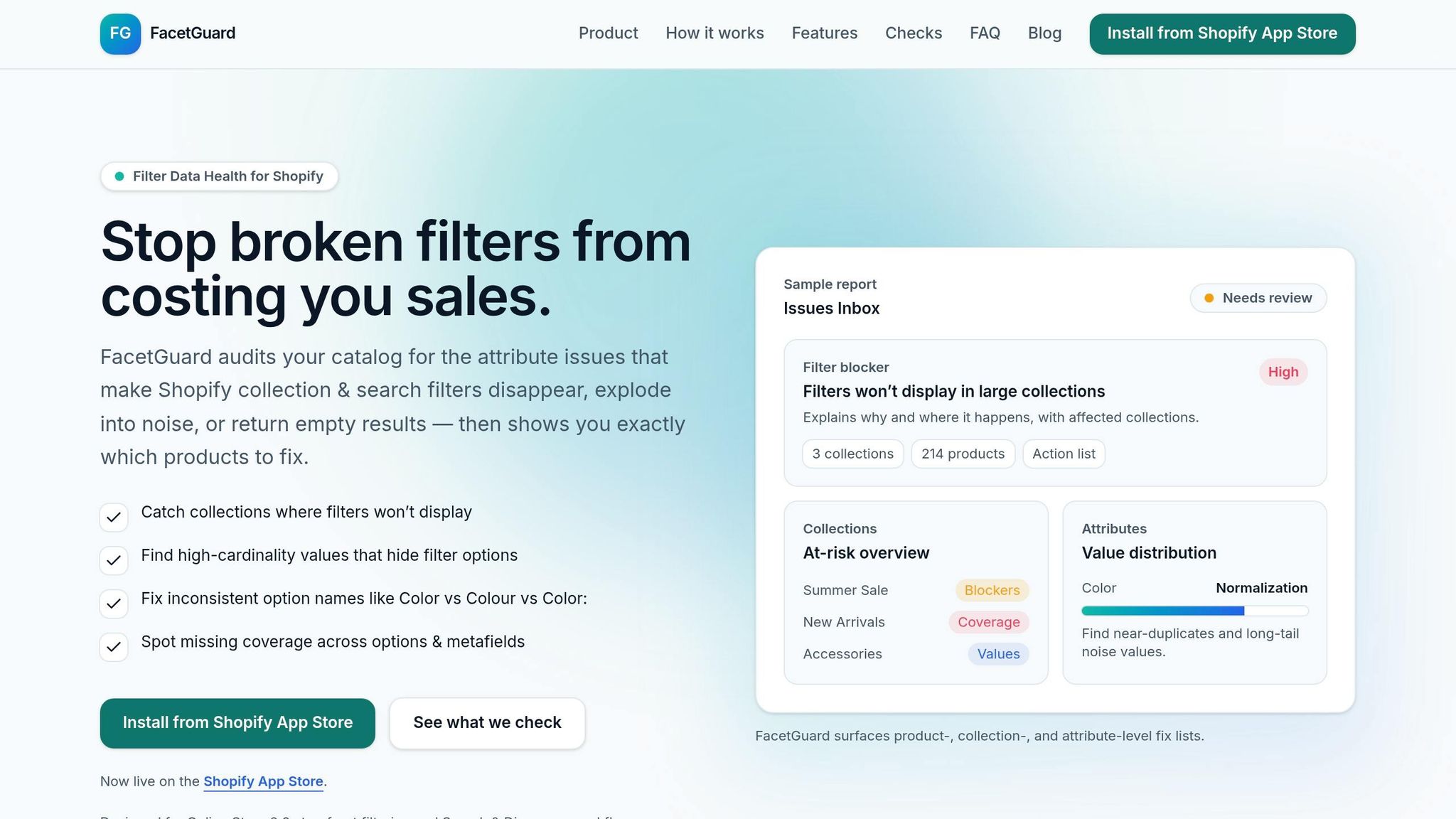
Checking coverage, casing, and value spread across hundreds or thousands of products by hand just doesn't scale. FacetGuard audits coverage, value consistency, and noisy attributes so you can spot and fix broken filter data across the catalog.
If the data looks clean, the next place to check is usually collection limits or storefront implementation.
Edge Cases in OS 2.0 and Headless Storefronts
If the definitions, source mapping, and data all check out, the next place to look is the storefront layer.
Filter Limits and High-Cardinality Attributes
High-cardinality attributes create too many one-off values. That makes filters bulky, harder to use, and less helpful for shoppers.
In very large catalogs, this can snowball. Filters may return empty results, or later products can trigger server errors.
Headless Queries and Custom Collection Logic
Headless storefronts add another point of failure: the query has to match the metafield definition exactly. In headless storefronts, the Storefront API only returns filters that match the exact namespace and key in Shopify. Products also need to be published to the storefront channel that the API is querying.
Caching can muddy the picture in production. A filter may work fine in development and then seem broken after launch. When that happens, clear stale HTML or cached query strings to confirm that caching is the cause.
Conclusion: A Step-by-Step Process to Restore Metafield Filters
When metafield filters stop working, start with the basics and move in order. Check the definition first, then the source, then the theme, then the product data, and only after that deal with reindexing.
First, make sure the metafield definition exists. Then confirm Storefront access is turned on. After that, check Search & Discovery and make sure it points to the metafield source using Metafield, not Product option.
If the filter appears in Search & Discovery but not on the storefront, the problem is probably in the theme. In that case, confirm filtering is turned on in the collection or product grid settings.
Next, review the data itself. Products in that collection need to have the metafield value filled in, and those values need to match. A small mismatch like spelling or letter case can trip things up, so standardize entries across all products.
If things still feel stuck after that, try a simple reindex nudge: resave one affected product, open another collection, and then come back to the original one to prompt Shopify to reindex.
Quick Fixes vs Long-Term Prevention
| Category | Quick Fix | Long-Term Prevention |
|---|---|---|
| Configuration | Redefine the metafield or turn the filter back on in Search & Discovery | Keep a schema document that maps each filter to its metafield source |
| Theme Display | Turn on filtering in the collection template settings | Test filter changes on a duplicate theme before publishing |
| Data Quality | Fix inconsistent values in the product admin and standardize casing | Run periodic audits with FacetGuard to catch missing coverage and filter blockers |
| Reindexing | Resave one product and reopen the collection | Test filter changes on a duplicate theme before pushing to production |
| Architecture | Change the filter source so it matches where the data lives | Use metaobjects for more complex data so you don't have to restructure variant options later |
FAQs
Why does my metafield filter show zero results?
This usually comes down to a data mismatch or a setup problem.
Start by checking a few basics in Shopify:
- Make sure the metafield is added as a source in the Shopify Search & Discovery app
- Make sure filtering is turned on in your theme settings
- Make sure the metafield uses a supported type
Then look at your product data. The filter values need to match exactly because filters are case-sensitive. Even a small difference in capitalization can stop a value from showing up the way you expect.
If Hide empty values is turned on, that can also make the filter disappear when only a small number of products have that metafield filled in.
How do I know if my metafield type supports filtering?
Check that the metafield uses a supported type: single-line text, integer, decimal, boolean, or metaobject reference. Types like rich text or JSON won’t work.
In Shopify Admin, go to Settings > Custom data and open the metafield definition. Turn on Storefront filtering or Available to Storefront, and make sure the admin filterable capability status is FILTERABLE.
Why is my filter missing on some collections but not others?
Filters may be missing on some collections for a few common reasons:
- Shopify hides filters on collections with more than 5,000 products.
- Enable filtering may be turned off in your theme editor.
- The metafield may not be added as a filter source.
- If Hide empty values is on, a filter won’t show unless products in that collection use that attribute.
- Check that Storefront filtering is turned on for the metafield.